

When you’re building a website, especially with WordPress, speed isn’t just a bonus; it’s critical. A slow site can lead to a higher bounce rate, hurt your Google rankings, and ruin the user experience.
I’ve worked with several WordPress-focused hosts over the years, and two names that often come up in conversations about speed and performance are Kinsta vs Pressable.
Both are managed WordPress hosting providers. That means they take care of updates, backups, security, and performance tuning for you, so you don’t have to mess with servers or settings yourself.
But the question I want to help you answer today is simple: Which one is faster and fits your unique situation – Kinsta or Pressable?
I’ve taken a close look at both hosting platforms, tested features, reviewed documentation, and studied their infrastructure, and I’ll walk you through the results in plain English.
No hype, no fluff. Just the facts you need to decide which host gives your WordPress site the speed edge.
Let’s start with a quick overview of each web host.
Hosting Overview
Pressable
Pressable has a strong WordPress heritage. It is owned by Automattic, the same company behind WordPress.com, WooCommerce, and Jetpack.
That means it is deeply tied into the WordPress ecosystem. It runs on what they call the WordPress Cloud infrastructure, built and optimized specifically for WordPress sites.
Pressable doesn’t rent generic servers. It runs on a platform that’s tuned from the ground up to deliver WordPress at scale. The entire focus is on making WordPress fast, secure, and easy to manage, especially for freelancers, eCommerce, and agencies who handle multiple WP sites.
One thing that stands out about Pressable is the agency-friendly features. If you manage a handful or dozens of client sites, the centralized dashboard and bulk tools make it easy to control everything in one place.
Pressable even offers a 100% uptime SLA, which is rare at this price point.
Kinsta
Kinsta, on the other hand, takes a different route.
Instead of building its own cloud, it uses Google Cloud Platform, specifically its fastest virtual machines (C2 and now C3D). These are high-performance servers built for speed. Kinsta runs them on Google’s premium tier network, which reduces latency across the globe.
From the start, Kinsta has positioned itself as a high-performance managed WordPress host. Everything they do revolves around speed: edge caching, built-in CDN, server caching, performance monitoring, and fine-tuned PHP workers.
Your dashboard, called MyKinsta, is built for power users, developers, site managers, and growing businesses who want detailed control without needing to manage a server directly.
While both Kinsta and Pressable are “managed WordPress hosting” platforms, the way they approach it is different.
Kinsta emphasizes raw performance and developer tools, while Pressable leans more towards simplicity, proprietary infrastructure, and WordPress-native integration.
| Features | Kinsta | Pressable |
|---|---|---|
| Starting Price | $30/month | $25/month |
| Data center | 37 Origin Servers | 4 Origin Servers |
| CDN | Cloudflare (260+ PoP) | Edge Cache CDN (28 PoP) |
| Bandwidth Limits | Tiered limits | Unlimited (all plans) |
| Storage Type | SSD | NVMe |
| SSL | Free Cloudflare SSL | Free Let’s Encrypt |
| Uptime Guarantee | 99.9% SLA | 100% with a guaranteed SLA. |
| Backup Retention | 14 or 30 days (Based on plan) | 30 days (All plans) |
| Free Plan | (35k plan) First month Free | No Free plan. |
| Built-in caching system | Yes | Yes |
| Migration | Free unlimited | Free unlimited |
| Email hosting | No | Add-on (Titan) 90 days free |
| Developer Tools | SSH, Git, APM, DevKinsta, API. | SSH, Git, WP-CLI, Studio Local, API. |
| Two-Factor Authentication | Yes | Yes |
| Staging | Yes | Yes |
| Support | 24/7 Multi-channel | 24/7 Live chat and email |
| Money Back Guarantee | Yes (30 days) | Yes (30-days) |
Ease of Use: What It’s Like to Work With Each Host
Hosting platforms should make your life easier, not harder. Whether you’re managing one site or hundreds, a clean dashboard, simple settings, and quick access to the right tools go a long way.
I’ve used both Kinsta and Pressable enough to know where each one makes things easy, and where they can be improved.
Note:
Read my detailed Kinsta review or see what I shared about Pressable review after using the platform for 60 days.
Kinsta: Built for Speed and Control
The MyKinsta dashboard is one of the most polished interfaces you’ll find in managed WordPress hosting. It’s not flashy, but it’s incredibly well-organized.
When you log in, you see a clear breakdown of your site’s activities, such as traffic, disk usage, and quick links to unique visits, CDN, bandwidth usage, and more. The main menu is on the left side of the screen.

Setting up a new site takes just a few clicks. You choose a data center location, set your site name, and decide whether to clone from another install, start fresh, or set up an empty environment (PHP without WordPress).
It’s fast, and everything is structured in a way that makes sense, even if you’re not a developer.
What I really like is how they separate tools per site. You can manage backups, clear the cache, restart PHP, change the PHP version, set up redirects, enable image optimization and edge caching, all without leaving the dashboard or installing extra plugins.
The one-click staging environment is also seamless. You can push changes from staging to live or vice versa, and you can even restore a backup to your staging environment to test fixes before going public.
Even advanced features like SSL certificate installs, DNS management (if you’re using Kinsta’s DNS), and Application Performance Monitoring (APM) are presented clearly. It doesn’t feel overwhelming because Kinsta hides the complexity behind a clean UI. But it’s all there if you need it.
From a user experience standpoint, Kinsta is ideal for users who want more control without dealing with server-level tech. Developers get what they need, and non-techies won’t feel lost.
Pressable: Simple and Focused
Pressable tends to simplify the user experience. The dashboard is also detailed and visually refined as Kinsta, and it’s easy to use, especially if you’re already familiar with WordPress.com.
You can see all your sites in one list, access staging environments, manage backups, plugins, themes, and jump into the WordPress admin with one click.
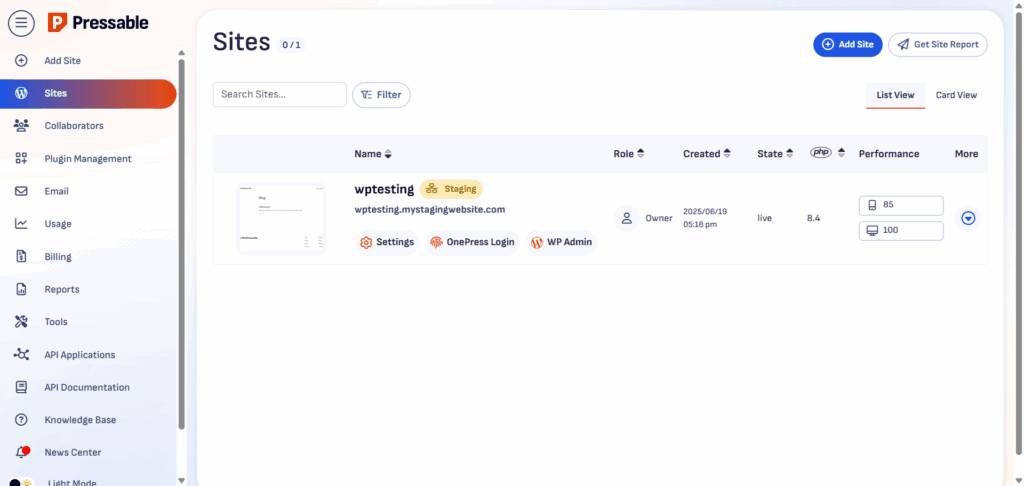
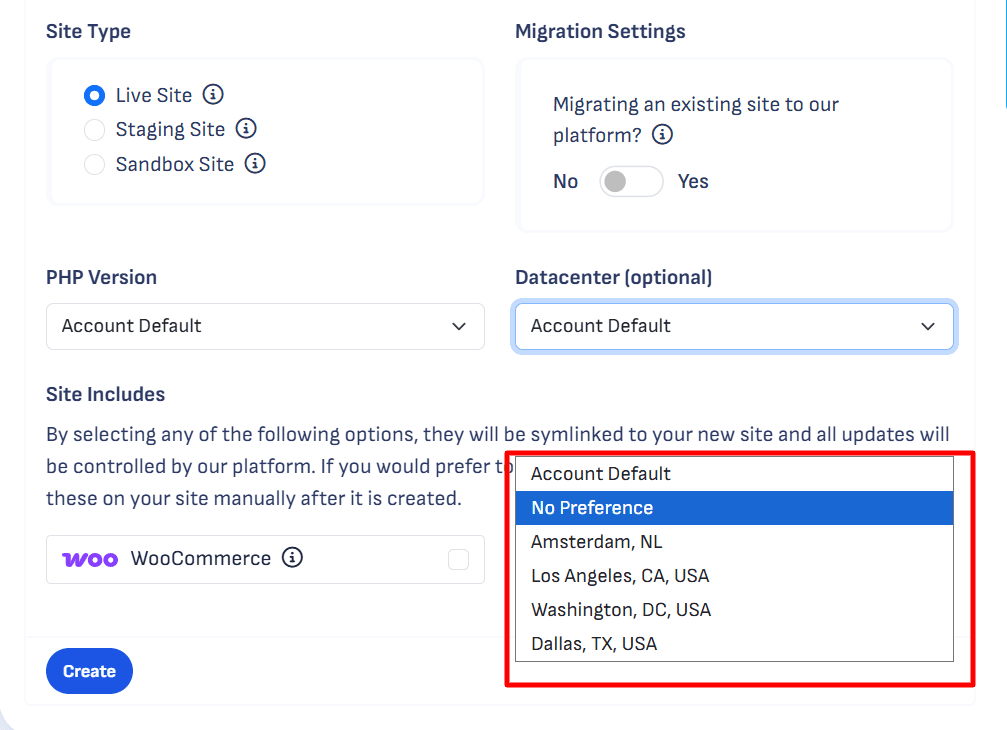
Creating a new site is straightforward. There’s no multi-step wizard or advanced setup page. You just name the site, choose a username, select the data center and PHP version (optional), and start working.
For solo site owners or busy agency teams that don’t want to spend time configuring infrastructure, this “get in and go” approach works well.
One thing I’ve appreciated is how centralized the experience is for agencies. If you’re managing multiple client sites, you don’t have to switch between accounts or dashboards.
Everything lives under a single login, and you can invite teammates or clients to access individual sites. You can transfer a site to another user in one click. That keeps workflows organized and easy to manage.
The built-in Jetpack integration is also a time-saver. Once your site is up, you can activate Jetpack Security, backups, and spam protection without installing five different plugins. And because Pressable is part of Automattic, Jetpack just works; there’s no friction.
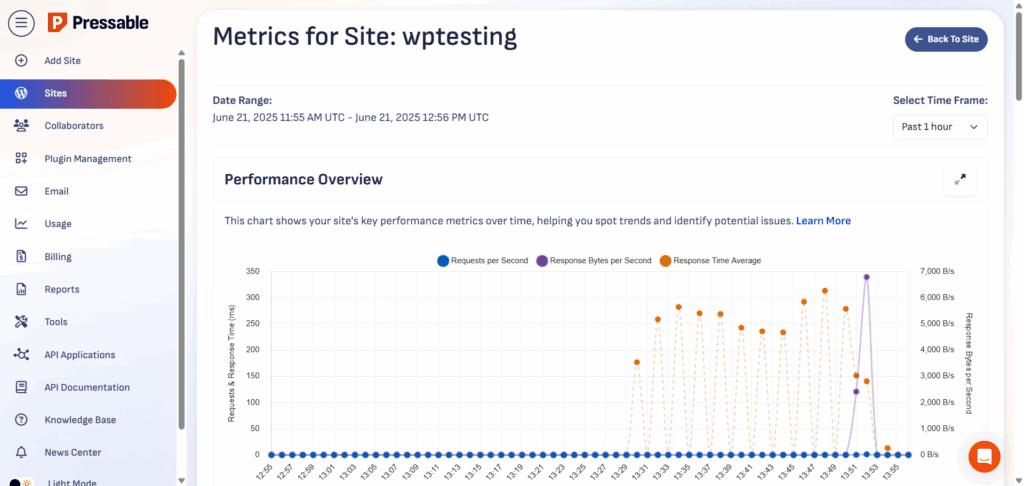
From the WordPress site settings page, you can click to open phpMyAdmin in one click. There is also a comprehensive breakdown of site analytics, including performance overview, response time, HTTPS status codes, slow Ajax actions, and more, all within your dashboard.
Which One Is Easier?
I think it is more about choice or preference rather than which one is actually better.
Both Kinsta and Pressable did a pretty good job simplifying the user experience and making things easier to manage.
The custom dashboards are built to help you improve productivity and efficiency, giving you full control without third-party help or complicated cPanel access.
Most of the things you’ll need to manage a WordPress site are baked into your dashboard, so you don’t have to juggle between multiple tabs or tools.
From one-click install, developer tools, site analytics, to server management, everything is one click away. Whichever option you choose, you will experience a low-maintenance WordPress site.
Speed & Infrastructure Comparison
When it comes to website speed, your hosting infrastructure matters a lot.
The type of servers your site runs on, where those servers are located, how caching works, and whether there’s a CDN in place. These are the things that decide how fast your pages load.
Let’s break down how Kinsta and Pressable handle these core speed factors.
Data Centers and Server Technology
Kinsta uses Google Cloud Platform’s premium tier, which gives you access to over 35 global data centers.
But what makes Kinsta really fast is its use of C2 and C3D machines. These are Google’s fastest virtual machines, designed for compute-intensive workloads such as content-rich websites and eCommerce stores.
Sites hosted on these VMs usually show lower time to first byte (TTFB) and faster overall page loads, even during traffic spikes.
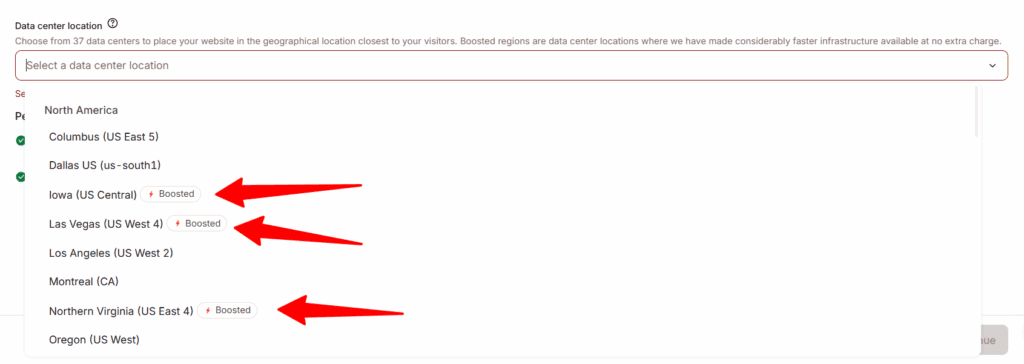
What’s also worth noting is that Kinsta lets you choose your data center location (from 37 locations) when you’re setting up your site. That means if your audience is mostly in the US, you can host your site in a US data center.
If they’re in Europe, Africa, or Asia, you can pick a location closer to them. This reduces latency and improves speed for your visitors. Kinsta also offers “boosted” data centers, server locations optimized for performance.
Pressable also lets you choose a datacenter, but this is very limited to what you have in Kinsta. As of writing, you can only choose from Amsterdam, Los Angeles, Washington, and Dallas. So, if most of your visitors are international (global), you may not get the same speed advantage that Kinsta offers with its global network.
Note:
However, Kinsta’s edge and additional data center locations might not translate into a faster time to first byte, as you will soon see in this Kinsta vs Pressable comparison.
Still, Pressable compensates for this drawback with its Edge Cache, which offers 28 PoP (Point of Presence) edge locations in six countries. So, technically, the origin data centers limitation is not a big deal.
Another thing is that Pressable does not give the exact machines it uses. Instead, it runs on WordPress.com’s cloud infrastructure, which is a proprietary system developed by Automattic.
It’s optimized specifically for WordPress, and although it doesn’t utilize Google Cloud, Microsoft Azure, or AWS, it’s still built for high availability and consistent performance. So, most sites still load quickly, regardless of the origin server.
CDN and Caching
Here’s where things start to get interesting.
Kinsta integrates fully with Cloudflare’s Enterprise CDN, included with every plan. That means your site is automatically served from over 260+ edge locations around the world. Static assets like images, CSS, and JavaScript files are cached globally, and Kinsta’s Edge Caching even caches your site’s HTML pages on Cloudflare’s edge.
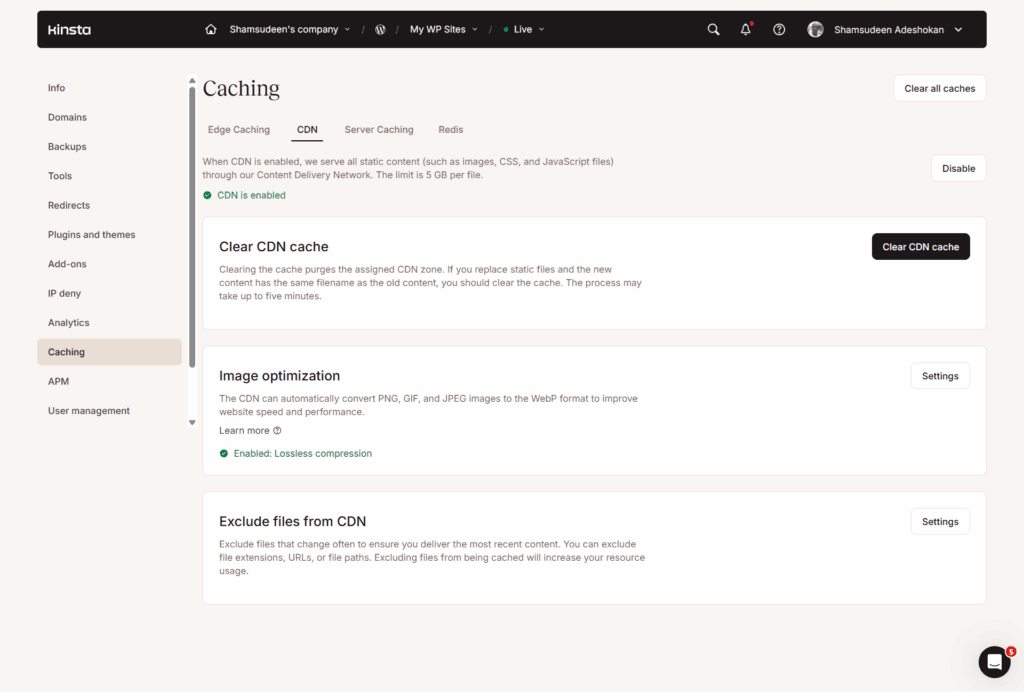
In simple terms, this brings your entire website closer to your visitors, no matter where they are.
Kinsta also supports modern tech like HTTP/3, Brotli compression, and Early Hints, all of which shave off milliseconds and improve page load times.
For dynamic sites, like WooCommerce stores or membership sites, Kinsta’s caching system is smart enough to know when to skip the cache and when to serve a saved version of the page.
Pressable doesn’t use Cloudflare; they do have a solid three-layer caching setup. This includes Edge Cache, OPcache, and page caching (Batcache) out of the box. There is also Object cache (Memcache), which stores frequently accessed data in your website’s memory.
For most small to mid-level sites, this is more than enough to keep things fast and provide a good user experience.
According to the Pressable documentation, its Edge Cache is all you need to serve content from 28 global Edge PoP locations, including the four origin data centers. Pressable Edge cache works like a CDN because it serves static assets and pages from the same edge locations as the CDN, so technically, you don’t need a separate CDN with it.
In fact, their documentation warns that using another CDN service (including JetPack CDN or other options) with your Pressable site could cause performance issues.
However, you can use Jetpack’s CDN for images and media, which helps with load times. But if you’re not using the JetPack’s Site Accelerator features, you don’t need to use Jetpack CDN.
If you need to purge the Pressable Edge cache, flush the Object Cache, or enable/disable Edge Cache, you can do so from your site control panel. This gives you some level of control over cache settings and ensures your site always shows the most current version.

However, if you want fine-grained control or you’re working with advanced caching strategies, Pressable offers a cache managment plugin, which you can install on your WordPress site.
With this, you can control which WordPress action triggers cache flushing, flush the object cache, enable/disable Edge Cache, purge the Edge cache, and set the Batcache lifespan from the default 5 minutes to 24 hours.
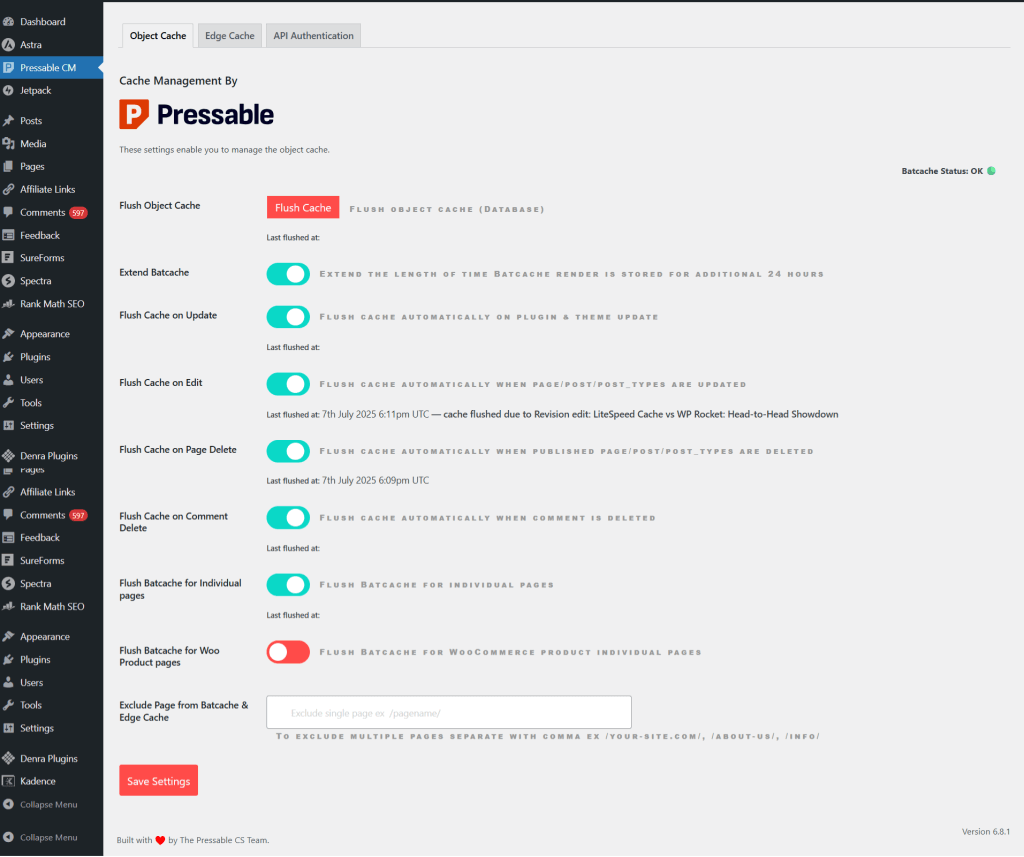
You need to get your API credentials from the MyPressable dashboard to connect the plugin with your control panel.
Kinsta also offers some flexibility (though not as detailed as a standalone caching plugin), with tools to clear the cache per URL, per site, or directly from the dashboard.
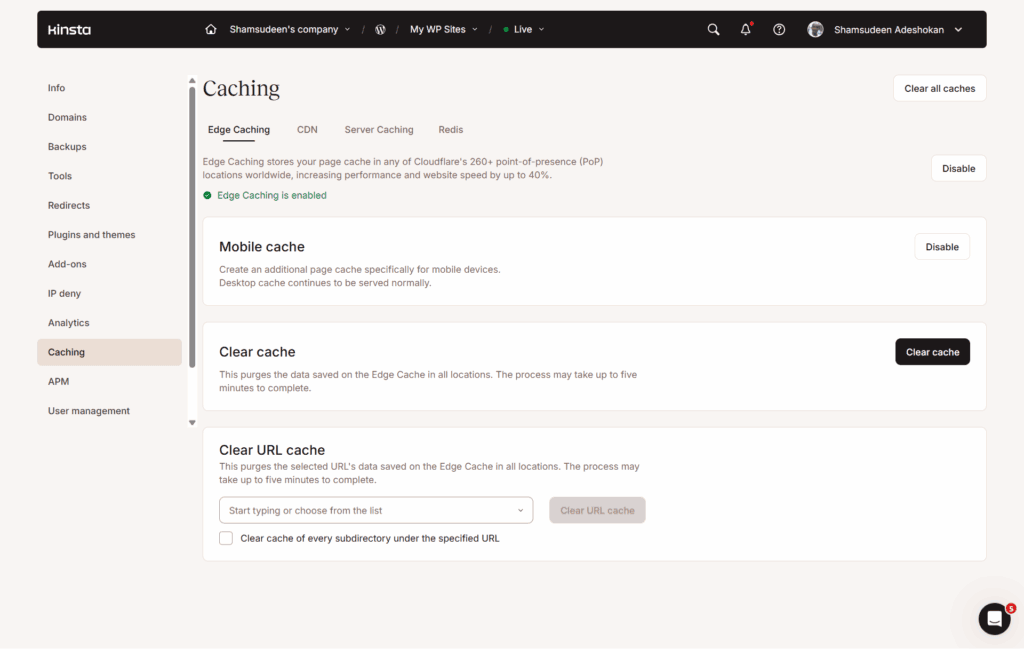
Another thing to note is that neither web host allows third-party caching plugins in their hosting environment. However, they do allow WP Rocket for file optimization and other features, including Lazyload, self-hosted Google Fonts, Critical CSS optimization, CSS background images, and iframe optimization.
For compatibility safety, WP Rocket caching automatically disables upon activation. You can learn more about using WP Rocket with Kinsta and Pressable.
Note:
Again, both hosts have a list of disallowed plugins on their platform. You might want to check that out before making a choice. Here is a direct link to Kinsta’s list of not-allowed plugins and Pressable’s list of disallowed plugins.
Real-World Speed Gains
So, I set up a test site to see which web host offers the fastest loading time and better TTFB (Time to First Byte) between Pressable and Kinsta.
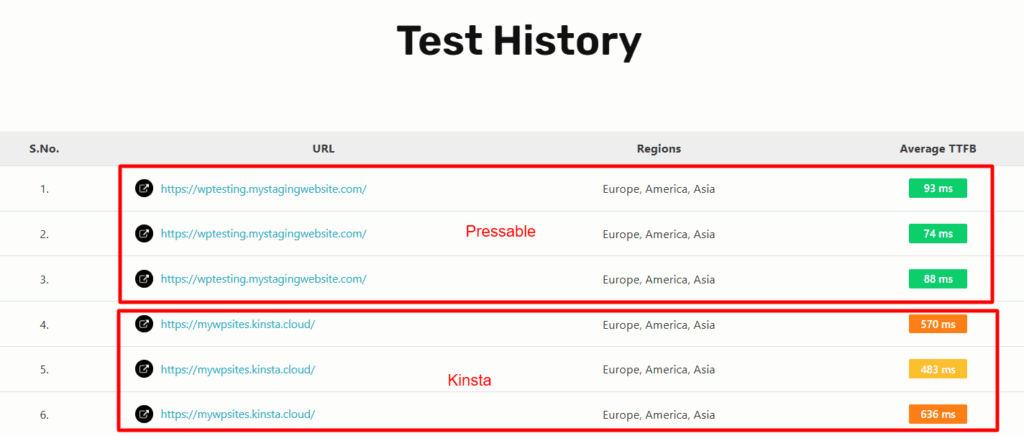
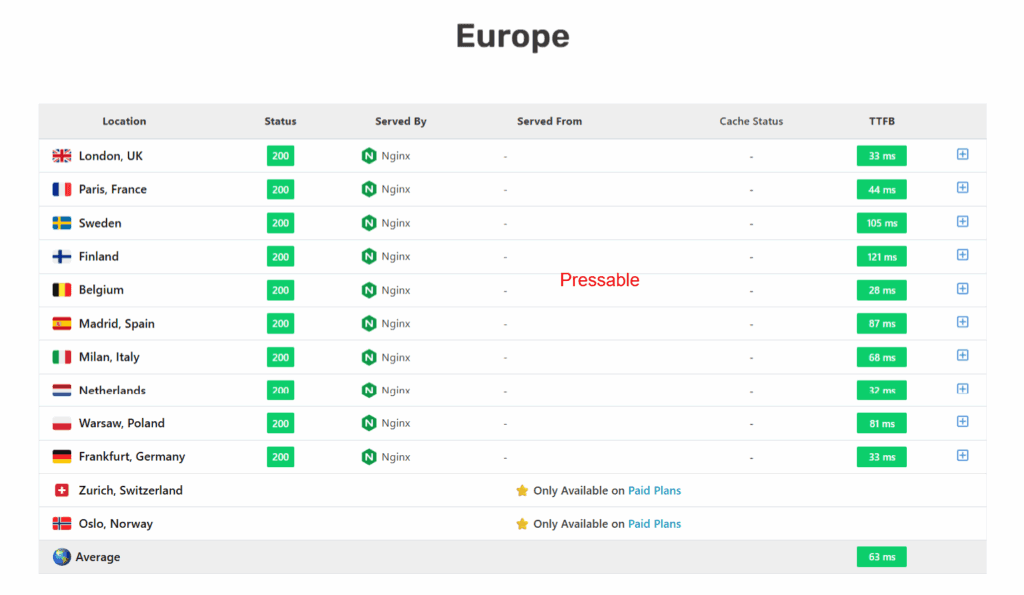
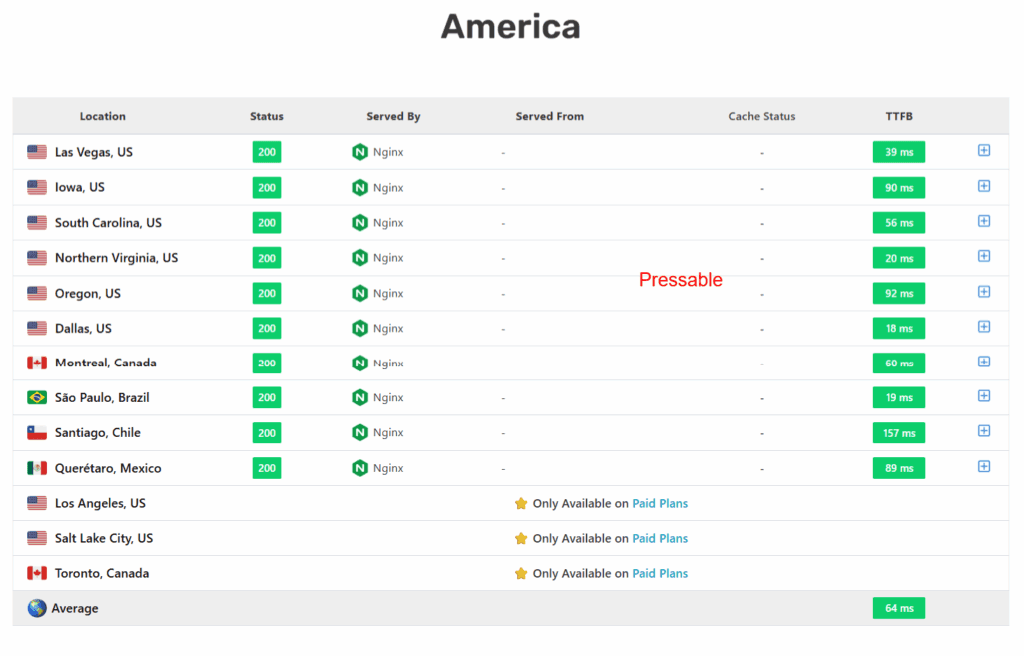
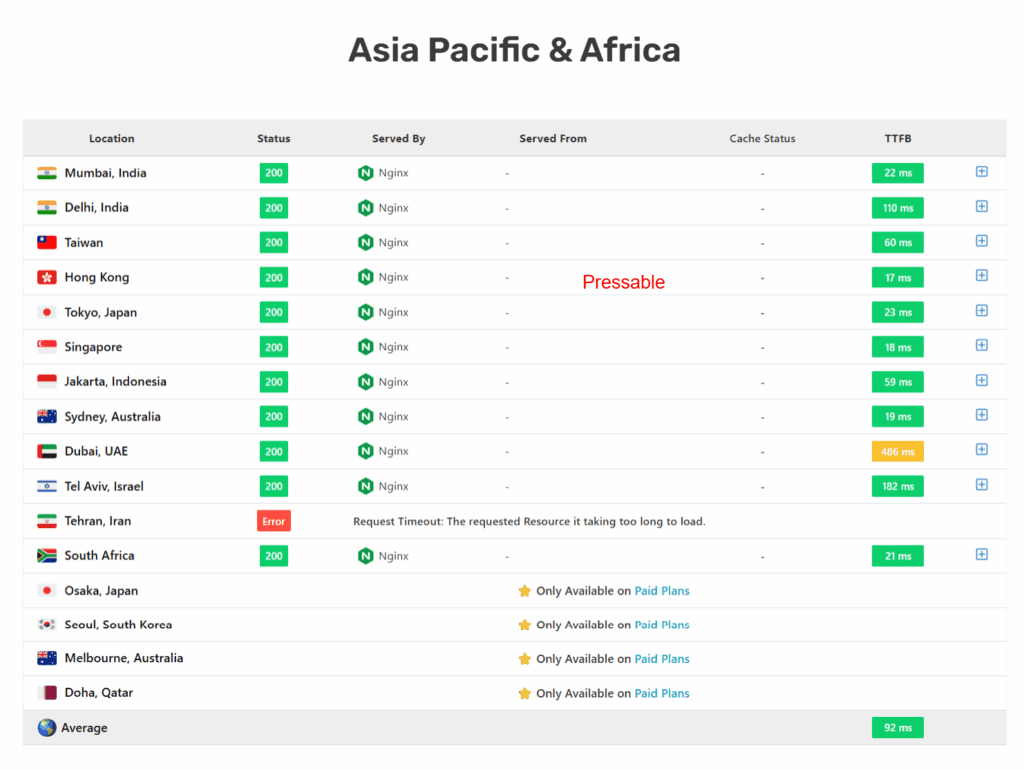
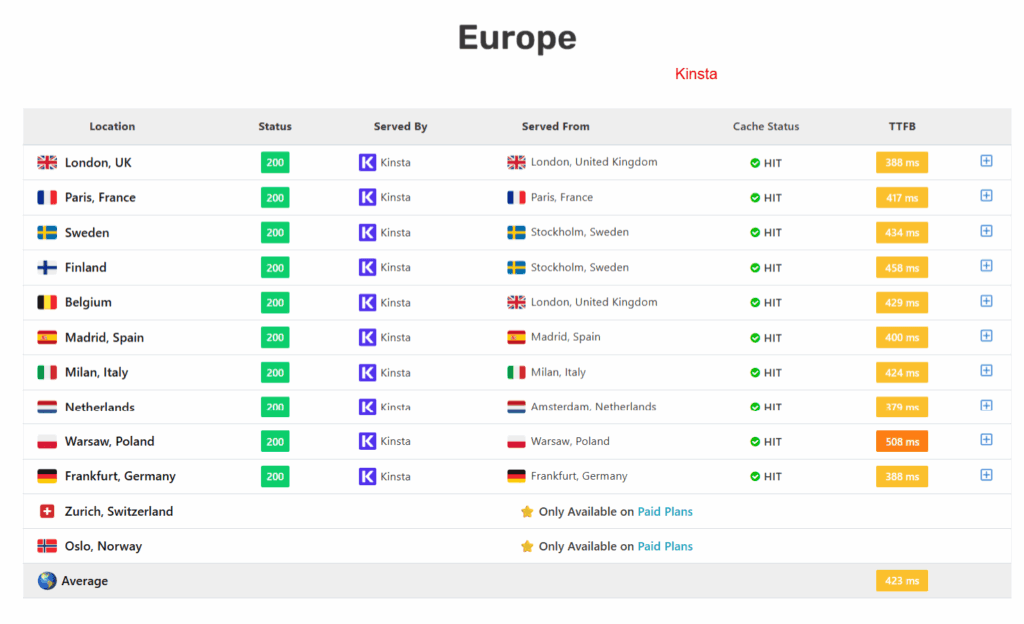
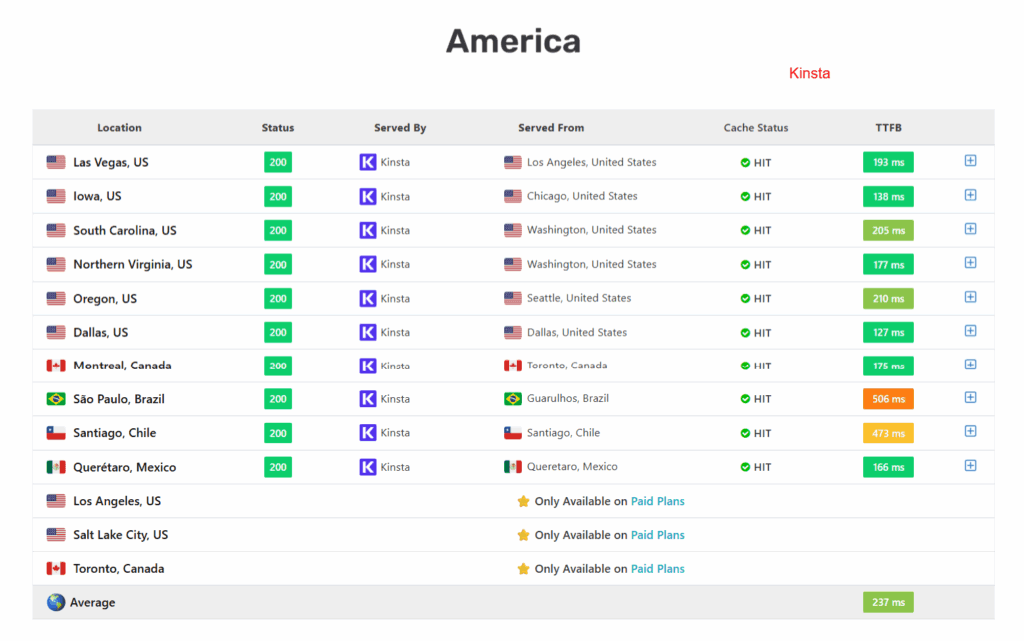
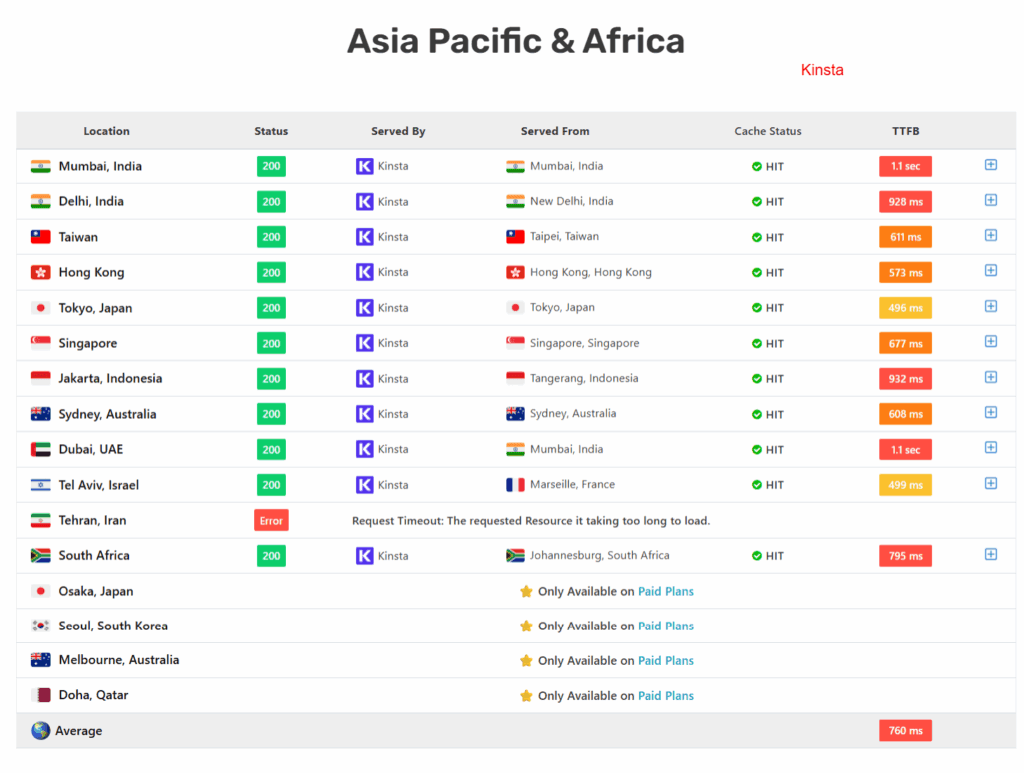
Based on multiple performance tests using SpeedVitals and Pingdom, Pressable consistently delivers faster TTFB and faster load times across Asia, Africa, Europe, and the Americas. Surprise? I am, too.
Despite Kinsta’s Cloudflare edge caching, which often reduces HTML load time by up to 50%, and its powerful Google Cloud infrastructure, it performs more slowly, and the time to first byte doesn’t compare to Pressable.
Note:
These are staging sites with no additional performance plugins or server configuration, except what the platform provides out-of-the-box. Both sites have the same theme (Astra) with the Freelance Copywriter starter templates.
Your live or production sites might have slightly different performance results. It could be worse or better, depending on many factors, such as server resources (CPU, RAM, PHP workers, etc.) on the staging vs. live site.
Look at the SpeedVitals TTFB test below.
Test from Pingdom (Move the slider to see both results)


Although Kinsta had a better Pingdom performance grade, the average load time still falls short of Pressable. This is not to say Kinsta is slow, far from it, Pressable just appears to be much faster.
Again, it is evident that Pressable is really tuned up to make WordPress blazing fast with minimal resources or configuration.
However, based on this simple test, Kinsta TTFB needs improvement, especially for users in Europe, Asia, and Africa.
If you want to review the individual location TTFB performance test from the Speed Vitals result, here it is.
Pressable TTFB
Kinsta TTFB
Developer & Agency Tools
If you’re a developer or run an agency, the hosting experience is about more than just speed. You need tools that make your workflow easier, enable version control, provide staging environments, and let you manage multiple sites without headaches.
Both Kinsta and Pressable cater to professionals, but they take slightly different approaches.
Kinsta for Developers and Agencies
Kinsta is one of the most developer-friendly WordPress hosts I’ve used. They give you SSH access, Git, WP-CLI, DevKinsta, and even Composer support on all plans.
That means if you’re working on a custom plugin or theme, or need to deploy code from a repository, you can do it directly from the terminal without needing extra tools or plugins.
Every Kinsta site includes a staging environment. You can push changes from staging to live, or live to staging, in one click, and there’s an option to clone sites if you want to spin up a quick copy.
It also lets you restore backups to either the staging or live environment, which I find super useful when testing new plugins or major updates.
Kinsta’s MyKinsta dashboard is one of the most polished control panels in the industry. You get clear metrics like visitor count, resource usage, PHP performance, and response time. Y
ou can purge cache, change PHP versions, manage redirects, and enable CDN from a single interface. If you manage multiple client sites, being able to access all of this quickly makes a big difference.
One thing I really like is Kinsta’s built-in APM (Application Performance Monitoring) tool. You don’t have to rely on third-party services like New Relic.
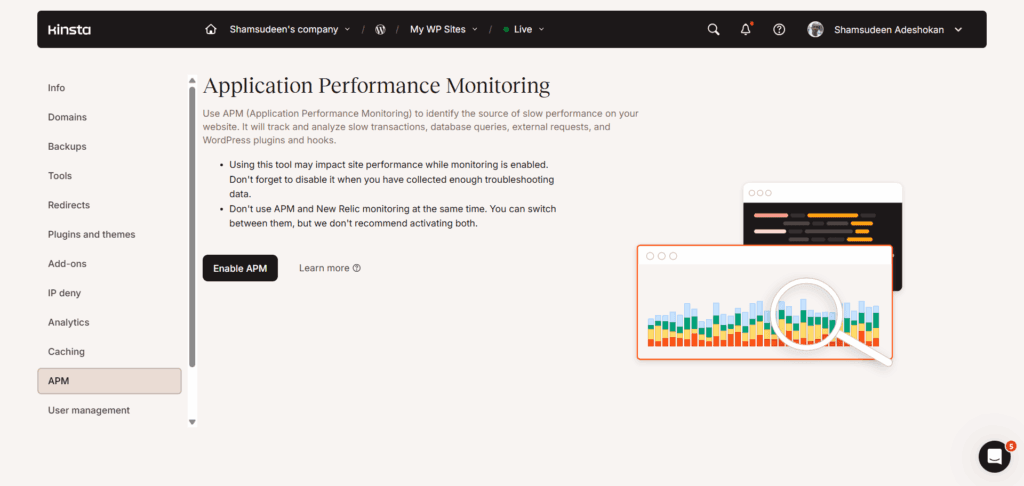
Kinsta’s APM shows slow plugins, database queries, or theme functions directly in the dashboard. This makes troubleshooting performance issues faster and easier, especially when working with dynamic or complex sites.
Kinsta also supports multi-user roles, so you can add team members and limit what they can see or do. Not only that, but you can also track every user’s activities to know who is doing what on your team.
That’s a big plus when you’re working in a client-developer-agency setup.
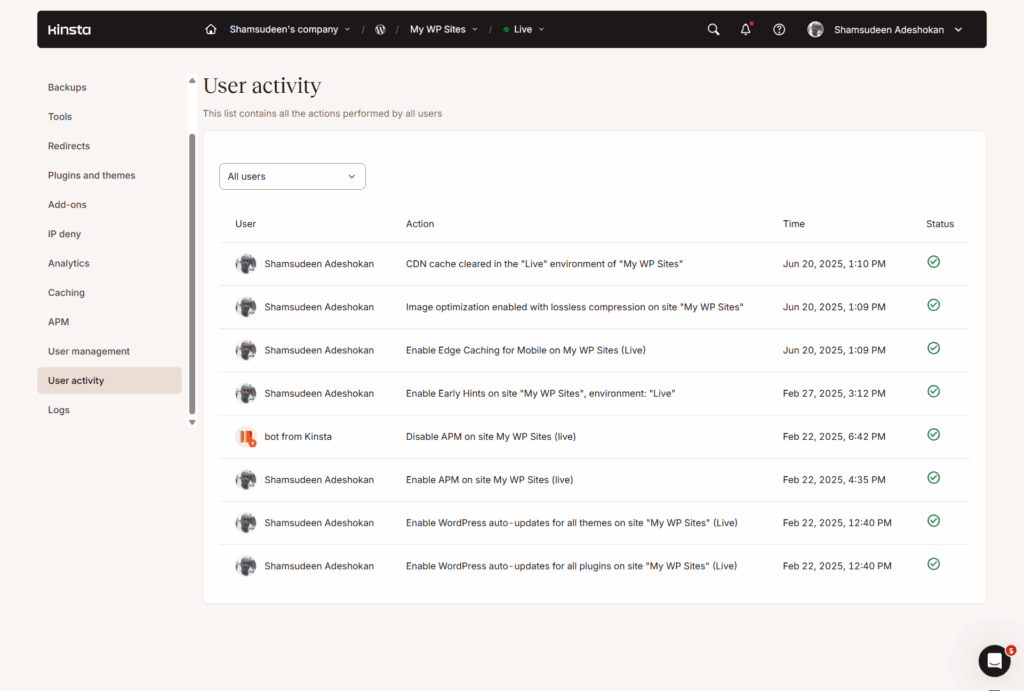
Another helpful developer tool is the DevKinsta, a local development tool available for Mac OS, Windows, and Ubuntu. You can create and develop sites locally, then move them to your Kinsta hosting when they’re ready.
This is a must-have dev tool if you’re a developer hosting with Kinsta.
Pressable for Developers and Agencies
Pressable also offers quite a few advanced developer tools that work well, especially if your focus is on managing a portfolio of client sites.
You get SSH, SFTP, API connections, GIT, and WP-CLI access on all plans, which covers most essential development tasks. There’s also a staging environment for every site, so you can test changes before going live.
Like DevKinsta, Pressable offers Studio Local, an open-source development tool from WordPress.com. Studio Local lets you develop WordPress sites on your local machine and push them to your Pressable-hosted site.
You can even pull from your Pressable site to Studio Local for testing, debugging, and other use cases, and iterate between steps.
Another feature that sets Pressable apart from agencies is its centralized management portal. If you’re handling multiple WordPress installs, whether for clients or personal projects, you can see and manage all your sites from one place.
You don’t have to log into each site individually, and you can assign team members/collaborators access to specific sites or all of them at once.
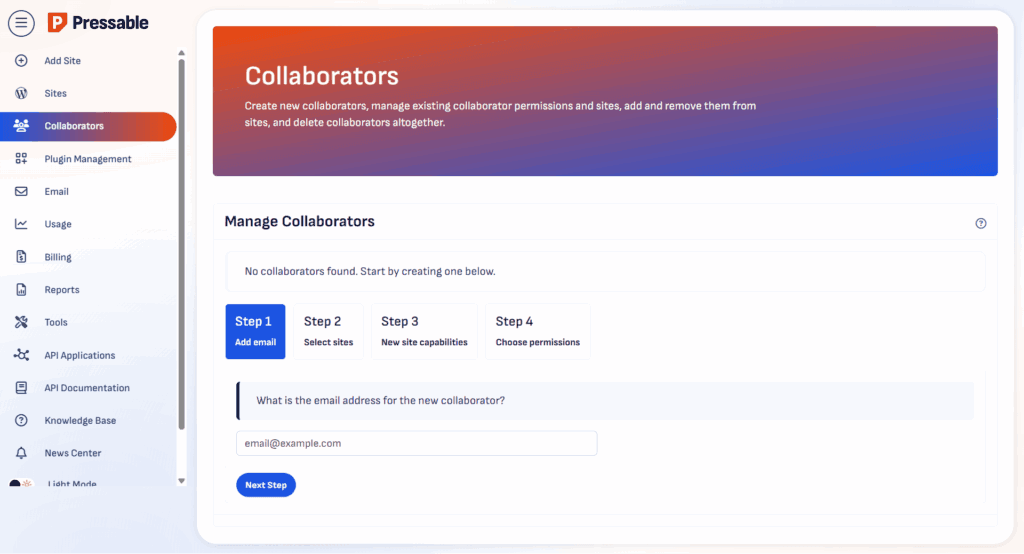
Pressable also includes Jetpack Security Daily at no extra cost, which covers automated backups, malware scanning, spam protection, and downtime monitoring. This is a valuable add-on if you want to offer hands-off security for your clients without needing multiple third-party services.
While Pressable doesn’t have an APM tool like Kinsta, the detailed site performance and metrics features are very helpful.
It shows and lets you analyze key performance metrics, including site usage, traffic volume, the PageSpeed Insights report from Lighthouse, response time, cache efficiency, HTTPS requests, and more. You can use this data to spot trends and identify performance issues that might require urgent attention.
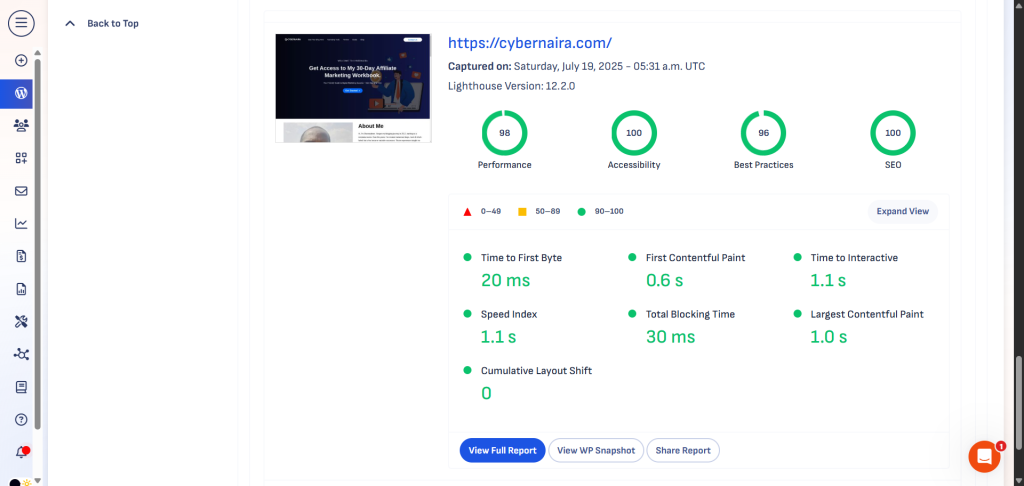
One more thing worth mentioning is Pressable’s agency partner program. You get priority support, co-branded materials, and even lead referrals from Automattic. If you’re an agency looking to grow, this can help build trust with clients and add credibility to your hosting offering.
Security & Reliability
Speed is important, but if your site isn’t secure or goes offline without warning, performance doesn’t mean much. A reliable WordPress host should give you peace of mind, keeping your site up, your data safe, and your backend protected from attacks.
Both Kinsta and Pressable take security seriously, but their approaches differ.
Kinsta’s Security Setup
Kinsta builds security into every part of its platform. Since it uses Cloudflare’s Enterprise integration on all plans, your site automatically benefits from DDoS protection, a web application firewall (WAF), IP-based blocking, and malware scanning.
These features work at the edge, before traffic even hits your server. So they block bad actors without slowing down legitimate users.
On top of that, Kinsta isolates every site using containerized architecture. That means if one WordPress site on your account is compromised, it doesn’t affect your other sites. Each site has its own PHP workers, Nginx config, and Linux user space.
This setup reduces the risk of cross-site contamination, which is a common problem on cheaper shared hosting plans.
Kinsta also includes daily automatic backups, but you can run manual backups, set up hourly backups at any time, and even download a copy for off-site storage.

Backups are retained for 14 to 30 days, depending on your plan. And you can export a backup to Amazon S3 or Google Cloud for $2 per site monthly. You can also restore a backup to either the live or staging environment with one click.
If malware ever makes it onto your site, even due to a bad plugin or weak password, Kinsta offers a hack fix guarantee. The support team will clean up your site for free, which is something many hosts either charge for or outsource to third-party services.
When it comes to uptime, Kinsta relies on Google Cloud’s infrastructure, known for its stability and high availability. In my experience, downtime is extremely rare, and when it does happen, it’s usually brief and well-communicated.
Pressable’s Security Features
Pressable takes a WordPress-first approach to security. Since it’s owned by Automattic, it uses many of the same technologies behind WordPress.com, including Jetpack Security.
With every Pressable plan, you get Jetpack Security Daily included for free, which adds automated malware scanning, brute-force attack protection, downtime alerts, and one-click restores.
Pressable also runs daily and on-demand backups, and those backups are stored for 30 days. Restoring a site takes just a couple of clicks, and the process is straightforward even if you’re not technical.
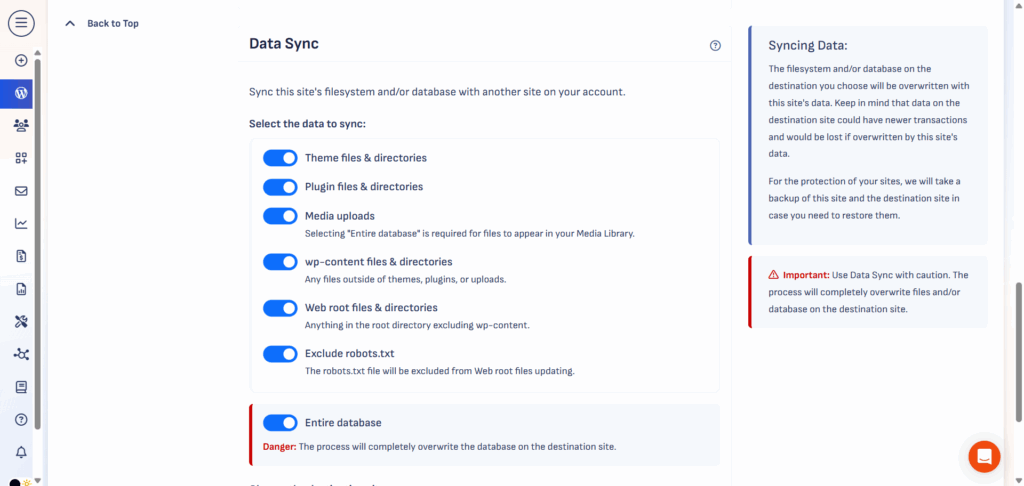
One key Pressable backup feature is data synchronization. This feature lets you synchronize website data/database between two Pressable sites (destination site content will be overwritten). It’s like you’re copying or cloning a site, but with more superpowers and ready to go live.
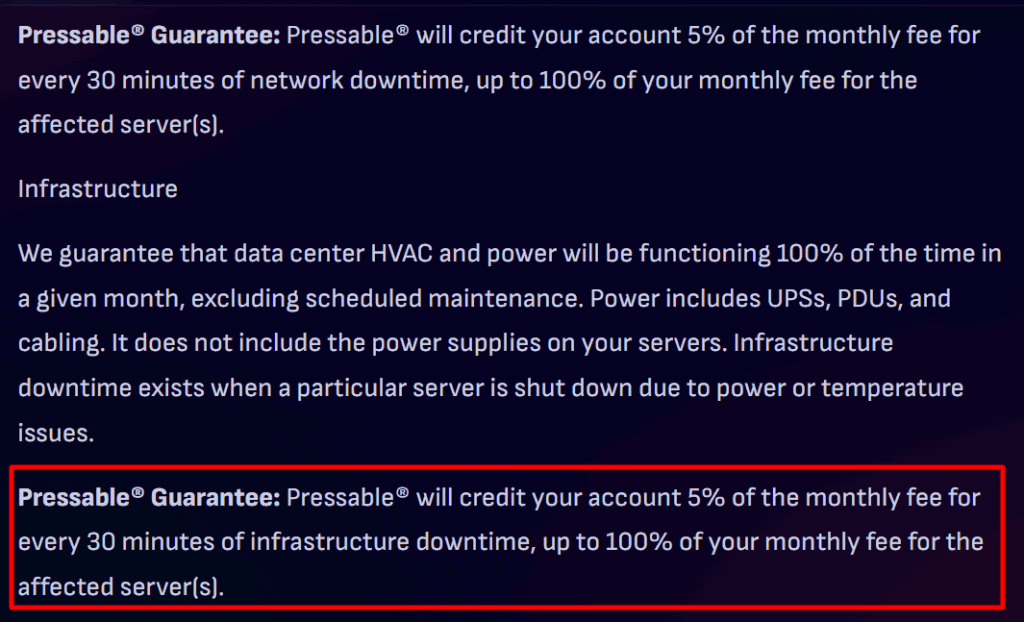
Another big selling point is the 100% uptime guarantee. That’s not a typo; they’re confident enough in their infrastructure to promise zero downtime. They back that with a formal service-level agreement (SLA).
Pressable will credit 5% of your plan fee to your account for every 30 minutes your site is down or offline due to issues on their end. Not many WordPress hosts go that far, especially at Pressable’s price point.
One thing to note is that Pressable doesn’t advertise things like containerization or advanced isolation between sites, so if you’re hosting a large number of sites under one account, you might want to ask their support about how segmentation is handled.
However, one fantastic Pressable security feature is the “Edge Cache Defensive Mode”. With this feature enabled, it adds extra layers of protection for your site. Every visitor is required to complete a small task or challenge before gaining access to your site.
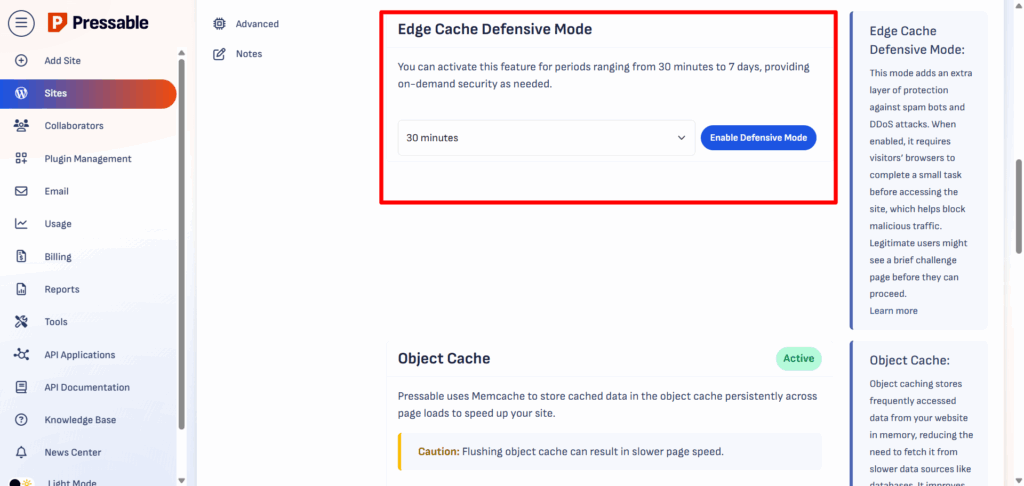
This helps mitigate security risks and ensures that only legitimate traffic uses your site. Malicious and bot traffic are blocked from accessing your site.
There’s also a theme and plugin security alert feature built into your Pressable control panel. If something goes wrong with either plugin or theme, you get a timely notification so you can act fast.
You can also purchase the Automated Plugin Management tool for $ 3 per site per month. This is good if you want to hand off the management of plugin updates. It does more than just update your plugins; it tests for performance and compatibility issues and restores them if nothing is found.
This keeps you safe from installing bad or bloated plugins and ensures your site uses only the best plugins to improve performance.
The hack recovery assistant is another advantage of using Pressable. This means that if your site ever gets hacked on their platform, support will jump in, clean up the mess, and restore your site’s control. They will render all possible assistance to ensure your site’s smooth recovery and restore it to the last known working backup.
Kinsta vs Pressable: Support Experience
Having fast hosting is important, but when things go wrong, support becomes everything. Whether you’re dealing with a plugin conflict, a security issue, or just need help migrating a site, good support saves time and avoids stress.
I’ve used both Kinsta and Pressable support teams, and here’s what I’ve learned about how each one handles customer service.
Kinsta Support: Fast, Skilled, and Developer-Friendly
Kinsta offers 24/7 live chat, social media, email ticket, and WhatsApp support across all plans. You can access support via live chat right from the MyKinsta dashboard, and there’s no tiered system. Everyone gets the same expert-level help, regardless of their plan size.
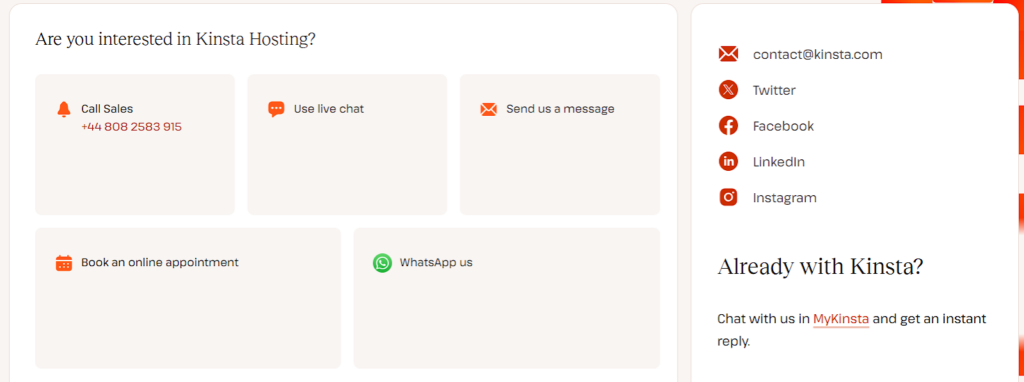
This type of multichannel support system is rare in the web hosting industry.
Every time I’ve contacted them, I’ve been connected to someone who understands WordPress beyond the basics. They don’t just send you links to articles; they actually dig into your specific problem.
Kinsta’s support team is made up of real developers, and they’re comfortable troubleshooting technical issues.
If you’re running complex setups like WooCommerce stores, multilingual plugins, or custom themes, that kind of help matters. You’re not getting scripted responses; you’re getting people who know what they’re doing.
Kinsta also has one of the best documentation libraries I’ve seen. It covers everything from caching and CDN to debugging and SSH access. Most of the time, I can find what I need there before even opening a chat.
The only downside? Phone calls are only available for sales inquiries. Every other request is handled via live chat, email, social media, or WhatsApp.
But I’ve never felt like that was a limitation because the response times for other channels are fast, and the help is thorough.
I have never tried the WhatsApp channel, though. But it’s there if you need a quick response and a real human to talk to.
Pressable Support: Responsive and WordPress-Centric
Pressable also offers 24/7 support, but with a slightly different approach. You can reach them through live chat, email/ticket, and, if you’re on an agency plan, phone support is available too.
Their team is smaller than Kinsta’s, but what they lack in scale, they make up for in WordPress knowledge.
Since Pressable is part of Automattic, the support team is closely aligned with the people behind WordPress.com and Jetpack. That makes a big difference if you’re dealing with issues tied to those services.
For example, if you’re having trouble with Jetpack backups or need help with WooCommerce configuration, the support team is trained for those use cases.
Where Pressable really shines is in site migrations and onboarding. They offer unlimited free migrations, and unlike many hosts that just give you a plugin and a guide, the team handles everything, or you can use the automated migration plugin.
The support responses are fast (under five minutes), though slightly less technical than Kinsta’s when it comes to developer-heavy topics like debugging performance bottlenecks or troubleshooting Git deployments.
But for everyday WordPress issues, plugin conflicts, updates gone wrong, and theme troubleshooting, they’re reliable and knowledgeable.
If you’re an agency partner, you also get access to priority support and a dedicated contact, which helps when you’re managing multiple client projects and need faster turnaround times.
Summary of the Support Experience
No matter which one you choose, both platforms take support seriously. But they each serve a different type of user. Kinsta leans more toward developers and power users, while Pressable focuses on WordPress users, agencies, and freelancers who want a bit more hands-on help with daily site management.
Pricing Comparison
Speed, security, and tools are all important, but they need to fit your budget. Both Kinsta and Pressable are premium WordPress hosts, so you won’t find $5/month shared hosting here.
What you’re paying for is managed service, better infrastructure, stronger support, and peace of mind. Still, their pricing models are quite different, and it helps to know what you’re getting at each level.
Pressable Pricing
Pressable’s pricing starts at $25/month for a single site with up to 30,000 monthly visits and 20GB NVMe SSD storage. That includes daily backups, Jetpack Security Daily (which alone is worth about $100/year), one-click staging, Edge Cache, and access to 24/7 support.
The plans scale based on the number of WordPress installs, not storage or bandwidth limits. For example:
This pricing structure makes Pressable a good fit for agencies or freelancers who manage multiple low to mid-traffic WordPress sites. As you add more sites, the resources also scale to accommodate the number.
However, your hosting resources, such as storage, the number of staging or sandbox sites, and traffic limits, increase as you add more sites. But every site gets the same performance features, and you can upgrade hosting resources or add more sites without moving to a higher plan.
What’s also nice is they don’t nickel-and-dime you for things like migrations, support, or malware scans. Everything is included.
Pressable even has a 30-day free trial, so you can test the platform before paying a cent. And they offer unlimited bandwidth, though there is a platform fair-use policy; you rarely exceed the limits.
Kinsta Pricing
Kinsta’s pricing is based more on traffic, disk space, bandwidth limits, and performance level.
It starts at $30/month for one WordPress install, 35,000 monthly visits, and 10 GB SSD (Not NVMe) storage. It includes all the performance and security features, such as Cloudflare Enterprise, APM, edge caching, and developer tools.
For WooCommerce or community sites, Kinsta recommends other higher-tier plans with 4 or more PHP workers (PHP threads). This is one of the differences in Kinsta vs Pressable pricing.
All Pressable plans work well with WooCommerce because they include at least 5 PHP workers (5 vCPUs per site).
Here’s how Kinsta pricing scales from the entry-level plan:
Note:
Kinsta offers the first month free on its 35k plan, which includes 1 website install, 10GB storage, and 125GB of free CDN bandwidth. This is a good opportunity to test the platform risk-free.
If you go over your traffic or CDN limits, Kinsta charges overage fees. That’s something to keep in mind if your traffic fluctuates or spikes.
But on the flip side, the value you get from their infrastructure is solid. Every site, regardless of tier, runs on the same high-performance Google Cloud machines with isolated containers and premium CDN access.
Kinsta also offers free, unlimited migrations. This is great if you’re moving from another host and don’t want to deal with the hassle. There is a 30-day money-back guarantee, which gives you more time to test things out.
One thing to note is that both Kinsta and Pressable have a list of add-ons. For example, you can purchase more traffic limits and storage space on both hosts, but I think some of Kinsta’s additional purchases are somewhat ridiculous.
Redis caching ($100/month), a reverse proxy ($50), and premium staging ($20 per environment) should be included with your WordPress package, given Kinsta’s high price tag. Kinsta charges extra for these things if you want to use them.
Which One Gives You More Value?
If you’re running a single WordPress site or working with tight budgets, Pressable’s lower starting price makes it a very attractive option. You still get strong performance, daily backups, unlimited bandwidth, and a stable platform tuned for WordPress.
For agencies, the fact that you can host 10 sites for $90/month is a big deal. That works out to just $9 per site with managed hosting benefits, vertical scaling with bursting capability, datacenter failover, and security built in.
Kinsta, on the other hand, makes sense when enterprise service is non-negotiable.
If you want to take more control over things like CDN, caching, site diagnosis tools, and more robust developer tools, Kinsta is hard to beat. Plus, you need a support team that watches over your site every second, so you’re right to choose Kinsta.
The pricing is higher, but the infrastructure and support is built for sites that need to move fast and scale easily.
In short:
Conclusion: Which One Should You Choose?
If I were to be honest with you, there is no direct answer to which host is better between Kinsta vs Pressable. Your choice of web host heavily depends on your specific use case.
What you actually want to achieve, your business goals, budget, and future plans might determine which host, between Kinsta and Pressable, fits your mission. Both have their advantages and disadvantages; it all depends on who is doing the research.
However, no matter which option you choose, both web hosts are WordPress-focused, meaning their platform is specifically built for WordPress and WooCommerce sites. They also offer scalable hosting features, can easily handle high-traffic sites, and strive to make site management easier.
Whichever you choose, you’re getting a better experience than most traditional or low-budget web hosts. The key is picking the one that fits your workflow and goals.


Great comparison! Speed is everything for SEO and user experience — this helped clarify which host delivers real value.
Thanks Umar, glad you find it helpful.