
If you’ve spent years using cPanel, you probably don’t think about it much anymore.
It’s familiar. You know where the File Manager lives. You know how to open phpMyAdmin. You know how to create a database, configure email, and check resource usage.
Then you log into Pressable for the first time.
And it doesn’t look like hosting. It looks like a WordPress management admin area.
That shift changes more than the interface. It changes how you experience performance settings, backups, staging, monitoring, and even daily workflow.
This article isn’t about which hosting company is better. It’s about two completely different dashboard philosophies. The Pressable dashboard vs cPanel dashboard.
If you’re moving from traditional shared hosting to managed WordPress hosting, this is the difference you’ll actually feel.
Quick Comparison: Pressable Dashboard vs cPanel Dashboard
| Area | Pressable Custom Dashboard | cPanel Dashboard |
|---|---|---|
| Design Focus | WordPress site–centric | Server/account–centric |
| Interface Layout | Clean sidebar, site-first navigation | Tool grid grouped by category |
| Caching & CDN | Built-in Edge Cache + CDN | Configured manually via server tools/plugins/integrations |
| Backups | Automated, visible restore points | Manual, plugins, or host-dependant |
| Staging | Built-in environments | Manual cloning or subdomain setup |
| External provider | Built-in email tools | |
| Monitoring | Site-level performance metrics | Server resource metrics |
| File Access | SFTP / SSH | File Manager + phpMyAdmin |
| Ideal User | WordPress-focused users | Users who want server-level flexibility |
The First Login: Two Very Different Mental Models
When you log in to cPanel, you land in a tool ecosystem.
The main dashboard is organized into sections: Files, Databases, Domains, Email, Metrics, Security, Software, and Advanced.
Each section contains utilities, and each utility controls a different layer of the hosting environment.
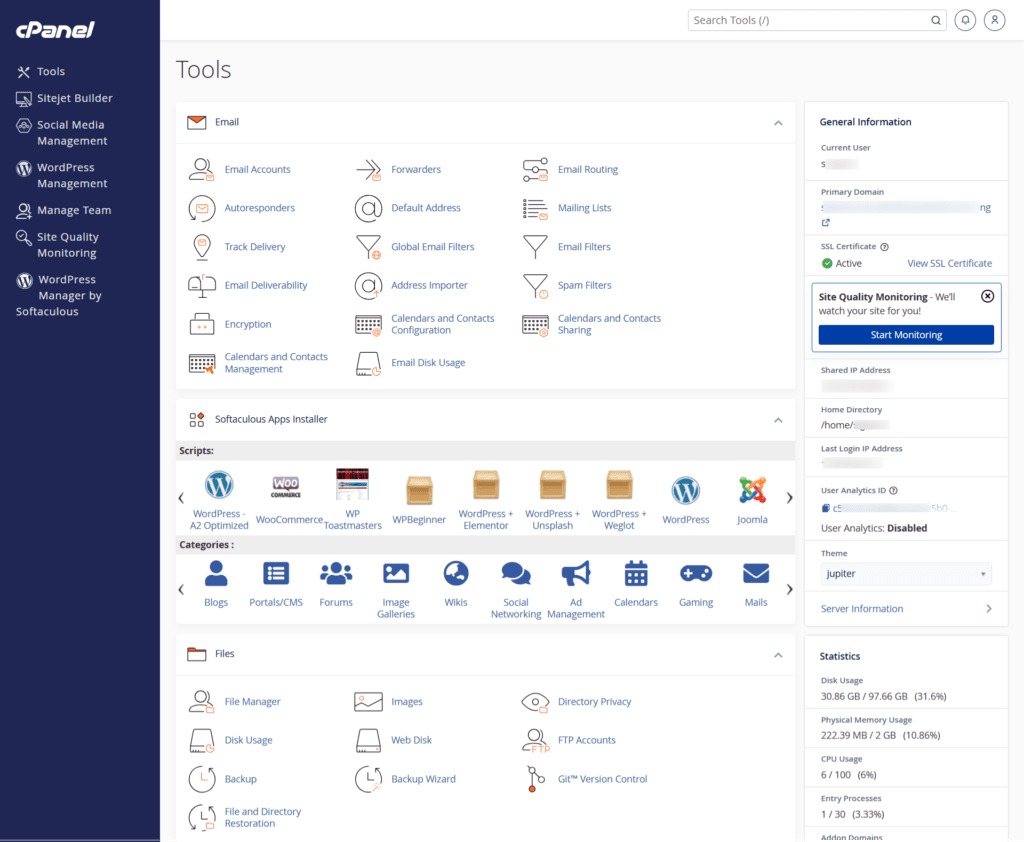
cPanel assumes you are managing a hosting account capable of running multiple applications. WordPress is just one possible workload.
When you log into Pressable, you land on a WordPress site.
You see the site name. You see the environment (Production, Staging, Sandbox, and Duplikit). You see the Lighthouse performance summaries for the last 30 days.
You see the site-specific settings button, the OnePress Login link, and the direct WP admin login link. You see WordPress-related tools.
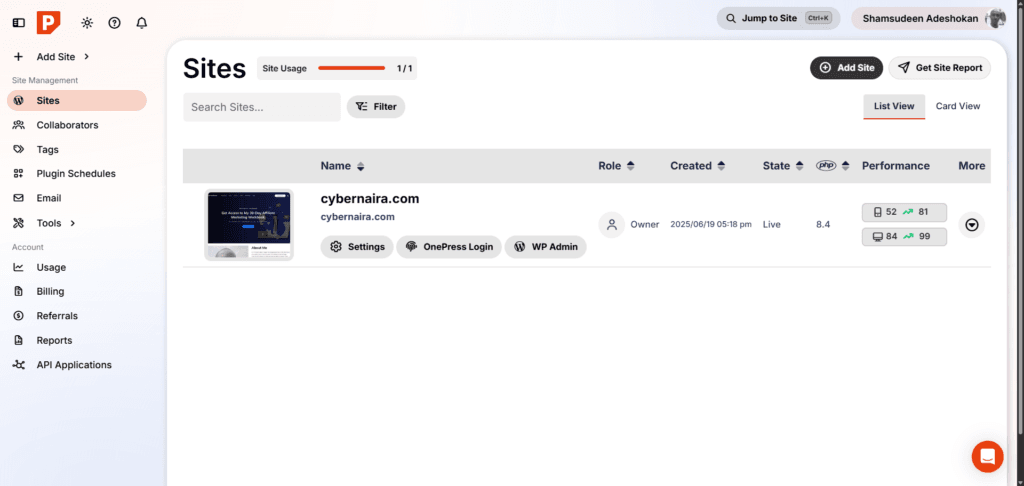
There is no file tree staring at you. No database manager as a primary navigation item.
The system assumes your only goal is to manage WordPress. That difference defines everything that follows.
Site-Centric vs Server-Centric Architecture
The cleanest way to describe the difference between Pressable Custom Dashboard vs cPanel is this:
Inside cPanel, WordPress lives inside a hosting environment. It sits in a directory (often public_html).
Its database sits in MySQL. Its performance depends on PHP configuration, compression settings, caching setup, and other server-level components.
You interact with those components individually.
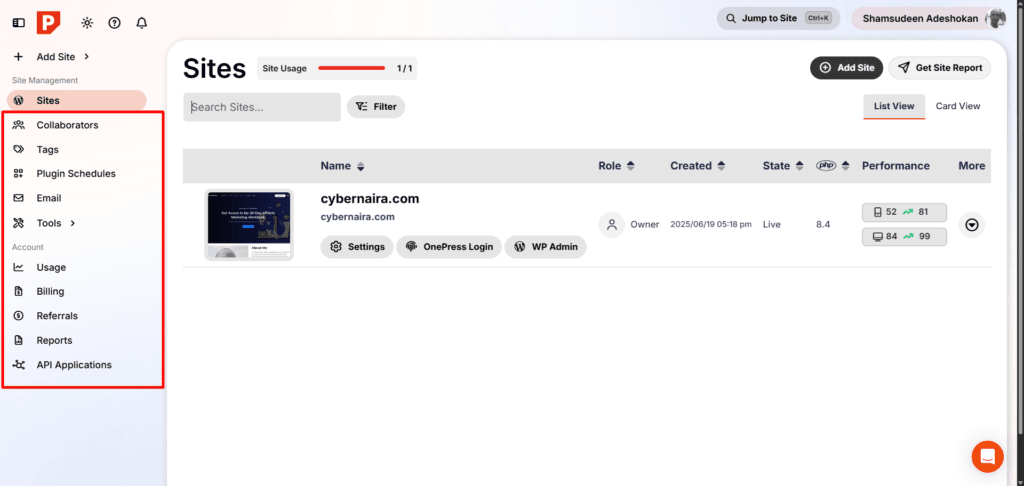
Inside Pressable, WordPress is the center of gravity. The dashboard is organized around the site itself. Environments are built in.
Performance tools are presented in relation to site behavior. Backups are attached to the site. Security monitoring is in place at the site.
The hosting server exists in both Pressable and cPanel systems. The difference is whether you see it directly.
cPanel exposes the infrastructure. Pressable abstracts it.
That abstraction is either a relief or a limitation, depending on the kind of user you are.
Creating a WordPress Site: Guided Workflow vs Environment Assembly
When you create a site in Pressable, the process feels structured. You enter the site owner’s info (for team or collaborator), choose the environment type (production, staging, sandbox, or duplikit), select the PHP version, and choose a datacenter.
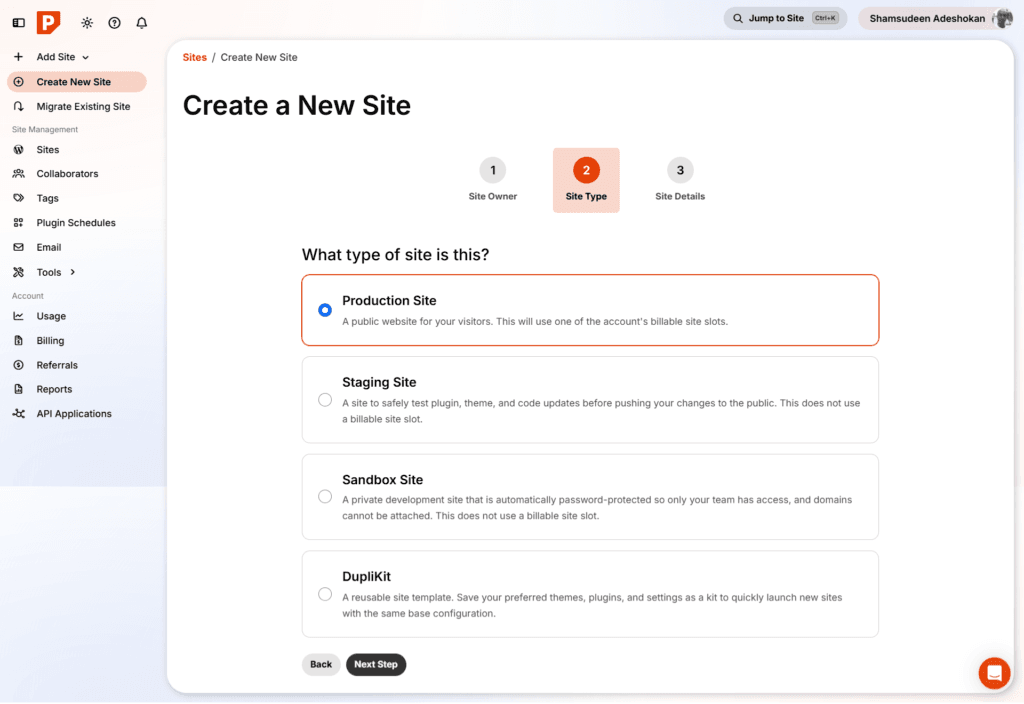
You optionally enable WooCommerce or multisite add-on support. The system automatically builds the WordPress installation.
The important part isn’t convenience alone. It’s integration. Production and staging environments are part of the architecture from the start.
With cPanel, creating WordPress means assembling components. You add a domain. You create a database. You either install WordPress manually or use an installer tool, such as Softaculous, WP Toolkit, or even WordPress – A2 Optimize.
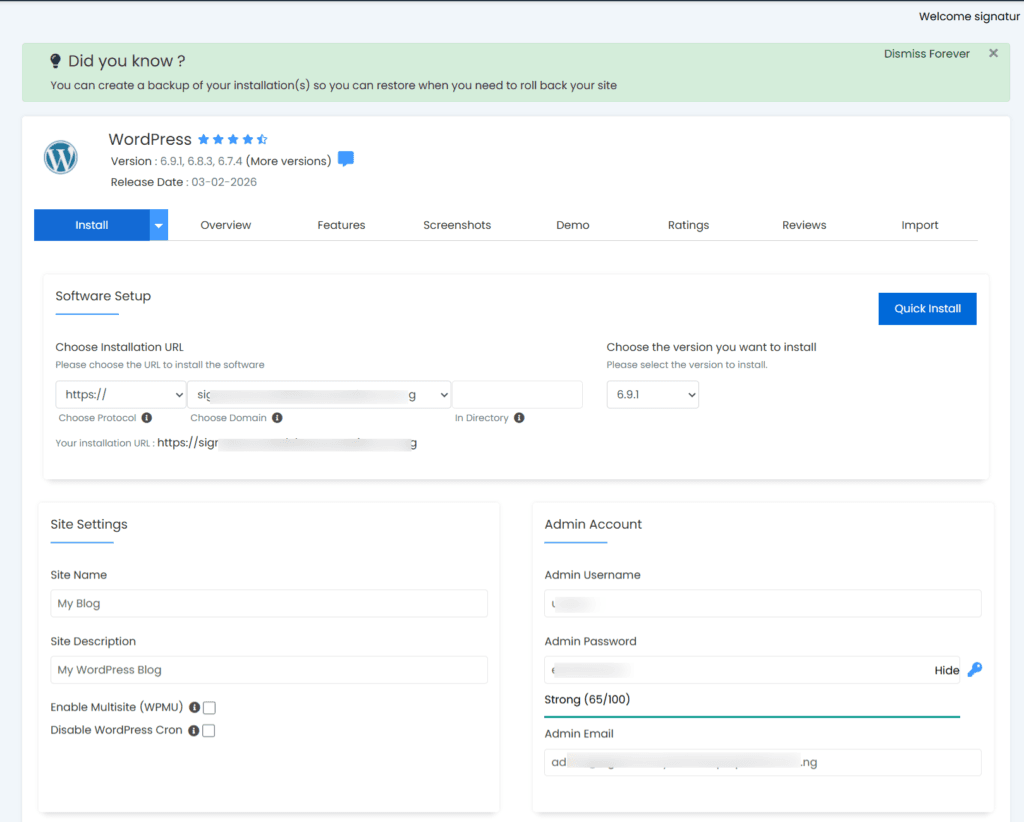
The pieces are separate because the hosting account supports more than just WordPress.
Both approaches work. One treats WordPress as the core product. The other treats it as one among many applications.
Performance & Optimization: Infrastructure-Level vs Configuration-Level
Performance is where dashboard philosophy becomes practical.
In a traditional cPanel environment, optimization involves configuration. You enable server-side caching mechanisms. You adjust PHP settings.
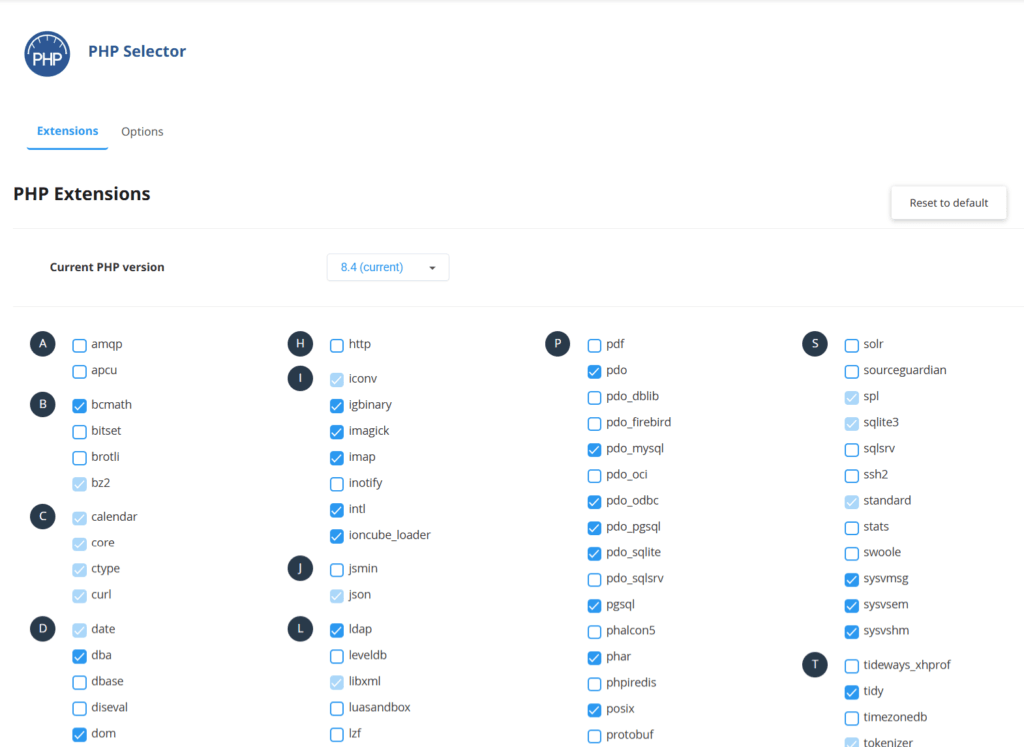
You configure compression, install, and tune a WordPress caching plugin. You may integrate a CDN separately, such as Cloudflare or Quic.cloud.
Each layer exists independently, and you assemble the stack.
This approach offers flexibility, allowing you to fine-tune and experiment with performance features.
You can even change how different layers interact.
In Pressable, performance tools are integrated into the hosting layer itself.
Edge Cache functions alongside a built-in CDN, which distributes your static assets across 28 global Points of Presence. Object caching and Application Performance Monitoring tool (APM) exist at the infrastructure level.
You can monitor metrics such as cache efficiency, traffic patterns (bots vs. humans), slow Ajax actions, MySQL CPU time per second, and response behavior, rather than configuring each component individually.
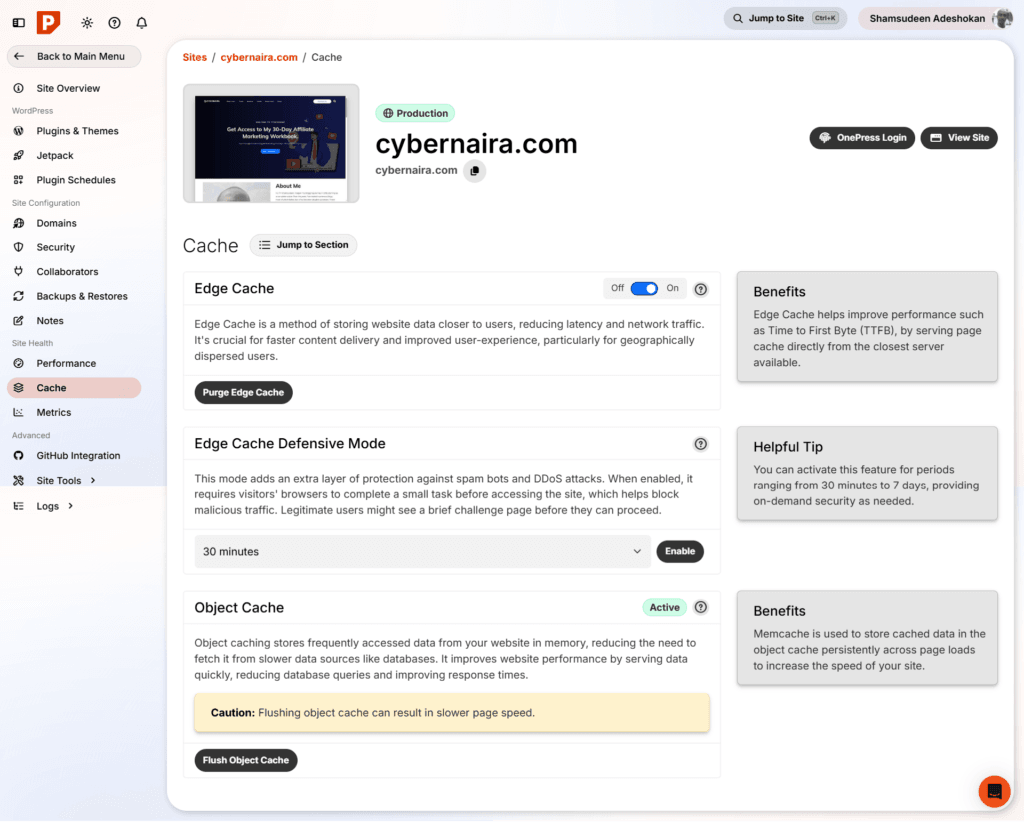
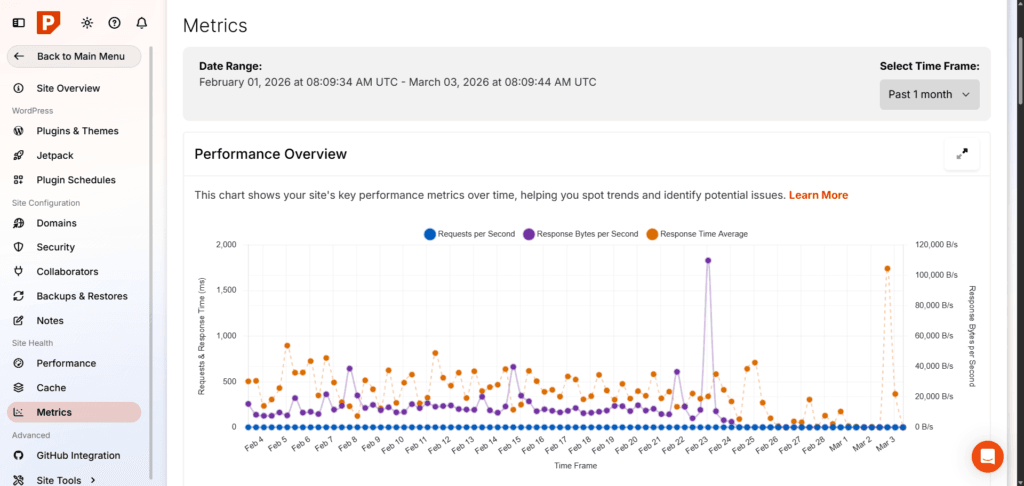
The difference isn’t whether optimization is possible on both platforms; it is where the optimization happens, at the configuration layer or the infrastructure layer.
Backups: Visible Automation vs Manual Tools
Backups illustrate another structural difference.
In cPanel, backup tools exist as utilities. You can generate a full database backup or create partial backups. You can export databases, restore backups, and export them to third-party servers.
The frequency and automation often depend on the hosting provider’s policy or on using a backup plugin to automate the process.
Some shared hosting providers, such as Verpex, simplified backup automation by preinstalling the Backuply plugin in WordPress. This is good and brings flexibility in how you handle backup within the WordPress site and the hosting server.
Otherwise, you’re left with the standard cPanel backup wizard.
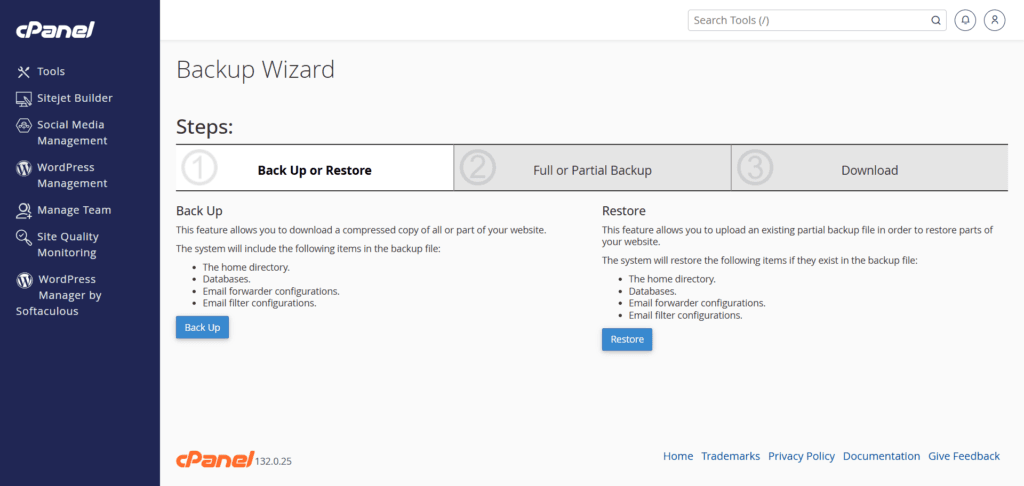
The tools are powerful, but they are tools. You use them when needed. The concern is that if you’re not aware of the need to take regular backups, you might not take one for months.
Pressable backups are part of the core experience, and they’re built in. Restore points are visible, and it’s just a few clicks. Automated backups run regularly (hourly), and you don’t need to touch a thing.
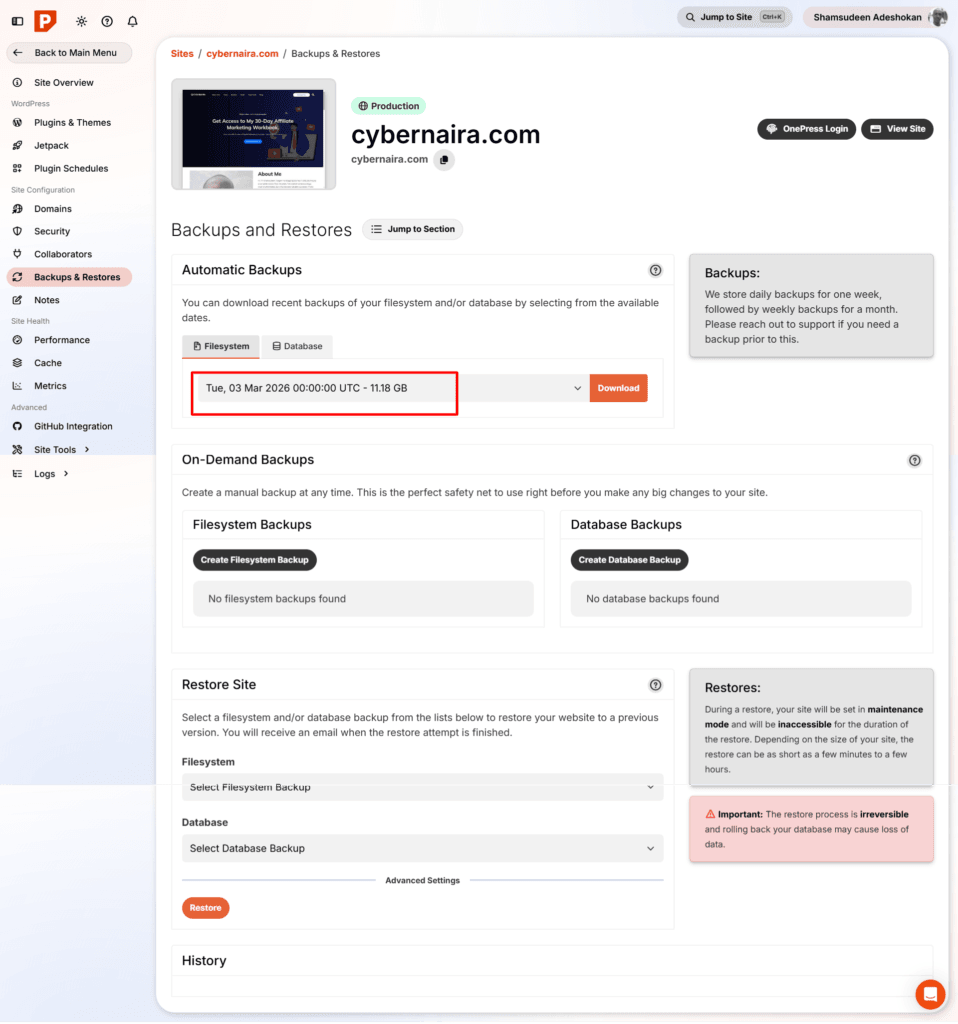
The whole backup system runs on automation and is stored with JetPack VaultPress. Pressable offers 10GB free when you sign up.
Restoring a backup also means selecting a timestamp and confirming the action. One click, and you’re done.
That difference affects confidence more than functionality. It protects your business and ensures you never lose your website assets, even in the event of a major website catastrophe.
Monitoring: Server Metrics vs Site Metrics
cPanel excels at showing server resource data. You can view CPU usage, memory consumption, entry processes, and I/O limits.
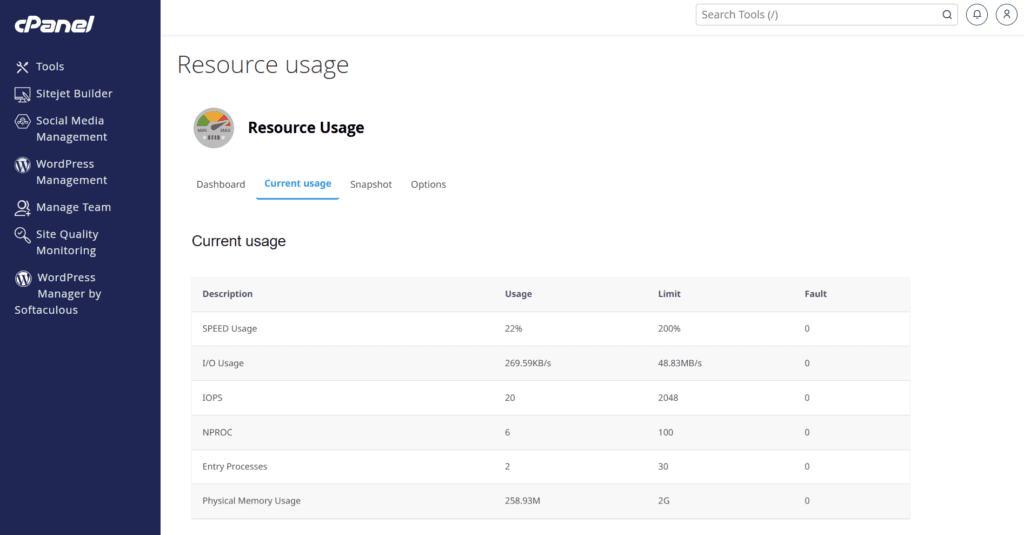
You can even inspect raw error logs.
This visibility is valuable if you want to understand how your hosting account behaves under load.
Pressable focuses on monitoring site behavior. You see requests per second, database load trends, cache efficiency, traffic breakdowns, and even integrated performance reports.
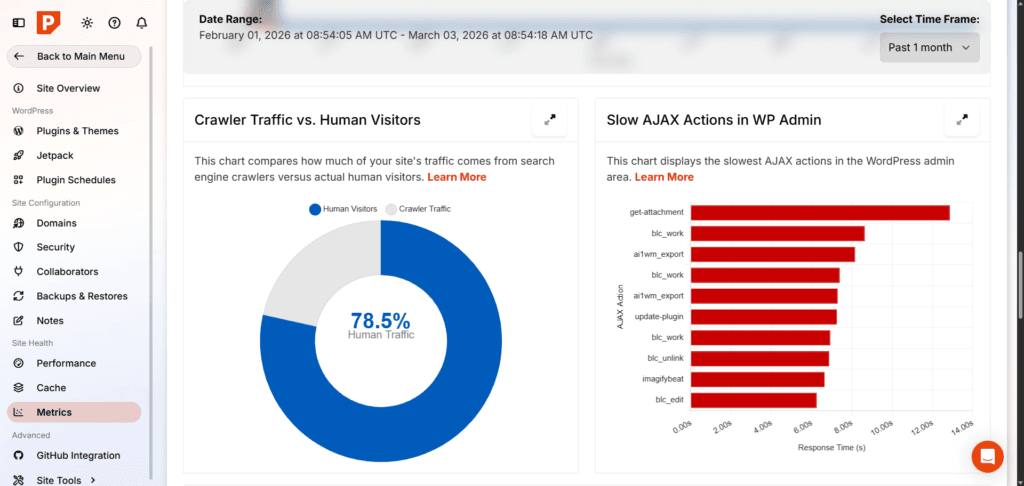
In a nutshell, cPanel tells you how the engine is running; Pressable tells you how the ride feels.
Both perspectives matter. They just answer different questions.
Email Handling: Integrated Hosting vs Service Separation
One of the first practical differences between the managed WordPress custom dashboard and cPanel that many users notice isn’t performance or staging, it’s email.
In a traditional cPanel environment, email management is built directly into the dashboard.
You create domain-based email accounts, configure forwarders, set autoresponders, and access webmail, all inside the same control panel that manages your files and databases.
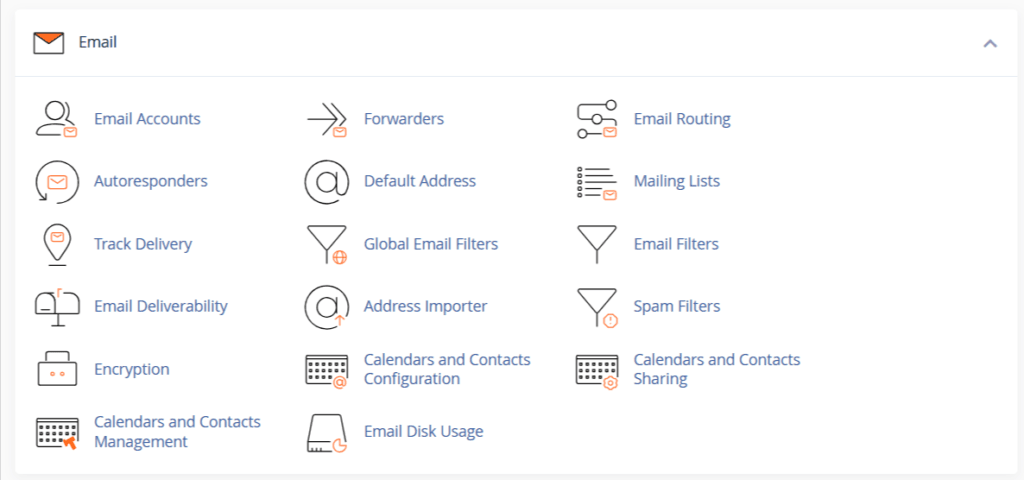
Email, website, and server live together under one hosting account. For small businesses and personal sites, that convenience is hard to ignore.
In contrast, Pressable dashboard separates website hosting from email hosting. Email is handled through third-party providers.
Pressable offers a 90-day free trial with Titan Email. You have the flexibility to use a professional email hosting provider of your choice, such as Namecheap PrivateEmail.
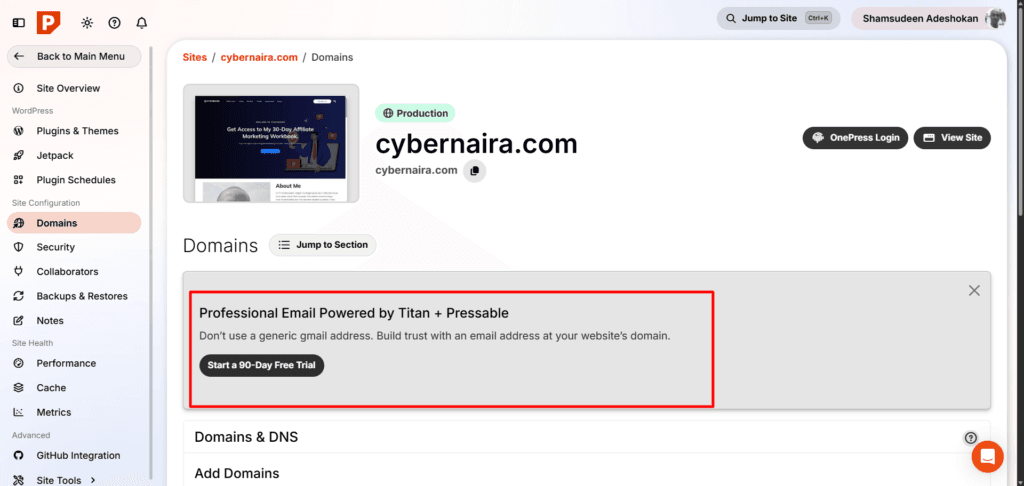
This design choice reflects a broader philosophy. Pressable focuses on optimizing WordPress infrastructure; email is treated as a separate service.
For some users, this feels like a loss of convenience. For others, it feels cleaner, more secure, and the right way.
Separating email from web hosting can improve reliability and portability. If you switch hosting providers later, your email setup remains untouched.
The difference here isn’t technical complexity. It’s architectural separation versus integration.
File and Database Access: Direct Exposure vs Structured Access
If you’ve worked inside cPanel for years, the File Manager and phpMyAdmin are familiar territory.
Open File Manager, and you see your directory tree immediately. public_html. wp-content. wp-config.php.
You can edit files in the browser, upload archives, change permissions, and manage structure directly.
Open phpMyAdmin, and you see raw database tables. You can run SQL queries, export or import data, repair tables, and inspect structure in detail.
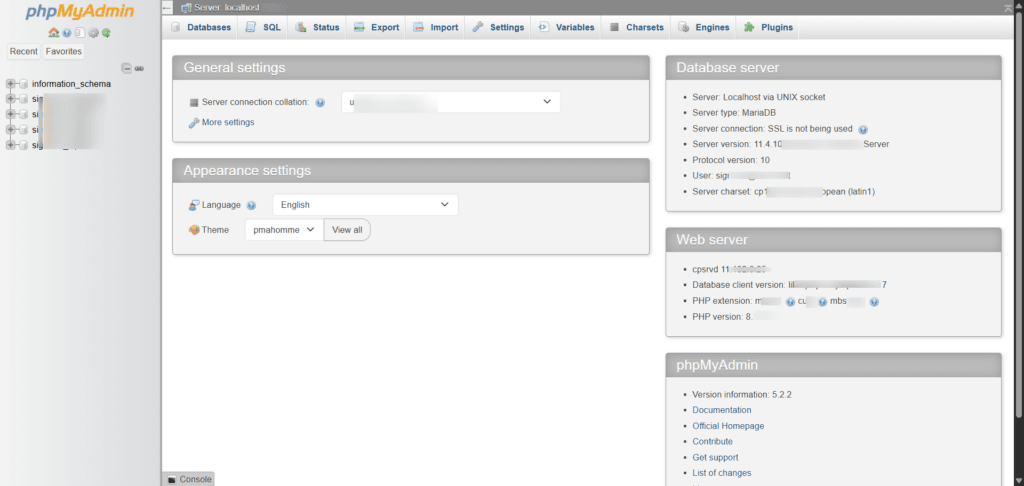
Everything is visible. Nothing is abstracted.
Pressable takes a different approach. File and database access are still available, but they’re not the centerpiece of the dashboard.
You’re given SFTP credentials and SSH access tied to the specific site. Tools like Search & Replace are integrated directly into the interface for common database operations.
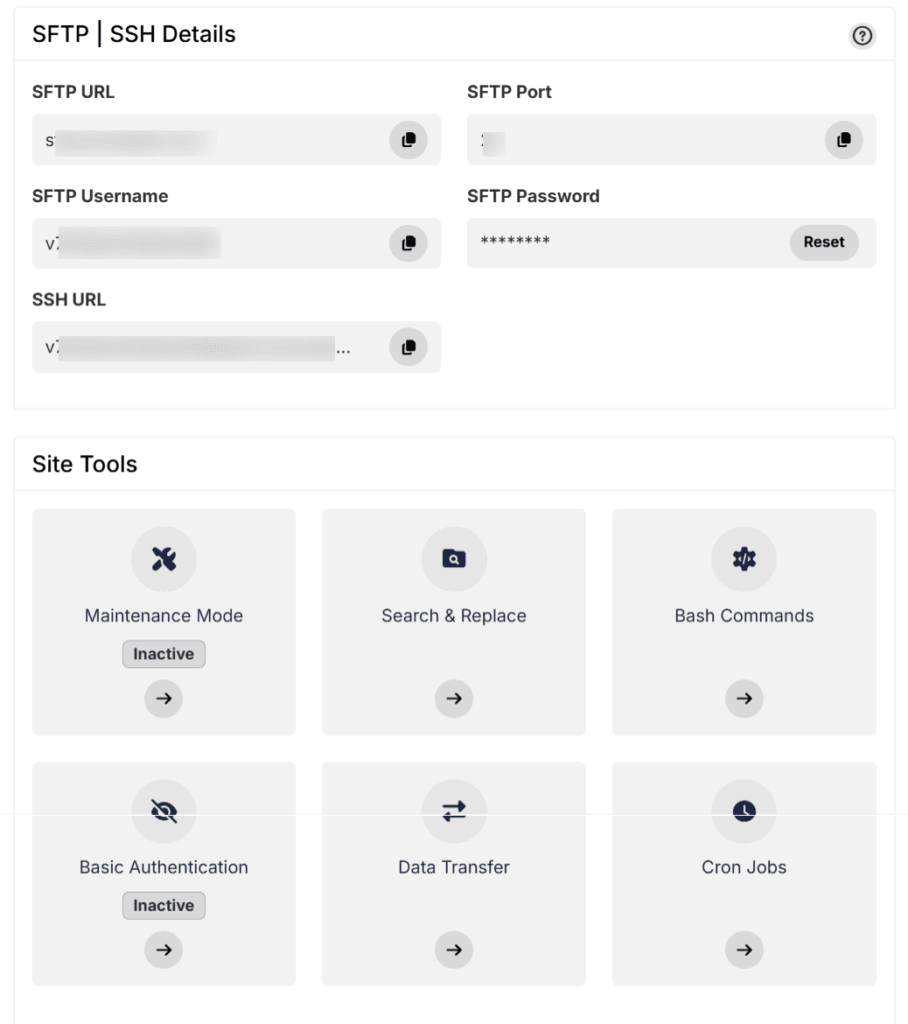
The emphasis shifts from raw database manipulation to WordPress-focused utilities.
You can still reach the file system. You can still work with the database. The difference is that these actions are secondary to site management rather than to primary navigation.
This distinction matters most to users who frequently work at the file or database layer.
For them, cPanel feels immediate and transparent. For users who rarely edit core files manually, Pressable’s structure reduces unnecessary exposure.
Advanced Tools: Infrastructure Control vs Workflow Control
At first glance, cPanel appears more powerful because it exposes more knobs and switches.
You can configure cron jobs, manage redirects, adjust PHP settings, control compression, and inspect server logs, all directly.
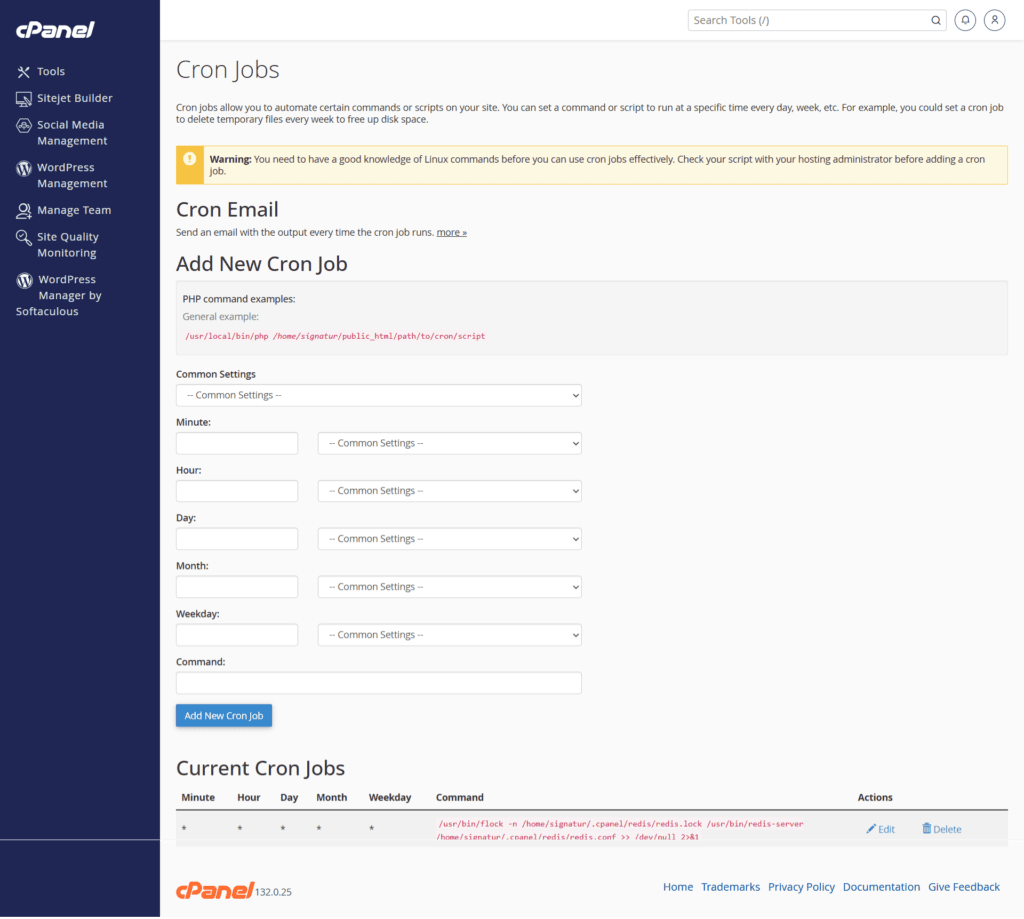
This depth is valuable when you need fine-grained control. Pressable doesn’t surface those infrastructure controls in the same way.
Instead, it provides workflow-oriented tools: built-in staging environments, environment switching, collaborator management, GitHub integration, bulk operations, and centralized performance monitoring.
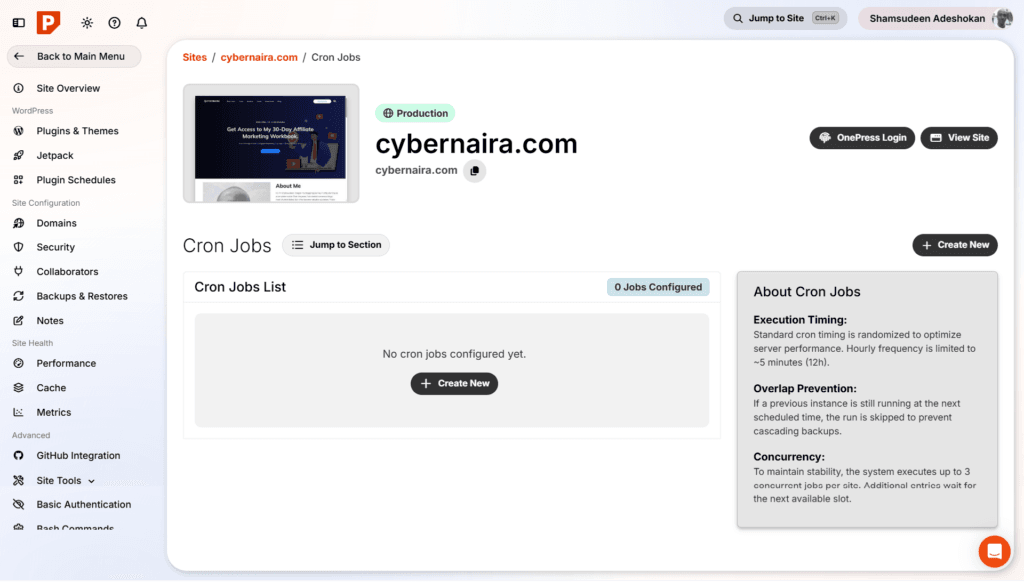
The power isn’t gone, it’s relocated.
cPanel emphasizes infrastructure control. Pressable emphasizes WordPress workflow control.
If your daily work involves tuning server parameters, cPanel feels flexible. If your daily work involves efficiently managing multiple WordPress environments, Pressable feels streamlined.
Security: Reactive Tools vs Integrated Monitoring
Security further illustrates the difference between the Pressable dashboard and cPanel dashboard philosophies.
In cPanel, security tools are present but reactive. You can review error logs, manage SSL certificates, configure certain protections, and monitor resource usage.
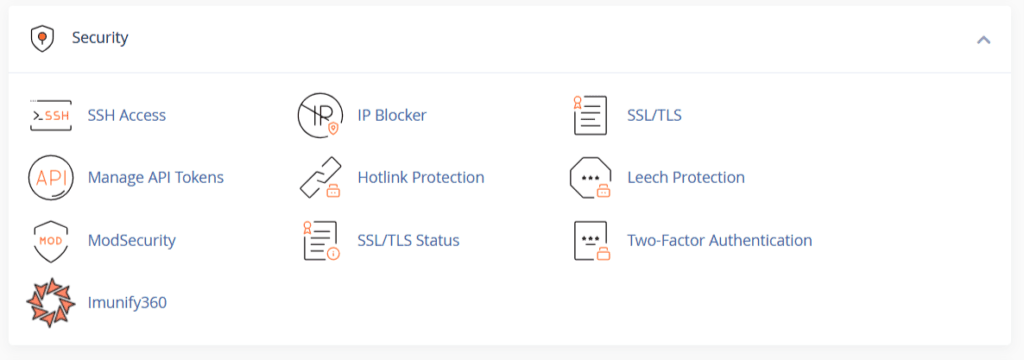
WordPress security itself typically depends on plugins and user diligence.
You are responsible for managing WordPress updates, monitoring vulnerabilities, and ensuring proper configuration.
Although you can use tools like WP Toolkit to set up auto updates for WordPress core, plugins, and themes, the options are limited.
Pressable integrates security monitoring directly into the site dashboard.
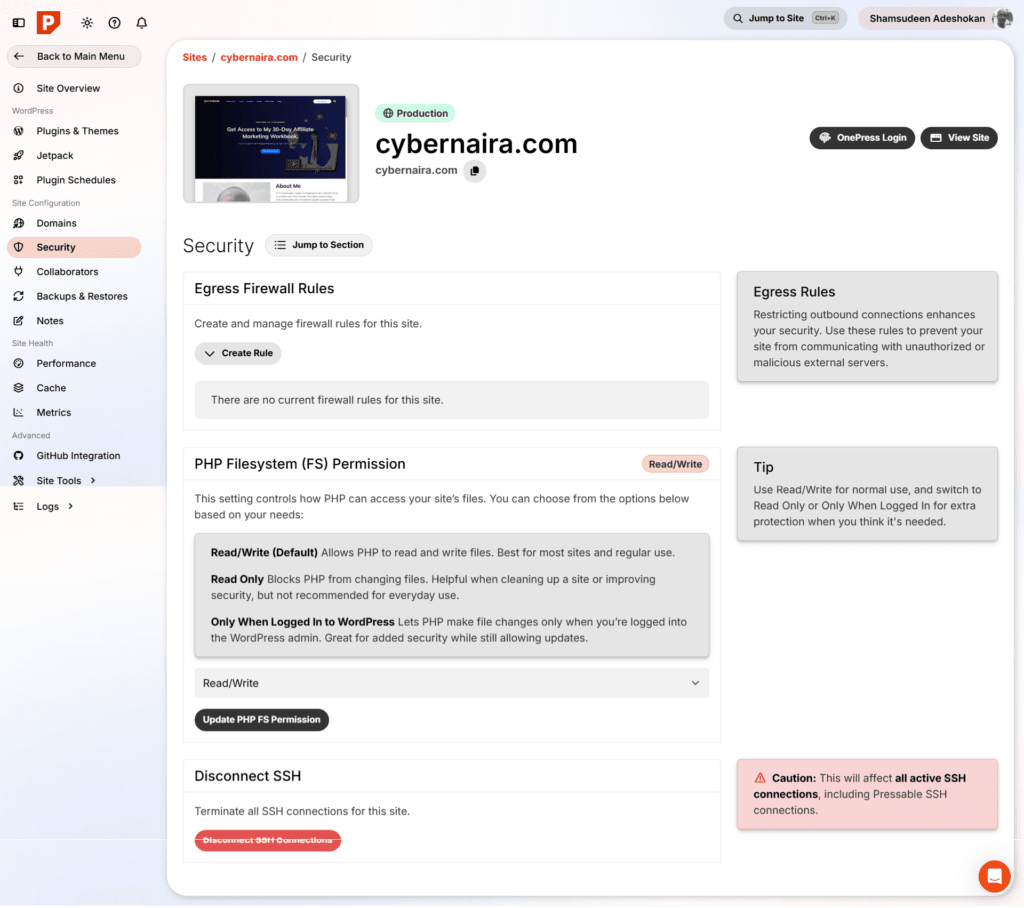
Plugin and theme vulnerability checks are visible. Weekly scans are reported, and automatic updates run regularly. Infrastructure-level protections are active by default.
The focus is less on exposing security tools and more on embedding monitoring into the hosting environment.
Both dashboards can support secure WordPress installations. The difference is whether security is managed primarily through exposed tools or through integrated systems.
Who Benefits From Each Approach?
If you run multiple application types and want complete hosting flexibility, cPanel remains one of the most versatile control panels available.
Its wide toolset supports far more than WordPress alone.
If your primary focus is running and managing WordPress sites efficiently, a WordPress-specific dashboard like Pressable’s removes infrastructure distractions and centralizes workflow.
Neither system is inherently superior. They are built for different priorities.
FAQs
Is Pressable’s custom dashboard easier to use than cPanel?
For most WordPress users, yes. Pressable’s dashboard is built specifically around managing WordPress sites. You don’t see dozens of unrelated server tools. Everything is organized around your site.
cPanel, on the other hand, is designed to manage an entire hosting account. That includes files, databases, email, DNS, metrics, and more. It offers more tools upfront, but it can feel overwhelming if you only care about WordPress.
What is the main difference between Pressable and cPanel dashboards?
The core difference is focus.
Pressable is site-centric.
cPanel is server-centric.
Pressable assumes you’re managing WordPress sites and structures everything around that. cPanel assumes you’re managing a hosting environment that can run many types of applications.
Does Pressable include built-in performance optimization?
Yes, Pressable includes integrated caching and a built-in CDN through its Edge Cache network with 28 global Points of Presence. It also includes free Object Cache and JetPack VaultPress backup plugin.
Are backups easier on Pressable than on cPanel?
In most cases, yes, Pressable provides visible, automated backups with restore points directly in the dashboard. With cPanel, backup options depend on your hosting provider’s setup. You may need to create manual backups or use backup tools provided in the control panel.
Is cPanel more powerful than Pressable?
They are powerful in different ways. cPanel offers broad server-level control — file management, database configuration, email hosting, cron jobs, PHP settings, and more. Pressable focuses power around WordPress workflows — staging environments, integrated performance tools, built-in CDN, automated backups, and security monitoring. The better choice depends on whether you prefer granular server control or a managed WordPress structure.
Conclusion
The difference between Pressable’s custom dashboard and cPanel isn’t about missing features. It’s about where complexity lives.
cPanel exposes the hosting infrastructure and lets you configure it directly. Pressable centralizes WordPress management and embeds infrastructure decisions behind the scenes.
If you prefer working close to the server layer, cPanel will feel natural. If you prefer focusing on site growth, content, and performance outcomes rather than server configuration, Pressable’s model may feel more aligned with your goals.
That is the real difference between these two dashboards.