

Creating a web form for your website doesn’t have to be complicated. In this article, you’ll learn how to use SureForms, an AI-powered contact form builder that is free to design contact forms that fit your needs.
We’ll explain everything step by step, from setting up your account and creating your forms to adding smart features that improve user input.
Whether you’re new to building web forms or have done it before, this SureForms review will help you make the process as straightforward as possible.
No matter what type of contact form you want to create, you can do it with SureForms, an AI-powered WordPress contact form builder.
Let’s start by seeing how SureForms can help you quickly and easily create a reliable contact form.
SureForms

Read my Sureforms review that breaks down the key features & functionality of this AI-powered contact form builder. See if it’s the right tool for you.
Price: 59
Price Currency: USD
Operating System: Web
Application Category: BusinessApplication
4.01
Getting Started with SureForms
The first step is to download and activate the SureForms WordPress plugin. You can do this from the WordPress plugin’s interface or the developer’s website.
The plugin’s free version is sufficient for simple contact form needs. The pro version offers powerful features and integration with Zapier and Webhooks, which allows you to set up workflows, triggers, and automation.
For this tutorial on SureForms, we will use the free license to show you what’s possible and how it can help you effortlessly create any contact form, from scratch or with AI.
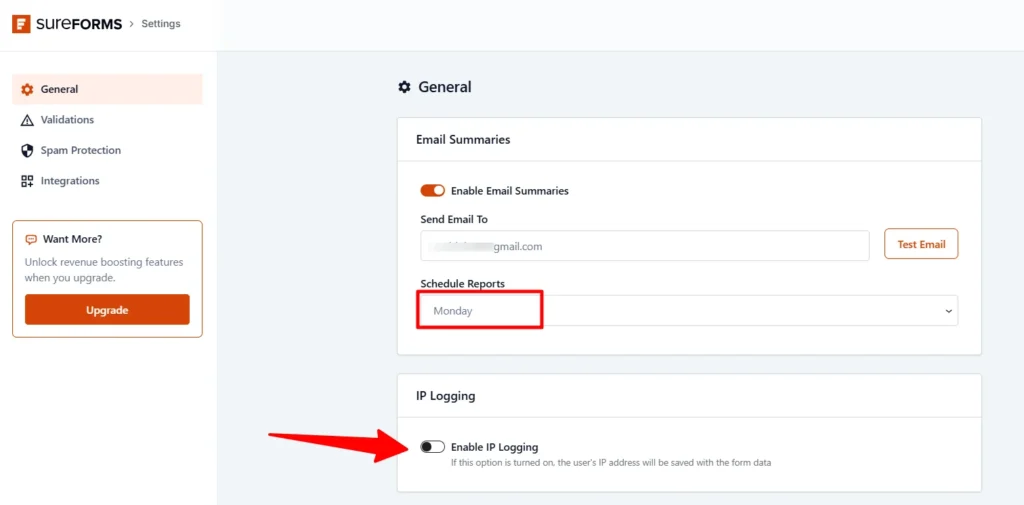
Once active on your site, navigate to SureForms > Settings to configure essential settings.
Toggle the “Enable Email Summaries” button. This option lets you schedule weekly or daily reports on your contact forms’ performance. You will receive reports for individual published web forms.
The IP logging option depends on your specific needs. It logs the user’s IP address along with form data submission. Before activating this function, consider the GDPR.
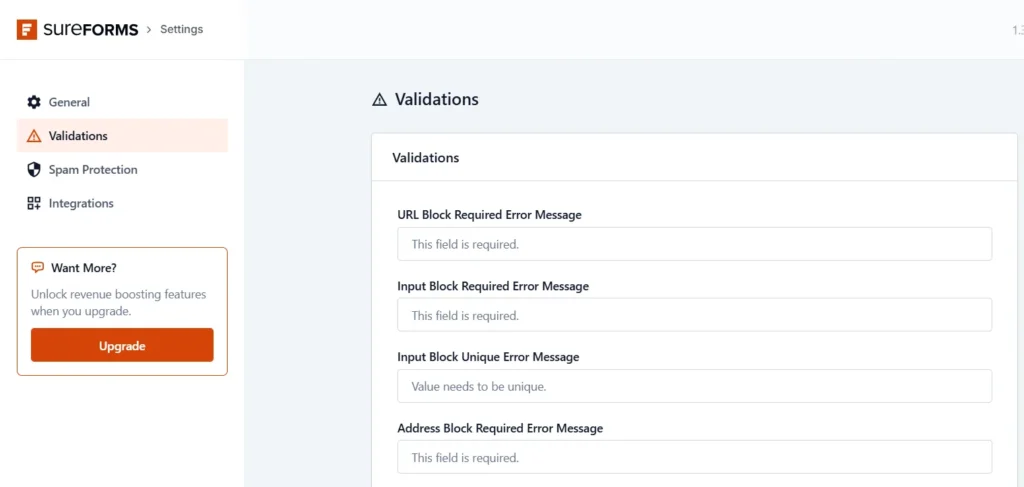
In the Validation setting page, review the label texts. You can configure it if you want to get creative or think something needs more context or explanation.
But I do not feel you need to change anything here. The default text is good to go.
Next is the Spam Protection setting, which is important; don’t skip it.
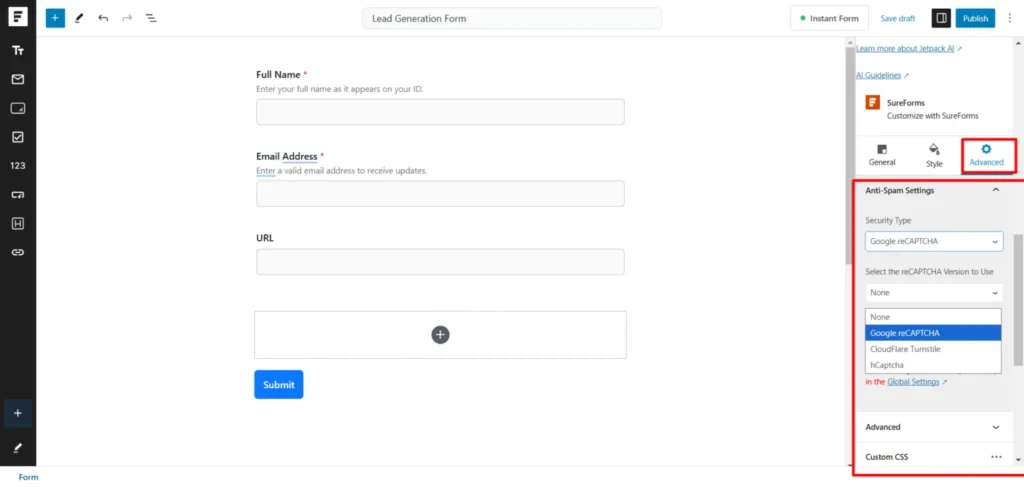
Here, you need to select your preferred Spam protection service: Google ReCaptcha, Cloudflare Turnstile, hCaptcha, or honeypot.
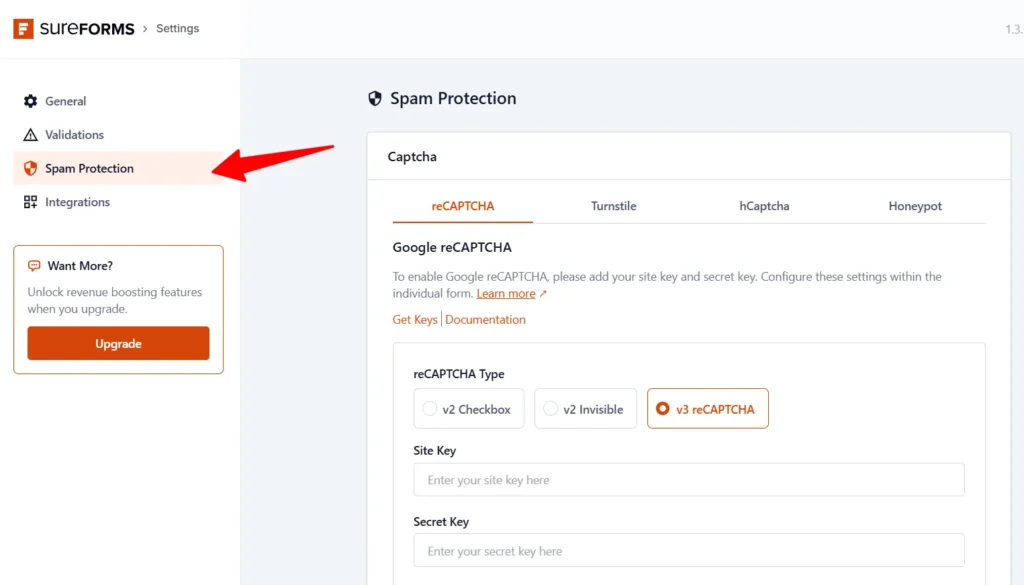
There are links for each Spam service that let you retrieve your account credentials if you don’t already have them. For example, click the Get Key link for your Google reCAPTCHA keys.
You need to select a protection method and enter the details to protect your contact form page from bots.
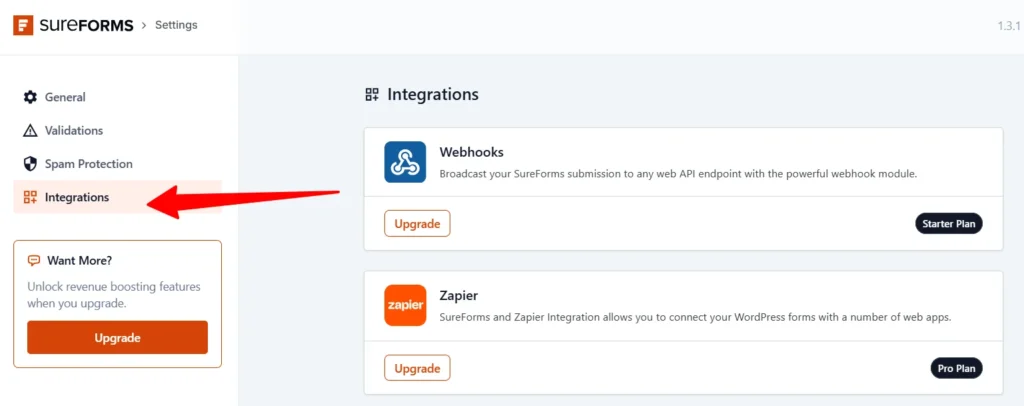
When you upgrade your account, you can configure the Integration Settings page. Then, you can connect with Zapier and Webhooks.
With the SureForms free license, you can connect to other apps and services during form creation using SureTriggers.
We will discuss that part in this SureForms review. However, as a free user, you can skip the Integration page for now.
Once you have completed the plugin setup process, it’s time to create your first web form.
Moreover, you can access these settings when creating individual forms. So, whatever you set here can be changed later for each contact form.
Creating Your First Web Form
Unlike traditional WordPress contact builders using templates, the SureForms approach differs slightly. It integrates with your WordPress Gutenberg editor, making it easy to drag and drop form fields into your templates.
To create a form, you can either build it from scratch or let SureForms AI build it.
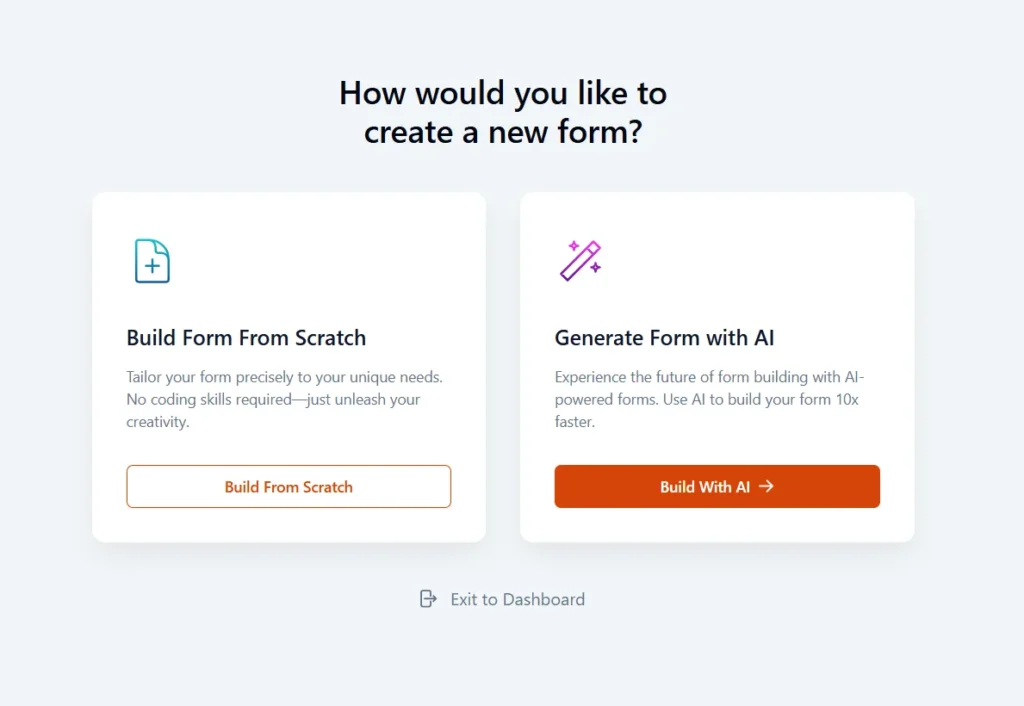
I will show you what’s possible using both methods.
For advanced users, creating from scratch offers greater flexibility for building highly personalized web forms. For beginners or if you need a quick, easy way to build your contact form, use the “Built With AI” option.
Let’s start with building from scratch.
First, click the “Built From Scratch” button to open the Gutenberg editor, where you need to design your contact form.
This is how the SureForms editor interface looks with Gutenberg. The quick action bar to add a block to the form fields is on your left. You can click the + sign to add a more relevant block for quick access.
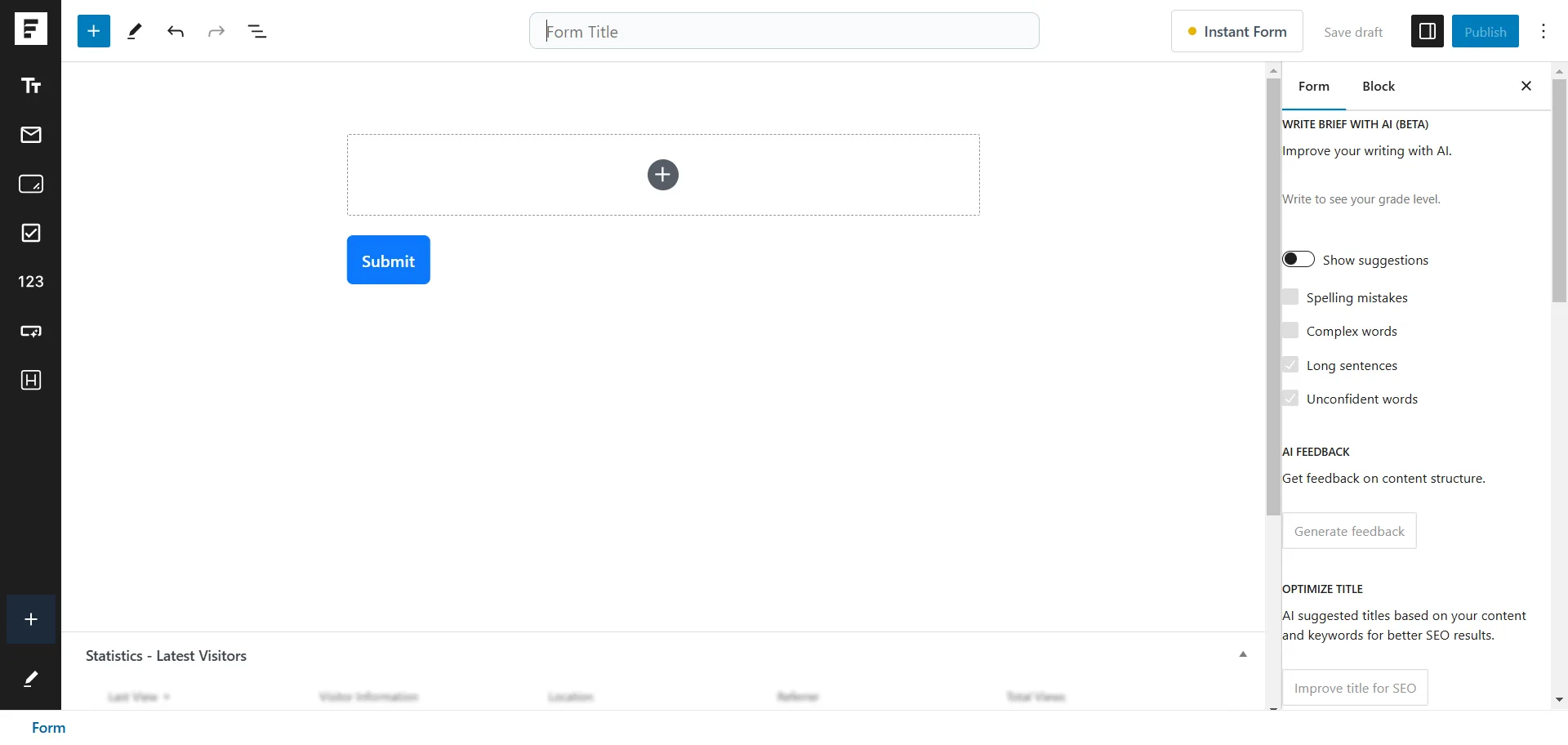
To add fields to your form, click the corresponding block from the quick action bar or click the + sign to open the block selection box.
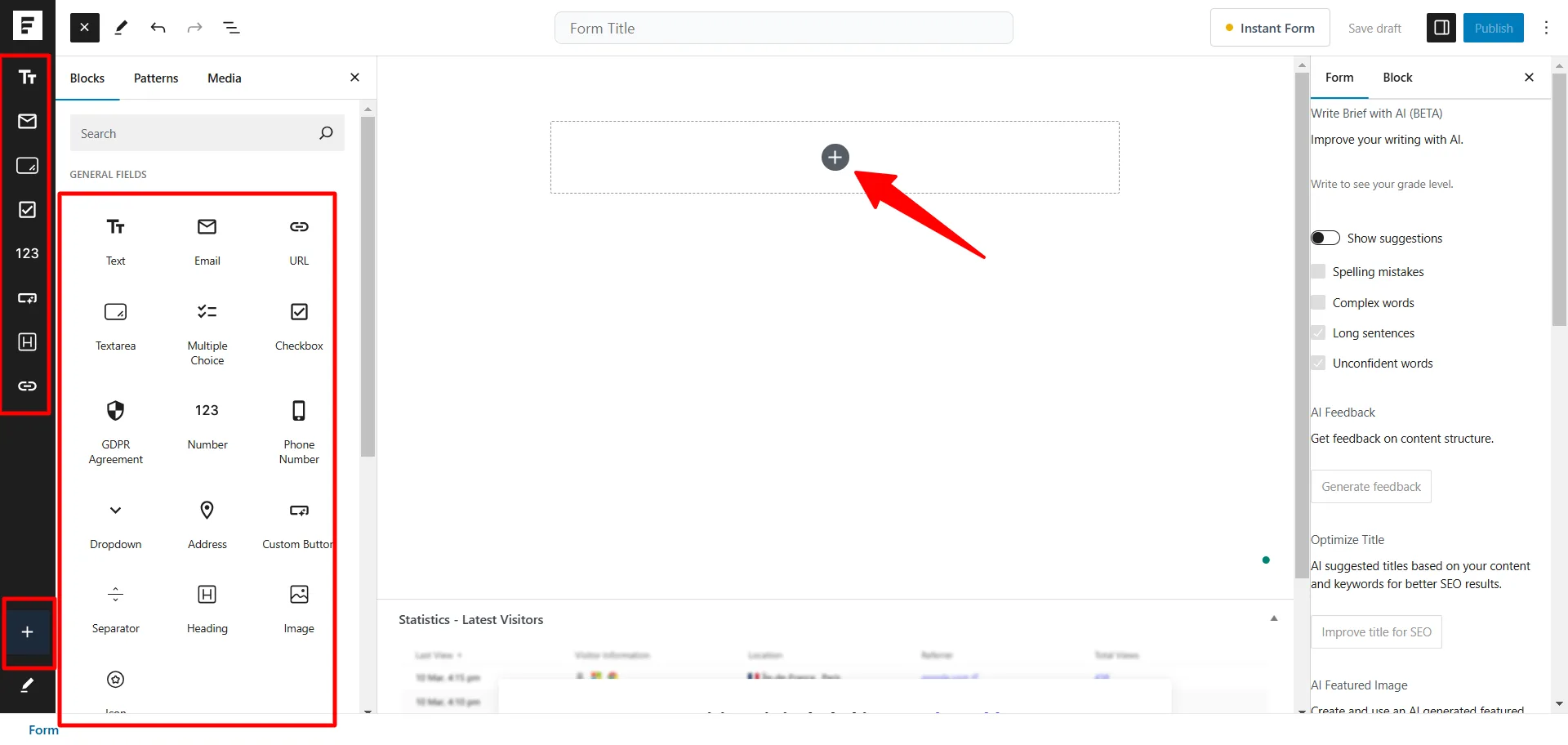
This is the same way you add block elements to your post.
Now, let’s quickly create our first SureForms contact from scratch. First, we need to give our form a name or title.
Then we add relevant fields to collect user information, such as name, email address, phone number, zip code, and work experience.
However, to avoid boring you with what you might already know, I will quickly create the form and show you the essential settings that make SureForms a worthy tool for your business.
Here is a simple contact form I created that collects only the essential information I need from users: name, email, website URL, and any other information the user might want to provide. To comply with privacy law, I added the GDPR consent checkbox.
There are a couple of things to note when creating your forms using SureForms:
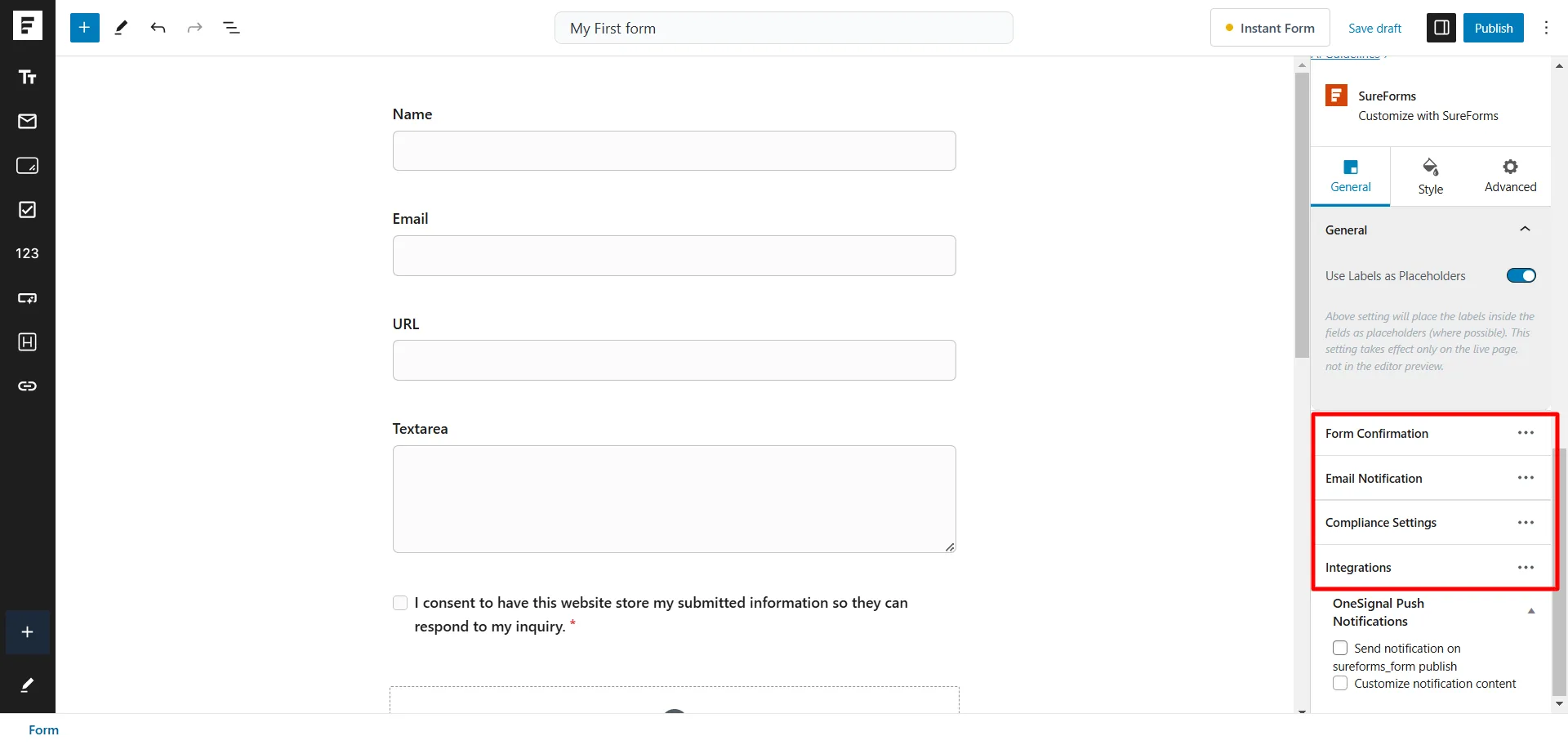
First, let me show you how to configure your form settings, including form confirmation, email notifications, and compliance settings.
Form Confirmation
As shown in the above image, click Form Confirmation to define what happens when a user submits the form.
Here is the confirmation settings page for the form.
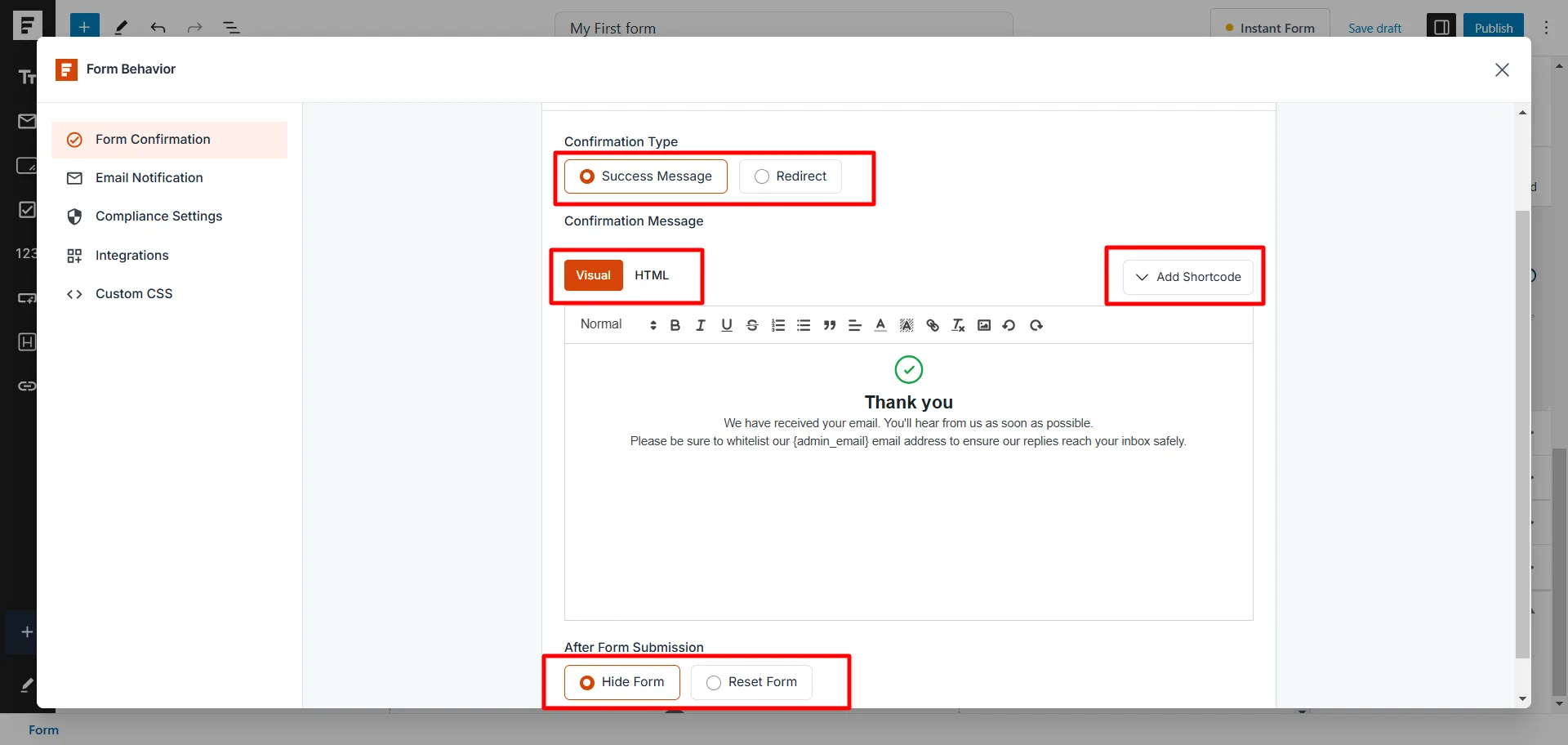
SureForms added a default confirmation message, which is ideal for most blogs.
However, you can customize it, including the next page the user sees after submitting the form. You can add personalization text or data to the confirmation message using the dropdown Shortcode list on the page.
For example, you can mention the user’s first name, email address, or device data, such as the browser name and platform.
These advanced features give you more control over personalizing your form confirmation message. It could lead to a better user experience and improved conversion.
Other settings you can configure include redirecting users to your chosen URL after a successful form submission. You can also choose to high or reset the form after submission. The settings give you control over what happens on the form page.
Email Notification
Next, click the email notification link to configure its settings.
The settings here give you control over how SureForms delivers your email and to whom it should be sent.
By default, form messages are delivered to the site admin email address, with the form title as the subject line. However, SureForms gives you control over this data and lets you define how the message is delivered.
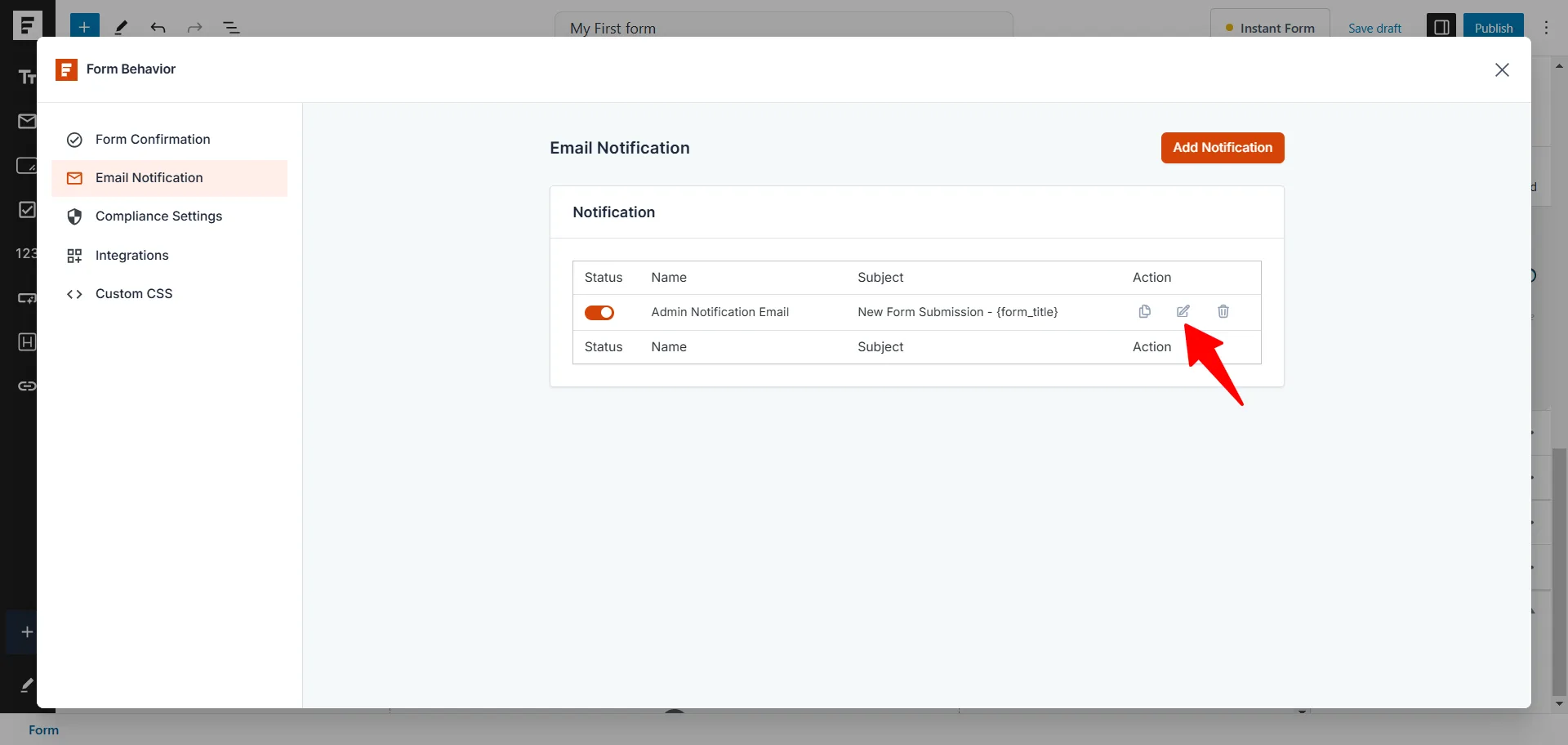
Click the edit button to customize the settings, as shown in the above image.
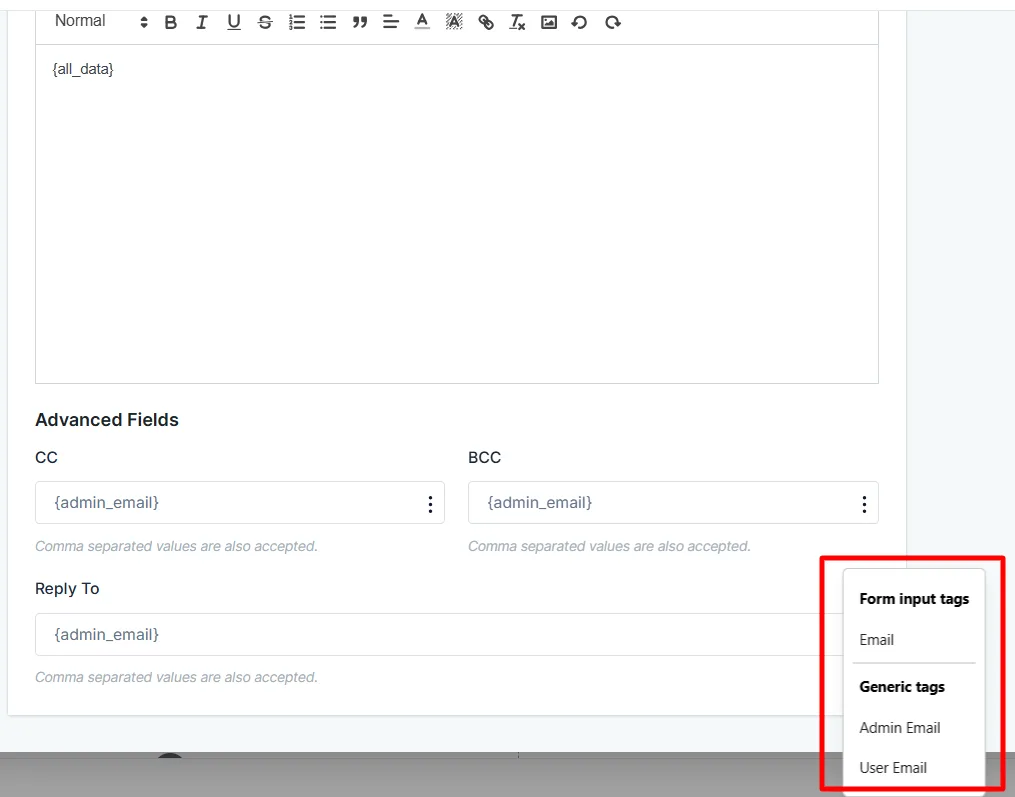
On the next page, you can edit the:
Apart from the Notification email name field, other settings let you enter shortcodes to add extra data or personalize the information.
For example, you can add an email address to the CC or BCC field. You can even add extra data to the email body using a shortcode.
Compliance Settings
Privacy law is global, though requirements may differ by country. Your contact form must comply with standard user privacy laws.
Before enabling this setting, ensure you’ve added the GDPR consent setting checkbox to your form. Once added, you can configure its settings here.
Toggle the GDPR consent button to enable the other two options.
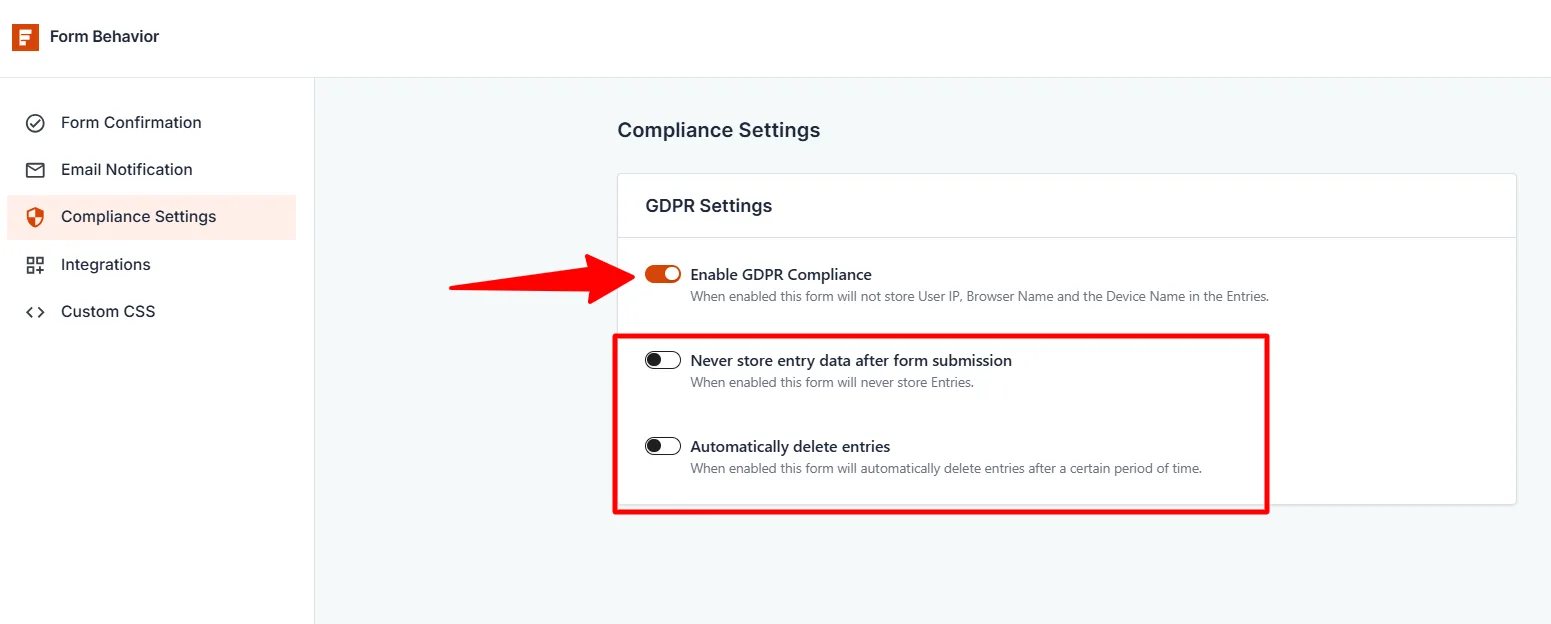
After enabling the GDPR Compliance button, you can only turn on one of the two other options: Never store entry data after form submission or Automatically delete entries.
The Never Store entry after form submission will prevent form entries from being stored in SureForms. The Automatically Delete entries allow you to select the duration for which form entries should be deleted.
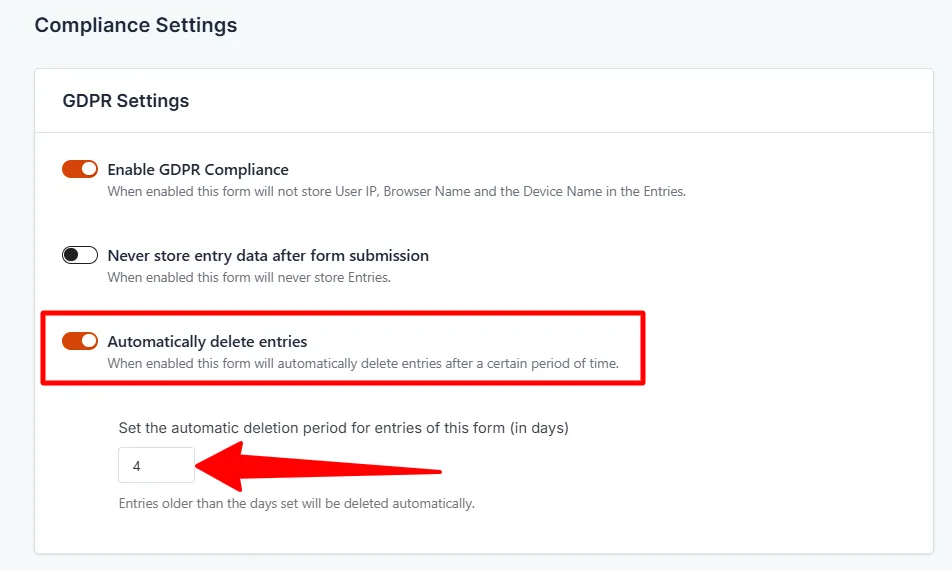
Note: You can only select one option – Never store form entries after submission or Automatically delete entries.
Integrations
As I mentioned, free SureForms users can integrate the plugin with SureTriggers, allowing them to connect their contact forms to hundreds of applications and services.
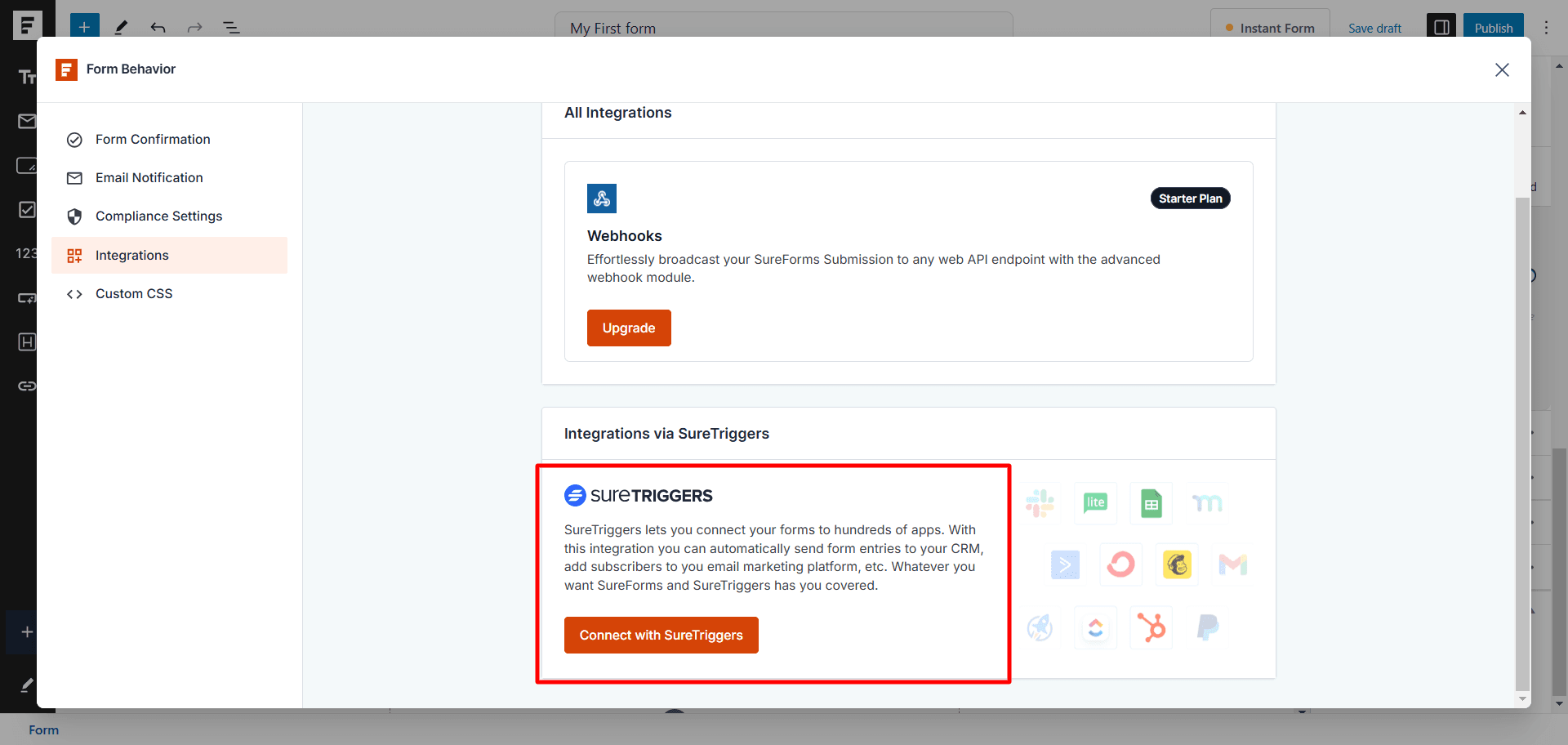
This integration lets you set up workflows to automate tasks and manage data across different tools by defining triggers, actions, events, and connections. You will need APIs to set up your connections.
SureForms integration is a powerful feature that lets you work across multiple applications and share data with a team, business partners, and anyone with authorized access.
Users on the Pro license can connect via Webhooks and Zapier, while Starter users have Webhooks only. SureForms Business plan users can connect to custom apps.
Anyway, click the Connect with SureTriggers button to initiate the connection.
Once your connection is set up, you can create workflows in SureTriggers to connect your web form to other platforms.
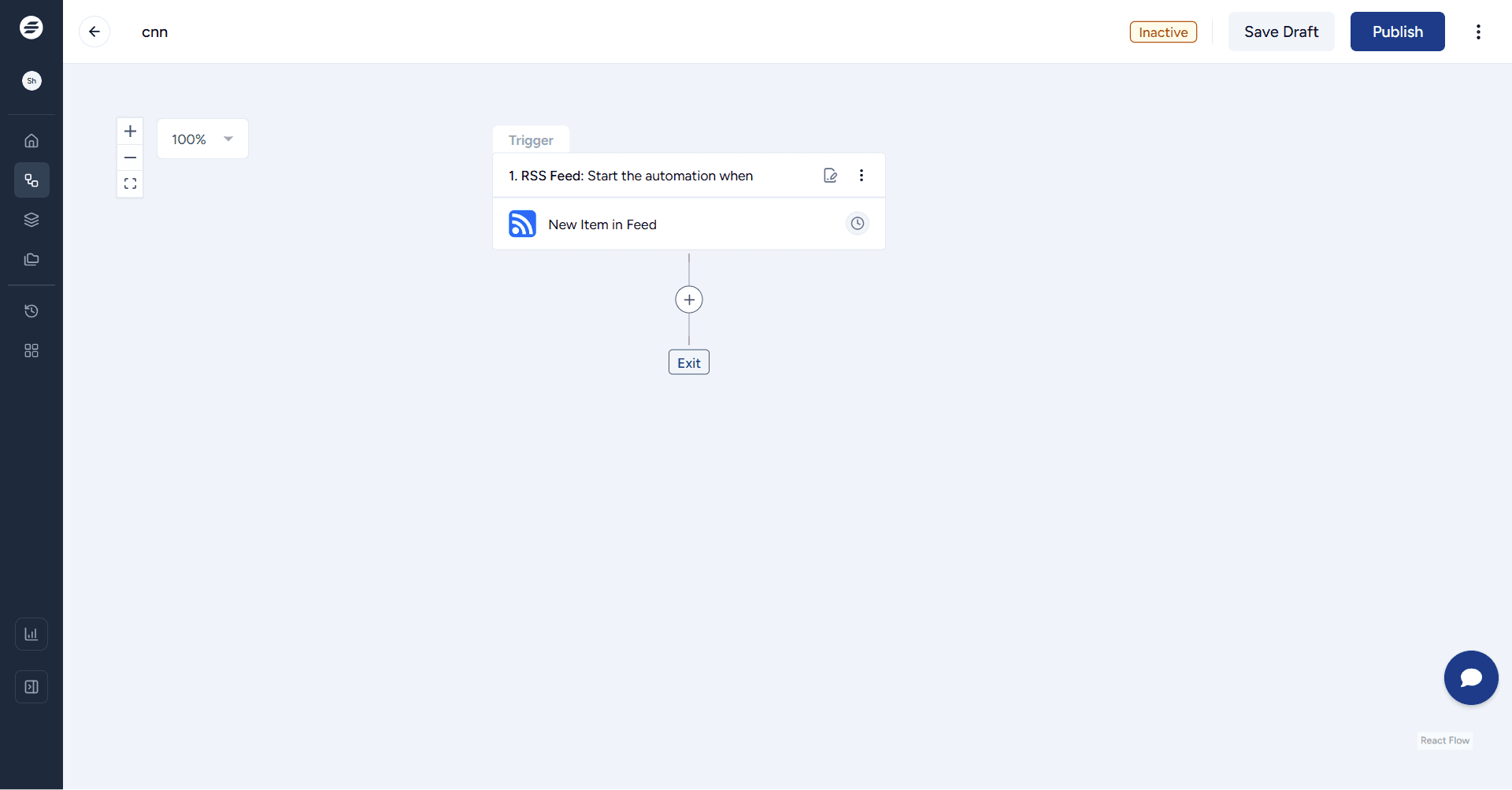
Note:
SureTriggers lets you connect your web app with hundreds of other apps. It’s not limited to SureForms only. It is a powerful workflow and automation tool for automating repetitive tasks, exchanging data, saving time, collaborating,
Custom CSS
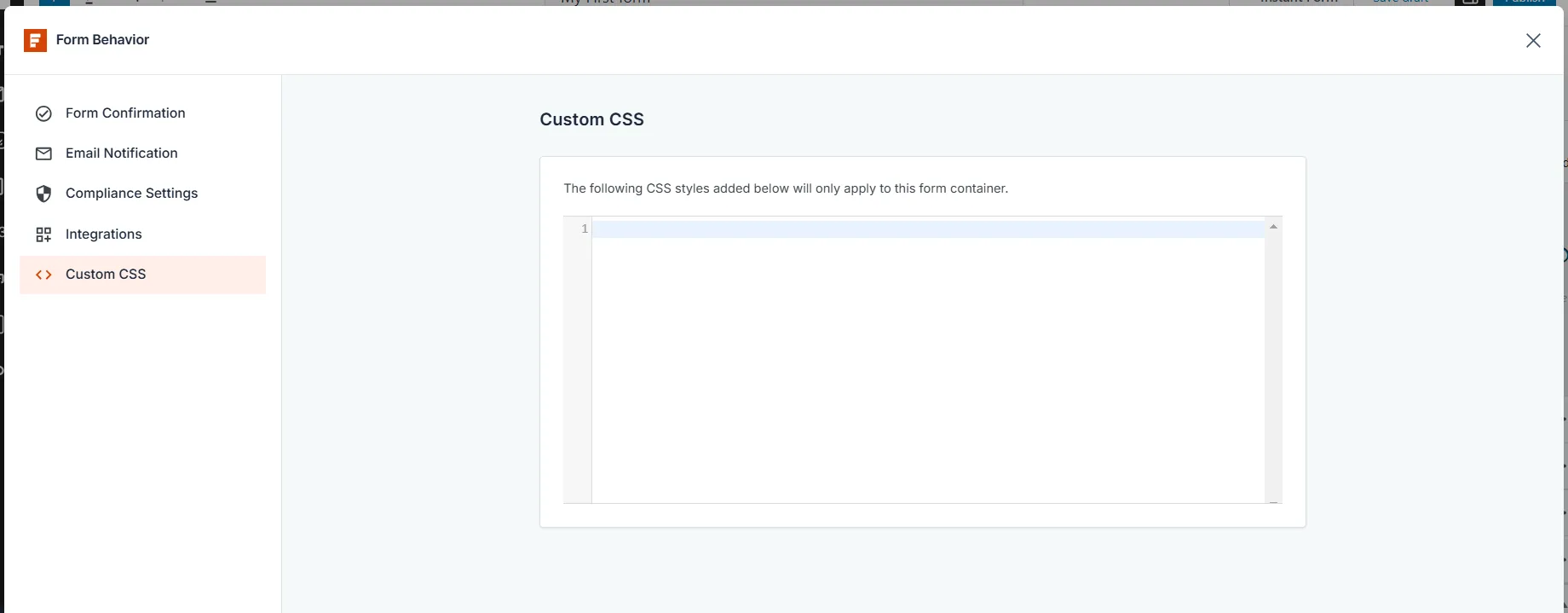
Lastly, SureForms lets you customize the form container by adding custom CSS styles. The customization you added here will only apply to the particular form you created, not future ones.
This feature is handy for developers or anyone with coding skills who needs to add custom designs to the form.
We’ve completed the essential settings for our form.
Let’s see how you can configure each form field to fit your site branding and even create instant forms. Instant Forms lets you create shareable form links that you can use anywhere online, including email and social media platforms.
Configuring Form Field Settings
You can configure the settings for each form field in SureForms to fit your specific needs. For example, the name field has these options:
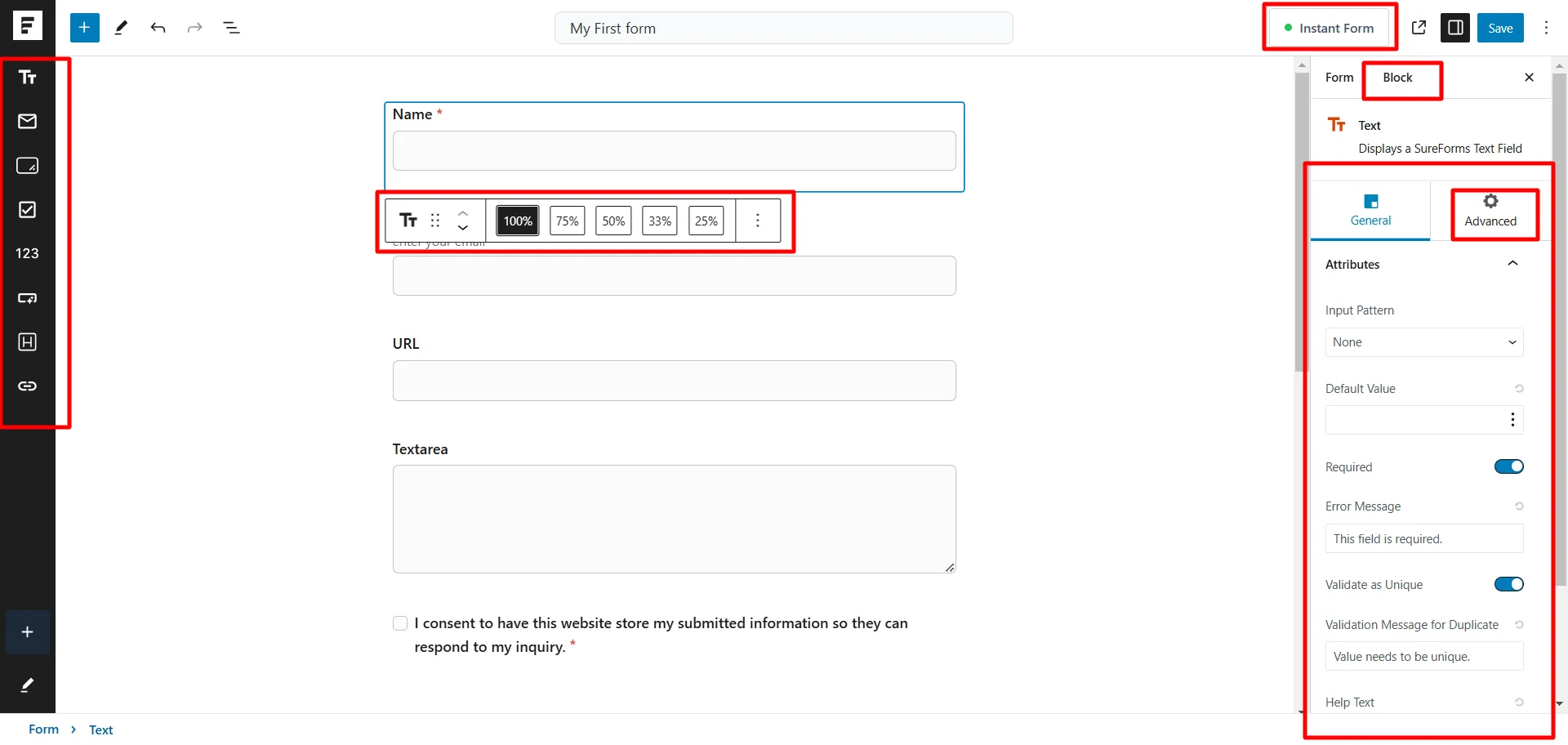
In the image above, we can define the width of the name field as a percentage. This option lets you determine the number of columns a form field takes up.
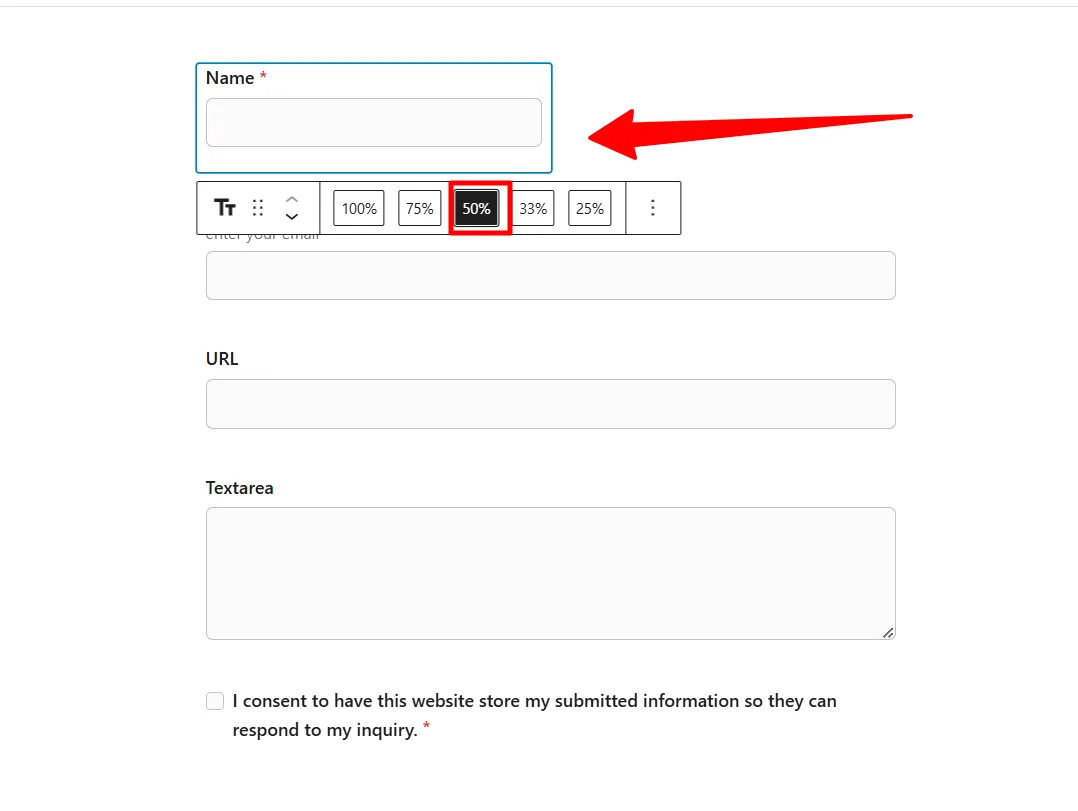
For example, see what happens when I reduce the form field – name – to 50%. Compared to other form fields, it’s now half their width.
From the block-level settings on the right side, you can set block-level form field attributes such as:
Switching to the Advanced Tab opens block-level settings, but your option here depends on your SureForms license.
As a free user, the Conditional logic setting is locked. I need the Starter plan to unlock it and set conditions for the form fields.
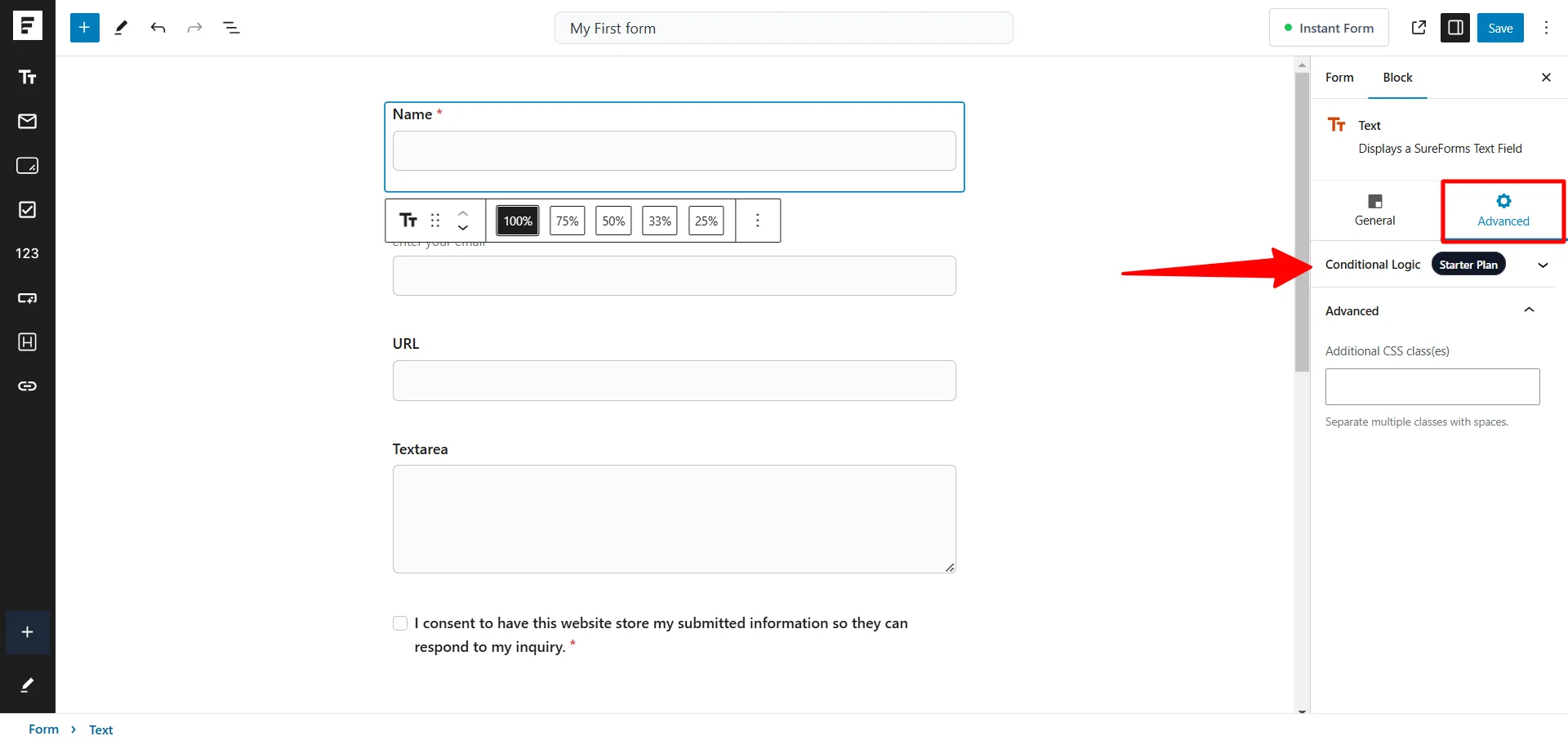
Conditional logic lets you show/hide form field input based on the user’s previous entry. This is good for collecting opinions, such as surveys, feedback, product testing, and multiple-choice forms. But with the free SureForms plugin, you can’t access this feature.
The main point is that you can control every aspect of your SureForms elements, including container size, fields, attributes, and design. This is why SureForms is more intuitive and helps you create better-looking contact forms than a template-based builder.
Though template-based WordPress form builders are also helpful, this approach is the most straightforward way to create web forms that fit your needs.
Once you finish setting up your form attributes, customizations, and design, click the “Save” button to publish it. Once published, you can embed your form on any WordPress page or post using SureForms shortcodes or the block.
I will show you how to do that; let’s create Instant Forms for now.
Creating Instant Forms with SureForms
As mentioned, Instant forms let you create shareable URLs to direct your audience to fill out your forms. You don’t need to embed it on a page or use shortcodes.
The form automatically generates a URL to display your contact form online. And when you share this URL with anyone, they can visit the link to view and fill out your form.
How good is that?
Let’s create one together.
While creating your forms, or if you open an already published form in the Gutenberg editor, locate the Instant Form button at the top right of the page.
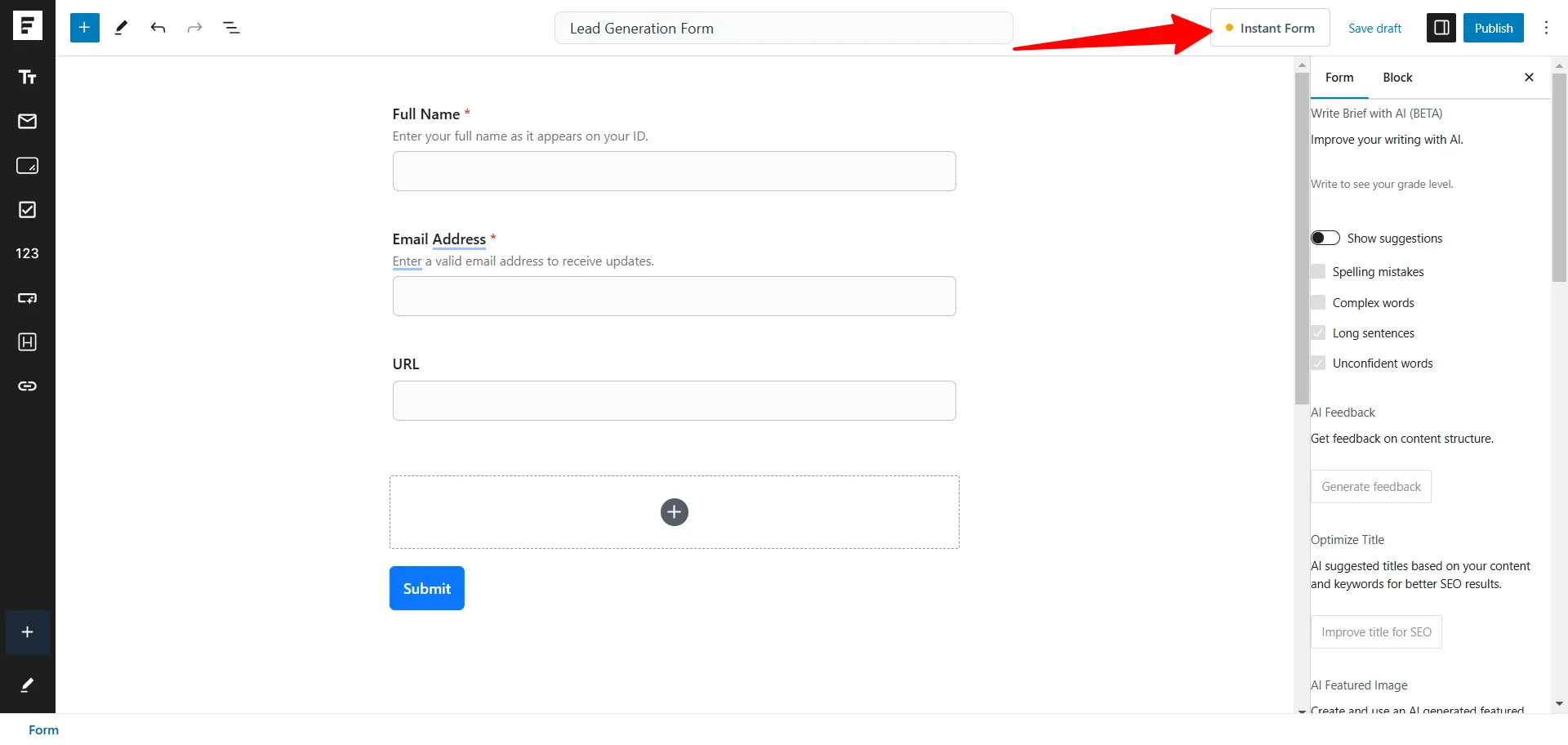
Click this button to enable Instant Form and open the settings.
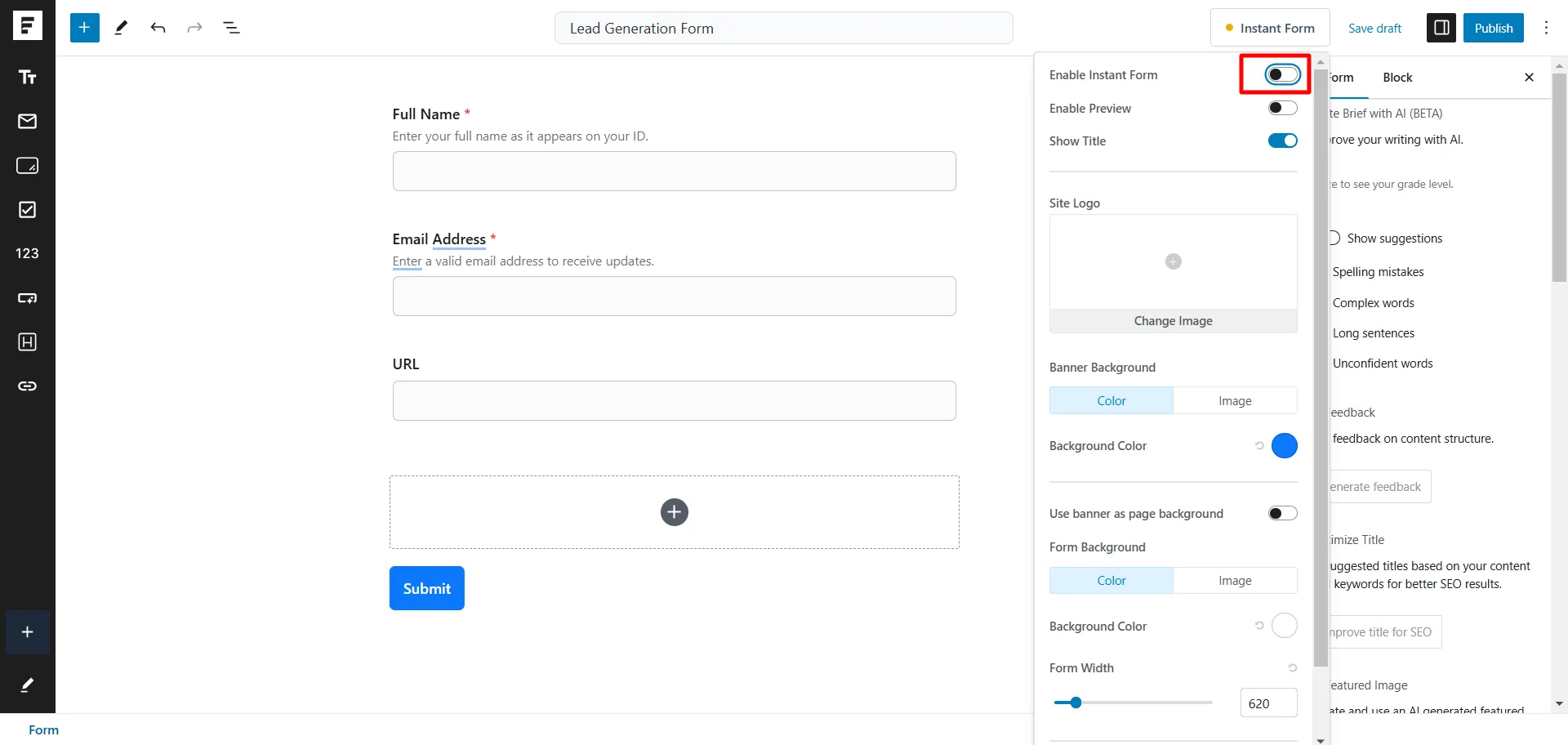
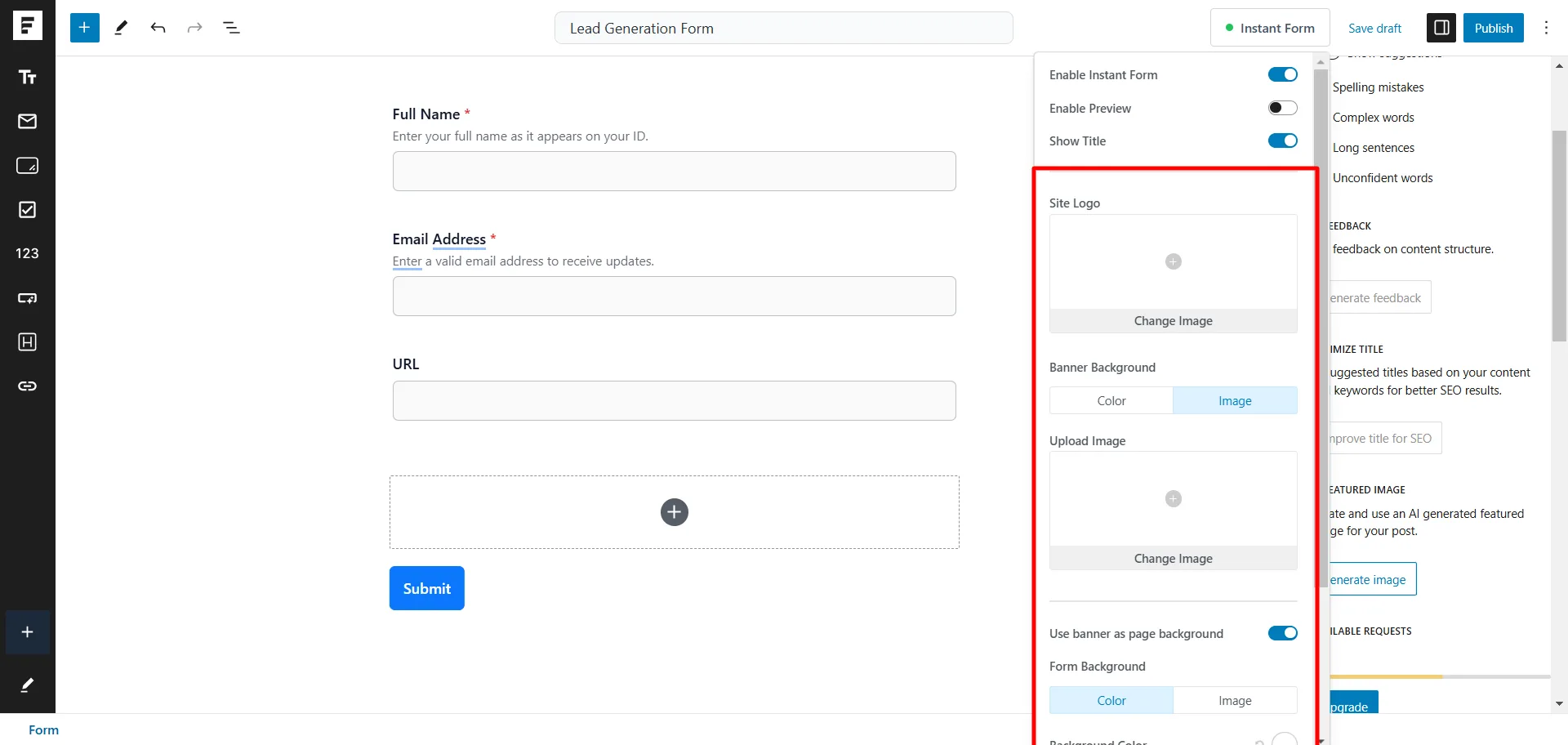
Once you enable this button, you can customize the appearance of your Instant Form to match your site’s branding.
You can change the background color, add a background image, adjust the form width, add a site logo, or use site banners as the page background.
You can do these from the settings here.
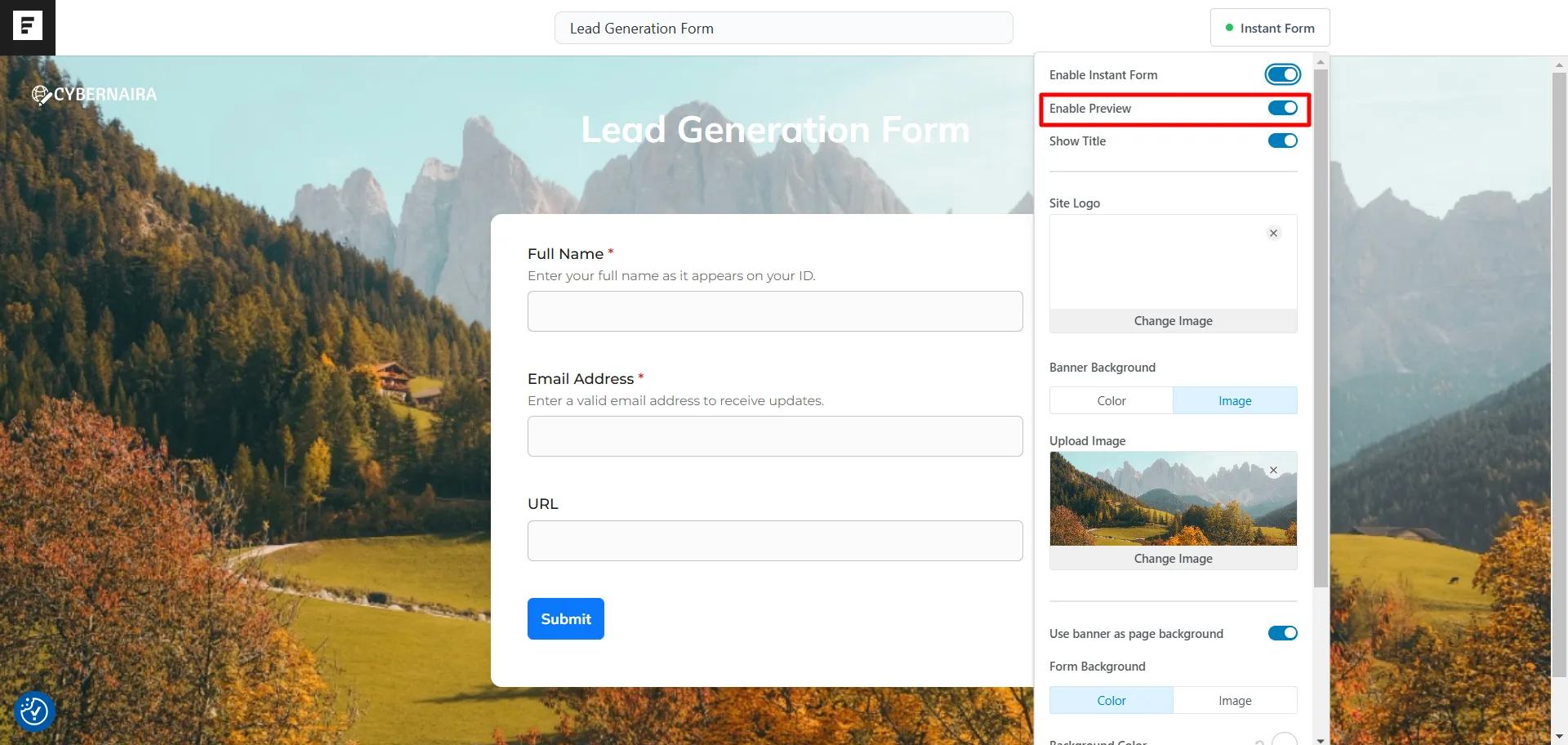
Click the preview button to preview your Instant Form customizations. Then, click the preview button again to return to the editor.
Here is an Instant Form I designed following the instructions I shared. You can also see a preview button you can click to return to the editor interface.
Now, we need to configure some settings for our Instant Form.
Our Instant Form has two significant settings: the Form and Block level settings.
Let’s review the Form level settings.
The Form level settings have three tabs – General. Style. Advanced.
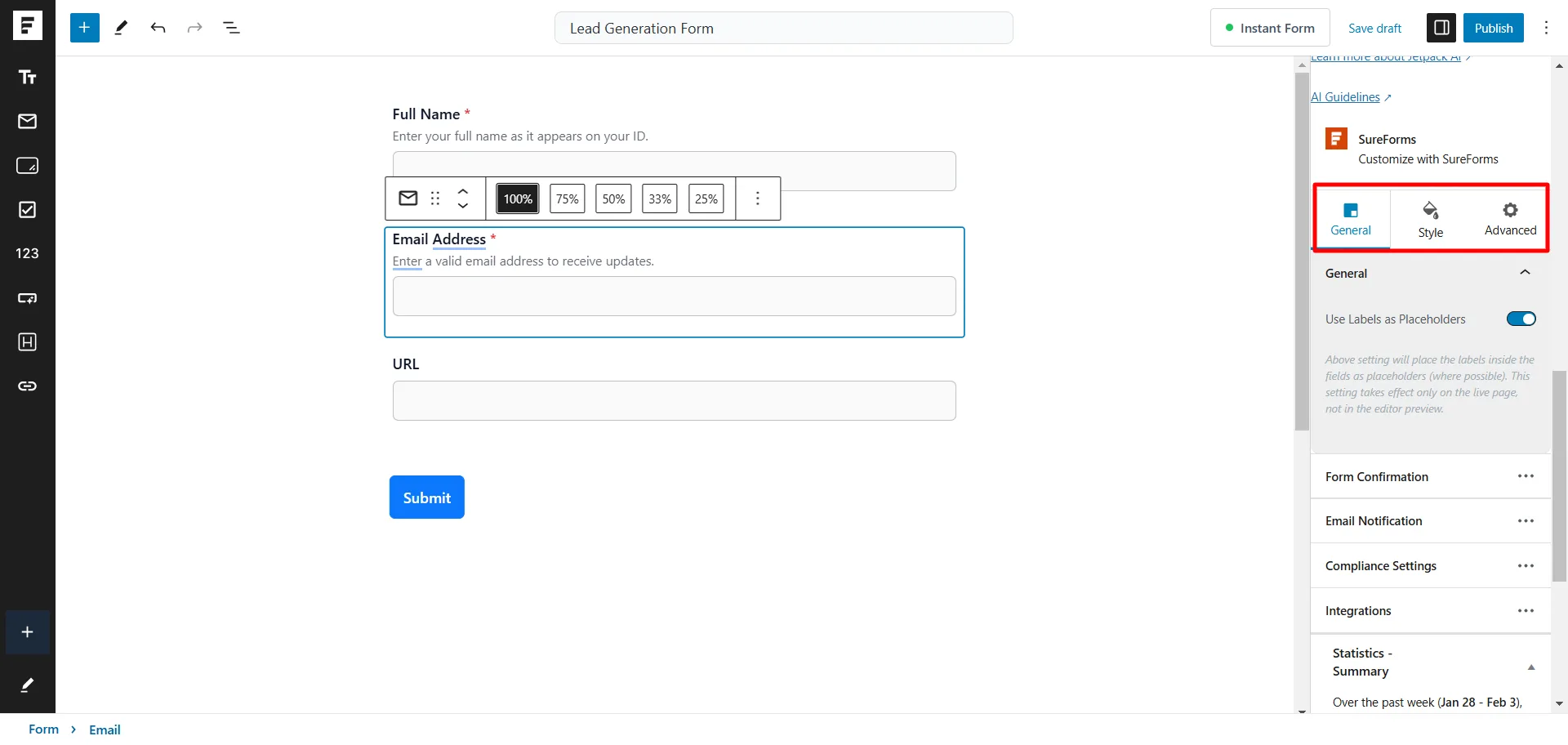
We have walked through the General Tab settings in the previous chapter of this SureForms review. You need to configure the Form confirmation message, Email notification message, Compliance setting, and form Integration.
The Style Tab offers several options for customizing the form container, including text color, spacing, and button alignment.
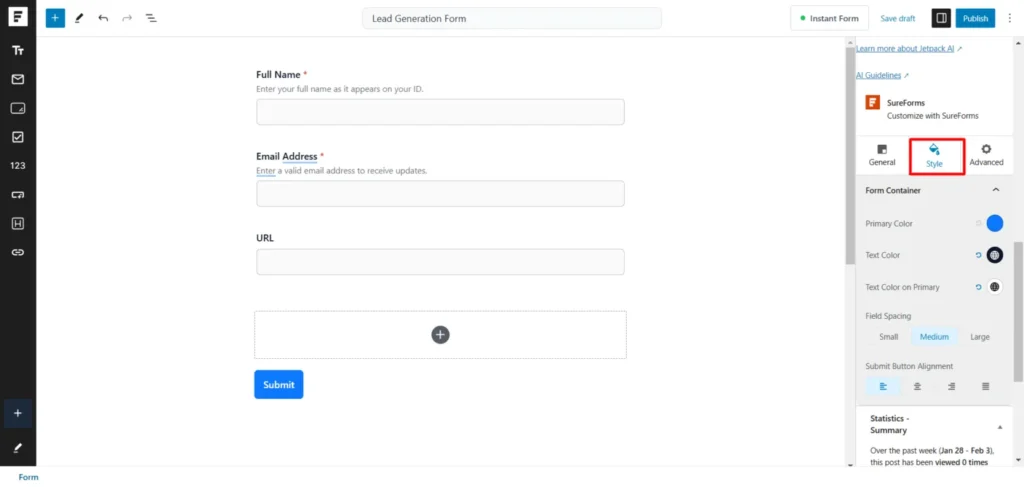
Lastly, the Advanced Tab lets you integrate spam protection with your Instant Form. You can choose from Google reCAPTCHA, hCaptcha, and Cloudflare Turnstile. Also, you can add custom CSS from the Advanced tab.
Once you are satisfied with your Instant Form customization, click the Publish button. Your Instant Form automatically generates a URL based on the form title, but you can change this to your preferred URL slug.
To do this, locate the form URL here:
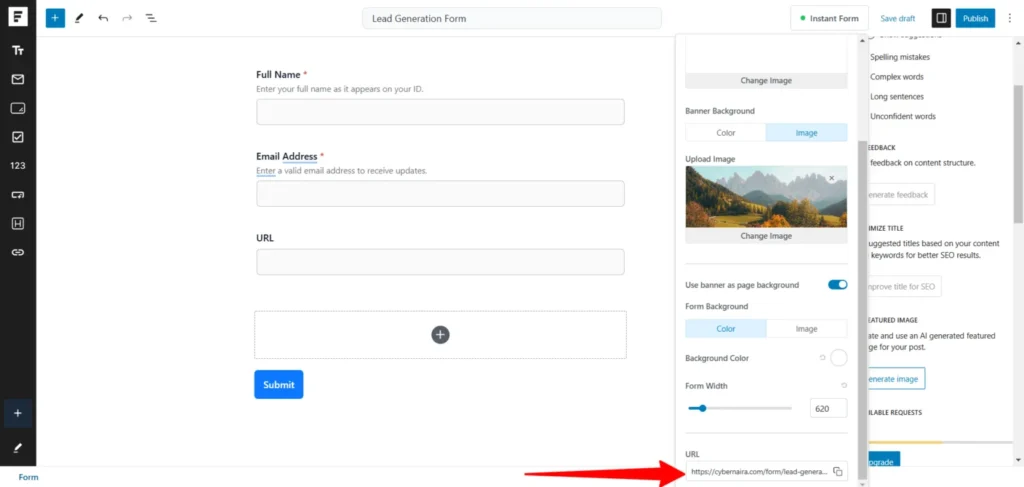
Change the URL text here.
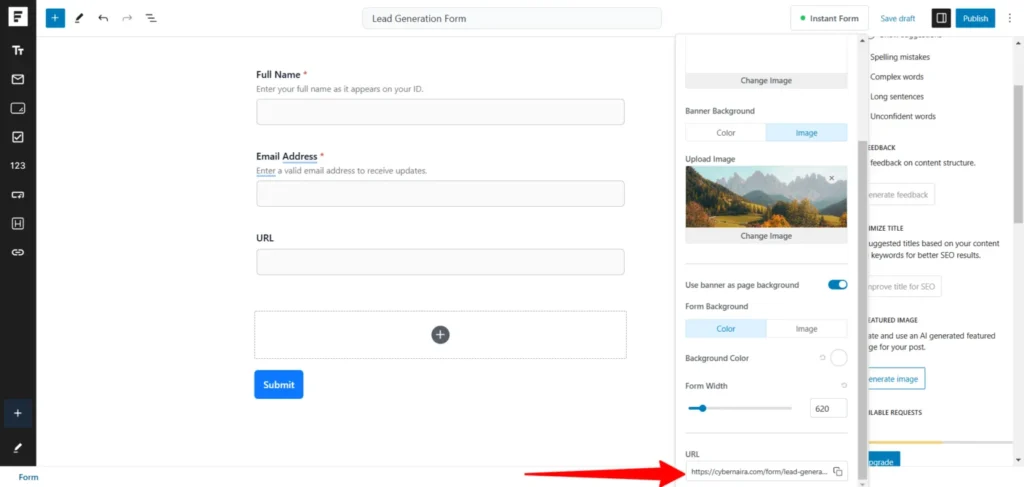
Once finished, click the Published button again to make your Instant Form reflect the new change.
Now, you can just copy this link and share it on your social media profiles, in an email newsletter, or anywhere online, directing people to it.
This makes it easier to collect feedback, build email lists, or provide easier ways for people to reach you.
Remember to integrate your Instant Forms with your CRM or email marketing service provider to make generating leads easier. Use the SureTriggers integration to connect with your preferred services.
Creating Contact Form With SureForms AI
Let’s create another web form using the SureForms AI contact form builder.
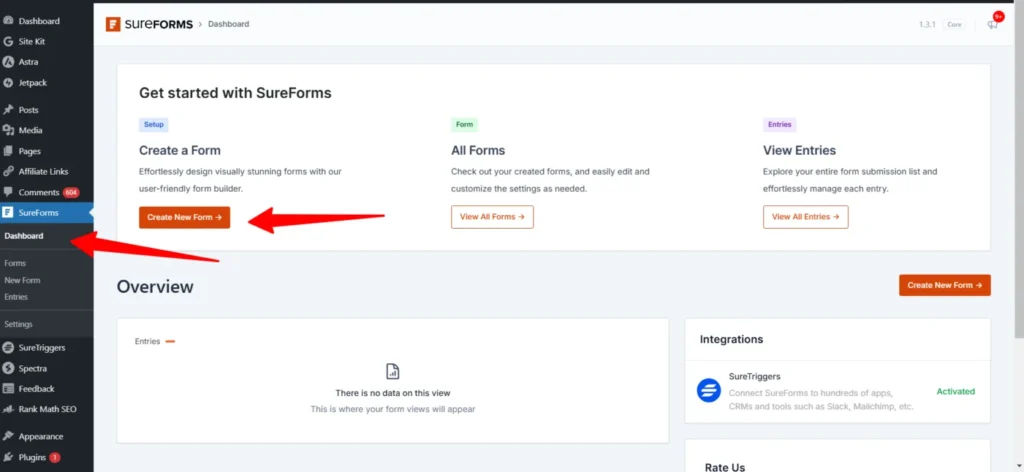
Go to the SureForms dashboard and click the Create New Form button.
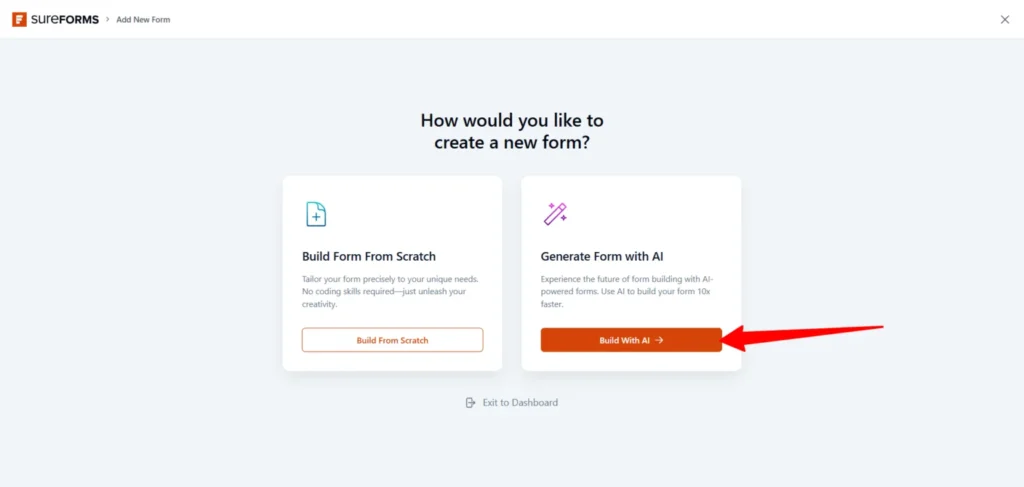
On the next screen, click the Built With AI button.
On the next screen, you enter your prompt to create your form with AI. Your prompt doesn’t need to be complex or contain too many words. Just describe your firm’s purpose in simple, everyday language.
You can use the voice chat function if that’s convenient for you.
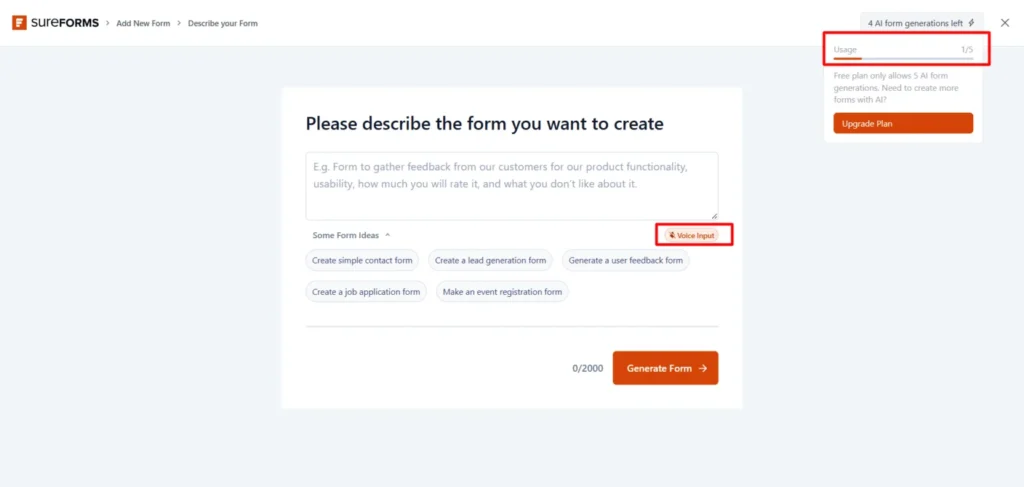
Here is the prompt I wrote to create a contact form with SureForms AI.
“Create a dynamic multiple-choice contact form with two initial options: ‘Red’ and ‘Blue.’ If the user selects ‘Red,’ they should be presented with a choice between ‘Apples’ and ‘Oranges.’ If they select ‘Blue,’ they should choose between ‘Organs’ and ‘Orbs.’ Ensure the form is user-friendly, visually appealing, and includes a submit button for collecting responses.“
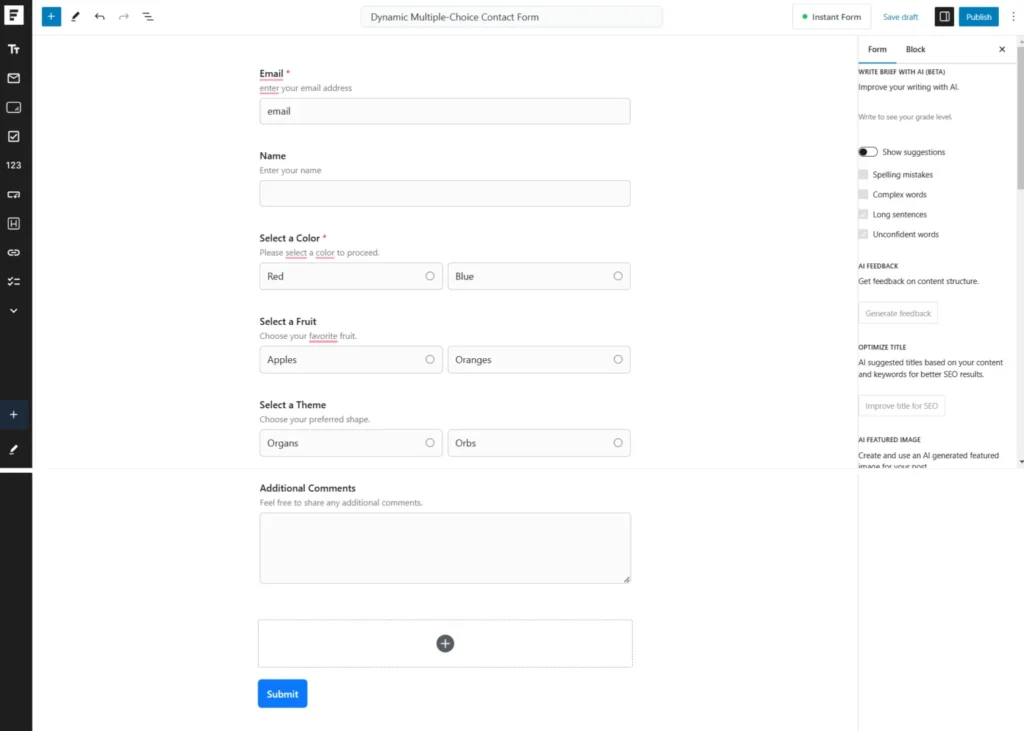
This form takes approximately 40 seconds to generate.
Sure, I need to customize the settings, configure the form attributes, and make other necessary adjustments. However, it saves me time and effort when building this form from scratch.
Customizing your SureForms AI-generated contact form is the same as for the classic or build-from-scratch option. Every customization and configuration applies, so we do not need to cover them again.
You can also make the AI-generated web form an instant form by following the steps I shared above. Just click the button on the page to configure the settings and customize the appearance.
Embedding Your Web Form on Your Website
Adding your SureForms to your WordPress blog is easy. You can add it with a shortcode or block function.
Open the page or post you want to add your SureForms to, and click the + sign on the editor interface.
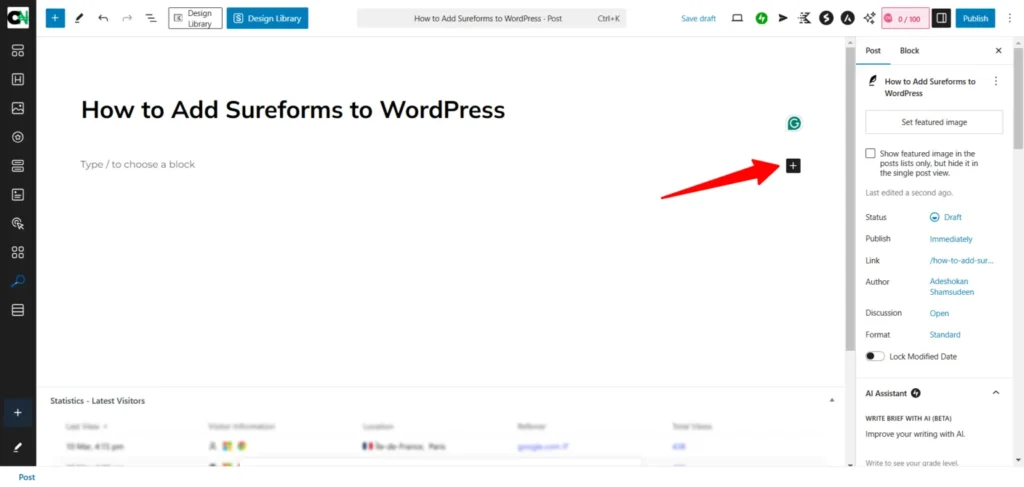
In the blocks search box, type SureForms to quickly find it. Then click SureForms and select your already-built form from the dropdown menu.
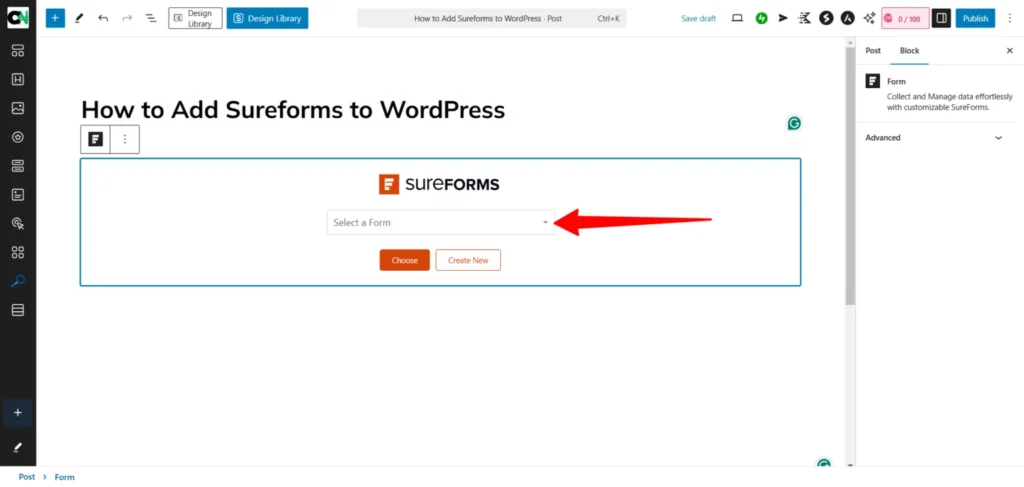
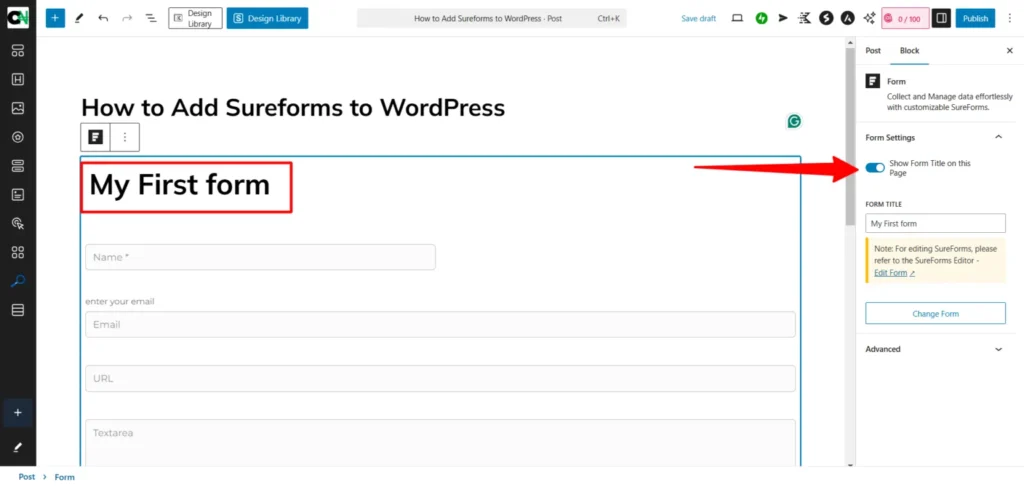
Select the form you want to embed from the list and click the Choose button to add it to the page. The form automatically displays on the page.
Note:
Apart from the Show Form Title option on this page, you can not customize your form elements or settings when you add it to a page to publish.
Another option for adding your form to a WordPress post or page is to use SureForms shortcodes.
Go to SureForms in your admin dashboard and click Forms from the list. This opens the list of forms you’ve already created.
Each form has its own shortcode, which you can use to embed it on any webpage on your WordPress site. Copy and paste this code on the actual website in the position you want it to display.
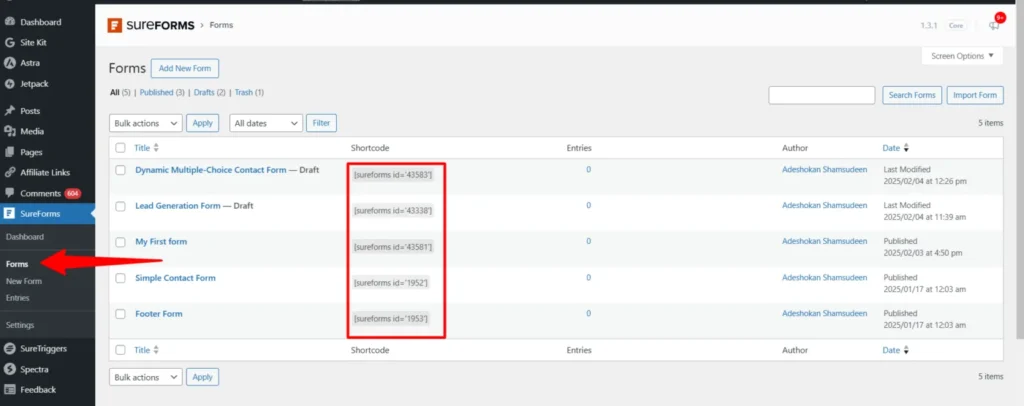
You can add this shortcode to a WordPress widget if it allows it.
SureForms is responsive to mobile devices and adapts seamlessly. So you don’t have to worry about what device your form will display on. Whether it’s a tablet, smartphone, or desktop, users get the same seamless and rich form experience.
SureForms Advanced Features and
SureForms has many notable features that make it a top choice for small business owners, developers, and website owners.
Note:
Some of these features are not yet available. They are either in development or on the planned list. So, check the SureForms feature list page for clarifications.
SureForms Customer Supports
Brainstorm Force, the same people behind awesome WordPress products like WP Astra theme, Spectra Pro, SureTriggers, CartFlow, and LatePoints, created SureForms. This means you get the same high-quality customer support the company is known for.
As a free user, you can open a support ticket to resolve your issue promptly. However, the response time is quicker for premium users (within 24 hours), and a more advanced support team handles your issues.
There are extensive knowledge base articles, tutorials, step-by-step guides, and walkthrough videos to help you learn about SureForms usage and customizations, including explanations of terms.
One thing lacking in the support system is on-site chat features. There is no chatbot on the website to quickly reach support in real-time in case of an emergency.
However, this could not be a deal-breaker for premium users since they can hear back from the support team within a few hours.
Since using SureForms, I haven’t had an instant that I need to contact support. Most issues I faced were resolved by looking it up on the company’s help document page.
SureForms Pricing
Aside from the free plan, SureForms offers three standard paid licenses: Starter, Pro, and Business.
The Starter plan offers access to essential form features, including Webhooks, Advanced Fields, Multi-Step forms, Conditional Fields, and AI-powered form creation.
It can only be used on one site. This plan costs $49 annually, and the lifetime license costs $199.
The Pro plan includes everything in the Starter plan, plus access to Zapier integration and a license for up to 10 sites. It also includes upcoming features like Conversational forms, Digital Signatures, and Payment integrations.
SureForms Pro annual license costs $99, while the lifetime license costs $399.
Lastly, the SureForms business plan includes everything in the pro plan and supports up to 1,000 sites. You can connect custom apps. The Business plan also gives you access to upcoming features, including a PDF generator, Surveys & Polls, Quizzes, Calculations, and Payment gateway support.
You pay $149 for the 12-month billing plan and $499 for the lifetime license for the business plan.
SureForms Pros and Cons
SureForms is a standout WordPress contact form software with an intuitive interface and an editor that integrates with the native Gutenberg editor. It is simple to use and lets you create different contact forms seamlessly.
However, it’s not perfect, and there are advantages and disadvantages to using SureForms over other popular options like WPForms or Gravity Forms.
Here are some notable pros and cons of SureForms to watch for.
Pros
Cons
FAQs
Conclusion
Creating a web form with SureForms doesn’t have to be daunting.
By following the steps we’ve covered—from setting up your account and customizing your form to fine-tuning it for better results—you have a solid foundation to build a contact form that meets your needs.
You can create Instant Forms, simple contact, multi-step, and conversational forms.
The built-with-AI method makes it easier to create complex forms without wasting time or needing a developer. You can describe your form needs, and SureForms AI does the rest.
Don’t hesitate to experiment with different options and adjust the layout until it feels right.
With SureForms and some testing, you can ensure that your web form works well and helps you stay connected with your audience.




Hello, Shamsudeen,
I am currently using WPForms on my blog. I haven’t heard about Sureforms. After reading your detailed review. I will give it a try. Thanks for sharing this with us.
Regards,
Vishwajeet Kumar
Hi, Vishwajeet,
Thanks for reading through. I hope you’ll share your experiences with us when you test SureForms. Thanks.