

I’ve used several web hosts in my online journey, including Namecheap shared hosting, EasyWP, GO54, HostGator, Verpex, Cloudways, Pressable (currently), and Kinsta. Each has its advantages and disadvantages, as well as its target audience and the best scenario it fits into.
I’ve discussed other web hosts on this blog; the focus here is the Kinsta WordPress hosting review.
Kinsta is known as one of the top-managed WordPress hosting providers. It is built on the NGINX server, Google’s C3D and C2 virtual machines, and a global network of data centers.
However, one thing is synonymous with Kinsta – premium price tags. Compared to direct competitors such as Cloudways, WP Engine, and Pressable, Kinsta’s hosting prices seem a bit high.
Note:
Do you want to compare Pressable versus WP Engine? Here is a deep dive into their infrastructure, hosting features, support, pricing, developer tools, and other essentials to help you make an informed decision.
So, why should you choose Kinsta instead of these other alternative web hosts?
This Kinsta review provides the answers. I looked at its pros, cons, features, performance, hosting security, support, and more in-depth. Whether you’re a blogger, agency, eCommerce store owner, or developer, this review will help determine if Kinsta fits your needs.
Kinsta Hosting

Learn the truth about Kinsta hosting before purchasing a plan. Our in-depth Kinsta review reveal everything you need to know, features, cons, pros, price, etc.
Price: 30
Price Currency: USD
Operating System: Web
Application Category: Hosting
4.44
Overview of Kinsta Hosting Services
Kinsta is a premium managed hosting provider that specializes in WordPress hosting. Founded in 2013 by Mark Gavalda, it prioritizes speed, security, innovation, and ease of use.
Though the company’s main business is WordPress hosting, it has expanded to deliver hosting services for database programs, static sites, and web applications. Thus, you can also host your apps and database projects with Kinsta.
As mentioned earlier, every Kinsta site is hosted on GCP’s premium-tier network, which offers faster data transfers and reduced latency. With 35+ data centres and 260+ POPs CDN locations worldwide, you can host your site closer to your audience for improved speed.
Since Kinsta is a fully managed WordPress host, it takes care of all the backend tasks so you can focus on running your site. This includes:
- Automatic updates for WordPress core, plugins, and PHP versions.
- Daily backups with one-click restore points.
- Advanced security features like firewalls, malware scanning, and DDoS protection.
- Performance optimization with built-in caching and CDN integration.
Kinsta is designed for users needing high-performance hosting with minimal management hassle. It’s a great choice for:
- Bloggers and content creators who prioritize speed and security.
- Businesses and eCommerce stores that require scalability and uptime reliability.
- Web development agencies and developers who need staging environments, SSH access, and Git support.
- High-traffic websites that experience frequent spikes in traffic.
However, Kinsta may not be the best fit for budget-conscious users or those who need non-WordPress hosting, as it exclusively supports WordPress sites.
With this strong foundation, let’s examine Kinsta’s performance, features, and pricing in more detail to determine whether it’s worth the investment.
Performance and Speed
I have mixed feelings about Kinsta’s performance. While the platform offers impressive hosting features, I don’t think they quite translate to excellent website speed and performance.
First, let’s look at the Kinsta hosting stack.
You don’t need another caching plugin when you host with Kinsta. Kinsta already enables page and server-side caching, including mobile cache. As a result, some notable WordPress caching plugins have been banned on the Kinsta platform.
You can check the full list of Kinsta-banned plugins, including backup, image optimization, social media, and miscellaneous plugins.
Kinsta runs entirely on Google Cloud Platform (GCP) and leverages Google’s premium-tier network for faster data transfers. Unlike traditional hosting providers using shared or VPS hosting, Kinsta deploys your site on Google’s C2 or the new C3D virtual machines powered by AMD EPYC processors, some of the fastest cloud servers available.
By hosting with Kinsta, you benefit from the following:
- Faster page load times compared to standard hosting.
- Lower latency by routing traffic through Google’s high-performance infrastructure.
- Serve static assets via Cloudflare CDN network across 260+ Edge locations. This reduces page load time by more than 50%.
- Improved scalability to handle high traffic without downtime.
- Kinsta enables Early Hint technology to improve page speed by loading the page’s HTML in the background before the browser receives the 200 ok status.
- Brotli, which compresses web files more than GZip, is enabled by default on Kinsta sites.
- Proactive monitoring, with Kinsta technicians checking your website availability 480 times daily.
- Isolated container technology, so your site’s performance isn’t affected by others.
You get these and more with Kinsta.
Load Time and Real-World Performance Tests
I set up a demo site with the Astra starter theme just to see how the Kinsta server response time and Time to First Byte (TTFB) help with optimization. All other hosting performance tweaks depend on your web host’s server response time. If the server response time is high, you can do little to improve page speed.
Though I didn’t send traffic to this site, I’m curious to see how it compares to other web hosts when starting from a clean slate. So, I installed WordPress, downloaded the Astra theme, activated the Boocah starter templates, and added seven plugins.
I included no other performance optimization plugin except Kinsta’s built-in optimization solutions. Here is the server response time measured by the BitCatcha server speed testing tool.

GT Metrix performance score A in the test.

This looks impressive, but it turns out Kinsta TTFB isn’t really great. I tested my Kinsta demo site using SpeedVital from 40 locations; the result is not something I expected from a high-priced hosting platform.
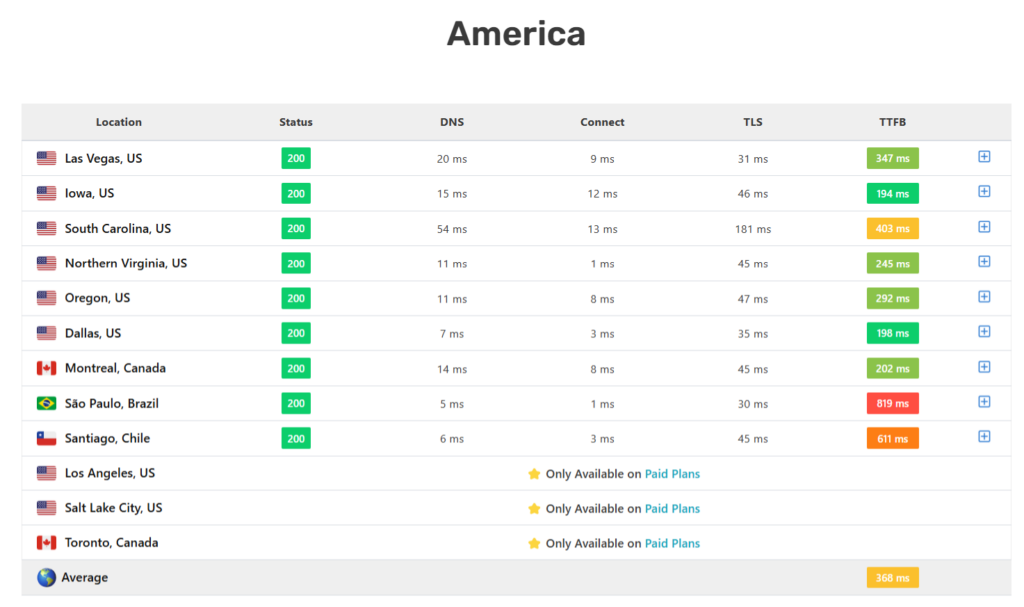
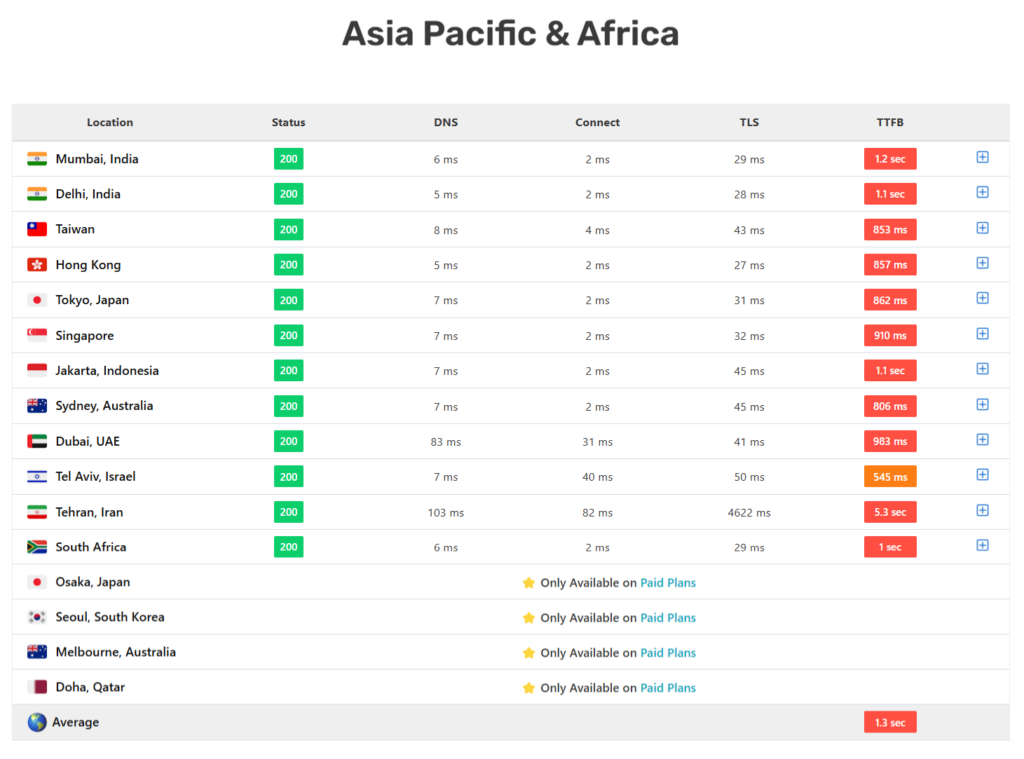
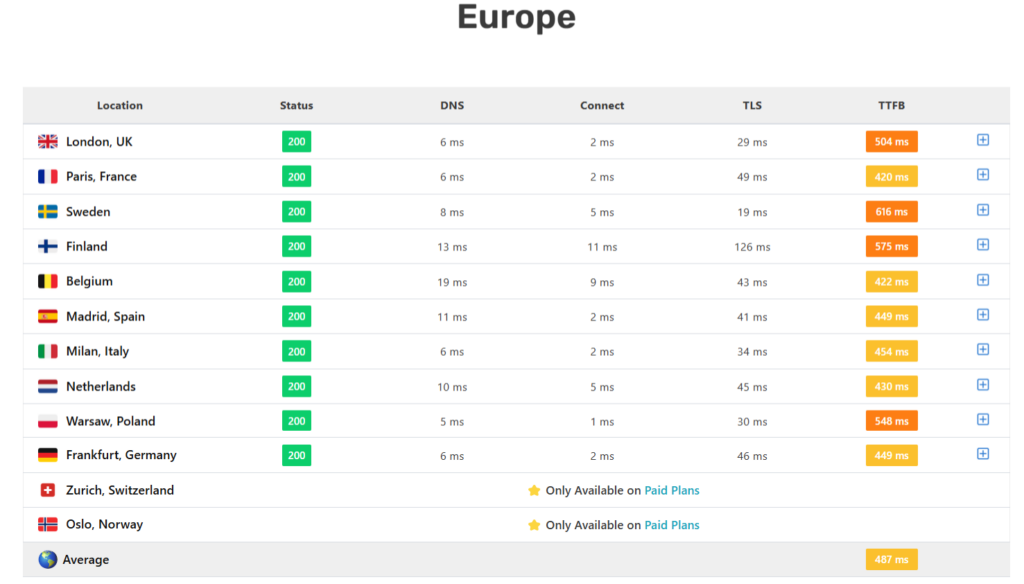

From the above tests, I noticed that Kinsta better suits businesses with the American audience. If your business is located elsewhere on the continent, you’ll need to improve your Kinsta site’s TTFB or search for another web host.
Kinsta Key Features
Kinsta offers a suite of powerful features tailored for WordPress users. It provides top-notch performance, security, and ease of use.
Hosting Dashboard and User Experience
First, I’ll walk you through the Kinsta dashboard, its features, and things you can actually use to improve your Kinsta hosting experience.
Kinsta does not use the traditional cPanel, which includes applications like File Manager and Softaculous. Instead, it uses its customized dashboard, simplifying things and making it easier to manage your web project from one central place.

This Kinsta custom dashboard has many features or tools for managing server applications, such as PHP version, site information, SFTP/SSH details, database access details, and backup options.
It also gives you access to server analytics, such as bandwidth, RAM, and CPU usage, and other tools, such as New Relic, early hint, password protection, geolocation, WordPress debugging tools, and a search-and-replace feature.
You can access Kinsta’s built-in Edge Caching solution and enable or disable it via the dashboard. You can also enable the mobile cache option, which is disabled by default.

Each time I use the Kinsta dashboard, I find it easier to locate tools like Staging, my WordPress sites, the list of plugins and themes on the live site, and even access server-side applications.
For instance, you don’t need an FTP program or a file manager to deactivate plugins or themes on your Kinsta site remotely. You can do this from your MyKinsta account dashboard.
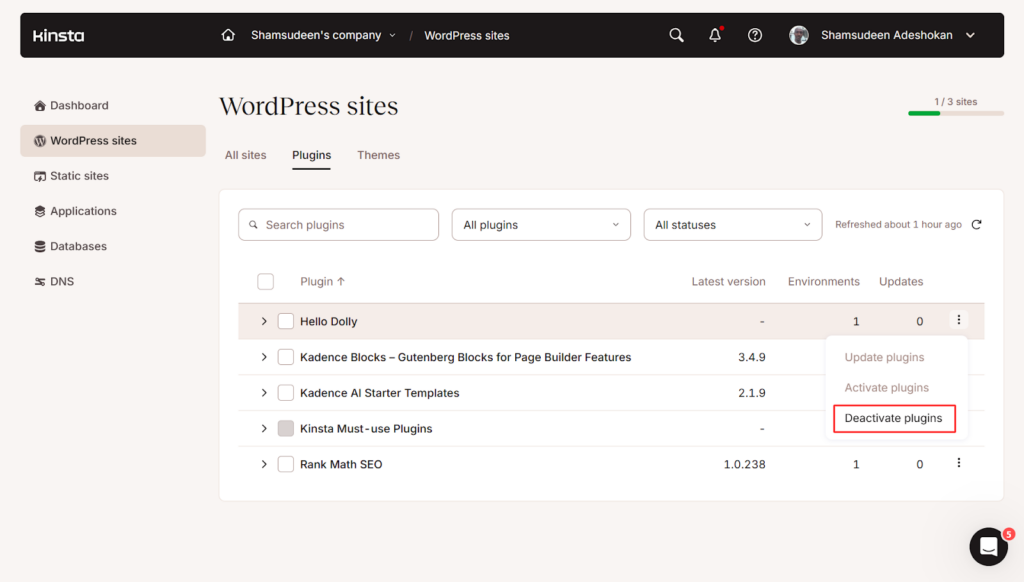
Personally, I think this is a good feature that might come in handy in troubleshooting situations, especially if you can not log into your WordPress site.
There’s a whole lot more you can do within your Kinsta dashboard, such as managing DNS and account user management, checking a list of add-ons, managing IPs to block bots and other malicious traffic, setting up redirects, and accessing the APM (Application Performance Monitoring) tool.
I’ll discuss the Kinsta APM feature in detail later in this Kinsta WordPress hosting review. It helps improve performance.
Note:
Kinsta runs on NGINX, so there is no .htaccess file. You can manage basic rules such as IP bans, forcing HTTP to HTTPS, and URL redirects through the MyKinsta tool in your dashboard. If you need to make further rules, contact the Kinsta support team for assistance. The support will help you configure the NGINX configuration file based on your request.
Security and Backups
After my devastating hosting experience with my first web host, which resulted in the loss of an entire blog (192 articles), I’ve prioritized website security and regular backup.
Kinsta ticks the boxes regarding airtight security features.
Aside from using Google Cloud infrastructure, Kinsta’s hosted sites are protected by Cloudflare’s powerful security features, including DDoS protection, an enterprise Web Application Firewall, server-side bot traffic protection, support for the HTTP/3 protocol, and free SSL certificates with 256-bit encryption (support for wildcard certificates).
This means one thing: malicious or bad traffic never gets to your website’s origin server before it is stopped by Kinsta’s security features. Knowing your business is bulletproof and protected, you can run your online business with peace of mind.
Besides, if your site ever gets hacked with malicious code, Kinsta will clean it free of charge. This is not common in the web hosting industry. Some web hosts charge a premium for malware removal services, or you hire an external professional.
Kinsta offers different backup options depending on your business type and publishing frequency. You can choose to back up daily, hourly, manually, or automatically, generated by a system or external platform, or create downloadable zip files for your database and files.
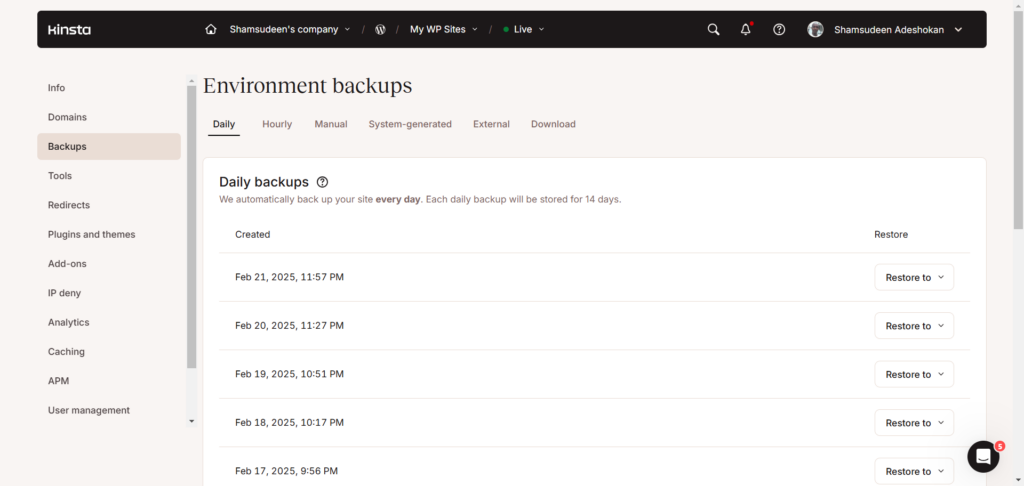
If you need to restore a backup, the option is just one click away.
The external backup option to Amazon S3 or Google Cloud servers requires a monthly fee of $2 per site. The hourly backup add-on comes in two plans: 6-hour interval backup, which costs $20 monthly, and hourly backup, which costs $100 monthly.
Most sites won’t need this option, anyway.
With daily backup (retention up to 14 days on higher plans), manual backup, and system-generated backup, your entire site is safe in case of an unforeseen disaster.
Note:
Since Kinsta already provides various backup options, such plugins are also banned from your Kinsta site. At the time of writing, UpdraftPlus is the only WordPress backup plugin allowed with a few setting restrictions. You can perform only one backup per month with UpdraftPlus.
More on security: Kinsta makes it easy to block malicious IP addresses from accessing your site’s login page. Two-factor authentication is another layer of protection offered by Kinsta, providing extra security for your account.
When you look at the top security features offered by Kinsta, it becomes clear why the hosting price is high and why Kinsta is a good fit for high-traffic websites with a significant need for web security measures.
Developer-Friendly Features
Kinsta provides developers with powerful tools to streamline workflows and optimize performance. Its one-click staging environments allow developers to easily test updates, plugins, and themes without affecting the live site. Developers can also quickly clone sites to create new projects based on existing setups.
With SSH access, WP-CLI integration, and Git version control, Kinsta offers complete command-line control for managing WordPress installations, automating tasks, and seamlessly deploying changes. Git version control ensures smooth collaboration and efficient code management.
Kinsta supports PHP version switching (8.0, 8.1, and 8.2) directly from the MyKinsta dashboard, allowing developers to test compatibility and optimize performance. You can downgrade and upgrade as needed, and you can even use PHP versions that have already reached end-of-life, such as 7.4.
For advanced needs, custom PHP configurations let you tweak settings such as execution times and memory limits.

Database management is streamlined with phpMyAdmin access and remote database connections, while object caching improves query speeds. Developers can also use New Relic monitoring (with a personal license) to analyze performance and debug slow queries.
However, Kinsta has its own Application Performance Monitoring tool, which I think does a good job as New Relic for sites hosted on the Kinsta server. Kinsta’s APM tool diagnoses your site for bottleneck issues that cause slow performance. It identifies database queries, plugins, external requests, and slow transactions that cause performance issues.

You can only use either APM or NewRelic at a time. APM could cause slow server performance issues, so consider turning it on only when required and for a limited time.
Lastly, error logs, access logs, and detailed site analytics provide real-time insights into performance, helping developers troubleshoot issues efficiently. Kinsta’s developer-friendly environment, combined with scalable hosting infrastructure and built-in security, makes it an excellent choice for managing custom WordPress projects.
DevKinsta, free software from Kinsta, lets you build WordPress sites from your local machines. It works with Mac, Windows, and Ubuntu operating systems. I haven’t used this, but I guess it works similarly to XAMPP and other modern local host servers.
Free Site Migrations
If you’ve done a few site migrations requesting web host support, you know how challenging the process can be. The process could be more complicated if it involved dozens or even hundreds of sites; in the case of agencies,
First, many web hosts charge an extra fee for additional migration (if you want them to handle it) and could even charge more if the site setup is complex. Kinsta has also done this. It charges a premium fee for migrating sites from another host to the Kinsta-managed WordPress hosting platform.
Luckily, things have changed. Kinsta now offers unlimited free migration for all users, regardless of site complexity or the number of sites you’re moving to Kinsta. What’s even more surprising is Kinsta’s commitment to ensuring the process is seamless and satisfactory.
This means that if there are issues during migration, such as malware detection or incorrect database configuration, Kinsta will fix them for free.
However, if you don’t like the waiting time, which is usually within 24 hours, you can pay $49 to skip the queue and have the migration completed in less than 8 hours.
Customer Support
I haven’t had any issue warranting engaging customer support other than a general inquiry, which does not help score the Kinsta support team.
So, I’ll base this section on the general availability of information, especially on trusted platforms like Trustpilot. Here are some customer testimonies in favor of Kinsta support.


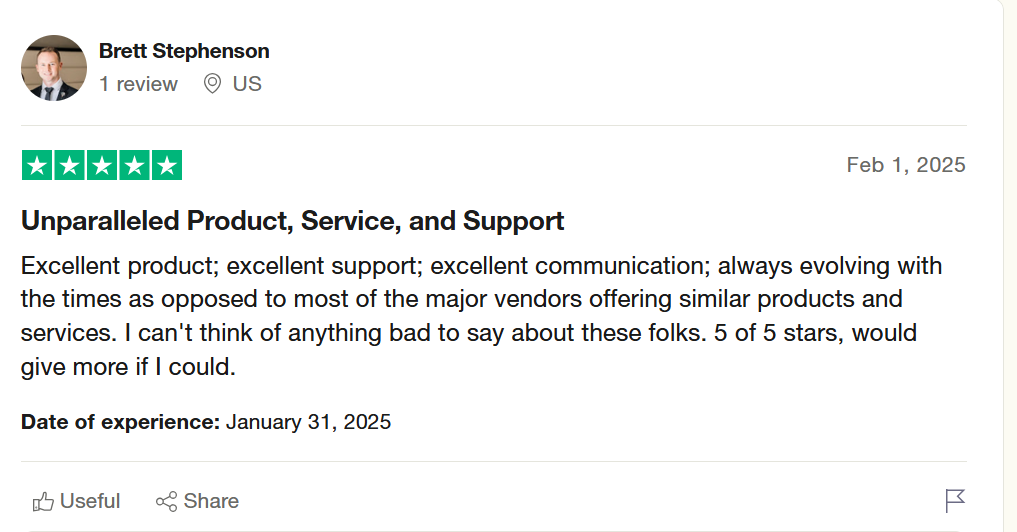
Testimonies like this are one of the reasons Kinsta stands out as a top-tier web hosting company.
Beyond the satisfactory customer experience, Kinsta offers 24/7 customer care services. You can connect to a support rep via phone call, onsite live chat, support ticket, online appointment, and WhatsApp.
Kinsta is also available on all popular social media platforms, including LinkedIn, Facebook X, and Instagram.
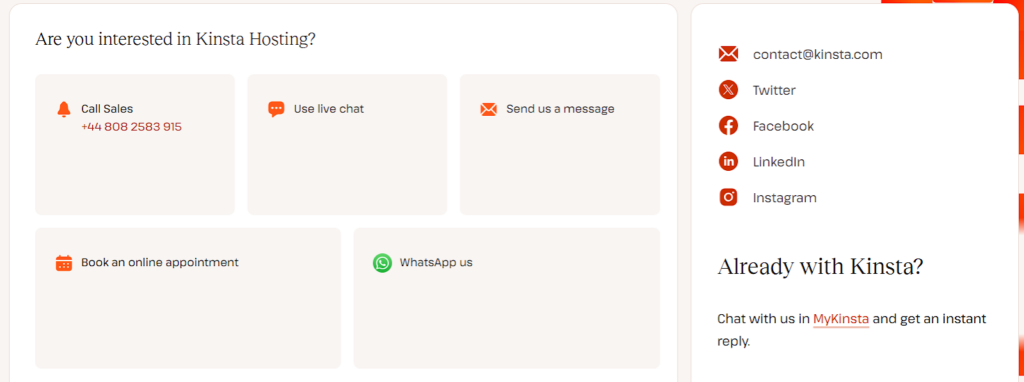
Honestly, Kinsta is one of the few web hosts I’ve seen open to support via these multiple channels. Rarely do you find a web host offering support beyond email tickets, live chat, and, probably, phone calls.
From other user experiences, the response time is instant.
Kinsta Pricing and Plans
Kinsta offers several hosting plans that cater to different business and traffic needs. These plans are grouped into three categories: Single Sites, Multiple Sites, and Agency programs.
The Single Site plan is ideal for hosting one website, while the Multiple Site plan is the right choice if you plan to host more than one website and up to 60 in a hosting account.
The Single-Site entry-level plan (Single 35k) costs $30 monthly, and the Multiple-Site entry-level plan costs $59 monthly. Note that these prices are for the annual billing cycle; month-to-month billing is slightly higher.

The major difference in all Kinsta hosting plans is the number of monthly visits, storage space, and CDN bandwidth limits every month. Each plan is capped at a certain threshold, but they are scalable.
In this sense, scalability is not automatic. If you expect a traffic surge beyond your plan limits, contact Kinsta support for more server space without upgrading to a higher hosting plan.
All Kinsta plans come with:
- Free SSL Certificates from Let’s Encrypt.
- 99.9% uptime SLA guarantee.
- Free CDN powered by Cloudflare.
- Unlimited free migration handled by the Kinsta WordPress experts team.
- Staging Environment
- Multisite support (except the Single 35K plan).
- One-click site cloning.
- Dedicated account manager.
- Built-in Edge cache for faster page speed.
What I understand about Kinsta hosting pricing is that the platform focuses on high-traffic sites. Small business owners with significant traffic need a high-performance server that can handle sudden traffic spikes without a burden.
If you have a relatively small website with a few thousand or hundreds of visits per month, the Kinsta hosting might be unnecessary.
Another aspect I’d like to discuss in this Kinsta WordPress hosting review is hidden or unexpected hosting costs. Kinsta offers various add-ons that can increase your primary hosting budget.
Let’s look at what you should expect.
- Redis Caching Add-on – Kinsta charges $100/month to enable Redis caching on your server.
- Premium Staging Environment – Kinsta premium staging replicates your exact website copy, including the number of PHP threads, CPU, memory limits, CDN, edge caching, etc. This service costs an extra $20.
- Reverse Proxy – If you need to load your WordPress site from a subdirectory, you pay Kinsta $50 to configure this for you. Learn more about Kinsta reverse proxy use cases.
- Additional WordPress Site – If you need to add more websites to your hosting plan than its limits, you pay an extra $30 per site.
In my opinion, some of these additional charges are unnecessary and should be included in the base hosting features. For example, the Redis and reverse proxy add-ons. Redis cache is typically enabled for free in many top-tier cloud-based web hosts. For reverse proxy, I can’t understand the charges.
Note:
Your first month (30 days) with Kinsta is absolutely free, so you can test the platform risk-free to determine whether it fits into our marketing plan and budget.
For agencies and enterprise business solutions, Kinsta offers a bespoke hosting plan tailored to your specific needs. The agency plan starts at $284 monthly.
It comes with exclusive agency-focused benefits like an unbranded dashboard, user account management and permissions, free hosting credit (up to $10,000), a Kinsta agency directory listing, and more.
For information on additional hosting fees, check the Kinsta pricing page.
Pros and Cons of Kinsta
Pros
Cons
Alternatives to Kinsta Web Hosts
Though Kinsta offers unparalleled hosting features and an excellent customer care experience, there are situations in which your website deserves another web host. For whatever reason, Kinsta isn’t the right choice for you, so consider these web hosts.
My top choice for Kinsta alternatives is Cloudways. Cloudways offers Google Compute Engine and four other providers, allowing you to select the cloud provider that best fits your needs and budget.
If the Kinsta budget is the reason, Cloudways hosting pricing is more affordable than Kinsta. You even get more freebies while paying less. For example, every new Cloudways site (4GB Server and above) comes preinstalled with free Object Cache Pro (cost $95 developer price).
Cloudways does not bill by the number of sites but by server space. Besides, you can autoscale server resources to accommodate any sudden traffic surge.
Pressable is another viable option for Kinsta, as it also focuses on WordPress hosting. Their hosting plans and pricing are very similar, with Pressble being slightly less affordable.
Pressable also offers free unlimited WordPress migration, autoscaling server resources, a premium JetPack security plugin, malware scanning, staging, and more.
Read my comprehensive guide on Kinsta vs Cloudways, where I compare them in all aspects, including security, server performance, hosting features, etc.
If you’re keen on a platform that focuses on WordPress hosting, then check my WP Engine vs Kinsta or Pressable vs Kinsta comparison reviews.
Conclusion
Kinsta is a powerful hosting platform for small businesses, agencies, and mission-critical sites. Its features are better suited for advanced web users and businesses with a decent budget who want to experience top-tier managed WordPress hosting services.
If you’re just starting, consider more affordable web hosts like NameCheap, HostGator, and Hostinger.
Kinsta’s Google Cloud C2 and C3D VMs + Cloudflare enterprise CDN are a powerful combination that lets you confidently operate your business. No matter the traffic level or business type, Kinsta hosting lets you focus on what matters to you and not bother with server-side management.




Hello, Shamsudeen,
Kinsta is a premium power packed WordPress hosting. Its quite expensive too. Newbie bloggers cannot afford that pricing. However, if you a professional blogger and have high traffic WordPress blogs then kinsta is a great choice for you. Thanks for writing this detailed review.
Regards,
Vishwajeet Kumar
Hi, Vishwajeet,
You’re right. Kinsta is more focus on growing businesses with establish traffic, audience, and significant revenue. It’s not affordable compare to Namecheap, Hostinger or Hostgator.
Glad you to have you here, once again.
Great review! I’ve been thinking about Kinsta for a while now, and your detailed analysis has helped me clearly understand its strengths and weaknesses. Performance and support seem top-notch, but the pricing might be a bit high for small businesses. I’m curious to see how it compares to other hosts in terms of scalability and long-term value. Thanks for sharing your thoughts!
Hi, Niyem,
Glad to read you find this post helpful.