

Let’s get one thing straight. This is not just another WPforms review from a salesperson looking to make affiliate income on your purchase.
Far from that, this is a WPForms review plus tutorial from a real user. Someone who has used the WPforms Pro account on their blog and can vouch for the product quality.
WPForms is used as the contact form on this blog’s Contact Us page and in other sections (at the time of writing)
And it has also been integrated into our email marketing services, GetResponse. This is something to know about WPForms. You can collect email subscribers from your blog contact form users.
It is a powerful online form software suitable for many use cases.
This page provides the actual user experience and step-by-step instructions for getting the most out of your WPForms builder plugin.
With over 3 million active installs, WPForms is one of the most downloaded WordPress plugins.
WPForms

WPForms is a beginner-friendly form builder that makes creating professional forms easy with its drag-and-drop interface. It’s packed with features like payment integration, surveys, and email marketing tools to help you grow your website effortlessly.
Price: 49.59
Price Currency: USD
Operating System: WordPress
Application Category: BusinessApplication
4.09
How Do WPForms Work?
Based on personal experience using the WPForms Pro license, the plugin works. The user interface is beginner-friendly, easy to use, and has many downloadable add-ons and pre-made form templates that let you quickly build web forms.
The plugin is highly optimized for fast loading, so you don’t have to worry about slowing down your page speed.
You can create any custom form with the plugin.
It is now possible to retrieve web forms from the trash folder and roll them back to the previous form version.
When you accidentally delete a published web form, you can use the form trash features to restore it.
Maybe you made unintended changes to a form; the form revision feature lets you quickly restore it to a previous state.
As you work on your web forms and hit the save button, a snapshot of them is kept. This helps you undo changes if things don’t go as expected.
Watch the video to see how the form revision and trash features work.
But before anything, this WPForms tutorial is based on the Pro account features and higher.
The WPForms Pro account license allows you to use the WPForms REST API/account on a maximum of five websites.
And it is what I use on this blog.
So, my experience is based on the WPForms Pro account, which also forms the basis of the rest of this WPForms review.
WPForms Lite Version
However, WPForms offers a free version. It comes with limited form features and templates.
The WPForms Lite version allows you to create a simple contact form and a few custom forms. It gives you access to 21 pre-built templates.
With the Lite version, you can create a GDPR-compliant web form, such as a lead magnet download form, sign-up form, opt-in form, etc.
For a simple personal blog, these web form templates are a good place to start.
But for an e-commerce site that needs more form features, such as payment gateways, conditional logic, smart tags, form abandonment, Zapier integration, multi-page forms, and webhooks, the WPForms paid version is the right choice.
With that clear, let’s dive in…
What is WPForms?
WPForms is a WordPress drag-and-drop form builder plugin for creating any online web form. Whatever your web form needs are for:
- Payment Form -PayPal, Authorize.net, and Stripe.
- Newsletters Form – Signup form
- Polls and Surveys.
- Request Form.
- Contact Form.
- User Registration Form.
- Order/billing form.
- And over 300 form templates.
You can use WPForms to collect user information using any web form. As a website or small business owner, you need to make it easier for your site users to contact you.
This is what you’re going to learn how to do in this WPForms tutorial.
After you have access to WPForms, you should install and activate the plugin first. Let’s see how to do just that.
Getting Started With WPForms
First, you’ll need to purchase WPForms from this link if you don’t already have it. Once you complete this step, you will be welcomed to your user account dashboard.
It will be something like the image below.

This is where you’ll have access to the WPForms rest API keys, details, and plugin download link. You will need the API key to connect the plugin to your WPForms account.
You can download the WPForms plugin through your WordPress admin dashboard or via the link in your user account.
Installing WPForms via WordPress Dashboard
To download the WPForms plugin via your WordPress admin, follow these instructions.
Log in to your WordPress admin area and hover your mouse over plugins. Then click on “Add New.” Type “WPforms” into the search box on the next page, then wait a few seconds for it to load.
You should see this from the search results.
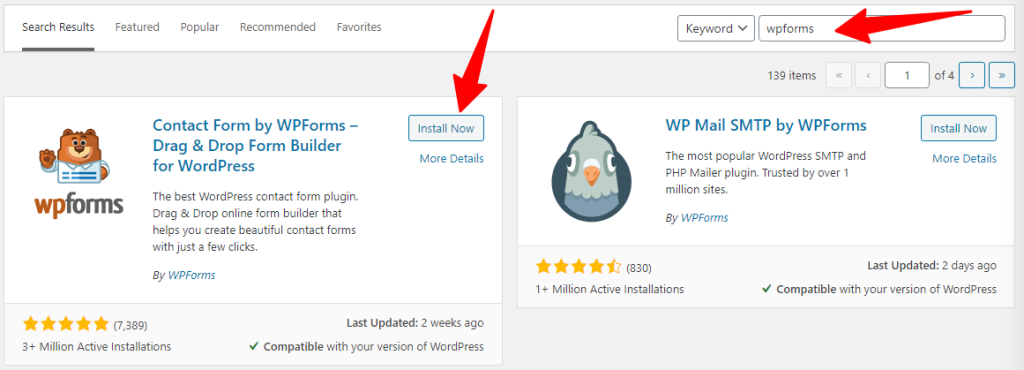
Click on install. Then, activate the plugin.
That’s it!
Installing WPForms via Account Website
Follow these instructions to download the WPForms plugin from your user account (WPForms website). (Here, you will need to download the plugin to your computer and upload it to your WordPress site)
Log in to your WPForms.com user account area and click on the red link shown in the image below. Or click on “downloads” in the top navigational menu.
Either way, you will arrive on the same page.

You’ll be directed to the download page. Your account API keys and download link are on this page.

Clicking the “Download WPForms” red button will start the download to your computer’s hard drive. From there, you can now upload the WPForms plugin to your WordPress blog.
To upload the plugin, log in to your WordPress website. Then hover your mouse on “Plugin” in the admin side menu. Click on “Add New.”
On the next page, click “upload plugin,” select the WPForms plugin from your computer as a zip file, then wait for the upload to complete.
Once the upload is completed, you need to activate the plugin.
Upon activation, you will see the Getting Started page with a brief introduction to WPForms. Here is the video about getting started on creating your first contact form.
If you don’t like watching video tutorials, this visual step guide will be more useful to you.
Reviewing WPForms Addons
Out of the box, the WPForms Pro account includes additional add-ons.
After the activation, you should first review the list of available add-ons. These add-ons enhance WPForms with beauty and functionality.
The constant contact add-on is auto-installed and activated when the WPForms Pro plugin is activated.
All other add-ons are disabled by default. To use your WPForms plugin, you need to install and activate it.
To see a list of available add-ons, hover your mouse over “WPForms” in the WordPress admin area menus. Then click on “addons” from the drop-down menu.

On this page, you can find a list of available add-ons you can install and integrate with your WPForms plugin. With a WPForms Pro account, you can access the following premium add-ons to improve your web form functionalities.
- GetResponse – Create a GetResponse Signup form in WordPress.
- Mailchimp – Create a MailChimp Signup Form in WordPress.
- Geolocation Addon – Collect and store a user’s location data via form submission.
- Post Submissions Addon allows users to submit content via the front end without registration or login.
- Offline Forms Addon.
- PayPal Standard Addon – Collect PayPal payment on your WordPress site.
- Form Locker Addon – Unlock web forms with permission or control rules.
- Form Pages Addon – Create distraction-free web forms to boost conversion.
- Form Templates Pack Addon – Pre-built form templates.
- AWeber Addon – Create an AWeber signup form within WordPress.
- Campaign Monitor Addon – Create a Campaign Monitor sign-up within WordPress.
- Conversational Forms Add-on – Create a more human-friendly web form to improve conversion.
- Custom Captcha Addon – Reduce spam form submission by creating custom Captcha questions.
- Drip Addon – Create a Drip newsletter sign-up form within WordPress.
- Surveys and Polls Addon – Create interactive polls and survey forms within WordPress.
- Stripe Addon – Collect payment via Stripe on your WordPress blog.
- Signature Add-on – This add–on allows users to sign online contracts and agreement forms with the touch of a mouse or touch screen.
- User Registration Addon – Create a custom form to collect payment and user registrations.
- Zapier Addon – Connect WordPress forms to over 2000+ apps.
After reviewing the list of WPForms add-ons, locate the add-on you want and click the “Installed Addon” button.

Note: Some add-ons can’t be installed directly from your WordPress site. You will have to download them from the WPForms.com website.
If this happens, an error message will be displayed instead of the “Installed Addon” button, as in the image below.

The WPForms addons download error message usually reads like this:
“Could not install the addon. Please download it from wpforms.com and install it manually.“
Log in to your WPForms.com user account and click “Downloads” from the top navigational menu. Scroll down the page to find the add-on you want.
Use the “cloud icon” to start the download to your computer.
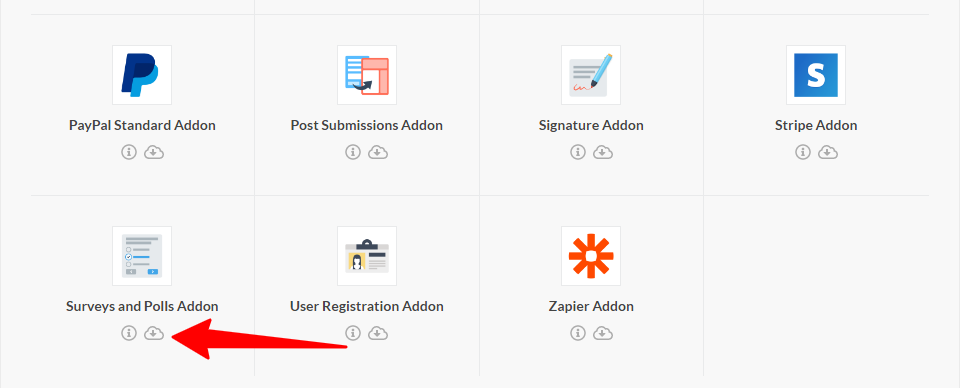
Then, upload it via your WordPress admin area plugin interface following the instructions in this post. Next, activate the add-on plugin. That’s it—you’re done with that.
Note: Read my step-by-step guide here to integrate WPForms with popular payment gateways such as PayPal, Stripe, Square, and Authorize.net.
Creating Your First Contact Form
First, you must decide which web form you want to create. This will help you in choosing the right WPForm templates to start with.
You must click “Add New” from the WPForms admin menu whenever you want to create a new web form.
To do this, go to your WordPress dashboard menus and hover your mouse on “WPForms.” It will reveal the remaining menus. Click on “Add New.”
You will be redirected to this page…
Note: I advised downloading the WPForms Form Templates Pack Addon before anything else. This will give you access to over 300 additional form templates.

Give your form a name here for internal reference and identification purposes. This is important for identifying shortcodes to the corresponding web form.
After that, select your form template from the options, or start with a blank canvas. This action will open the form builder page to set up the form for use. This is the form builder page.
Everything here is dragged and dropped.

Need a form field to add to your web form? Just drag the label from the left side to the form builder panel.
There are more form field options below the page. Scrolling down the form builder page reveals additional fields you can drag into your form.
Here is a short video to show you other form field options.
You can use five menu options on the form builder settings page to set up your form.

Let’s walk through each one…
Setup
The “setup button” will return to the template page. This is the page where you can select a form template to use.
Field
While creating your form, use the “Fields button” to reveal additional field options and to modify each setup.
Settings
The “Setting” button gives you access to your installed add-ons and allows you to set up each add-on’s behavior and interaction with users.
Always click the save button at the top of the page to save your settings.
Marketing
The “Marketing button” reveals a list of available integrated email marketing services and CRM. If you have integrated your email marketing solution here, you should see it.
Payment
Click on the “Payment” button to integrate with your payment gateways. The payment add-on must be installed for this function to work.
Once you’ve completed your form setup, configuration, and design, click the Save button at the top of the page. Then click the “X” (exit button) at the far top right corner of the page.

This action will open the forms overview page in your WordPress admin area. This is the page where you can find a list of each form shortcode.
Now, you can grab the shortcode and insert it into your WordPress posts or pages or anywhere else you want the web form to appear on your website.

All you need here is a simple copy-and-paste. If modifying an existing page, you must use the WordPress update button to reflect the changes on the front end.
However, if you’re creating a new WordPress post or page, you only need to hit the publish button.
Alternatively, you can insert your forms using the built-in WPForms Gutenberg block. This works perfectly and is an easier method.
That’s all. We’re done creating our first WPForms in minutes.
Does WPForms Work with Elementor?
WPForms works with WordPress pages/posts created with the Elementor drag-and-drop page builder.
This is done using the Elementor WPForms widget. You can easily create your web forms using the Elementor page builder.
If you’re using Elementor for your WordPress posts/pages, follow these steps to create your WordPress contact forms. This is how to add WPForms to Elementor Page Builder.
First, download and activate the WPForms WordPress plugin.
Whether you’re creating a new page or editing an existing one, open the page on which you want the web forms to appear.
You should see the “Edit with Elementor” builder on the WordPress Gutenberg editor.
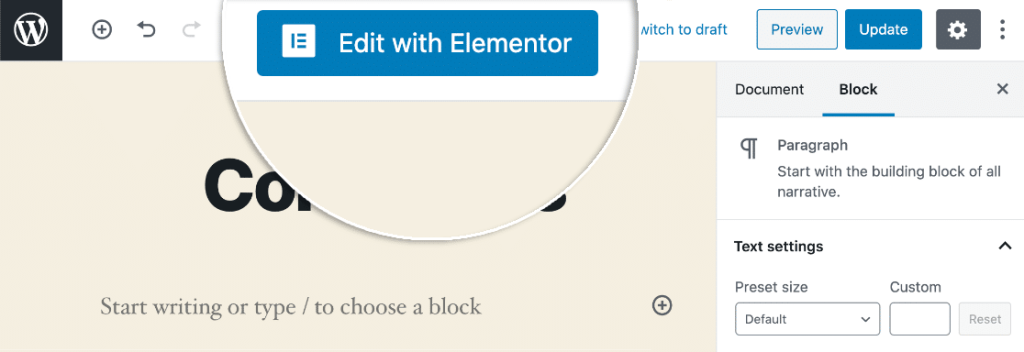
Open the Elementor page builder, and on the left side, you should see a widget labeled “WPForms.” Next, drag and drop the widget into the widget area on the right side.
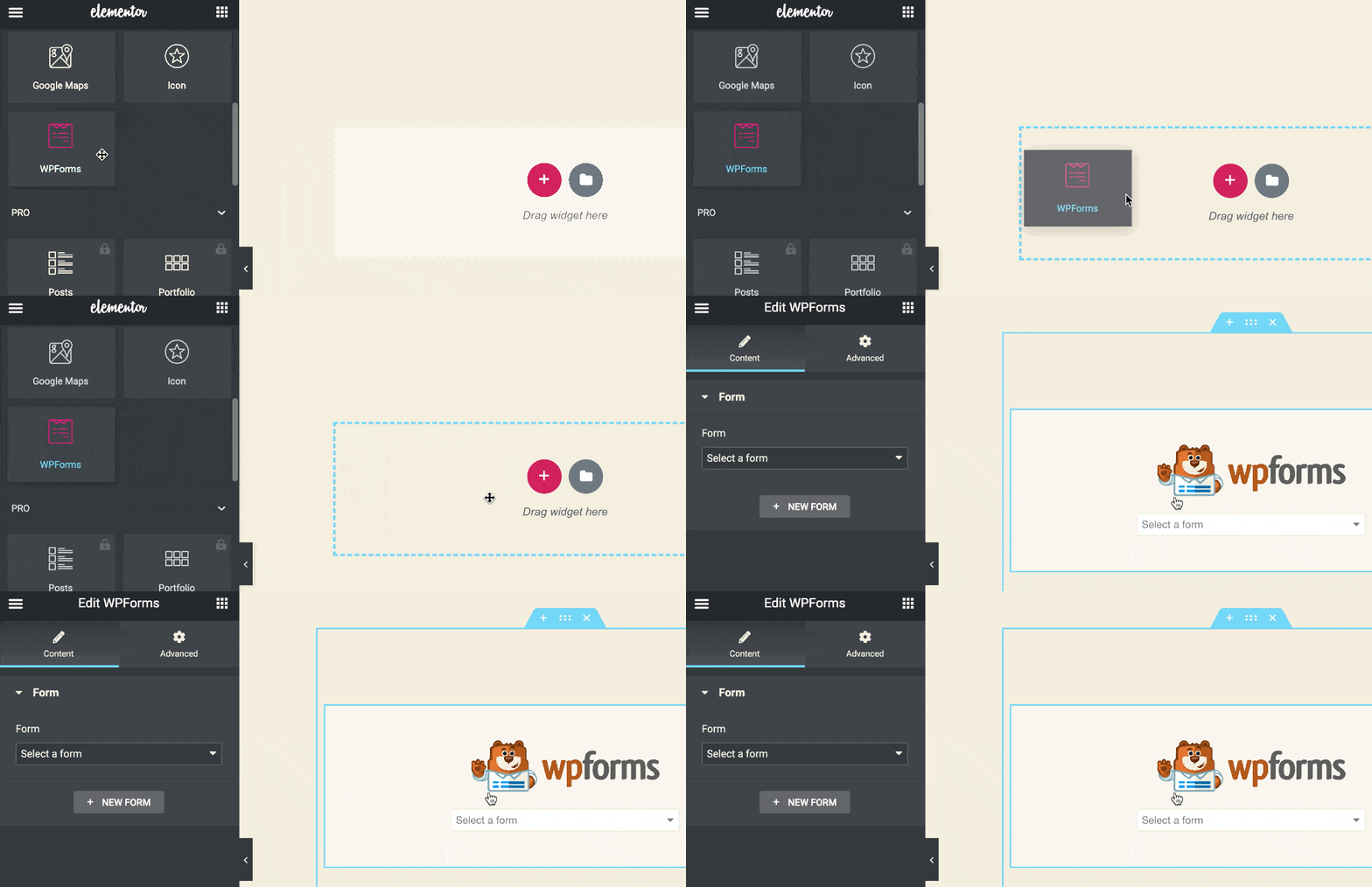
You can choose between creating a new web form or using an existing one.
Integration
WPForms integrates seamlessly with third-party solutions.
Depending on the license you purchased, you can integrate with popular email marketing services such as AWeber, Mailchimp, GetResponse, Drip, Salesforce, HubSpot CRM, SendinBlue, etc.
If your services are not on the list, you can use Zapier to make the integration work.
How Much is WPForms Pro?
WPForms Pro account costs $399/year, but you can get a 50% discount if you purchase through the link on this page today.
However, this offer is only available for a limited time. It won’t last long.
So, if you act now, you may save a whopping 50% off $399…that’s a good deal. It’s so good it won’t be easy to get anything less.
WPForms Free Trial or Money Back Guarantee?
WPForms does not offer a free trial period. However, you’re safe and guaranteed your purchase.
If by any means you’re not satisfied with the product (WPForms plugins), you’re 100% protected by an unconditional 14-day money-back guarantee.
Within 14 days of your purchase, you can request a refund if you don’t love the product features or if it is not what you want.
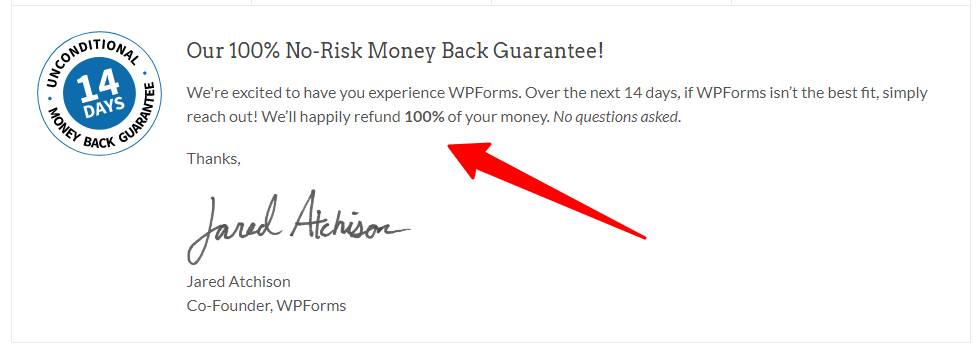
That’s the guarantee given.
FAQ – WPForms Review
Is WPForms Pro Worth it?
Yes, WPForms Pro is worth the money you invest in it. I have used it on this blog, so I know what you’re buying, the features, and the ease of use. However, consider going through the features comparison chart before making your decision. Some features are only available in a special license. For example, the Authorize.net payment gateway and webhook are only available in the WPForms Elite license.
Can I use WPForms for free?
Yes, you can use WPForms for free. There is a free plugin, WPForms Lite, which you can download from the WordPress.org plugin repository or on your WordPress blog.
Is WPForms Secure?
WPForms uses the most advanced spam-protection technology available today. It incorporated third-party web security applications, such as a checkbox and Google reCAPTCHA.
Conclusion…
WPForms is a powerful and feature-rich WordPress plugin for creating web forms. It is ideal for websites that need to create web forms, collect payments and users’ information, request opinions, etc.
You can use WPForms to achieve whatever the form needs.


its a best contact form in wp but its sends too late contact in formation so i choose contact form7
Hi Saim,
Thanks for the feedback. Though I never experience such, I will look into it, and if I do find anything relevant, I will update this post accordingly. Thanks.