

As many of you might know, I use WP Rocket on this site. The plugin served its purpose efficiently.
There is no reason to regret the $ 59-per-year investment in WP Rocket.
However, I recently started a new blog that is hosted on the Litespeed web server. So, I decided to install the LiteSpeed cache plugin for WordPress.
My discovery led to writing this Litespeed cache vs WP Rocket head-to-head review.
I hope you find my insights helpful in making smarter decisions about which optimization plugin suits your needs.
Let’s get down to the meat and potatoes of this post.
Litespeed cache vs WP Rocket Overview
WP Rocket and Litespeed Cache are WordPress caching and performance optimization plugins. They are both popular.
WP Rocket, being a premium-only plugin, has over 4.3 million downloads. LiteSpeed Cache has over 6 million active installations and is still counting.
It is rare to see a paid-only WordPress plugin with such a huge user base, and not every free WordPress plugin can boost 6 million downloads.
So, regarding popularity, WP Rocket and LiteSpeed cache for WordPress have bragging rights.
Both plugins offer a comprehensive suite of features to reduce loading time, resolve core web vitals issues, and improve user experience and overall performance.
LiteSpeed cache works best with the LiteSpeed web server. Though you can use it on other servers, you won’t have access to its full features.
In contrast, WP Rocket is compatible with at least 99% of all web hosts. You can use the WP Rocket plugin on any server, including Apache, NGINX, Microsoft IIS, Litespeed, and OpenLiteSpeed.
Now that we’ve set the stage, let’s dive deeper into the full review of LiteSpeed Cache versus WP Rocket.
Note:
Some of the LiteSpeed Cache features mentioned in this post are on the exclusive list. To access them, you must use the LiteSpeed web server hosting and the Quic.cloud CDN. Visit the LiteSpeed Cache plugin page on WordPress.org for more information.
Ease of Use and Setup Process
WP Rocket is easier to set up than the LiteSpeed cache plugin. In fact, configuration is one of the challenges for using the Litespeed cache plugin.
There are fewer settings to walk through in WP Rocket. Most of its settings are just one click away with clear documentation.
Plus, the WP Rocket dashboard is more organized and beginner-friendly. Most of its advanced features work in the background, so there are fewer WP Rocket settings to manage.
Things are different with the LiteSpeed cache plugin setup. Configuring the plugin to meet your specific website needs can be extremely challenging for beginners.
In an attempt to let you control the configuration, the outcome is too many options to review.
It takes time to learn what some of the LiteSpeed Cache options mean and how they work. You need to learn whether to enable or disable them for your site.
However, the Litespeed cache has addressed the problem. You can use the preset option and deploy one of the default settings for your site.
There are five preset configurations:

Choose which option is suitable for your site setup, and activate it. This will automatically enable the corresponding individual LiteSpeed Cache settings on your site.
The downside is that if the CSS, HTML, or JS configuration negatively affects your site design or functionality after the activation, it’s hard to know which particular setting is the culprit since the preset option enables all features simultaneously.
Though you can configure individual options under the settings page, reviewing each feature independently might be stressful.
Overall, WP Rocket is a much better option in terms of configuration and ease of use.
Performance
Comparing LiteSpeed cache and WP Rocket performance is where things get tricky. I would love to show you some before and after optimization screenshots of PageSpeed Insights, but it won’t help you in any way.
Because no two sites are built similarly, what works for me might not work for you. Besides, each plugin excels in slightly different scenarios.
The test site I use for this experiment is on the Litespeed server. So, technically, Litespeed has more advantages.
WP Rocket didn’t do badly, either. Neither plugin lacks essential performance optimization features. However, the Litespeed cache has more features than WP Rocket.
Whether these features benefit your site is a personal decision, and you should consider them yourself.
Regardless, let’s look at the essential performance optimization features in the Litespeed Cache and WP Rocket plugins.
Caching
Caching is the main function of both plugins.
WP Rocket cache is enabled automatically upon plugin activation. You don’t need to enable any settings to make your site’s page and browser cache work.
And there’s no fine-tuning cache setting, either. The mobile cache is enabled by default, too. No cache setting available in the WP Rocket dashboard.
WP Rocket recommends using a helper plugin to configure or disable cache settings. This process might be challenging for beginners, but I don’t expect you to need to use the helper plugin.
However, in the WP Rocket Advanced Rule tab, you can specify a cache lifespan, exclude URLs from caching, exclude cookies and user agents, never purge URLs, and exclude cache query strings.

On the other hand, LiteSpeed cache requires you to enable the cache manually. Only when you use the preset configurations will the cache be enabled automatically.
There’s a tradeoff between flexibility, control, and simplicity here. Here is why.
WP Rocket’s approach is meant to make it as easy as possible for anyone, regardless of technical experience, to use the plugin. The LiteSpeed Cache setting is technically suitable for advanced users.
Litespeed cache allows more control over its settings than WP Rocket. For example, in LiteSpeed Cache, you can disable/enable cache settings for:

In addition, LiteSpeed Cache lets you enter specific URL paths to include in force-cached pages, cache privately, and force-cached publicly.
However, both plugins offer page and browser cache and Gzip compression. The LiteSpeed Cache also offers Brotli, which provides better compression than Gzip but is not supported by WP Rocket.
If your site uses Cloudflare and WP Rocket, Brotli compression rules are automatically added to the .htaccess file. Besides, WP Rocket said adding Brotli compression rules to the plugin is on the feature request list.
Another factor is the Object Cache, which is more beneficial for WooCommerce sites, membership areas, checkout pages, admin backend, and other more dynamic pages.
LiteSpeed Cache directly supports Object Cache and has Redis/Memcached extension settings in its plugin. You can enable/disable the settings and choose which methods you use.
WP Rocket does not provide an integration for such in its plugin. But it’s compatible with ObjectCache. If Object Cache is enabled on your web host server, there is no conflict with WP Rocket. So, you can definitely use both plugins with Object Cache.
In summary, LiteSpeed Cache offers more granular control over cache settings. It is also a server-side cache, which many believe is faster than WP Rocket’s file-based cache.
File Optimization
CSS, HTML, and JS file optimization is essential for performance improvement. Your site’s code must be optimized to load and download faster and be bloat-free.
WP Rocket makes it easier to handle file optimization. There is no complex configuration to walk through.
With a single click, you can minify and optimize CSS delivery and choose between Remove Unused CSS or loading CSS asynchronously. On the same page, you can set JS defer and delay, and exclude some JavaScript files from the list.

WP Rocket also optimizes critical CSS images found above the fold. It does this automatically in the background. There is no setting for it, either.
Additionally, WP Rocket prefetches DNS records for external hosts, making files load faster. It also preloads Google Fonts but does not host them locally.
Check this article to learn why WP Rocket recommends against hosting Google Fonts locally.
Concerning the LiteSpeed cache file optimization features, I think the approach is overkill. Unless you’re a wizard, there is no way I will spend that much time looking through all the settings.
Well, you may argue that it offers more control and page-optimization features, but one of the purposes of a plugin is to simplify the process, not to complicate it further.

Well, as with WP Rocket, you can minify CSS, combine CSS, generate unused CSS, and inline CSS to reduce extra file loading in LiteSpeed Cache. But this option is disabled by default due to LiteSpeed Cache Guest Mode optimization.
Likewise, you can combine, minify, delay, or defer JS files, lazy-load HTML selectors, remove query strings, WordPress emoji, and NoScript tags, and even prevent Google fonts from loading on all pages.
In terms of sheer feature count, it’s easier to see how LiteSpeed Cache outperforms WP Rocket. However, considering the end result, which is performance gain, both plugins perform excellently in the (PSI) PageSpeed Insight report.
It’s difficult to choose between the two.
I think individuals’ experiences will depend on the site type, server setup, plugin settings, and other variables, such as themes and compatibility with other plugins.
Image Optimization
WP Rocket doesn’t include image optimization features such as converting images to WebP and AVIF format, image compression, or removing EXIF data.
If you use WP Rocket, you need an image optimization plugin to handle this. Still, it has some image optimization features, such as lazy loading, iframes, background CSS images, and replacing YouTube iframes with preview images.

Lastly, WP Rocket automatically adds missing image dimensions for height and width attributes. This can reduce Layout Shift and improve user experience.
LiteSpeed cache + Quic.Cloud-free CDN offers powerful image optimization features. Your images are optimized:
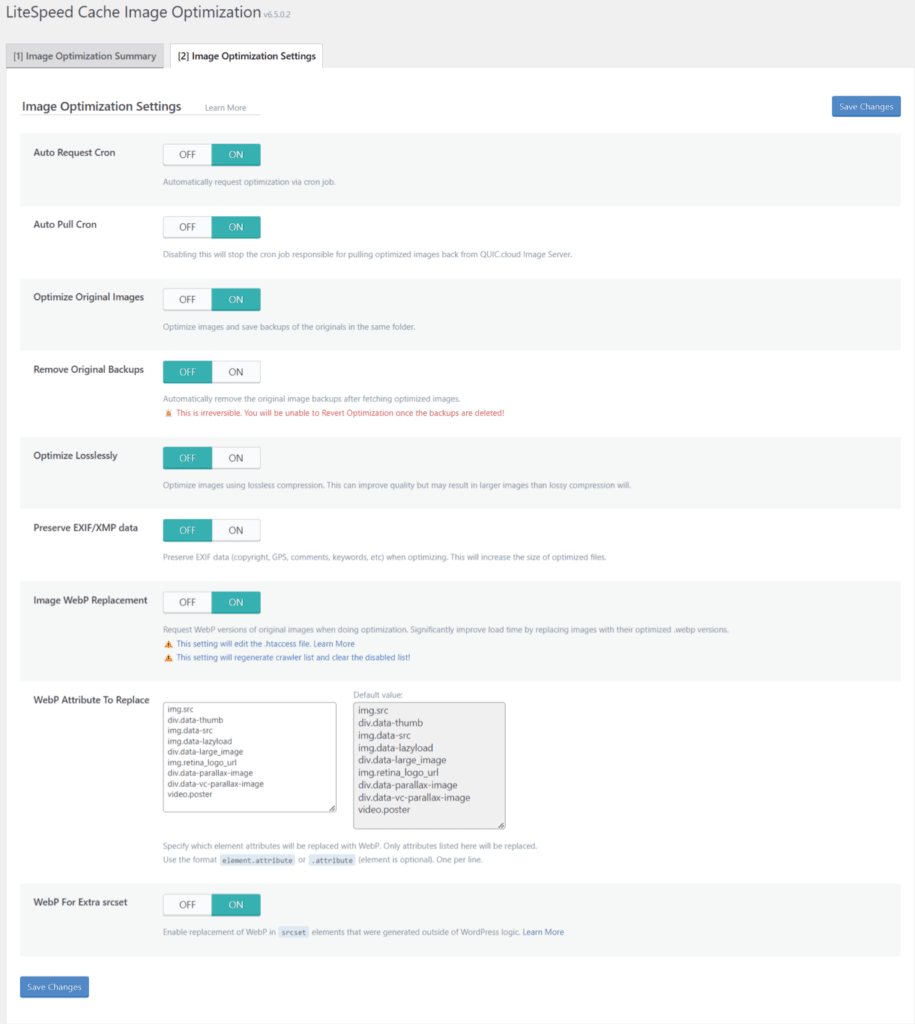
The LiteSpeed cache Auto Pull Cron automatically gathers and sends your images to the Quic.cloud server for optimization. You can request up to 200 images at a time.
Auto-request cron features take an image backup and save the optimized version to the WordPress media library.
WP Rocket is far behind LiteSpeed Cache in image optimization capabilities. Maybe the company would’ve considered integrating Imagify into WP Rocket instead of making it a standalone product.
Until then, I give LiteSpeed cache + Quic.Cloud CDN is the medal for doing a better job of image optimization than WP Rocket.
WP Rocket also has its CDN, RocketCDN, powered by Bunny CDN. But you must pay an extra $7.99/month to use it. BunnyCDN has over 120 edge locations, ensuring your content reaches the user as fast as possible.
Besides, Rocket CDN is not natively integrated with the WP Rocket plugin, unlike LiteSpeed Cache and Quic.cloud CDN integration.
Database optimization
WP Rocket and LiteSpeed Cache have database optimization features. Both plugins also have most WordPress database management features.
You can delete post revisions, auto-drafts, transients, spam comments, and trash posts, and optimize the table. These settings and more are available.
WP Rocket takes it one step further with its automatic database cleanup. You can schedule automatic database optimization with a frequency of daily, weekly, or monthly.

I did not see a setting to automate database optimization in LiteSpeed Cache.
While that might not be a problem using LiteSpeed cache, scheduling optimization tasks is a time-saving hack in website management.
For this reason, WP Rocket is preferred here over LiteSpeed Cache.
Support
As mentioned many times in this LiteSpeed Cache vs WP Rocket comparison post, WP Rocket is a paid plugin; therefore, the support is expected to be better than that of a free plugin.
No surprises here. WP Rocket support is generally better than LiteSpeed Cache support.
First, WP Rocket publishes extensive documentation, video tutorials, and knowledge-base articles on its website. It has responsive technical customer support services.
In addition, WP Rocket maintains an active Facebook group where Rocketeers (WP Rocket users) come together to discuss plugin usage and functionalities.

This is an excellent place to learn more about the plugin benefits, different settings, troubleshooting guides, use cases, etc.
LiteSpeed cache also offers support, which is available on the WordPress.org website. Users can open a ticket, which LiteSpeed Cache support will respond to at their convenience.
This type of support can sometimes be slow, untimely, and not something you’d want in an emergency.
But you don’t have to fume at this; you’re using a free product. You should understand there will be a tradeoff between paid and free.
As regards plugin documentation, LiteSpeed Cache also publishes in-depth guides, tutorials, and knowledge-base articles you can refer to in case of emergency. Or when you need to troubleshoot plugin errors independently.
Which is Better, LiteSpeed Cache or WP Rocket?
Honestly, this is a hard one.
Both plugins perform excellently in their ideal situation. You can optimize any type of website with either WP Rocket or LiteSpeed cache for WordPress.
But you must consider your hosting environment before choosing the LiteSpeed cache for WordPress.
Primarily, the LiteSpeed cache plugin is developed to work with the LiteSpeed web server, OpenLiteSpeed, and LiteSpeed-powered web hosts, such as Hostinger, Liquid Web, WPX, and A2 Hosting.
Though you can use the LSC WP plugin on other web servers like NGINX and Apache, you will only have access to the plugin’s general features.
LiteSpeed-exclusive features include automatic page caching, WordPress REST API call caching, HTTP/2, HTTP/3, QUIC support, (ESI) Edge Side Include support, and more. They are not available when you install the plugin in non-LiteSpeed server environments.
As per WP Rocket, web server or hosting environment compatibility isn’t an issue.
The plugin can be installed on 99% of WordPress blogs, regardless of hosting type.
As you can see, choosing the right plugin depends on your specific situation and business needs.
Despite this, WP Rocket seems to be the ideal choice, given its ease of use, simplicity, and performance.
LiteSpeed cache has many features, but there’s a question about whether these overwhelming features benefit most sites.
LiteSpeed Cache vs WP Rocket: Pros and Cons
LiteSpeed Cache and WP Rocket are two of WordPress’s most popular caching plugins. Both offer impressive performance benefits, but they have distinct strengths and weaknesses.
Here are some of their pros and cons to know.
LiteSpeed Cache
Pros
Cons
WP Rocket
Pros
Cons
Conclusion
Everything you read in this post doesn’t really matter because you must test both plugins to learn which works best for your use case. Your website needs and hosting environment determine many factors that make up which plugin suits you.
Take my experience as the basis for your knowledge. You’re responsible for your decisions and should be able to decide between LiteSpeed cache vs WP Rocket, the right plugin.
Still, I go with WP Rocket because time is money, and I wouldn’t want to waste it on plugin configuration.
LiteSpeed cache setting is too overkill for beginners.



Great comparison, Adeshokan! I’ve had experience using both LiteSpeed Cache and WP Rocket on different sites, and I completely agree that WP Rocket stands out for ease of use. The simplicity of setup is a real time-saver, especially for beginners. On the other hand, LiteSpeed Cache offers more control and features that advanced users will find beneficial. It really depends on the specific needs of your site and hosting environment. Thanks for this detailed review – it’s incredibly helpful for anyone deciding between these two plugins!
Hi, Niraj,
Thanks for your contribution, and glad to read you’ve used both cache plugin for WordPress.