

If you’re thinking about using Thinkific, it’s only natural to want to try it first before paying for a subscription. The good news is, you can.
Thinkific offers a free trial that lets you explore its core features and decide if it’s the right platform for you.
However, there are important details that many people miss. For example, Thinkific no longer has a free plan.
What it now offers is a free trial for all its paid plans (Basic, Start, and Grow). This trial provides you with full access to Thinkific’s tools, allowing you to test everything before committing.
If you want to know exactly how the Thinkific free trial works, what you can and can’t do during the trial, and what happens once it ends, continue reading.
However, if you’re already familiar with these features, here’s an extended 30-day trial signup link for Thinkific.
With that out of the way, let’s walk through the whole process.
Does Thinkific Offer a Free Trial or Free Plan?
There’s some confusion online about whether Thinkific offers a free plan or a free trial, and it’s easy to see why.
For years, Thinkific has maintained a free plan that allows creators to build and publish a limited number of courses without cost. But that’s no longer available.
Today, Thinkific offers a 30-day free trial on all its paid plans — Basic, Start, and Grow. This means you can test any plan’s full features before making a long-term commitment.
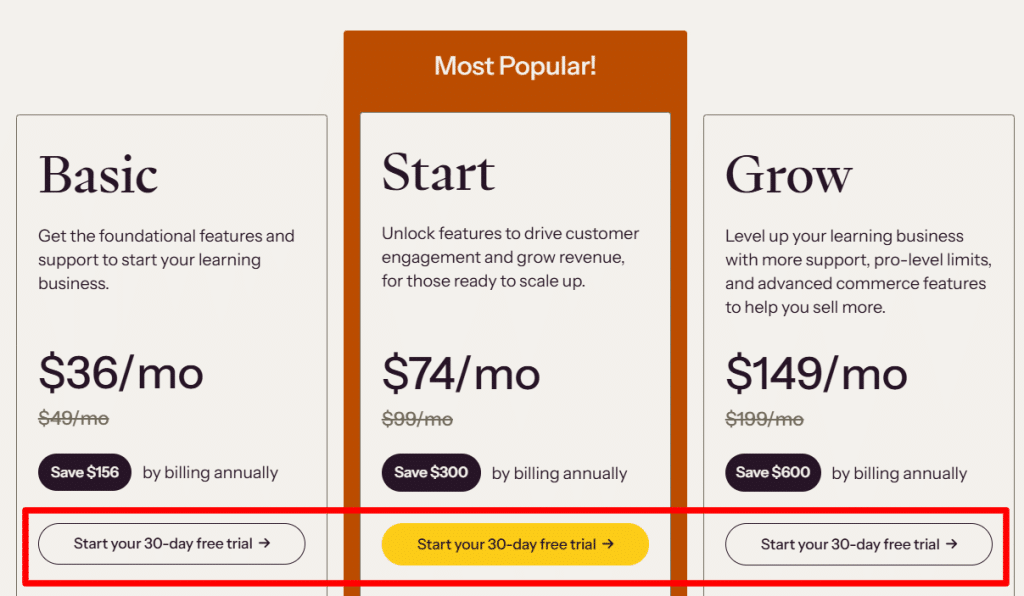
Thinkific’s free trial gives you the same access you’d have as a paying subscriber. You can build courses, customize your website, set up payments, and explore marketing tools.
However, there’s one big difference: you can’t sell or collect payments from students until you move to a paid plan.
If you’re interested in the enterprise-level Thinkific Plus plan, there’s no public trial available for it. Instead, you’ll need to contact Thinkific’s sales team for a custom demo and pricing quote.
So, here’s the summary:
The trial is designed to give you hands-on experience with the platform before you’re charged, and that’s why you need to read the next section.
How the Thinkific Free Trial Works
Thinkific’s trial isn’t completely open like a traditional “no credit card required” offer.
When you sign up, Thinkific requests your payment details and places a $49 pre-authorization hold on your card. This step is only for card verification; it’s not a real charge.
The $49 amount simply confirms your card is valid and will be automatically reversed by your bank within a few days.
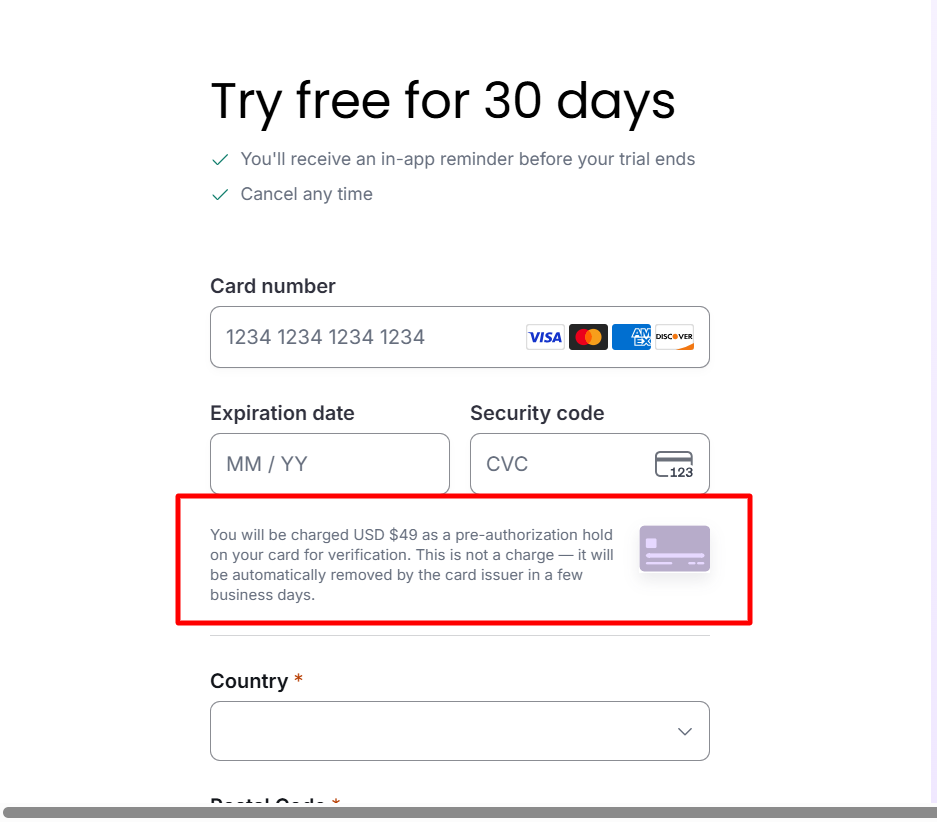
So, you’ll need to fund your payment card before proceeding to the free trial sign-up.
The entire process is safe and transparent. You’ll have full access to the following features during your trial:
You can explore every feature as if you were a paying customer. The only limitation is that you can’t sell or accept real payments from students or members until you move to an active paid subscription.
It’s also important to note that your paid subscription starts automatically when the trial ends.
If you decide Thinkific isn’t the right fit, you’ll need to cancel before your trial expires to avoid being charged.
This setup makes Thinkific’s trial ideal for creators who want to test everything in a realistic environment without losing time switching later.
Thinkific Free Trial Plans Overview
When you start your 30-day Thinkific free trial, you can choose from three different paid plans — Basic, Start, or Grow.
Each Thinkific subscription plan includes full access during the trial, so you can test every feature before committing.
Here’s a quick overview of what each plan offers and who it’s best for.
1. Basic Plan ($36/month)
The Basic plan is designed for beginners who want to create and sell their first course. It includes everything you need to launch, such as:
If you’re new to online courses and want a simple, affordable way to start, this plan is the easiest to learn and manage.
2. Start Plan ($74/month)
The Start plan builds on the Basic plan, adding more flexibility for creators who are ready to grow. You’ll get all the Basic features, plus:
This plan fits creators who want to build a more engaging learning experience or scale their courses with marketing features.
3. Grow Plan ($149/month)
The Grow plan is for established course creators and small teams. It gives you everything from the lower plans, plus:
If you’re running an online school or managing a large audience, this plan gives you full control and professional-grade tools.
Note:
These prices are for the annual plan, which offers a 25% discount when you pay the one-time 12-month invoice. If you choose month-to-month billing, you will pay a bit more.
What About Thinkific Plus?
Thinkific Plus is a separate, enterprise-level plan made for companies and large-scale educators.
It’s not part of the public trial. You’ll need to contact the Thinkific sales team for a personalized demo and pricing details.
Each of these plans can be tested during your free trial. This gives you a good opportunity to test your chosen plan without financial risk.
How to Sign Up for the Thinkific Free Trial (Step-by-Step)
Getting started with Thinkific’s free trial is simple. The entire process only takes a few minutes, and you’ll have full access to the platform once your account is verified.
Here’s how to do it:
Step 1: Visit the Thinkific Website
Open the Thinkific official website (use that link) and click “Start Free Trial” at the top of the page.
Or, visit the Thinkific pricing page to choose a plan. If you don’t choose a plan, your trial account will automatically default to the Start plan.

Step 2: Choose a Plan
Next, choose from the three available trial plans — Basic, Start, and Grow. Take a moment to review the features and select the one that best fits your goals.
Step 3: Create Your Thinkific Account
Enter your name, email address, and password to set up your account.
To speed up the process, Thinkific offers signup via a Gmail account, eliminating the need to set up a password.
Next, Thinkific will send a confirmation email once your account is created. Check your email inbox for the confirmation link and click it.
After that, you will need to select the number of people in your organization.

Step 4: Add Your Payment Details
Before you can start the trial, Thinkific requires card verification. You’ll need to enter your debit or credit card information.
Once you do, a $49 pre-authorization will appear on your account, but don’t worry, this isn’t a charge. It’s a temporary hold to verify your card, which your bank will automatically reverse within a few days.
On this page, you’ll see your trial account and billing details, such as start date, subscription plan, and next billing date.

So take note.
Step 5: Access Your Thinkific Dashboard
After verification, you’ll be taken to your Thinkific dashboard. From there, you can:
Thinkific’s setup wizard will walk you through the basics if you’re new, so you can get started fast.
Step 6: Keep Track of Your Trial Period
Make note of your trial start date. Unless you cancel before your trial ends, your chosen plan will automatically convert to a paid subscription.
You’ll be charged based on the plan you selected during signup.
If you decide Thinkific isn’t right for you, simply go to your Billing Settings and cancel before the trial expires.
The entire process is straightforward, and once your account is verified, you’ll have access to everything Thinkific offers, giving you plenty of time to see how it fits your needs.
Tips to Make the Most of Your Thinkific Free Trial
As mentioned multiple times, Thinkific’s free trial gives you full access to its features so that you can treat it like a real setup period.
The goal isn’t just to click around; it’s to build something you can actually use when you decide to go live.
Here are a few ways to make your trial count:
1. Build a Complete Sample Course
Don’t stop at testing the dashboard. Go ahead and build a real course. Add lessons, upload videos, write descriptions, and set up quizzes.
This helps you see how easy (or complex) Thinkific feels in real use. And if this is your first time creating a course, you can take the 4-day Thinkific Academy to learn how to create and sell courses that sell.
2. Customize Your Course Site
Use Thinkific’s site builder to design your homepage and course pages.
Experiment with fonts, colors, and layouts that match your brand. By the end of your trial, you’ll have a polished course site ready to launch.
3. Test the Payment Setup
Even though you can’t accept real payments during the trial, you can still test the checkout process.
Set up your pricing options, connect payment gateways (such as Stripe or PayPal), and run a test purchase flow to understand how your students will make payments.
Check if your business location is eligible for Thinkific Payment. If eligible, it will save you on transaction fees later when you upgrade to a paid plan.
4. Explore Automations and Integrations
Connect your favorite tools to see how Thinkific fits into your workflow.
For example, link your email marketing software, set up course completion certificates, or automate welcome emails for new students.
5. Preview the Student Experience
Thinkific lets you preview your course from a student’s point of view. Use this to refine your course flow, improve lesson order, and ensure clear, non-confusing navigation.
6. Track What You Like and Don’t Like
Make notes of what feels intuitive and what doesn’t. This will help you decide whether Thinkific aligns with your long-term goals or if you’d prefer another course platform.
7. Set a Reminder for Your Trial End Date
Because Thinkific automatically charges when the trial ends, set a reminder to review your account a day or two before the due date.
That way, you can decide whether to continue or cancel without surprises.
If you use the trial strategically, you’ll end up with a nearly finished course setup and a clear sense of whether Thinkific fits your teaching and business style.
Thinkific Free Trial vs. Competitors
When comparing online course platforms, it’s helpful to understand how Thinkific’s free trial compares to others.
While most competitors offer some version of a free trial or demo, the details can vary a lot, especially when it comes to feature access, duration, and payment setup.
Let’s take a quick look at how Thinkific compares to other leading options.
Thinkific
Thinkific’s trial gives you the freedom to explore every tool, but it’s intended for serious creators who plan to thoroughly evaluate the platform.
Mighty Networks
Mighty Networks is built around communities first, courses second. Its trial is great for testing engagement tools like spaces, events, and member chats, but Thinkific offers stronger course management and structured learning tools.
LearnDash
LearnDash works differently. It’s a WordPress plugin, not a hosted platform. That means you’ll need your own hosting, domain, and WordPress setup.
It’s powerful but requires more technical skill compared to Thinkific’s all-in-one simplicity.
LearnWorlds
LearnWorlds has one of the most generous free trials. It’s perfect for testing interactive video features and student engagement tools.
Thinkific, however, is easier to learn and offers cleaner course organization for beginners.
Kajabi
Kajabi is excellent for creators running a whole digital business, but it’s also one of the most expensive platforms.
Thinkific is a more affordable and focused option if your main goal is to sell online courses.
Teachable
Teachable’s trial is simpler; no card is required, and you can sell right away.
However, its lower-tier plans have higher transaction fees, whereas Thinkific offers more flexibility for testing without requiring an upfront payment.
FAQs About the Thinkific Free Trial
If you’re still unsure about how Thinkific’s trial works, these common questions and answers should clear things up.
How long is the Thinkific free trial?
Thinkific offers a 30-day fixed trial for every user signing up for the Start, Basic, or Grow plan. The trial allows you to test premium features just as a paid user would.
Do I need to enter my credit card details to start the free trial?
Yes, Thinkific requires card verification with a $49 pre-authorization hold. The hold isn’t a charge; it’s just a temporary authorization that’s automatically reversed. You won’t pay anything if you cancel before the trial ends.
Can I sell courses during the free trial?
No, you can’t publish or sell courses while using the trial. The purpose of the free trial is to let you explore the features, set up your course site, and test payment integrations. Once you upgrade, your sales tools will activate instantly.
Can I extend my Thinkific free trial?
Sometimes, yes. You can contact Thinkific’s support team and request a short extension if you need more time to test features. It’s not guaranteed, but they’re often flexible, especially if you’re close to launching your first course.
Conclusion
Thinkific’s free trial is a smart way to test the platform before committing. You can explore every feature, build a complete course, and see how it fits your workflow, all without being charged upfront.
Remember, while the trial requires a temporary $49 pre-authorization hold (which isn’t an actual charge), it will automatically renew into a paid plan if you don’t cancel before the expiration date.
If you’re serious about creating and selling online courses, use the trial period to build your first course from start to finish.
By the time the trial ends, you’ll know exactly whether Thinkific is the right fit for your business.


Notice:
Your comment will end up in the trash folder if you spam our comment box. Use your real name, write meaningful and genuine comments. Avoid using keywords or brand name in the name filed and keep your comment relevant to the topic. Thank you.