

If you’re reading this, you already know how frustrating a slow website can be. It’s not just about the few extra seconds it takes to load – it’s about losing visitors, potential sales, and even your spot in Google search results. Speed matters, and it matters a lot.
That’s why Astra is one of my go-to WordPress themes for building fast websites. Astra is lightweight, super flexible, and designed to help you get a top-notch PageSpeed score without tearing your hair out.
But, like anything, getting the best performance out of Astra requires some fine-tuning. In this guide, I’ll show you exactly how to optimize Astra theme with WP Rocket for lightning-fast load times.
Whether you’re building a simple blog, WooCommerce store, affiliate site, or SaaS site with an Astra theme, this guide will cover everything you need, from basic tweaks to more advanced strategies.
Let’s dive in and turn your Astra-powered site into a speed machine.
How Astra Is Built for Speed
One of the reasons Astra stands out as a WordPress theme is that it has been designed from the ground up with speed in mind.
I’ve used many themes over the years, but few come close to Astra in terms of performance right out of the box.
Let’s look at why it’s built for speed.
Lightweight and Modular Design
Astra doesn’t try to do everything all at once. Instead, it focuses on being lightweight.
The theme itself is just under 50KB, which is tiny compared to other themes that load several megabytes of unnecessary code.
You can also disable any unnecessary features, so you won’t have to carry extra baggage.
No jQuery – Just Pure Vanilla JavaScript
One of Astra’s smartest decisions is to ditch jQuery, a popular JavaScript library. While jQuery is powerful, it’s not the fastest option.
Astra uses pure vanilla JavaScript instead, which means fewer delays when your site loads because it avoids render-blocking issues caused by jQuery.
Compatibility with HTTP/2
Astra is fully compatible with HTTP/2, the modern protocol version that delivers websites faster.
This means your site can load multiple files simultaneously, significantly reducing load times, especially if your hosting supports it. Web hosts like Cloudways provide optimized https/2 servers, which offer better security and performance.
Google Fonts Loaded Locally
Astra includes a built-in feature to load Google Fonts directly from your server instead of fetching them from Google’s font servers whenever someone visits your site.
Why does this matter? By loading fonts locally, your site avoids the delays caused by third-party requests and even helps improve privacy compliance (like GDPR).
Preloading Local Fonts
Another neat feature Astra offers is font preloading. This feature tells browsers to prioritize loading fonts early in the rendering process so the text appears faster without awkward flashes of unstyled content. This attention to detail makes Astra a fantastic choice for anyone focused on performance.
Mobile-First and Core Web Vitals Friendly
Astra’s developers designed it with mobile devices in mind. The theme ensures that your site looks and runs smoothly on smartphones, which is crucial since more than half of web traffic now comes from mobile users.
It’s also optimized to meet Google’s Core Web Vitals, which means it’s set up to perform well in speed-related rankings.
With all these features baked in, Astra gives you a solid foundation for building a fast website. But the magic really happens when you combine Astra’s built-in optimizations with a few additional tweaks. Let’s explore those next.
How to Optimize Astra Theme For Speed
You’ll have a minimal design setup when you install the free Astra theme. This may introduce fewer codes, scripts, and styles.
By default, Astra lets you host Google fonts locally and preload local fonts. This option provides performance gain by reducing HTTP requests to your server, speeding up font resource loading time, and improving page rendering.
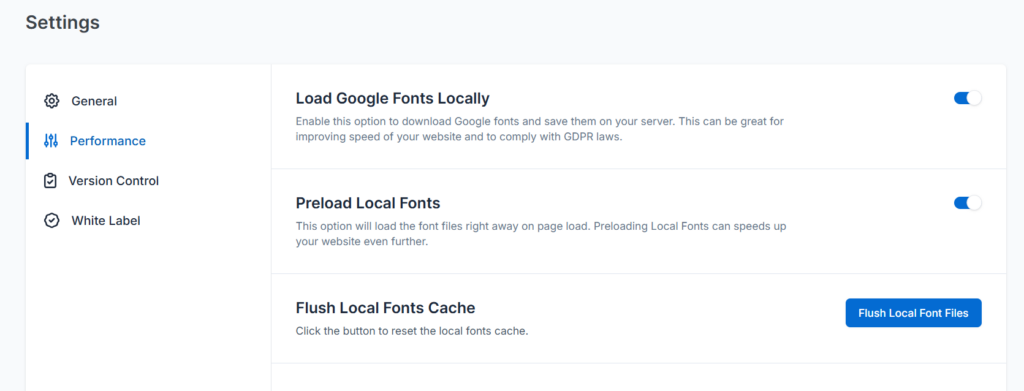
Loading Google Fonts locally can also help you comply with GDPR law, as your site users do not need to share their IP addresses with Google Font servers.
So, when you install the Astra theme for the first time, go to its settings page and turn on these features. If you use a cache plugin, ensure the same function is not enabled. You can choose to use the feature in Astra or your caching plugin; just ensure that only one is used.
Next, pick a classic theme from its 180+ free starter templates or use ZipWP to generate your theme design. Both options work great, but I prefer using a classic theme due to flexibility and design customization.
Though Astra’s free theme offers many customization possibilities and design controls, the real power comes with the Pro add-on. However, with more customization, flexibility, and control comes more resources loading on your server.
For example, inserting Astra dynamic content or a custom design created with Site Builder into your site could trigger Cumulative Layout Shift errors in PageSpeed Insights. Because of how the custom content (especially text content) is injected into the page, some elements may shift here and there before displaying properly.
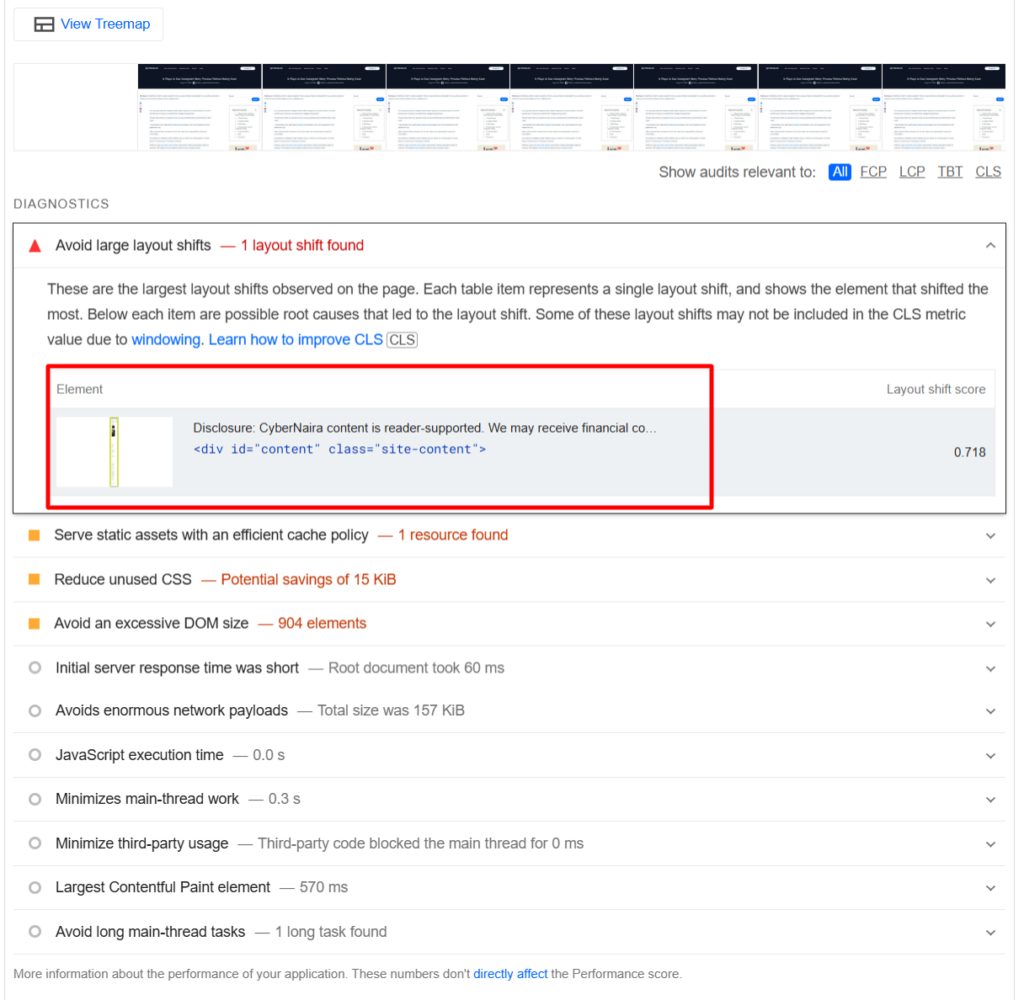
The text content responsible for the CLS error in the PSI report above is a custom text added to the page with Astra’s Site Builder Module (Hook element). This dynamic nature of the text causes the browser to determine its position on the page later.
Astra and other WordPress themes are not full-fledged performance optimization solutions, so they do not have built-in features to resolve complex issues like layout shifts, eliminate render-blocking resources, or provide script management tools.
This is where a speed and performance solution like WP Rocket or NitroPack comes in.
These tools are designed to work seamlessly with Astra, enhancing its built-in features and providing additional performance optimizations. Combining Astra with these tools can achieve even faster load times and higher PageSpeed scores.
Astra + WP Rocket – Perfect Match for 90+ PageSpeed Scores
When you install the Astra theme on a fresh WordPress installation and test your site speed with tools like Pingdom, GTmetrix, or PageSpeed Insights, you probably get a perfect 100 score on all Core Web Vitals metrics.
But as you begin to add resources, plugins, and media files and publish more posts to your site, things start getting a bit different.
These additions can increase the size and complexity of your site, which in turn can affect its speed and performance.
However, with the right optimization tools and strategies, you can maintain a high level of performance even as your site grows.
For example, I tested the Astra theme on this site with 337 published pieces of content, thousands of media files, third-party scripts (Facebook pixel, Microsoft Clarity, Optin Monk, Google Tag Manager), and 19 other plugins. This test was done without any optimization plugin active.
Here are the PSI test reports.

Although the page performance score is 79, you can improve it using WordPress cache plugins like WP Rocket, FlyPress, or NitroPack.
However, since I use WP Rocket, I’ll show you how to combine its performance features with the built-in tools of the Astra theme to achieve a 99% performance score and offer your users a real-world optimal experience.
I’ll guide you through the process of installing and configuring WP Rocket to work effectively with Astra, ensuring you get the most out of these powerful performance tools.
This is not about hitting high scores in testing tools (lab data); it’s about providing your site user with fast-loading pages that improve their experience (field data).
For that reason, let me show how the same page was measured when I activated the WP Rocket plugin.
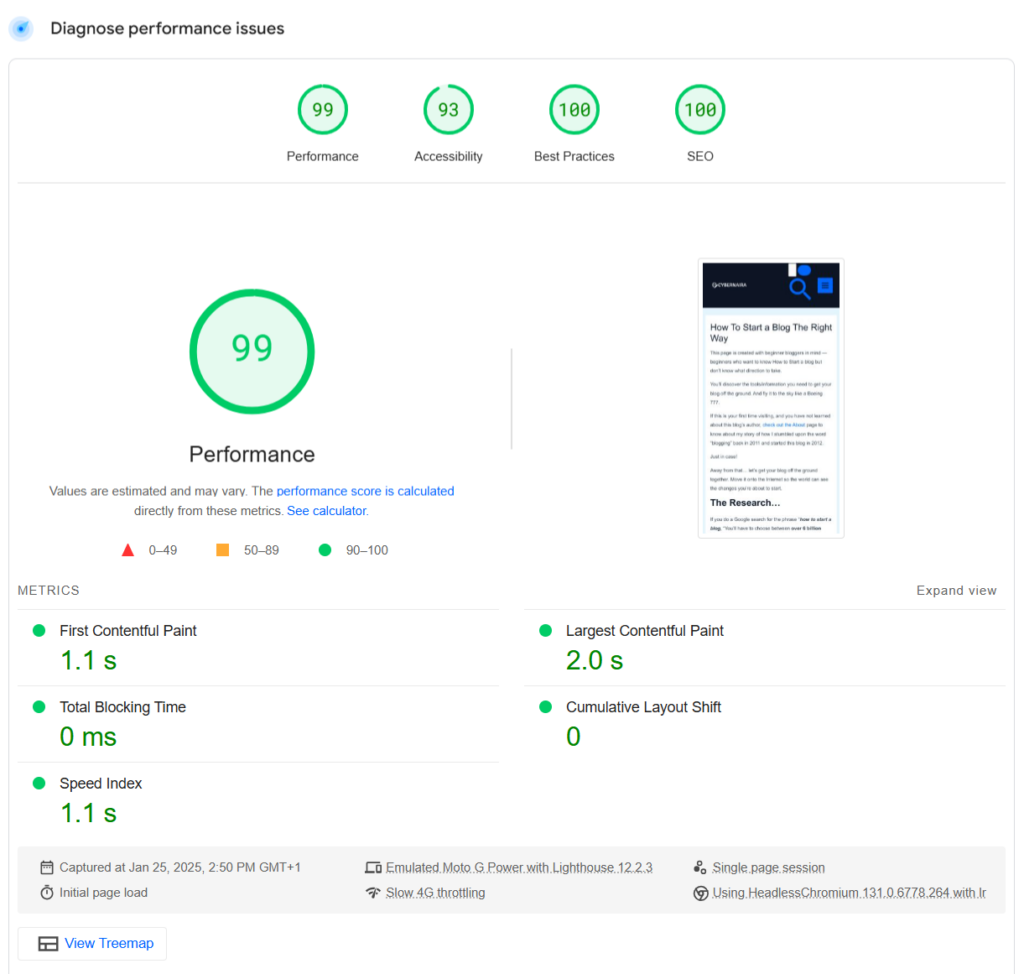
Aside from the overall performance score overview, several diagnostic issues were identified, including Largest Contentful Paint elements, Reduced Unused JavaScript, deferred offscreen images, and properly resized images.
Other issues include images that do not have an explicit height and width ratio, eliminating render-blocking resources, etc.
The page failed these tests initially, but after activating WP Rocket, those issues no longer appeared.
Without WP Rocket

With WP Rocket Active
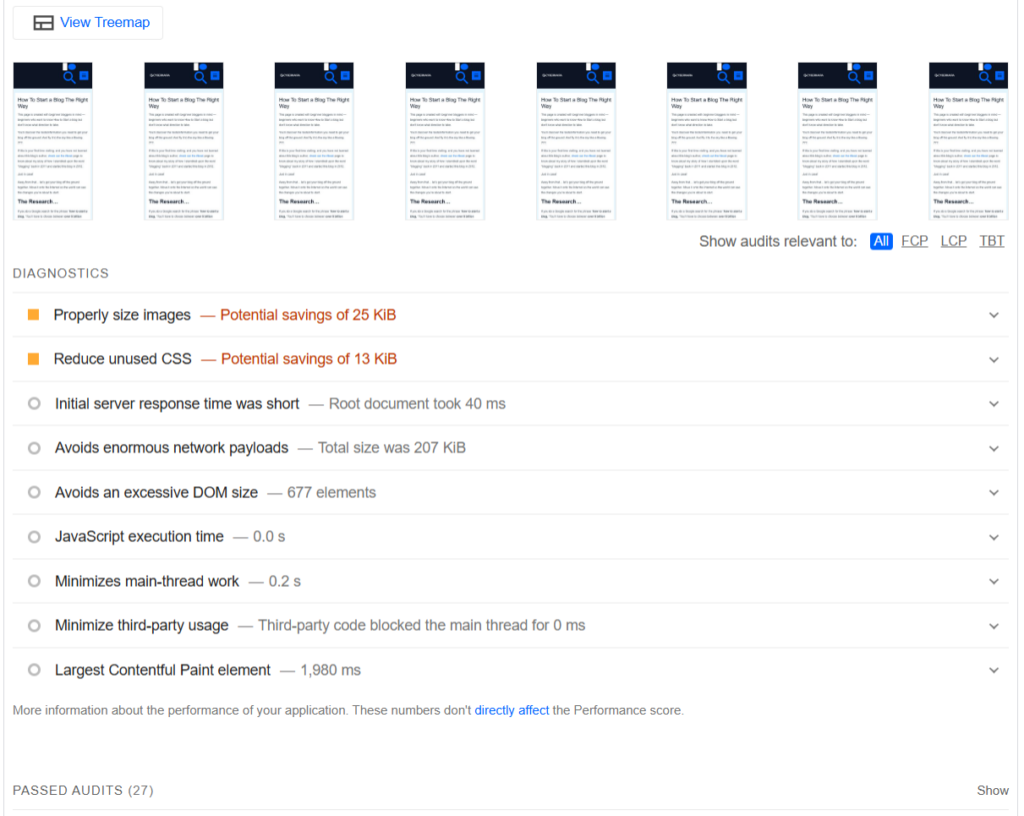
This kind of result doesn’t happen magically. You need a few tweaks to maximize the power of the Astra theme and WP Rocket and achieve faster page speed.
Setting up Astra + WP Rocket
Now that you know how WP Rocket could further improve the performance of your WP Astra theme, let’s examine what I did to improve speed and performance in real-world usage.
Note: Each WordPress site is unique regarding resources, plugin list, server configuration, etc. If you use an Apache or NGINX server with a fast web host, these settings should significantly improve your site.
However, consider the LiteSpeed Cache plugin and the Quic.cloud CDN if you use a LiteSpeed server for better performance. For more information on LiteSpeed and WP Rocket, check out my comparison.
Astra Set up
Once the Astra Pro theme is installed and active, go to Astra> Dashboard and open the settings page. Note that these options are Pro add-on features. If you’re using the free Astra theme, this step is irrelevant.
On the Astra Pro theme’s General Tab, scroll down to review which option suits your needs. Astra loads CSS and JS files inline by default, but you can change this setting to load each CSS and JS file separately.

Many top developers argue that loading CSS and JavaScript files separately improves the organization of performance code and makes it easier to maintain. This blog post explains this change since Astra 2.1.
Next, click the Performance link under General to open the Font optimization options. I already talked about this earlier.
Remember to flush the local font file after enabling these features.
As WP Rocket and Astra Pro theme users, I disabled the Load Google Font locally option in WP Rocket to have it in Astra.
In the Astra theme Welcome page, review the available Pro modules based on your license type. Consider disabling modules you don’t need. This minor adjustment could provide additional performance benefits or enhance your site’s speed.

Get WP Rocket
Now that we’ve further adjusted our WP Astra theme settings for performance, it’s time to add an extra performance boost to the mix. Enter WP Rocket.
Unfortunately, WP Rocket is a premium plugin, so the only way to test it is to purchase a license. But don’t worry—you can still get your money back if you don’t like it.
WP Rocket offers a 14-day refund policy. So, you have nothing to lose by trying the plugin.
After that, download the WP Rocket plugin, install it, and activate your license. Then, follow my recommended WP Rocket settings.
Configure WP Rocket
Once active, the WP Rocket cache is enabled by default; you have nothing to do there. Go to the File Optimization Tab and configure these settings:
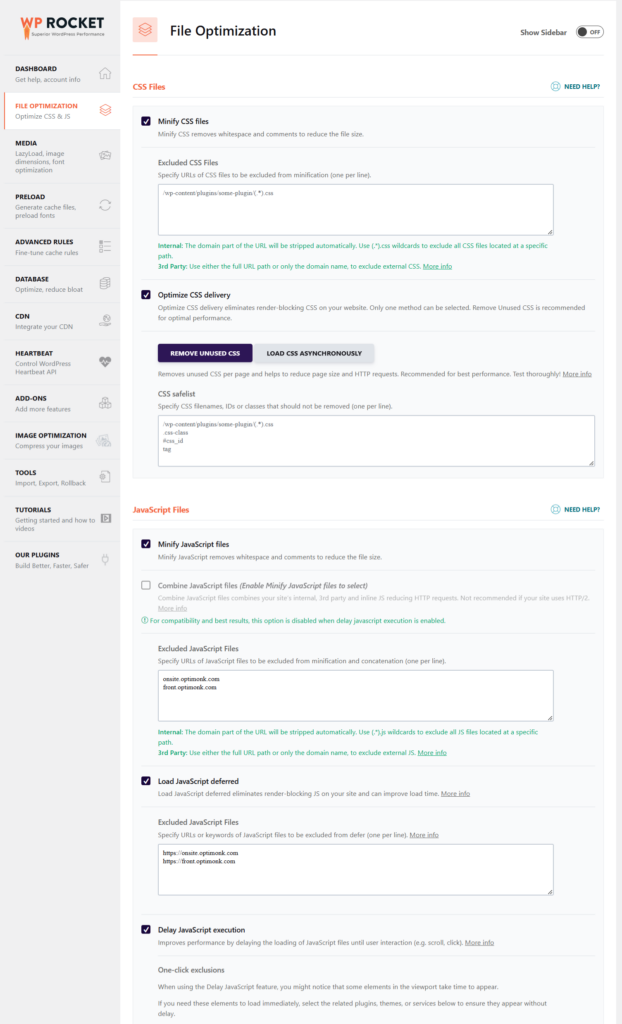
- Minify CSS – Check
- Optimize CSS Delivery – Check – Select “Remove Unused CSS”
- Minify JavaScript Files – Check
- Load JavaScript Deferred – Check
- Delay JavaScript Execution – Check
Save your changes.
Note: If you have JS for resources like web forms, you may need to exclude them from the execution list. These resources need to load as soon as possible for users, and delaying or deferring their loading might have unintended consequences.
Enter their file name, keyword, or URLs in the appropriate field to improve the user experience.
If you notice that some design elements or theme resources are not loading as expected in the viewport, or have some weird HTML or CSS error. You can exclude the Astra theme, Astra Carousel, or its Pro add-on from the Delay execution option.

Next, open the Media Tab in WP Rocket and configure these settings. Under Lazy Load, check these options:
- Enable for Images
- Enable CSS Background Images
- Enable iframe and videos
- Replace the YouTube iframe with a preview image
Image Dimension
- Add missing image dimension.
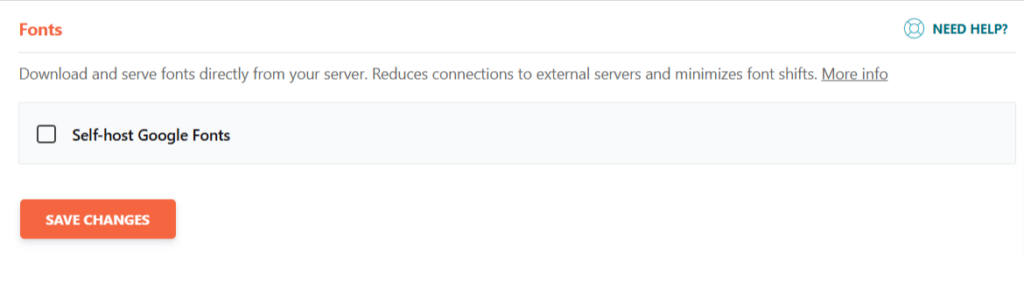
Self-Host Google Font Locally: Don’t check this box if you’ve enabled this option in the Astra theme.
On the WP Rocket Preload tab, you need to enable:
- Activate Preloading
- Enable Link Preloading

You don’t need to bother with WP Rocket’s Preload Fonts option since the Astra theme uses preload Fonts to improve loading time and speed. We’ve already set that up in the WP Astra theme performance settings.
Other WP Rocket settings, such as Cache LifeSpan, database optimization, and Heartbeat control, won’t directly impact your Astra theme’s performance. Still, they’re likely to improve the overall site experience and performance.
Therefore, you should configure them as well.
For cache LifeSpan, set it to 24 hours. Heartbeat Control, set it to Reduce Activity. You can specify URLs not to cache in the Advanced Rules tab.
Also, go to the WP Rocket database settings page and configure it to fit your site’s needs. This will help you automate database cleanups, such as trash and spam comments, trash posts, revision transients, optimized tables, etc.
Other Astra Theme Performance Optimization Tips
While the Astra theme + WP Rocket already gives you powerful speed and performance scores, there are additional steps you can take to ensure your website performs at its absolute best.
These tips complement Astra’s lightweight design and WP Rocket’s advanced features, enabling you to achieve faster load times and an enhanced user experience.
Use a Content Delivery Network (CDN)
A Content Delivery Network, or CDN, speeds up your website by distributing static assets like images, CSS, and JavaScript files across servers worldwide.
This ensures visitors download content from a server near their location, reducing latency and improving load times.
CDNs like Cloudflare, Bunny.net, or StackPath boost performance and help protect your site from traffic spikes. Many hosting providers even offer integrated CDN solutions, making setup easy.
Optimize WordPress Images
Images are a leading cause of slow websites, especially if they’re high-resolution or uncompressed. To optimize them, start by converting images to formats like WebP, which are smaller without sacrificing quality.
Use plugins like ShortPixel, Imagify, or Smush to compress your images and remove unnecessary metadata.
You can also resize images to match your site’s layout and enable lazy loading, which loads images only when they come into the viewport. These steps will reduce load times and improve the overall user experience.
Use a Fast and Reliable Web Host
Your hosting provider plays a critical role in your site’s speed. Even the most optimized site will struggle if the server is slow.
Cloud-based managed WordPress hosting providers like Kinsta, WP Engine, and Cloudways offer better speeds, scalability, and features like built-in caching and global CDN services.
Choose a host with data centers near your audience and strong uptime guarantees. Investing in quality hosting will save you time and ensure a smoother experience for your visitors.
Reduce Plugin Usage
While plugins are great for extending WordPress functionality, having too many can bloat your site and slow it down.
Aim to only use plugins that are essential to your site’s functionality.
Avoid installing plugins with overlapping features. Look for plugins that bundle multiple features, like WP Rocket, for caching and optimization. Periodically audit your plugins and deactivate or delete anything unnecessary.
Use Tools Like Cloudflare Zaraz or Google Tag Manager (GTM)
Third-party scripts, such as analytics trackers, ad scripts, or social media embeds, can slow down your site. Cloudflare Zaraz can offload these scripts to its edge network, improving speed by minimizing their direct impact on your site.
Similarly, Google Tag Manager allows you to manage all your tracking codes in one place, reducing clutter and improving load performance. These tools are useful if your site relies on external scripts.
Update Regularly
Outdated software is a security risk and can slow your website down.
Update the WordPress core, themes, plugins, and PHP version regularly to benefit from performance improvements and bug fixes.
For larger updates, test changes on a staging site first to avoid disruptions. Keeping everything current ensures your site runs as efficiently as possible.
Implementing these strategies will enhance Astra’s performance-friendly design and optimize user experience. A fast website is good for rankings and essential for keeping visitors engaged and satisfied.
FAQs
Do I still need WP Rocket if I’m using the Astra theme?
Yes, WP Rocket enhances Astra’s performance by handling advanced optimizations like caching, file compression, database cleanup, and lazy loading that the theme alone doesn’t address.
What specific features of WP Rocket improve Astra’s speed?
WP Rocket offers page caching, file minification, concatenation, deferred JavaScript, lazy loading, database optimization, and CDN integration—all of which improve load times and user experience.
How do I configure WP Rocket for the Astra theme?
To configure WP Rocket, enable caching, optimize CSS and JavaScript files, turn on lazy loading, and integrate a CDN for global asset delivery. Astra doesn’t require additional compatibility settings as it works out-of-the-box with WP Rocket and other WordPress cache plugins.
Will WP Rocket break my Astra site design?
WP Rocket is built to be compatible with most themes, including Astra. However, it’s best to test critical CSS, lazy loading, or file optimization settings to ensure they don’t interfere with your layout or functionality.
Can I use free caching plugins instead of WP Rocket with Astra?
While free caching plugins like W3 Total Cache or WP Super Cache can work, WP Rocket provides an all-in-one, beginner-friendly solution with more robust and automated optimization features.
Does WP Rocket work with Astra’s built-in performance features?
Yes, WP Rocket complements Astra’s built-in features, such as loading Google Fonts locally, asynchronous CSS loading, and preloading local fonts. Together, they deliver a faster, more efficient website.
Conclusion
Astra is one of the top WordPress themes, providing a fast and optimal user experience. It’s built with SEO-optimized features, supports schema markup, and allows you to create designs that match your imagination.
While Astra is fast out of the box, using WP Rocket to complement its performance and enable other advanced features in WP Rocket can make the biggest difference.
If you’re serious about building a fast, reliable website, implement the tips I’ve discussed. Whether you configured WP Rocket, upgrade your hosting, or fine-tuned Astra’s settings, every small improvement can make a big difference.
Let me know if you have questions or need help optimizing the Astra theme with WP Rocket.


Notice:
Your comment will end up in the trash folder if you spam our comment box. Use your real name, write meaningful and genuine comments. Avoid using keywords or brand name in the name filed and keep your comment relevant to the topic. Thank you.