

If you’re struggling to decide between NitroPack vs WP Rocket WordPress plugins for website speed and performance optimization, this post will answer your questions.
But to be honest, this isn’t a clear-cut answer.
Both WP Rocket and Nitropack WordPress plugins offer excellent speed and performance features.
It’s difficult to choose between the two, as they have specialization areas, making it even more challenging.
Nitropack is more expensive than WP Rocket. But if you’re not just looking at the budget, there is more to read in this review of Nitropack and WP Rocket.
Let’s dive into the full details.
NitroPack and WP Rocket Quick Takeaway
WP Rocket and NitroPack share similar key features, especially for optimizing code, caching, and core web vitals. Both plugins work great and handle these aspects almost equally well.
They offer advanced features such as CDN integration, Gzip compression, and specialized Core Web Vitals metrics optimizations, providing superior performance enhancements and customizations.
They also integrate with many popular WordPress products, such as hosting, page builders, themes, plugins, platforms, and security tools. WP Rocket is compatible with more web hosting providers than NitroPack.
Many other features still set them apart, and you should consider them when choosing between NitroPack and WP Rocket.
For instance, choose WP Rocket if you need a more all-in-one solution for caching, file and image lazyload, critical CSS, and database optimization. Nitropack does not offer database optimization, which is one of its drawbacks.
However, if you want complete image optimization (compression and image resizing) plus the optimization features mentioned earlier, minus database optimization, to be your priority, choose NitroPack.
WP Rocket does not resize or compress images.
Pros and Cons of NitroPack vs. WP Rocket
NitroPack
Pros
Cons
WP Rocket
Pros
Cons
Verdicts
Note:
To learn more about WP Rocket performance tests in the real world, how I set up a test site, and how I use the caching plugin to improve core web vitals, read my exclusive review of WP Rocket.
Let’s dive in for insight and deep reviews on who wins between WP Rocket and Nitropack.
Caching
Caching is the core function of both plugins and one of the features you have probably been looking for in caching plugins like WP Rocket vs NitroPack.
In this section, I will look at how both plugins handle cache out of the box without additional settings.
WP Rocket
WP Rocket, a WordPress plugin, automatically enables caching; you don’t have to do anything to turn on the features. It is a default feature in WP Rocket.

At its core, WP Rocket effectively handles all cache types and processes—page cache, browser caching, and cache preloading—improving page load times, PSI performance scores, and the real-world user experience.
Cache preloading helps load web pages in the background as the user hovers over the HTML link, improving perceived page speed and user experience.
WP Rocket deploys 80% of its settings upon plugin activation to boost maximum speed and performance score.
You can also set the cache lifespan to suit your publication frequency. The default is 12 hours, but you can adjust this to whatever works best. WP Rocket automatically preloads the cache whenever you update, so users can view your most recent blog version.
WP Rocket is more user-friendly than most WordPress cache plugins because it doesn’t require complex configurations.
NitroPack
NitroPack offers the cache features you expect from an advanced performance solution: page cache, browser cache, and more. Like WP Rocket, you can also set a cache lifespan.
NitroPack includes cache warmup preloading (similar to WP Rocket), which loads pages in the background for users.
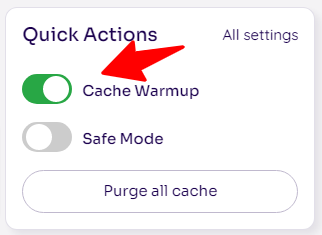
The innovative cache invalidation features also update your website pages in the background without deleting the cache version until a new version page is ready.
This process helps retain the website’s user experience during peak traffic periods.
However, NitroPack has a few impressive cache features not found in WP Rocket.
For example, you can view a graph, such as analytics of NitroPack cache usage. This allows you to see the cache hit ratio to resource usage.
This feature is not yet available in WP Rocket; it would be good to see it in a future update.
NitroPack also gives you more control over its cache settings than the WP Rocket version 3.16 and upward.
Overall, the NitroPack plugin seems to handle caching better.
CDN – Content Delivery Optimization
A CDN improves performance by storing your site content on multiple servers across the Internet.
When users request information from your site, the CDN will look up the user’s IP address to determine the nearest server location and serve the content from it.
This will result in a much faster website, improved user experience, and better performance.
Let’s see how WP Rocket vs. NitroPack integrates CDN into their offerings.
WP Rocket
WP Rocket does not include a built-in content delivery network (CDN), but it does offer RocketCDN, an add-on powered by StackPath. You can configure it to work with your WP Rocket cache plugin, benefiting from both tools.
Apart from its RocketCDN, WP Rocket integrates seamlessly with Cloudflare, BunnyCDN, and all major CDN service providers, so you can use any of those if you prefer by adding the CDN CNAME record.

The drawback is that RocketCDN is a separate product from the WP Rocket cache plugin, so you’ll need to purchase a monthly subscription, which costs $7.99/month and allow unlimited bandwidth.

Aside from the extra fee, using CDN with the WP Rocket plugin is no problem. You can activate RocketCDN from your account dashboard.
NitroPack
NitroPack has built-in CDN services powered by Cloudflare.
Cloudflare has a global network of data centers in 275 cities across 100 countries, making it one of the largest and fastest content delivery network providers.
If you’re already using Cloudflare, you must configure your domain and API settings in NitroPack.
According to the NitroPack website, there’s no option to use another CDN.
If you prefer other CDN providers, this could be a significant issue. You might want to contact support to verify the CDN policy before subscribing to a premium plan.
Overall, WP Rocket did a better job of providing many CDN options through its plugin.
But both NitroPack and WP Rocket support Gzip and Brotli compression to speed up content delivery.
Image Optimization
Images are a significant issue in website optimization. They contribute to many on-page elements that increase page size and slow loading times.
If your WordPress website images are not properly optimized, it will result in a poor user experience.
How do WP Rocket and NitroPack stack up in this area?
WP Rocket
WP Rocket has no built-in image optimization to compress or resize, nor a WebP image converter.
However, it has a one-click setting to optimize CSS background images and lazy-load iframes and YouTube videos. It also replaces YouTube iframes with preview images and automatically adds missing image dimensions, which helps prevent Layout Shifts.
You can exclude specific images or iframes from lazy loading if you need them to load as soon as possible for users, such as the featured image or the above-the-fold area.
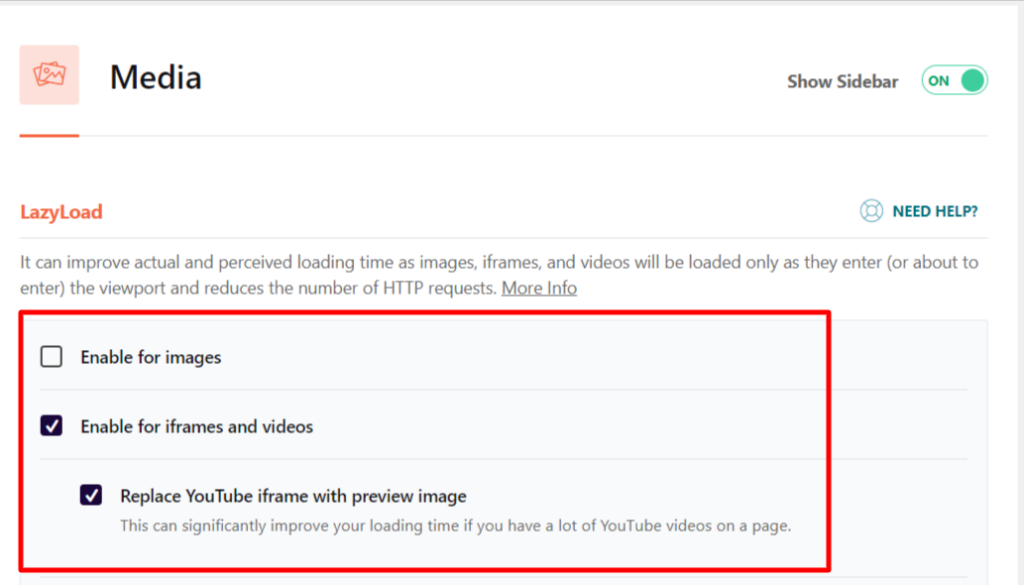
These are the main image optimization features in WP Rocket, which are pretty basic for a premium plugin. You must purchase the Imagify image optimization plugin separately for features like compression and automatic image resizing.
Imagify is a separate product from WP Rocket, so it’s safe to say WP Rocket is not an all-in-one performance optimization tool.
However, purchasing Imagify is not a requirement to access WP Rocket. You can use any image optimization tool with the WP Rocket plugin.
This could be an advantage if you prefer a better image optimization tool.
NitroPack
NitroPack offers a complete website performance package that includes image optimization features.
Deploying NitroPack on your website activates the image compression and optimization modules. In its standard mode, NitroPack uses lossy image compression, enabling the WebP image format for supported browsers.
It also enables lazy image loading.
NitroPack has adaptive image resizing features that automatically resize image file sizes to fit their containers. This feature is enabled for customers on the Growth plan.

This helped to fix one of Google PageSpeed Insights’ errors – image elements do not have explicit width and height.
The thing is, NitroPack saves you from using multiple plugins for optimization (separate image and caching plugins).
So, if you prefer everything in one package, NitroPack is the best option. But when you look at the cost, you end up spending more on an image optimization tool with NitroPack.
NitroPack’s single-website plan starts at $17.50/month, totalling $210 for an annual payment.
WP Rocket single license costs $59 for the annual plan.
If you sign up for the Imagify unlimited image optimization plan, which costs $99.9/annually, you’ll pay $158.9 annually for both plugins.
So, it is cost vs. convenience – make a choice.
HTML, CSS, and JavaScript Optimization
File and code optimization are two of the core functions of both NitroPack and WP Rocket.
HTML optimization, including techniques such as minification and compression, is crucial for improving WordPress site performance by reducing page load times and overall site speed.
But how do NitroPack and WP Rocket treat files and script optimization and help your WordPress site load faster?
WP Rocket
WP Rocket offers many advanced tools for optimizing HTML, CSS, and JavaScript files. This feature is one of the most powerful in WP Rocket.
For example, you can minify, delay, and defer all JS files and remove unused CSS files.
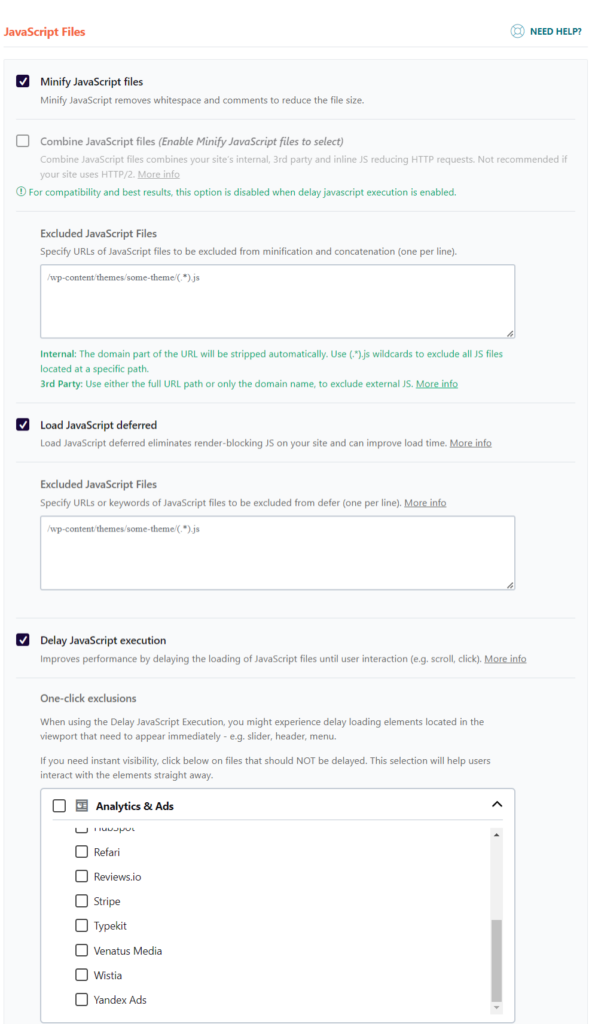
You can generate critical CSS files and combine files to reduce the number of HTTP requests. You can also exclude internal and third-party files from minification and concatenation.
Enter each URL you want to exclude per line.

WP Rocket will load all JS files with the defer attribute enabled if you enable the deferred JavaScript option.
This will fix render-blocking resource errors in testing tools like PageSpeed Insights and GTmetrix.
You can also improve website performance by delaying JavaScript execution on a page until user interaction. It’s like lazy Loading for JS files.
WP Rocket offers the essential files and code optimization tools you need.
NitroPack
NitroPack seems to be ahead in optimizing HTML, CSS, and JavaScript files. It offers more advanced options for optimizing code delivery than WP Rocket.
NitroPack does everything WP Rocket does to optimize files and code, but with much more.
NitroPack gives you more customization options for file settings. You can define more advanced rules to exclude files from minification.
WP Rocket also lets you exclude scripts from the optimization list, but NitroPack is one step ahead.
For example, you have more options for HTML settings and more opportunities to create custom CSS rules for optimized pages.
If you display ads on your blog, you can optimize ad delivery to avoid blocking initial page rendering.
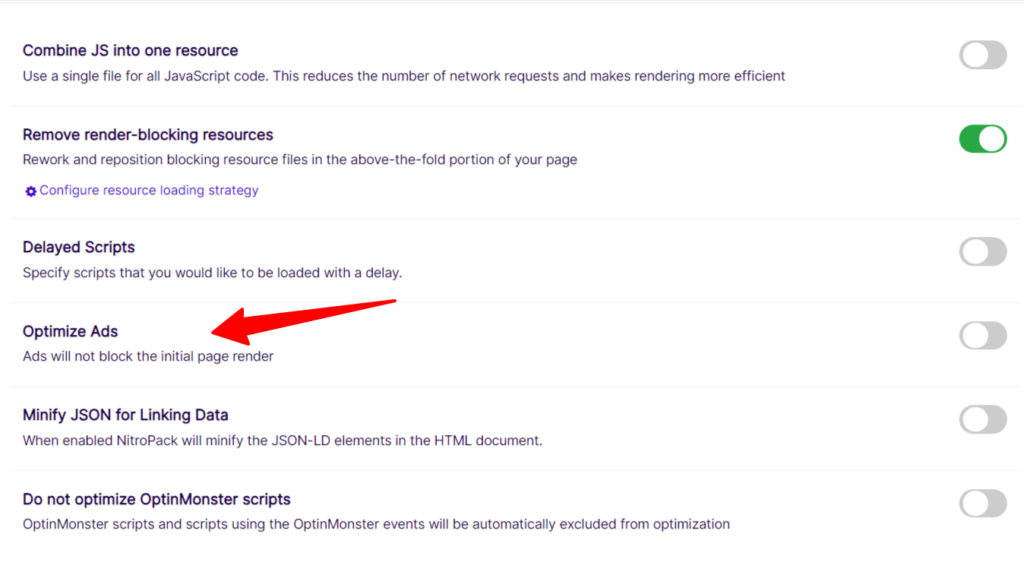
If you use the OptinMonster WordPress plugin, you can enable/disable its script for optimization.
Though not everyone will need the Ads and OptinMonster HTML, JavaScript, and CSS file optimization features, it is worth having them.
While WP Rocket provides all the essentials, NitroPack goes beyond.
Ease of Use
Both solutions are easy to set up and use.
There are no rigorous tutorials or steps, even for a first-time user. Both plugins offer intuitive interfaces, making them easy to navigate.
However, WP Rocket is more beginner-friendly because of its simplicity and one-click setup.
With a few clicks, you’re all set up and ready to go. Nevertheless, let’s see how both solutions are deployed.
WP Rocket
First, get the plugin from this link. Register your account by completing the purchase process.
After that, download the plugin from the zip file to your computer and upload the zip file to your website. Your license is automatically activated in the background, so there is no need to activate it manually.
WP Rocket automatically deploys 80% of its default configuration upon activation to improve site speed. This setting works for many WordPress blogs, including WooCommerce stores.
As mentioned many times, caching is a default option in WP Rocket. As of version 3.16, the caching setting has been removed from the dashboard. If you want to change its settings, use the helper plugin.
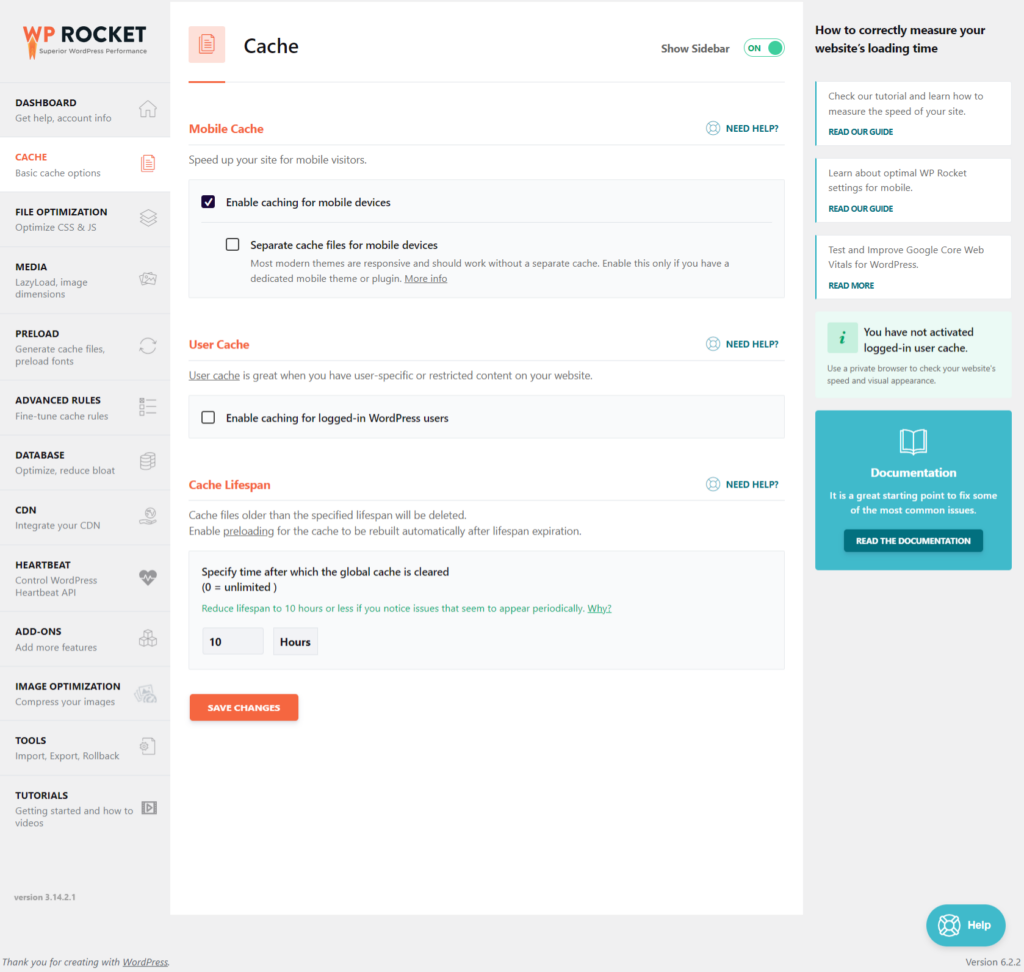
WP Rocket plugin settings are straightforward; if you need help understanding how to use any features or settings, use the Need Help link to plugin documentation.
NitroPack
Opening a NitroPack account is easy. Go to the NitroPack website and select a plan (you can start with the free plan).
Next, complete the registration process by entering a few details. Ensure you enter the correct domain you will be using with NitroPack.
Once your account is set up, you can connect NitroPack to your WordPress blog through the connector plugin.
Some optimization features are enabled by default. You will see them at the bottom of the page.

You can further adjust specific features on the settings tab to improve performance and speed.
Overall, WP Rocket vs. NitroPack did a great job providing a smooth user experience. It is a tie.
Compatibility
Both plugins (NitroPack and WP Rocket) are compatible with most WordPress hosting, themes, and plugins.
However, WP Rocket is specifically designed for WordPress blogs, making it a better option than NitroPack for WordPress users.
Conversely, NitroPack is a cross-platform web performance solution, making it the better option if different content management systems are used.
Several users have reported that their sites broke after installing NitroPack.
So, I suggest you test Nitropack on a staging site before deploying it on a live website, especially if your site has web forms.
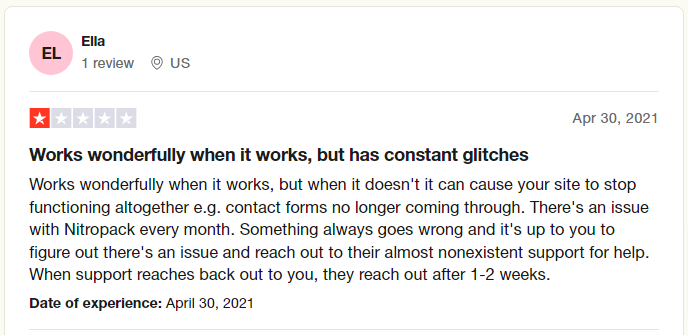
WP Rocket is much more stable and compatible with most plugins and scripts, which is why it is the better option for many WordPress websites.
WP Rocket and NitroPack Support
WP Rocket and NitroPack share the same support system, including tickets and help documents. However, given its high price, one would expect more from NitroPack.
At least, something like live chat and dedicated high-priority support for its paying customers. But that’s not the case, anyway.
However, Nitropack’s support has received a lot of backlash both in the past and now. Many users have complained about the team’s inadequate support.
And in some cases, they ignore it entirely or try to avoid contact, especially when it is a refund matter.
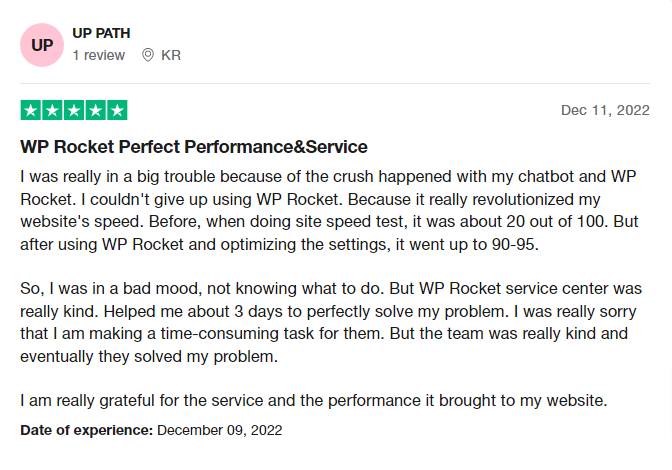
WP Rocket support has improved over the years, and the support team is one of the company’s best achievements.
Reviews like this from many happy customers attest to the millions of marketers using the product.
When you purchase the WP Rocket plugin, you get an invitation to join the WP Rocket Facebook community with over 17.5k (as of writing this line) other WP Rocket users. This could be an advantage to learning more about the product from real-world users.
WP Rocket and NitroPack Pricing
Regarding pricing, WP Rocket is more affordable and easier to use than NitroPack.
Here’s what you pay to buy WP Rocket.
All WP Rocket licenses include 1-year of product updates and customer support.
And here is NitroPack’s pricing for the premium license:
Note:
If you subscribe to a Nitropack plan today, you save a 5% discount. Also, the NitroPack subscription above is for the annual plan. You pay more for the month-to-month subscription.
For pricing, WP Rocket seems to be the better option for many reasons.
It is affordable and billed based on the number of website licenses purchased, not on the number of page views or bandwidth consumed.
NitroPack subscriptions are per website, which might not be cost-effective for agencies or for multiple-website requirements.
The custom plan allows you to negotiate for your specific number of websites, but you must talk to support.
Editor’s Pick – NitroPack versus WP Rocket
It is hard to decide which is better, NitroPack vs. WP Rocket. It depends on several factors.
Your business needs, budget, blogging platform, and experiences will significantly influence your decision.
But as I said earlier, budget aside, WP Rocket is the better choice if you want a solution that gives you faster webpages, the best user experience, and fixes core web vitals without being aggressive.
NitroPack is also a good choice, but you must test it thoroughly to ensure compatibility and use the best SEO practices. NitroPack is also geared toward advanced users, though it is beginner-friendly.
Also, consider the budget.
FAQ – NitroPack and WP Rocket
If your question about WP Rocket’s comparison with NitroPack isn’t answered below, use the comment box to reach out.
Is NitroPack Better Than WP Rocket
NitroPack is not better than WP Rocket; both tools have pros and cons to consider before buying. However, NitroPack offers more advanced optimization features than WP Rocket, making it a suitable option for advanced users.
Is NitroPack good for SEO
Yes, NitroPack is a good tool for increasing SEO. But you must test it thoroughly and optimize web pages according to the real-world user experience.
Does WP Rocket Lazy load
The WP Rocket plugin has an image lazy-loading feature. You can enable it by navigating to Settings > WP Rocket Media and checking the Enable images box.
Conclusion
Choosing between NitroPack and WP Rocket is challenging, especially if you’re not bothered about the budget.
Both performance solutions have pros and cons, and your choice depends on several factors. However, this post has provided you with the information you need to make the right decision.
However, WP Rocket is much better if you prefer WordPress-specific performance and speed optimization plugins.
On the other hand, NitroPack works on different content management systems.
This could be an advantage if you have websites running on other blogging platforms and want a single account for all of them.
If you have questions about NitroPack vs. WP Rocket, please ask them through the comment box below.



Notice:
Your comment will end up in the trash folder if you spam our comment box. Use your real name, write meaningful and genuine comments. Avoid using keywords or brand name in the name filed and keep your comment relevant to the topic. Thank you.