

If you’re a marketer looking to create professional videos with little effort or skill, this InVideo.io review will show you how, even without editing experience.
The good part is that after creating your video, you can share it on YouTube, Facebook, TikTok, and anywhere on the web via upload.
Video content has been popular for a long time, but demand has recently seen tremendous growth.
The industry has seen many BIG players launch video-sharing platforms that host short, exciting videos.
Unless your content needs are specific and highly professional, you no longer need expensive video equipment to create videos.
Online video editing tools like InVideo.io’s AI video generator have simplified the process, allowing anyone with minimal editing skills to create unique visual content.
InVideo.io
Discover how InVideo simplifies video creation with intuitive tools and templates and an AI-powered video generator, making it easier than ever to bring your ideas to life.
Price: 28
Price Currency: USD
Operating System: Web
Application Category: MultimediaApplication, Artificial Intelligence
4.23
What is Invideo.io
Invideo.io is an AI-powered online video editing tool that lets you create video content for advertising, YouTube, tutorials, branding, video explainers, text-to-video, etc.
You can turn your ideas into video content in real time, add background audio, use stock photos and prebuilt templates, and much more.
It comes with over 5,000 templates, 8 million+ videos, music tracks, 40+ fluid animations, photos, 50+ AI-powered themes, and the ability to convert text to video, record voice-overs, add transitions, and apply effects.
It is a powerful video editor tool for beginners and professionals to create stunning video content.
We will cover many use cases in this review of Invideo.io.
How to Create Videos With InVideo.io?
Before creating your videos, ensure you have all the necessary material – your logo, script, images, voice, video, etc.
You need to plan your video materials. It helps save time and allows you to create stunning videos faster.
There are four ways to create your video in the Invideo.io app; each option gives you access to the same editing features and tools.
The type of video you want to create will determine your chosen option.
Let’s see how easy it is to create and edit your videos…
1. Templates
The easiest way is to use one of the available video templates. There are over 5,000 premade video templates.
You can filter the template’s results by aspect ratio, type, and industry.
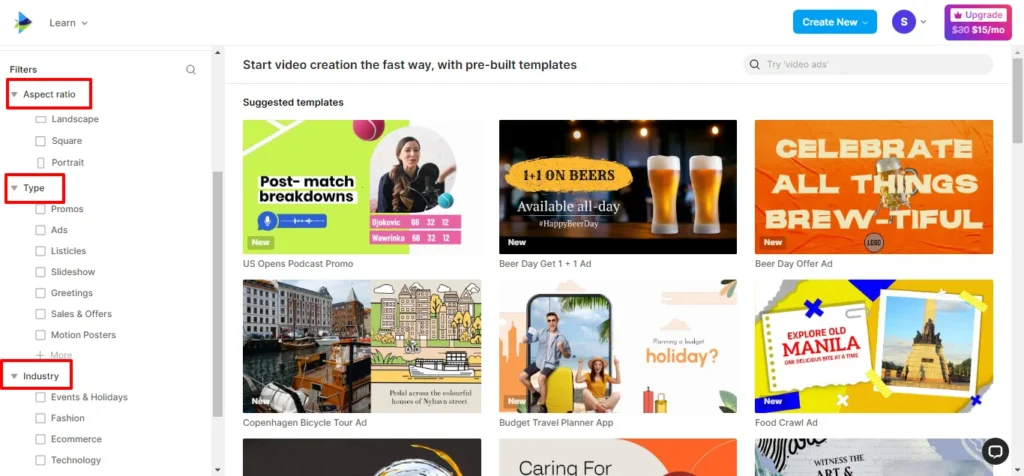
Each video template can be customized to fit your brand message and image. When you see a template you like, click on it and select “use template” on the next page.
Many cool features let you create amazing videos using templates; you can add different scenes to your video from the template or blank scenes using your creativity.
This feature allows you to add text, custom images, or whatever to the video. You could delete any scene from the panel that doesn’t fit your message.
Each template element is a drag-and-drop, so you can rearrange and move things around as you’d like. It also lets you add animation, stunning effects, transitions, and text to your video.
You can move an element back or bring it to the front, copy and paste, delete, etc.
Changing the color of an element is easy; there is a “fill color” option at the top.
Select the element you’d like to change the color of, click the fill color icon, and select your color from the options.
It’s as simple as that.
If you want to add music or voice to your video, click the music icon in the left-hand panel, select the music you want, click the + sign, then click “all scenes” on the page to add the music to all scenes’ backgrounds.
2. Text-to-Video
Another way to create videos in Invideo.io is text-to-speech. This is an excellent way to turn scripts or your blog post into video content in minutes.
In this method, you can manually enter your text or let the AI autogenerate the script based on your Prompt. This method benefits beginners or anyone looking to break into video marketing or tell good stories without actually recording the video or appearing in it.
There are two ways to create videos from text; I review each method in this section.
Automated Text-to-Speech using Prompt
This is how the process works.
First, assume you don’t have the whole story wrapped in your head. All you have is just an idea.
For example, I have this story about two teens who met in high school, fell in love, and married two years after graduation. They have five children and live happily.
The above short story, script, or Prompt is all I need to enter, and the InVideo AI copilot will take it from there and generate the entire video clip.
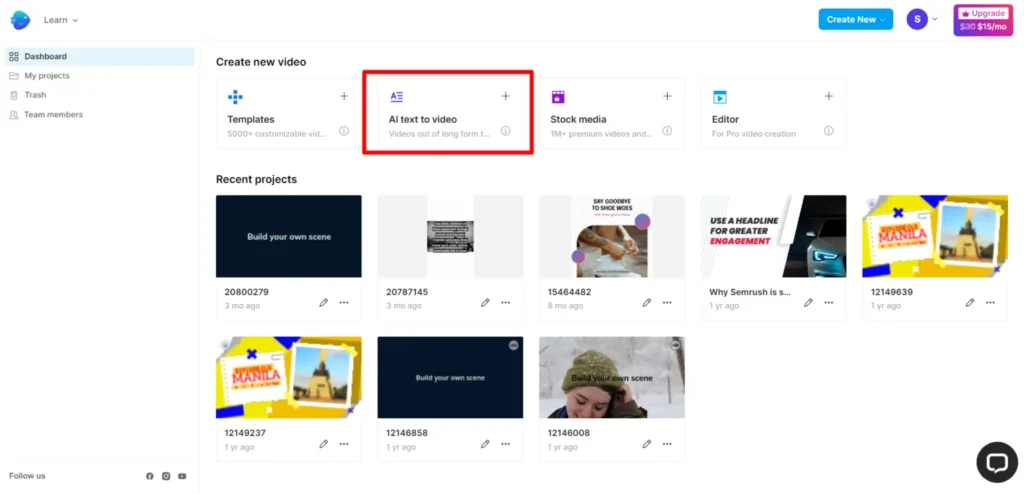
For demonstration purposes, I enter the above script in the text area. (After clicking the AI Text-to-Speech method)
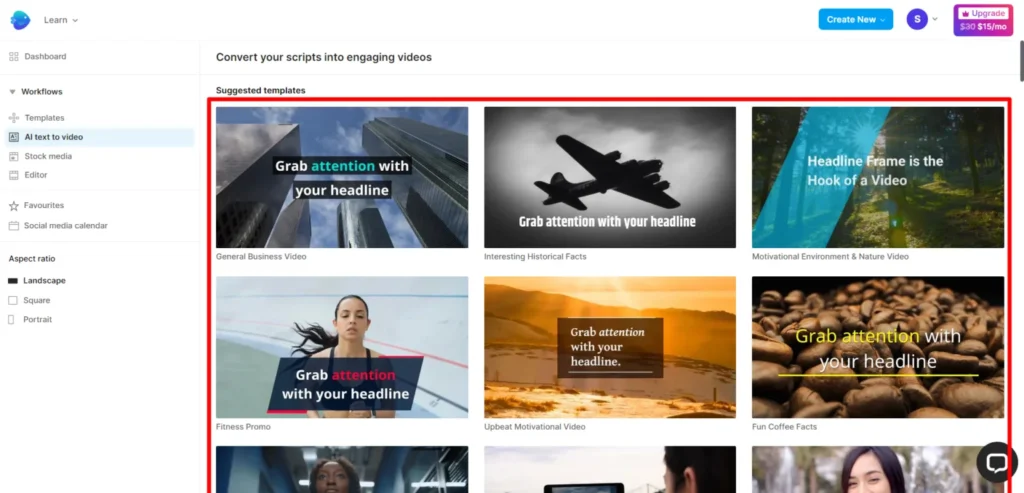
Next, I need to pick a template from the preset options. Pick one here; you can change the images to fit your engaging story later.
After selecting a template, you can write your text in the space provided on the next page or click the “Ask AI to Write Your Script” text on the page.
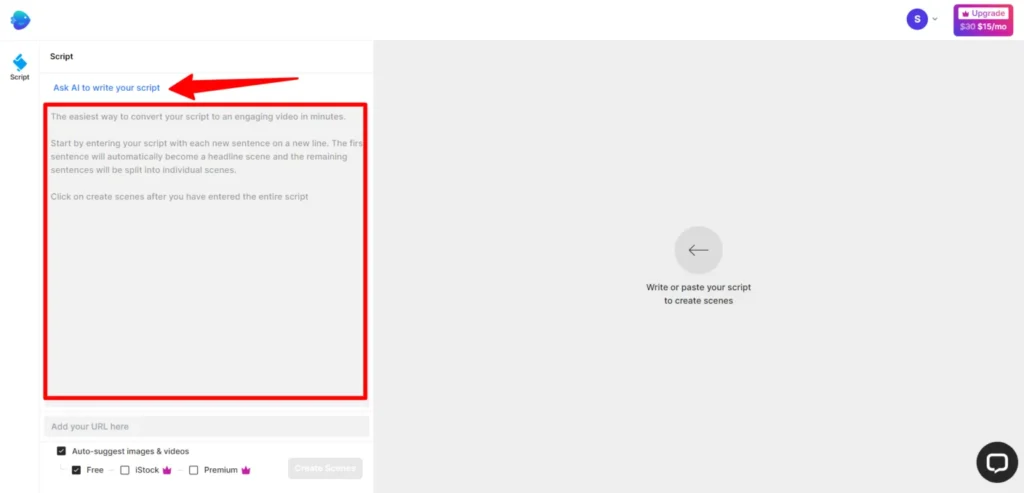
For this InVideo review, I let the AI generate my story from a short brief I gave it. Here is precisely the text I entered.
Write a story about two teens who met in high school, fell in love, and married two years after graduation. They have five children and live happily.
From those few texts or scripts, Invideo AI generates this captivating storyline.
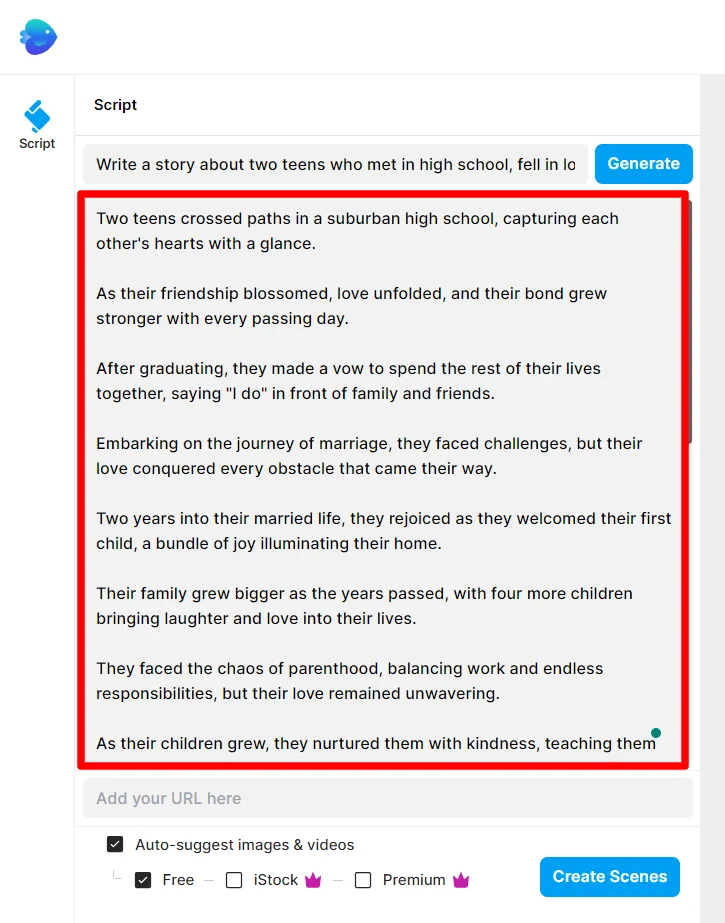
These storylines automatically became the subtitles for the video content.
You need to break each sentence into a new paragraph. This will let the Invideo AI create a new scene for each storyline in your video.
Before you hit the Create Scene button, click the Stock and Premium button options to ensure maximum video quality. However, clicking these features assumes you have a premium plan.
Don’t click these options if you want to use InVideo for free. You won’t have access to premium stock images and other pro features.
You can edit every aspect of a video, including the voice, stock images, background, text, scene, etc. InVideo AI studio has four voice-over methods to pick from:
- Automated text-to-speech
- Import from uploads
- Upload your VO file.
- Record voice over
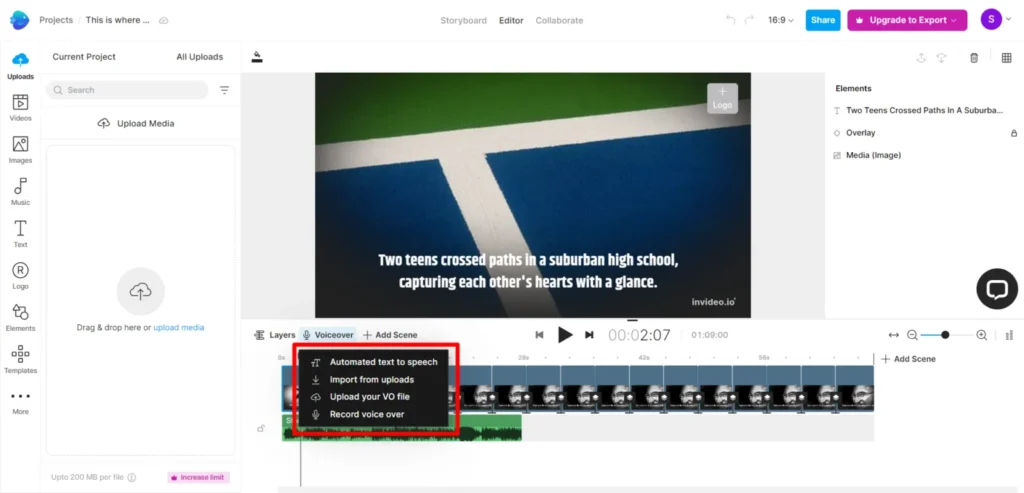
If you choose the automated text-to-speech methods, you can choose from several languages and accents, including English, Spanish, French, Italian, Japanese, Korean, Arabic, etc. In addition, you can pick from different AI voice characters (Male or Female).
Go through your video scenes thoroughly; if you’re satisfied with the outcome, you can export the content in HD 1080P.
Watch the Invideo AI copilot in action. It is the easiest way to create fantastic video content without much effort, stress, or editing skills. It lets you turn your ideas into video content in less than a minute.
Turn Blog Post to Video from the URL
If you want to turn your blog post into engaging video content for YouTube and other video platforms, follow the process below.
First, you must gather your video materials – the title, content, main points, images, voice, logo, etc.
As I did in the steps above, choose a template, but instead of writing your blog post or pasting content, enter the URL in this field.
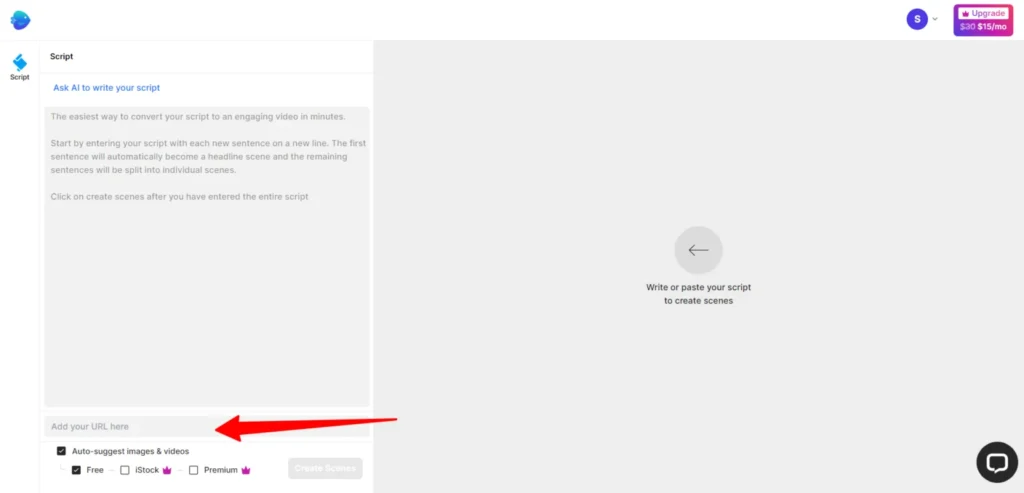
When you do this and click the “Create Scenes” button, the AI automatically pulls the content from the URL. It pulls all the content, including the images.
For this inVideo.io text-to-speech tutorial, I chose the enter URL option and used this page for our study.
After entering the page URL, select the auto-fetch media/video, and the inVideo.io tool auto-fetches the content and media on the page.
After fetching the content, you can manually summarize it or let the tool summarize it automatically. I chose the auto-summarize feature here.
The original content is on the left of your screen, while the summarized version is on your right.
The images in the content have been fetched and are available on the storyboard when you continue.
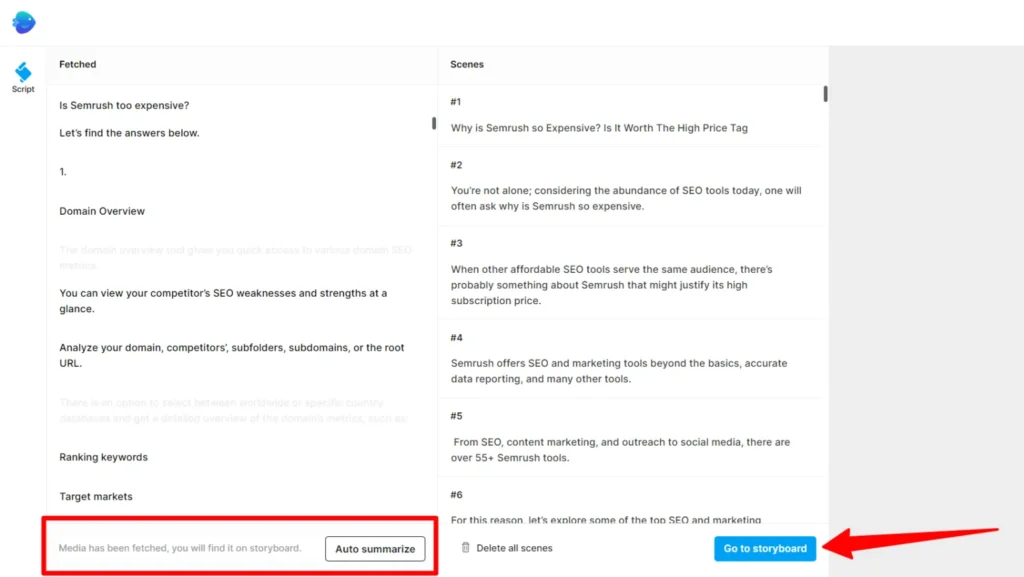
We don’t want the entire content to go into our text-to-speech video. So, we need to weed out unwanted paragraphs, sentences, and points. However, you’re limited to the 50-sentence
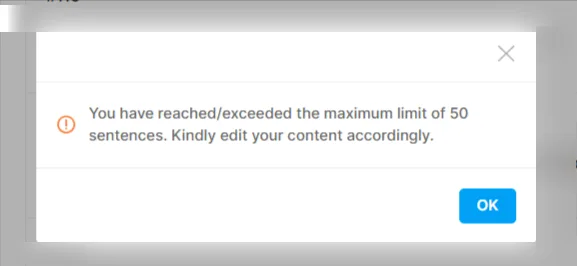
You must review the scenes and delete the ones you don’t need. There is a delete function on the panel.
Some thoughts to keep in mind;
- Use attractive and descriptive images.
- Be concise
- Please keep it simple and short
- Get your background media file ready.
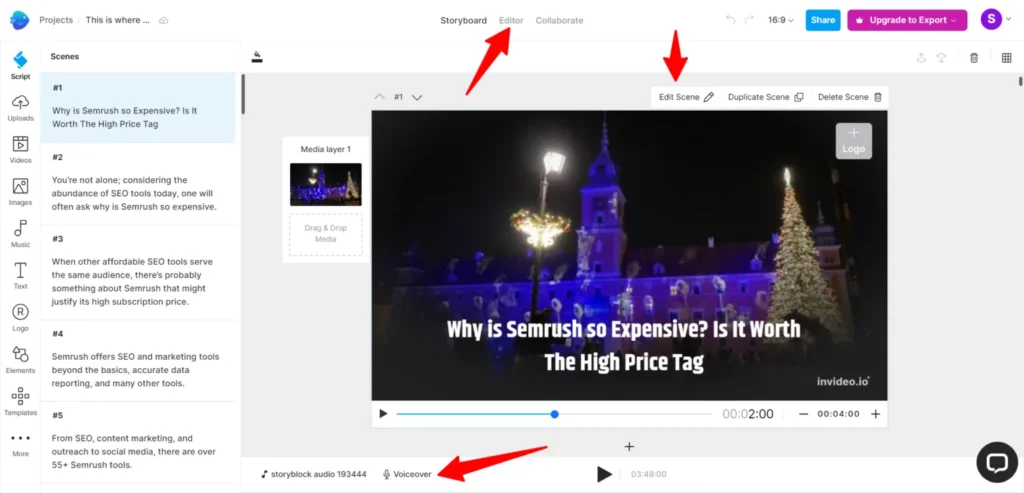
When you’re through, click the “Go to Storyboard” button on the page; it will take you to the video editor’s page, like the one below.
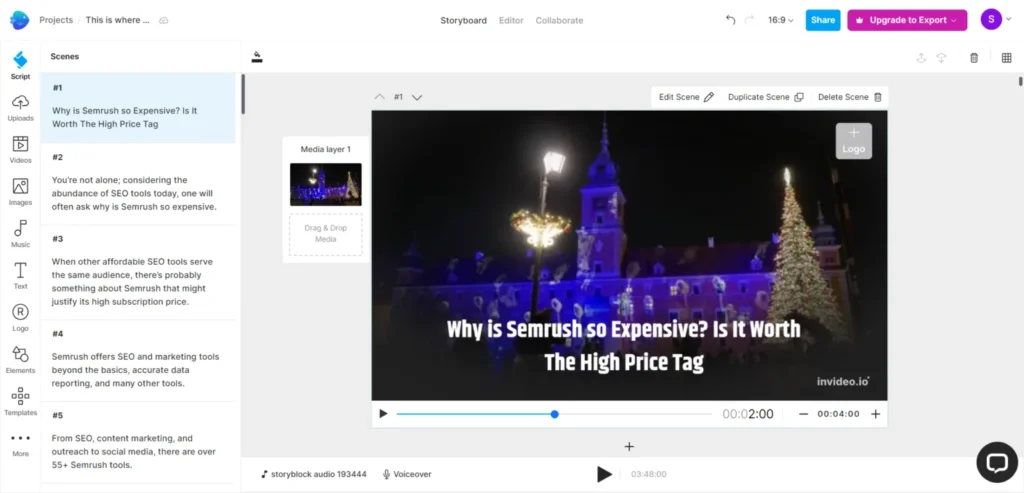
The script is on your left side; the video scenes are at the center of the page. You need to scroll down the page to see all the video’s scenes.
In the previous version of InVideo, text longer than 70 characters was truncated or triggered error warnings. But with its latest release of Invideo Studio, you are no longer limited to 70 characters.
See what happens when most of my scene text is beyond the 70-character limit in the old version of the Invideo AI.
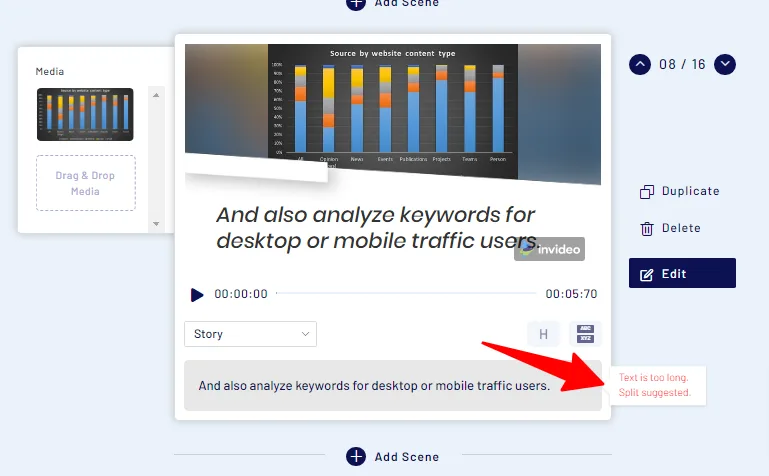
If this happens, you need to split it or create another scene using part of the text. To edit any scene, click the edit button next to it and make changes. Though I doubt if this ever happens in its latest version.
Suppose you want to edit the text; double-click on it to begin editing.
On the storyboard editing page, you can change font size, color, font family, scene text, music, background images, video, logo, etc.
You must switch to the editor tab or edit individual scenes to change or customize elements within the video content. This is where you add voice to the video, access settings like timeline, and customize each scene.
You can add voice to your video in a few ways:
- Record your voice
- Upload your VO file
- Import from my upload
- Automated text-to-speech
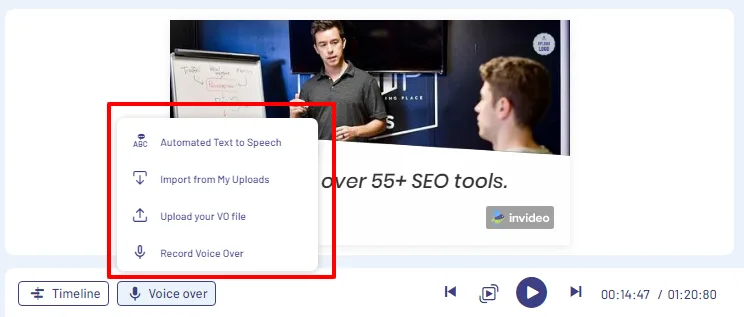
For my test video, I used the automated text-to-speech; a couple of automated voices are available, both male and female.
Here is the video I made with the InVideo.io text-to-speech tool.
Never mind how unprofessional it is; I’m just playing around for the first time. Besides, you can do better than that – I’m in no way a video editor.
I’m a content writer, not a designer or visual editor. However, you can see what is possible with the Invideo.io text-to-speech service.
How amazing!
You can edit the background music, delete it, upload another, or record your voice in the app. You can also edit the sound for each scene.
If you’re satisfied with the result, the next thing is to download your video in either 720p or 1080p full HD quality to your computer and start promoting it across your marketing channels.
As you can see, creating video content from nothing is possible with the Invideo Studio AI. Whether you have an idea or want to turn your blog post into full video content, you can do it with Invideo Studio.
3. Stock Media
You can create a video with multiple stock images by adding an image to a scene one at a time. This is one of the simplest ways to make your video presentations.
This can help create presentations, slides, tutorials, testimonies, detailed reports, etc.
To get started, log in to your inVideo.io account and select “Stock Media” from the options. Choose from the millions of Stock Images to begin, or upload your images.
To add an image, click the + scene button or drag and drop the image. Both options work equally well.
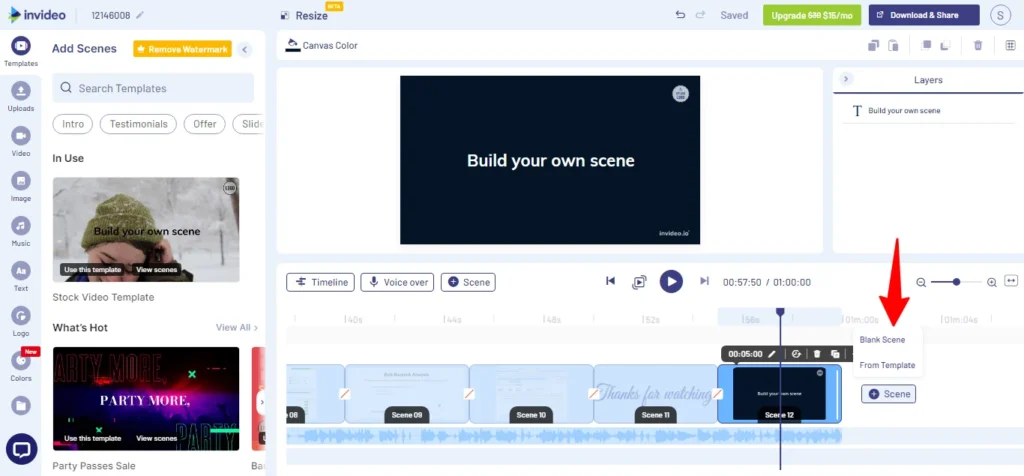
Add stock photos or start with a blank canvas to build your images. You can add voice, music, videos, annotations, and text to your presentations.
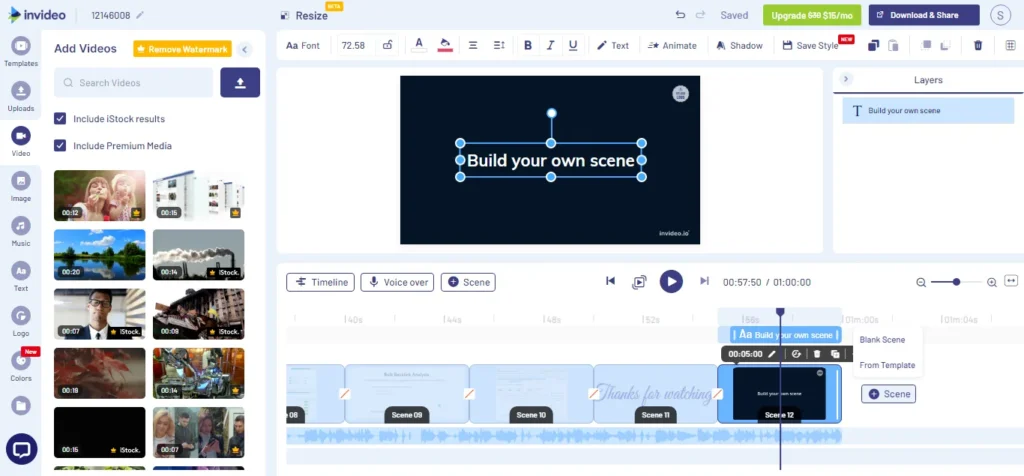
There is no limit to what you can do and achieve here. The more you play around with the tools, the better your video.
When you are satisfied with your stunning design, you can download it to your computer or save it to a folder.
4. Editor
If you want to show your creativity and video editing skills, have some fun. There is plenty here. The editor allows you to create your video using the blank screen.
You can import your video materials, such as media and sound, and design them to your satisfaction.
This is the blank editor’s interface; you can access every design and customization tool.
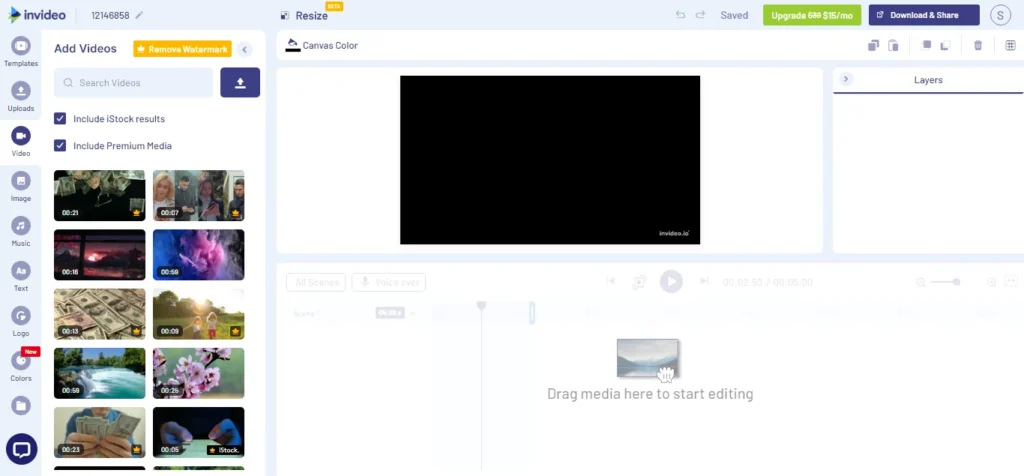
Customization, editing, and adding voice to your video followed the same steps as the others.
The only thing here is that you’re starting from a blank screen.
Invideo.io Team Collaboration Feature
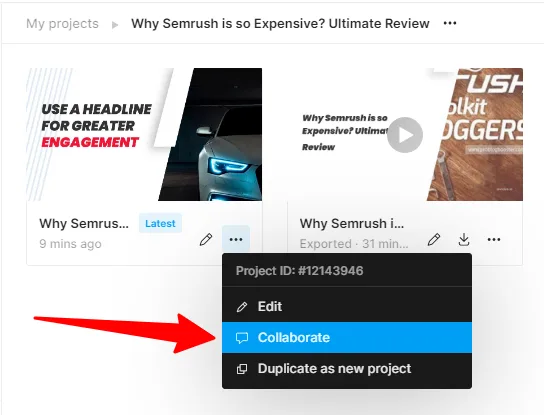
You can invite team members by email or via a link to work together on a project. This is a helpful feature for freelancers, in-house editors, and agencies.
Team members can leave a timestamp comment on the video to pinpoint where it needs editing or improvement.
As the admin, you can add and remove members at any time, upload and delete videos, and edit videos created by team members.
Invideo.io Top Features
Invideo.io offers several excellent features that make it a good investment for small business owners and individuals who leverage video content for marketing.
Here are some features worth mentioning:
- 5,000-plus handcrafted templates
- Premium templates
- Edit video background sound and noise.
- Over 8 million iStock media library
- Unlimited video export for the top-tier plan
- 40-minute video duration
- Background images removal
- Create videos in any language
- Resell Right Ownership – Your video is yours
- Social media calendar
- Unlimited team members
- Create Branded Videos with your logo.
- 100GB cloud storage for the top-tier plan
- Priority Supports
Invideo.io Pricing
How much does InVideo cost?
Let’s look at the Invideo Studio lifetime deal and Invideo AI pricing to determine the cost of Invideo so you can make the right buying decision.
On its website, Invideo offers three standard plans, including a free plan you can use forever. No credit card is required to sign up for the Invideo free account; you just need an email address and your name.
Here is the Invideo Studio pricing today.
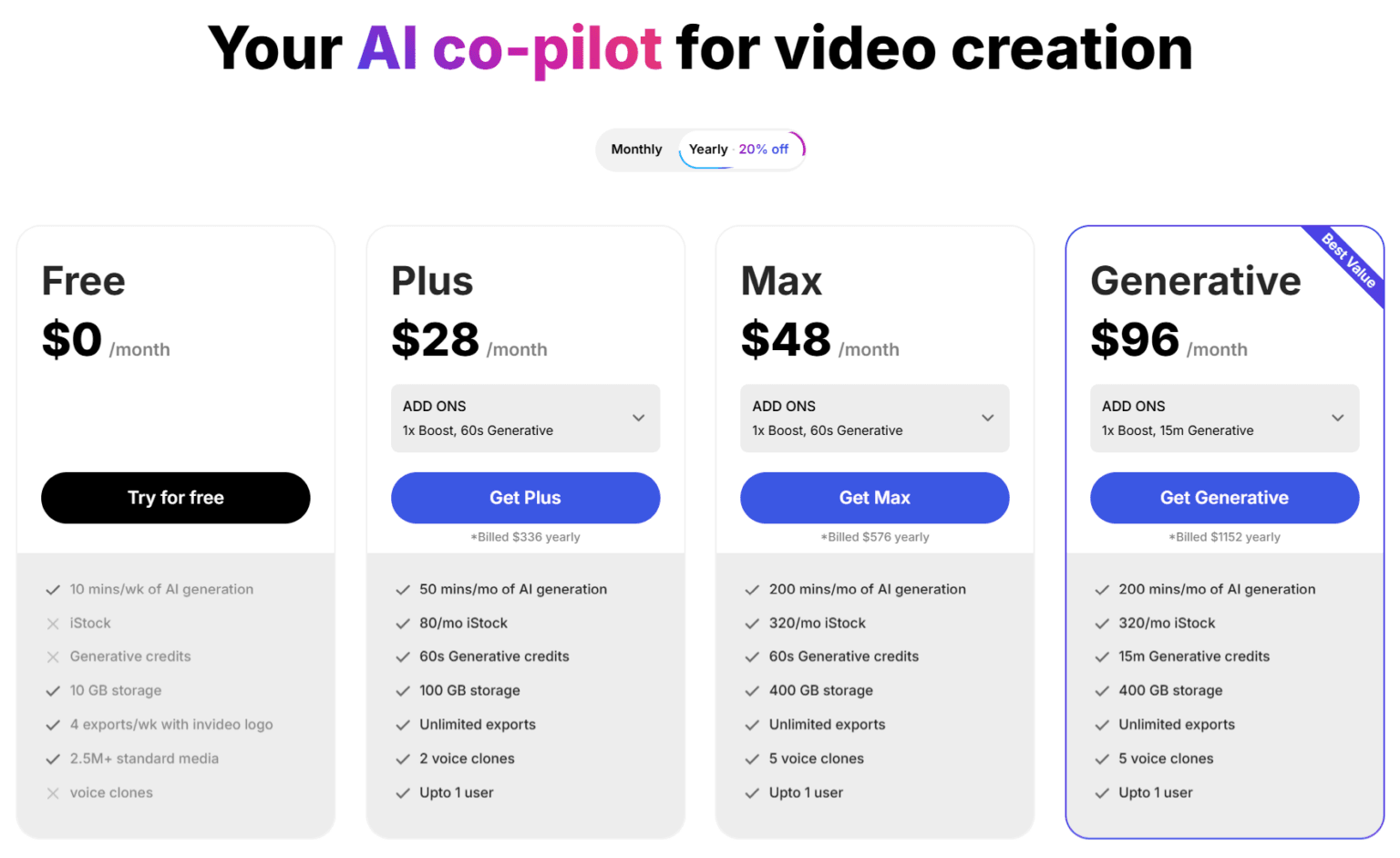
However, a new pricing model has been added after the release of Invideo AI Copilot, an automated video-generation software.
Invideo AI offers two paid plans: Plus and Max. Each plan gives you access to varying usage levels, storage, stock photos, and user seats.
The Invdeo AI Plus subscription starts at $20 monthly, but the price adjusts as you add more users to your account. The Max subscription starts at $48 per month, and the price increases with the number of user seats.
InVideo also offers a lifetime deal if you need to lock in a license for the long term.
The Invideo lifetime pricing costs $399 for the Business plan and $1,099 for the Unlimited plan; both give you lifetime access to Invideo.

See the details page for more information on inVideo.io, AI pricing, and features.
Invideo.io Supports
The support rep is one of the most vital reasons to use Invideo. You have one of the fastest responsive support reps in the industry.
First, an on-site live chat support team is available 24/7 to resolve your queries.
The live chat is available within your editor interface if you can’t find your way around using a particular tool or feature. You can easily open a chat session and get answers to your questions.
For example, while working on a video, I asked a random question to test how fast and supportive the live chat support reps were.
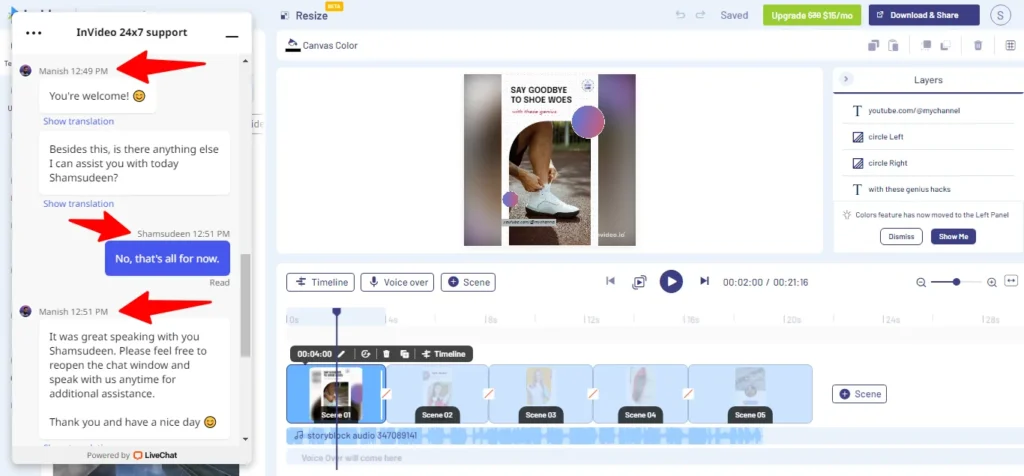
The above image shows that it was pretty amazing. I received a response to my query within seconds.
Also, there is a thriving Facebook community where you can engage with other Invideo.io users and share experiences.
This is a great place to learn more about the products and their uses and to improve your editing skills.
You also have help documents, support tickets, and a fast-growing YouTube channel to resolve your queries and help you learn many aspects of using Invideo editing software.
Pros and Cons of Invideo.io
Here are some pros and cons of Invideo.io video editor software.
Pros
Cons
FAQ – InVideo.io Review
Is Invideo.io a Good Video Editor?
Invideo.io is a good video editing software if you’re looking for a hassle-free way to create short, stunning videos in minutes. It’s simple to use and navigate through. The abundance of readymade templates and millions of stock photos makes it easier for beginners to use. There are lots of customization features to make your video stand out from the noise.
How long is the InVideo free trial?
Invideo.io doesn’t offer a free trial of its premium plans; instead, there is a forever-free account. Signing up for the free account does not require a credit card. You can remain on the free plans for as long as you want. It’s up to you to decide whether your needs require paid features.
Does InVideo have watermarks?
Yes, a watermark exists on any video created with the free account. If you want to remove the watermark, consider subscribing to a paid plan. If you subscribe today, you can save up to a 50% discount on your purchase.
Is InVideo a Free Video Software?
There is a free account, but with limited feature usage. You have a maximum of 1GB of cloud storage, an Invideo.io watermark, a 3,000-stranded photo library, and no priority support. You don’t have access to a background image remover, and you don’t have the right to resell videos created with InVideo.io. Also, you have a maximum of 60 videos per month
How do I remove a watermark from InVideo.io?
I have answered this question…the only way to remove the invideo.io watermark is to purchase a paid plan. There are two plans: the business plan, starting at $15/mo, and the unlimited plan, starting at $30/mo. On the pricing page, compare the features to find the one that best fits your marketing and budget.
Can I use InVideo on my Phone?
InVideo has a mobile app for both Android and IOS users. You can use the Invideo Filmr app on your smartphone to edit your video content, add effects, add background voice, create templates, etc.
Conclusion – Review of Invideo.io
There are many video editing software programs on the market with great features and capabilities; however, if you’re looking for an affordable option with essential features, Invideo is the perfect choice.
It has a user-friendly interface, is easy to use, and has many features that make creating and editing video content painless.




this really good job. thank you invideo.io
Thanks, Tajuddin
Glad you like it.
I am into a small cybersecurity company and We use invideo to edit our presentation. That’s pretty simple.
Glad to read Invideo help your company, Abishek.