

I tried many free WordPress cache plugins on this blog, but the performance is still far from good, especially CWV, so I tried WP Rocket (a paid plugin).
Some free plugins I’ve tried include W3 Total Cache, WP SuperCache, Breeze, and LiteSpeed Cache.
Therefore, this WP Rocket review is based on real user experience and why it is considered the best WordPress caching plugin for website optimization.
You will learn how the plugin optimizes performance in real-world website usage.
It’s about the pros and cons and how specific WP Rocket features or settings can improve or break your site. Some WP Rocket settings can negatively affect site appearance by breaking CSS files.
But first, let’s begin with the big question.
WP Rocket

Discover how WP Rocket, a premium WordPress caching plugin, improves website speed, enhances performance, and resolves Core Web Vitals issues. Tested on a live site with real-world content, this review shares hands-on results and insights.
Price: 59
Price Currency: USD
Operating System: WordPress
Application Category: SEO Software
4.76
What is WP Rocket?
WP Rocket, launched in 2013 by WP Media, is a premium WordPress caching plugin and performance optimization tool designed to make websites faster, lighter, and more efficient.
WP Rocket provides an all-in-one solution for faster website loading speed. By activating WP Rocket, you can eliminate the need for additional tools like lazy load plugins, HTML/CSS/JS minification plugins, and image optimization tools, as these features are built in.
With over 130,000 satisfied customers and usage on more than 4.7 million WordPress websites, WP Rocket stands out as a comprehensive performance optimization tool that simplifies WordPress speed enhancements.
How Does WP Rocket Work?
WP Rocket optimizes how WordPress processes and serves web pages.
When a visitor requests a page, WordPress typically runs multiple PHP calls to retrieve data from the database. This process involves several steps that slow down server performance and negatively affect user experience.
WP Rocket bypasses this by automatically creating static HTML copies (cache) of your website pages. When a user returns, the cached version is served, eliminating WordPress database calls and improving load speed and performance.
Additionally, WP Rocket enables browser caching, storing frequently accessed files locally on the user’s browser. This significantly improves load times for repeat visitors.
The plugin requires a minimum of PHP 7.3 and WordPress 5.8, and works with servers like:
- NGINX
- LiteSpeed or Windows
- Apache (with mod_rewrite, mod_expires, mod_deflate).
WP Rocket Performance and Speed Test Results
Many WP Rocket reviews test the plugin on newly created, small demo test sites with minimal content, few external resources, and little to no images. These tests lack real-world relevance.
In my case, I tested WP Rocket on this very blog, which had actual performance and speed issues. The site includes:
- 241 published posts
- 17 installed plugins
- 19k+ uploaded images
- Video content, third-party files, and analytics codes
This blog also runs on the Astra Pro WordPress theme (as of this writing), making it a better environment for testing WP Rocket’s real-world effectiveness.
I purchased WP Rocket to address specific issues:
- Slow speed (especially TTFB)
- Poor Google Core Web Vitals: LCP longer than 2.5s and Cumulative Layout Shift (CLS) of 0.138 on desktop and 0.119 on mobile.
Now that I have your attention, let’s dive into WP Rocket’s performance based on my personal experience with a live site.
Test Site Performance Without WP Rocket Plugin
As mentioned, my site has many performance issues that need immediate attention.
Here are the results without WP Rocket or any other WordPress caching plugin. The image below is the PSI test result.

As you can see, this is evidence that drastic action must be taken quickly to optimize the site’s page speed and performance.
There are about six critical issues to solve up there:
- Eliminate render-blocking resources.
- Largest Contentful Paint element
- Defer offscreen images.
- Properly sized images.
- Reduced Unused CSS
- Reduced Unused JavaScript.
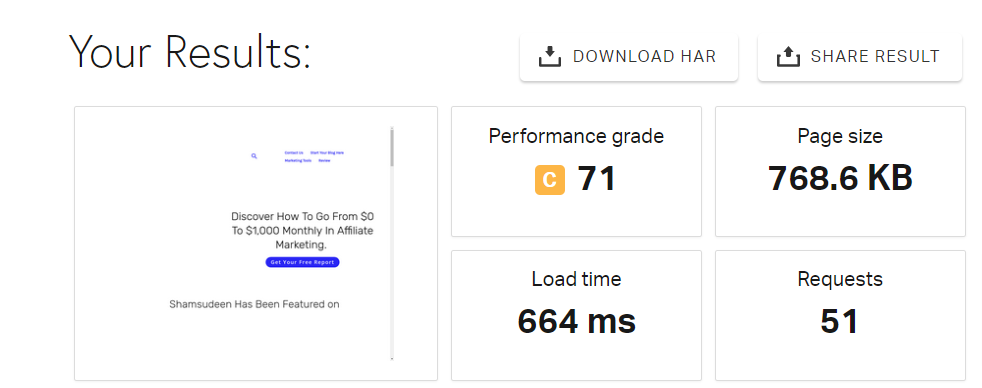
To be clear, I also tested the blog homepage with Pigdom, both with and without WP Rocket. The test server is in North America, the USA, and Washington, D.C.
Here is the Pingdom result.
Test Site Performance With WP Rocket Plugin Installed
I installed WP Rocket and enabled these file minification and optimization settings:
- Minify CSS Files
- Optimize CSS delivery and choose the Remove Unused CSS option (for better performance).
- Minify JavaScript files.
- Load JavaScript deferred.
- Delay JavaScript Execution.
For image optimization, I enable Lazy loading for:
- Images.
- CSS Background images.
- iFrames and videos.
I also checked the replacement YouTube iframe with a preview image option.
Here is the result.

The page still has minor issues, such as using an efficient cache policy to serve static assets, reducing unused CSS, and avoiding an excessive DOM size. I scored high on all Core Web Vitals assessment reports.

I repeated the speed test with Pingdom from North America, USA, and Washington, DC, which has test server locations. Here is the result with WP Rocket active on the site.
Blog homepage test result with WP Rocket.
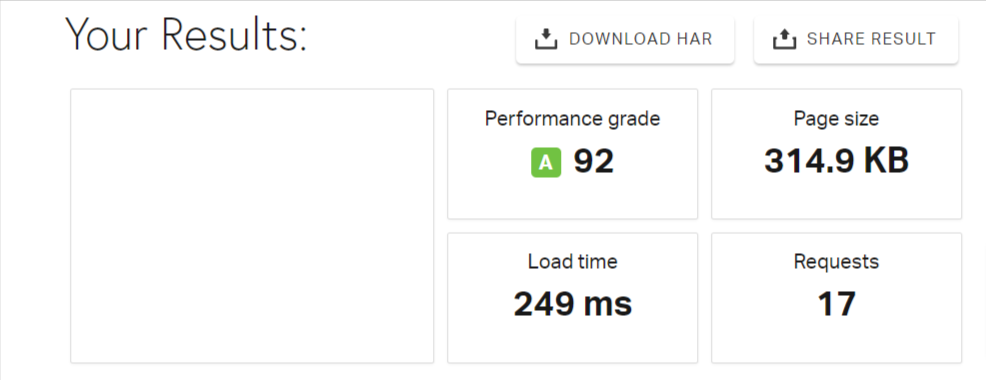
On average, the site speed jumped from 3.8 seconds to 249 ms, or 1.1s at most.
Comparing with GTMetrix reveals WP Rocket’s real power and magic. Here is the homepage result testing in Chrome Desktop view with GTmetrix, Location: San Antonio, TX, USA.
The result on the left of your screen (All Green) is when WP Rocket is active, and the result on the right (All Red) is when WP Rocket is disabled.
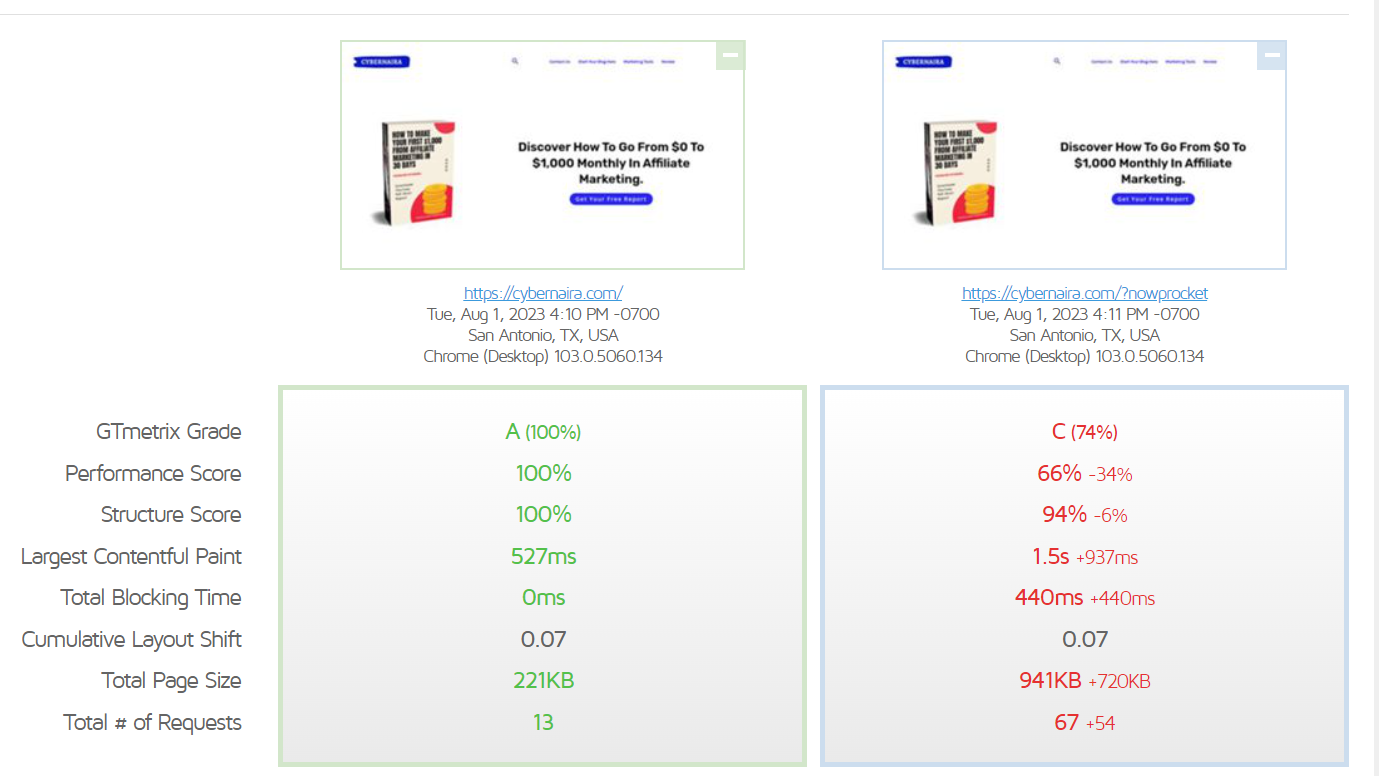
Aside from the CLS score, which is even, WP Rocket improves every performance aspect, significantly reducing page size by 720KB and Total Blocking Time by 440ms.
While individual pages have different performance scores due to the diversity of page resources, WP Rocket improves most Core Web Vitals scores and averages 0.02ms time to first bytes.
You can test any page on this website yourself and see the result.
To bypass WP Rocket cache and file optimization, add this query string (?nowprocket) at the end of any URL from this site. This lets you test the site in its barebones form without any optimization.
Now that we’ve settled this, let’s jump into the core WP Rocket features.
WP Rocket Core Features
The plugin has several advanced features, but here, we will focus on those that significantly impact WordPress site speed and performance.
Important notice.
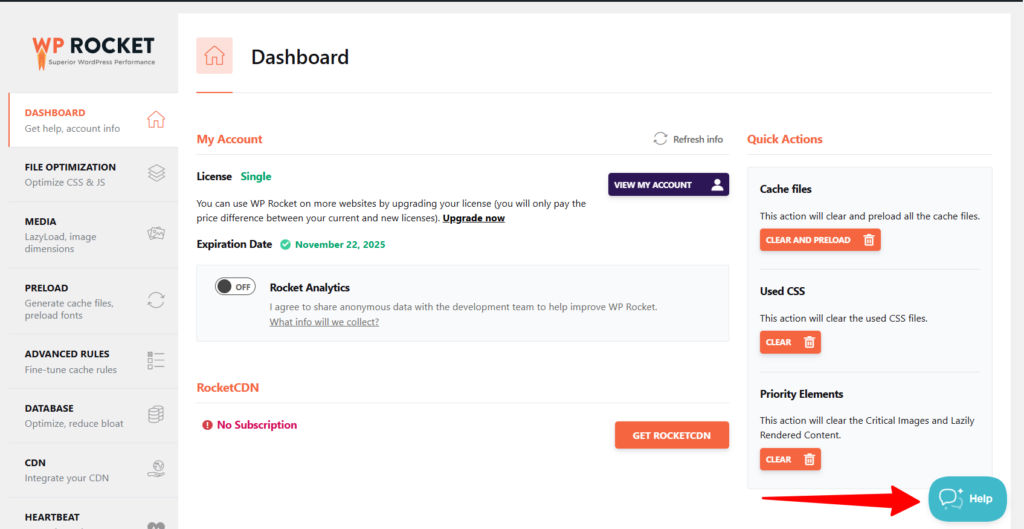
WP Rocket has built-in help links to supporting articles that explain how a feature works and help improve performance.
If you don’t understand the purpose of a feature or how it works, click the Help link to open the sidebar popup for the help document.
Cache
WP Rocket automatically enables page and browser cache on your sites by default and creates a separate cache file for mobile device users.
There is nothing much to configure other than the cache lifespan in the Add-on tab.
You can initially access the cache tab, but that has been removed since WP Rocket version 3.16. I think this move has more of a negative effect on users than a simplicity gain.
Most free cache plugins let you enable or disable the cache on your site; WP Rocket shouldn’t be any different.
There is a helper plugin to disable WP Rocket’s cache (in case you need it) and fine-tune other settings, but it is not beginner-friendly.
Learn more about the WP Rocket helper plugin in this KB article.
Though caching is WP Rocket’s primary focus, it’s not unique and does not perform better than most free WordPress caching plugins, such as Breeze, LiteSpeed Cache, WP Super Cache, and W3 Total Cache.
WP Rocket’s main advantage comes in its file minification and optimization features.
File Optimization and Minification
File optimization is one of WP Rocket’s core features, but it is not activated by default. You must access the settings tab and manually configure it.
The functions remove unnecessary white space from your website’s HTML code, optimize CSS and JavaScript files, and combine JS/CSS files to reduce connection requests and size.
For example, if your website has 15 JS files, WP Rocket will combine them to reduce the number of HTTP requests.
However, some features cannot be used together.
You cannot enable the combined CSS files option if “removed unused CSS” is enabled in the optimize CSS delivery section. Also, combining CSS files is not recommended if your site uses HTTP/2.
Contact your host if unsure whether your site uses HTTP/2 or HTTP/3.
Besides, WP Rocket recommends using the Removed Used CSS option for best performance instead of loading CSS Asynchronously.
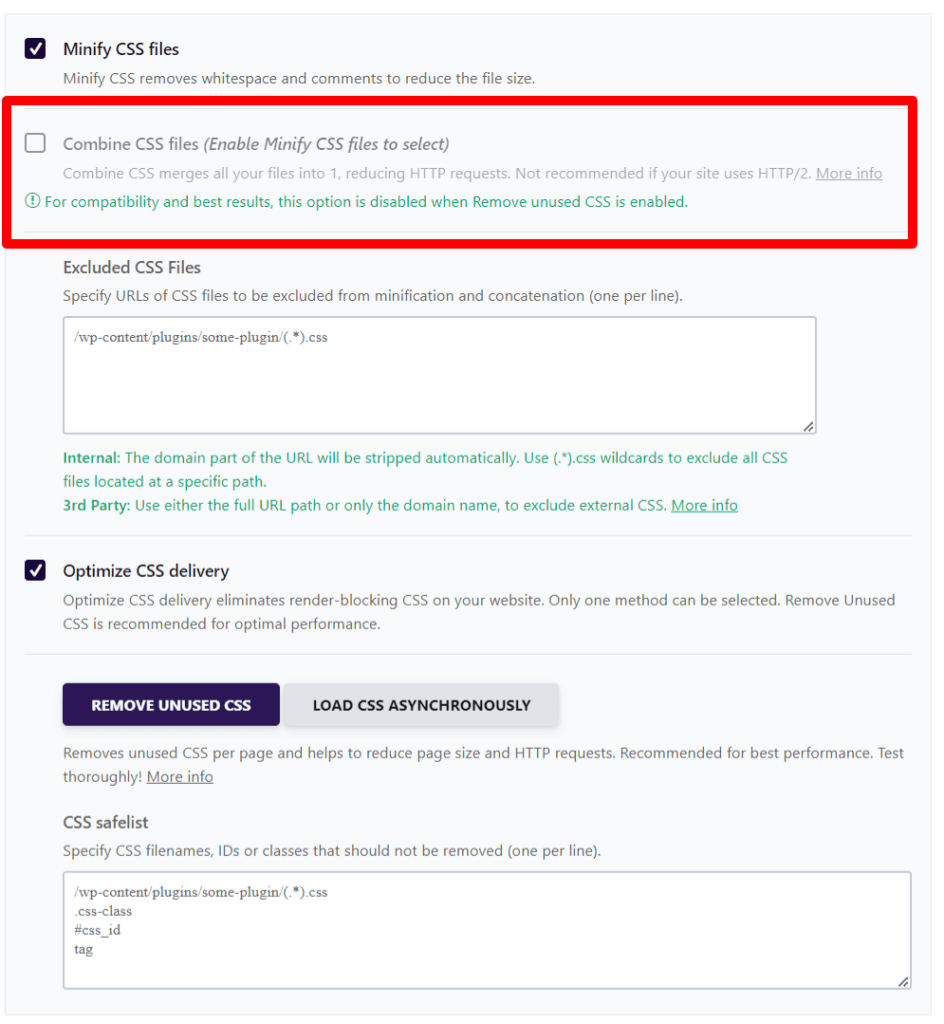
In the JavaScript settings section, if you enable JS delay execution (which has a better impact on performance), combining JS files is automatically disabled to avoid compatibility issues and possibly break your site’s appearance.
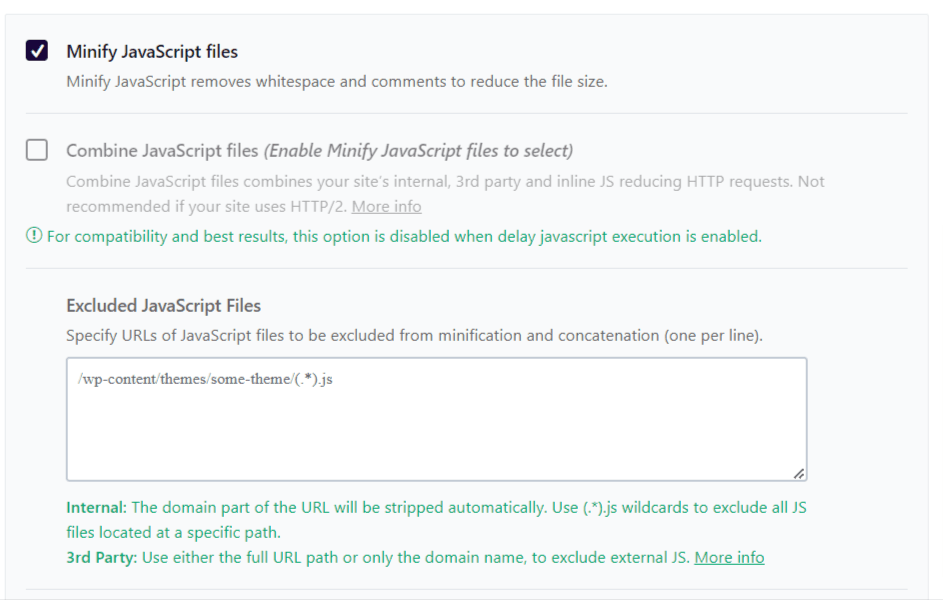
One crucial piece of advice is to test your site in incognito browser mode for each WP Rocket setting you enabled on the file optimization tab.
If you’re optimizing for Core Web Vitals, running a few performance tests in PSI (Page Speed Insight) after each feature you turn on is essential.
This will let you know if a feature has a positive or negative performance impact on your web page.
Media Optimization
WP Rocket is not a complete image optimization plugin. That’s something not expected from a plugin that costs $59 for a single license.
You must pair it with a dedicated image performance and compression plugin, such as Imagify or Smush.it, EWWW, etc.
That said, in the media tab, you can enable lazy load for images, iframes, and videos to improve perceived and actual performance and reduce HTTP requests.
Note:
As of version 3.16, WP Rocket now optimizes Critical Images (above-the-fold images) on your site, affecting the Largest Contentful Paint CWV metrics in Page Speed Insights.
Lazy load also ensures media files, images, and videos are only visible or loaded when the user scrolls to the viewport.
WP Rocket replaces YouTube thumbnails with image previews, so WordPress won’t load the embedded video until a user clicks on the preview image.
It does a better job of optimizing iframes and YouTube videos with image preview thumbnails.
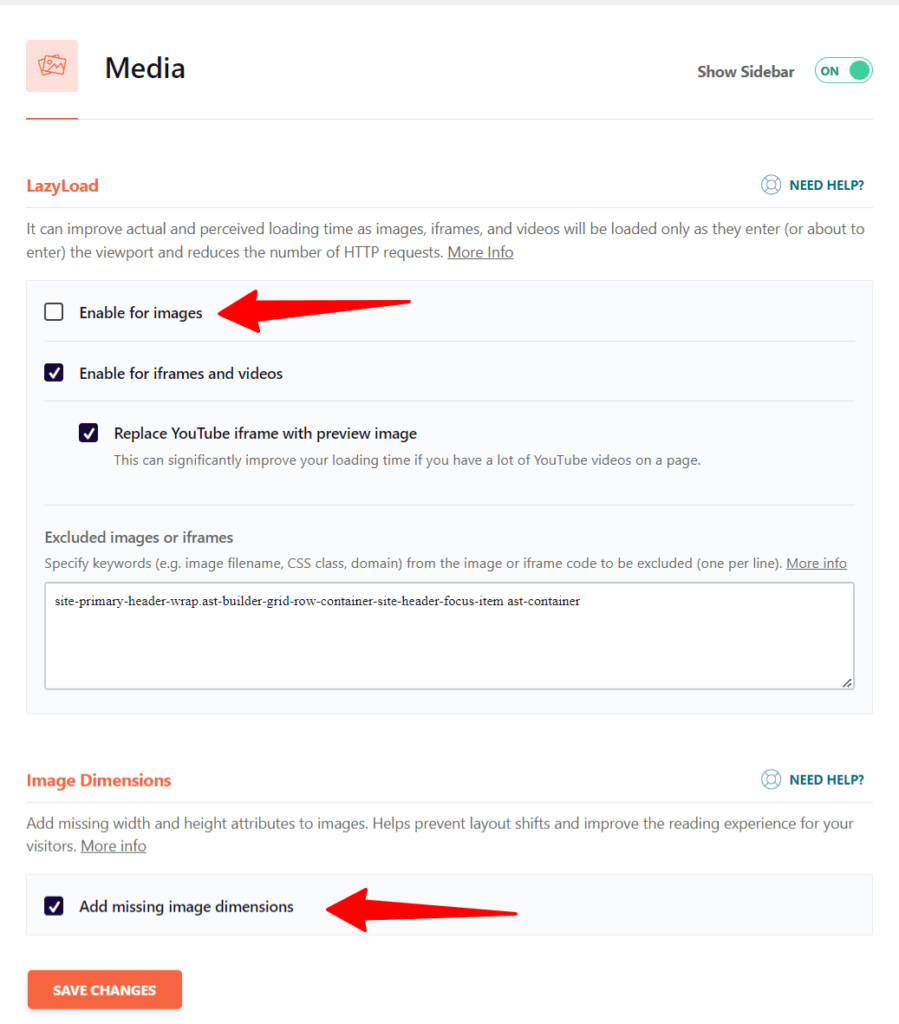
To improve the Google Core Web Vitals reports, you can check the “add missing image dimensions” feature. This feature helps fix the (CLS) Cumulative layout shift error in PageSpeed Insights testing.
Note in the screenshot above that, because I use Jetpack Site Accelerator (which also lazy-loads and serves images from a CDN), I choose to deactivate WP Rocket’s image lazy load, while leaving other media settings on.
Since WP Rocket is not a complete image optimization plugin, it relies on a WebP image conversion plugin to serve qualified images in that format for supported browsers.
Only a few plugins allow you to exclude iframes and images from the lazy load; WP Rocket is among them. You can specify an iframe or image class, keyword, filename, or URL for lazy loading, which improves loading times and user experience.
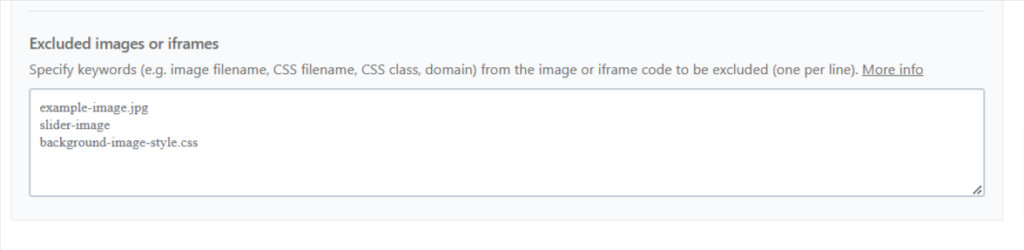
For example, the above-the-fold featured image should be excluded from being lazy-loaded.
Updated: WP Rocket 3.18 introduced self-hosted Google Fonts, a highly anticipated feature. It speeds up your WordPress site, reduces requests to third-party domains, and improves GDPR compliance.

You can enable the self-hosted Google Font feature in the Media Tab.
Cache Preload
The primary function of WP Rocket’s Preload Cache is to automatically generate cached versions of your website’s pages, ensuring faster load times for visitors.
Here’s how it works:
- When cache preloading is enabled, WP Rocket simulates visits to your site’s pages, generating static HTML copies of those pages.
- These cached pages are stored and served to visitors instantly, bypassing database queries and server-side processing.
Key Benefits of Preload Cache:
- Improved Performance – Pages load faster because cached versions are ready to serve immediately.
- Better User Experience – Visitors don’t have to wait for the server to process requests, resulting in smoother browsing.
- Optimized for SEO – Faster load times can improve search engine rankings, as speed is a ranking factor.
How It Works in WP Rocket:
- The preload process starts automatically when you activate WP Rocket or clear the cache.
- It can be triggered based on your sitemap, ensuring all critical pages are cached.
In short, WP Rocket’s Preload Cache ensures that your visitors always get the fastest version of your site, enhancing both performance and user experience.

WP Rocket also lets you preload assets like fonts, links, and DNS requests in addition to cache preload, potentially improving Largest Contentful Paint.
Advance Rules
The Advanced rules let you exclude specific pages from cache and optimization. Here, you can specify which URL or content to cache and which should not.
For example, an eCommerce site may never want to cache checkout, payment, and login pages.
Sensitive pages might be excluded from the cache. WP Rocket allows you to define advanced rules for the following:
- URL to never cache
- Cookies to never cache
- User agent to never see cache pages.
- URL to always purge from the cache
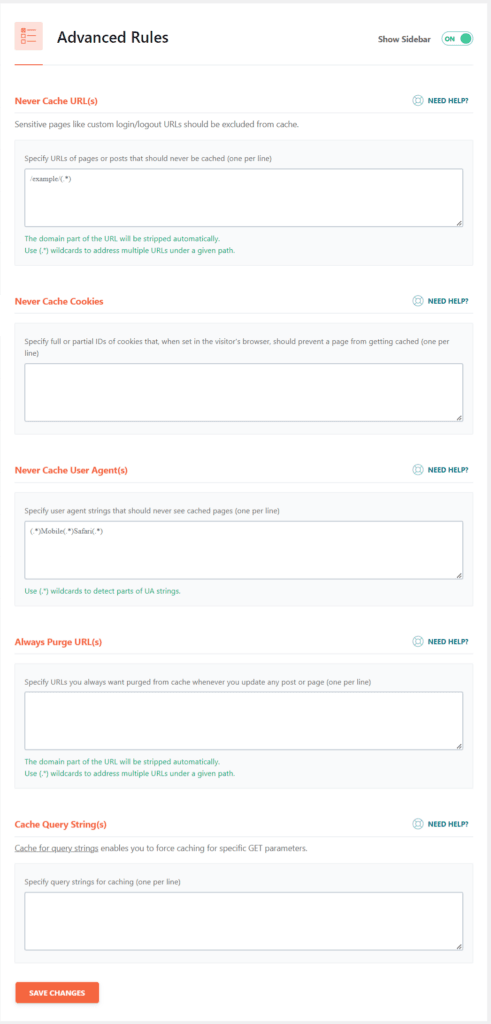
This section is up to individual websites to determine what works best for their business type. E-commerce businesses will mainly need this setting.
Database Optimization
WP Rocket also optimizes WordPress databases, including post revisions, tables, trash posts, transients, and auto drafts.
Additionally, the plugin performs database cleanup for trash and spam comments and auto-schedules database optimization.
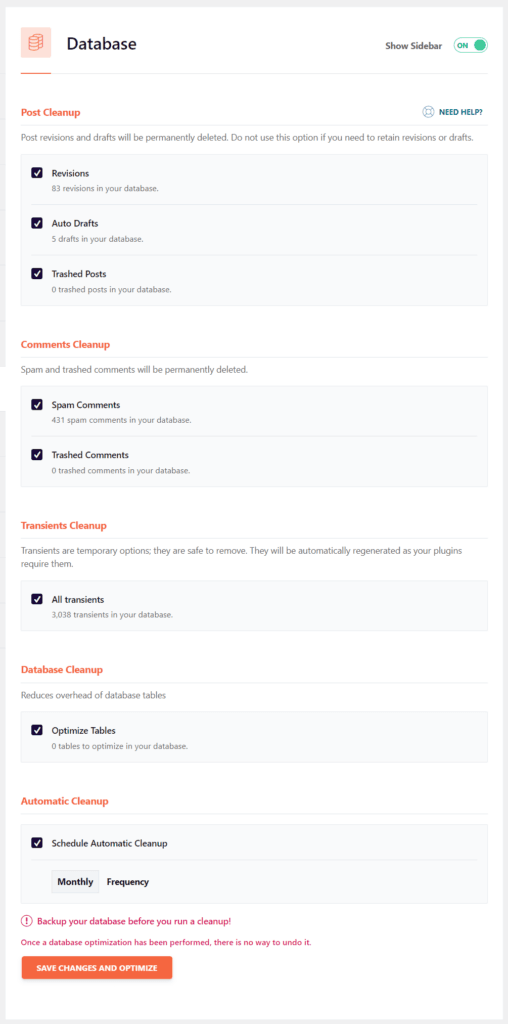
Though this feature is helpful and saves one an additional plugin, WP Rocket is insufficient for this task.
I would prefer you use WP-Optimize for the database cleaning. WP-Optimize does a better job of optimizing the database and the running schedule, and undoubtedly optimizes database tables better.
If you prefer WP-Optimize for WordPress database cleanup, disable the same function in WP Rocket. To avoid conflicts with WP Rocket, ensure that other optimization features, such as cache, image, and file optimizations in WP-Optimize, are disabled.
Since WP Rocket 3.14.1, the plugin has been incompatible with WP-Optimize. To avoid further conflict, you can run WP-Optimize on demand and uninstall it once it finishes.
CDN (Content Delivery Network)
WP Rocket doesn’t exclusively offer CDN service with its plugin. You need to purchase RocketCDN ($7.99/month) or integrate with other content delivery network providers, such as Cloudflare, BunnyCDN, Keygen, etc.
If you use Cloudflare, WP Rocket seamlessly integrates with it. But if you use other CDN services, you can manually integrate them by entering the CNAME in the field.

However, if you use the Cloudflare Enterprise add-on through Cloudways hosting (which I’m using), you need to manually clear the Cloudflare cache each time you change the WP Rocket settings.
In my opinion, you should not use RocketCDN as your CDN service. Use other solutions like Cloudflare. It’sn’t wise to pay $7.99 monthly when you can freely plug into Cloudflare, which does a better job.
Heartbeat Control
Because the WordPress heartbeat API is always on and makes requests to the server, this can cause a slight performance issue.
For example, if the WordPress dashboard tab is left open, the WordPress heartbeat API will send POST requests every 15 seconds to the /admin-ajax.php file to run AJAX calls.
This can lead to unnecessarily high CPU usage.
You can reduce or disable the API connection frequency from the WP Rocket heartbeat tab.
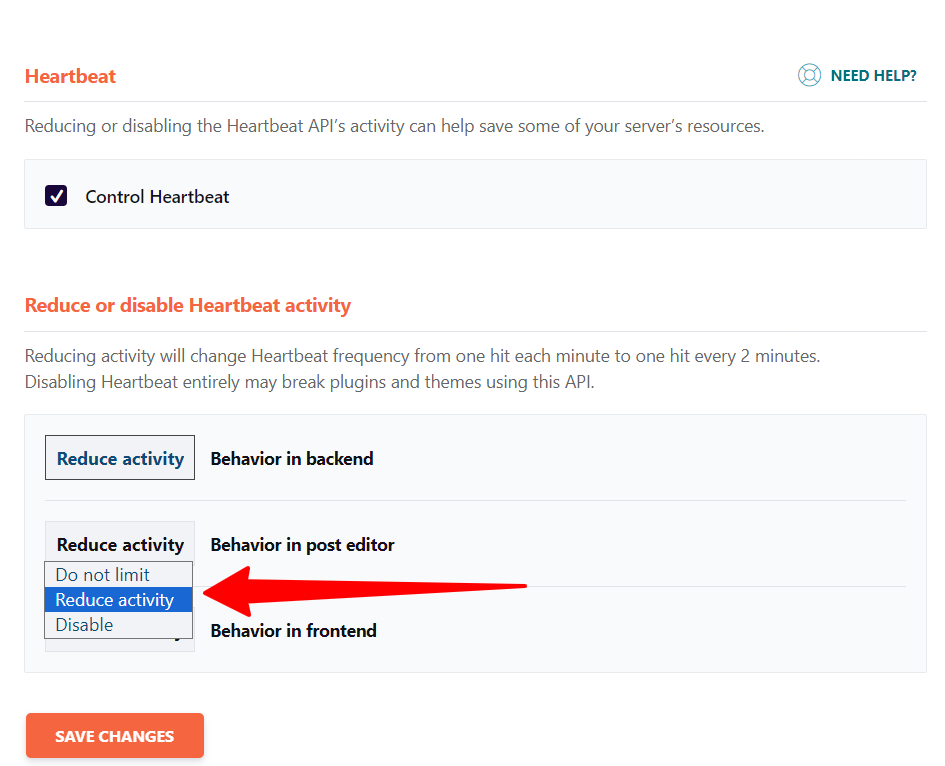
Add-ons
There are a couple of add-ons in WP Rocket you might want to look at;
- Varnish – If your server uses Varnish, you need to activate this add-on. This will allow WP Rocket to purge both its cache and Varnish’s cache each time your blog is updated.
- Cloudflare – This add-on integrates the WP Rocket Cloudflare add-on with your account details to benefit from both optimization tools.
- Sucuri – If you use Sucuri, you must sync it with your account so WP Rocket can clear both caches when your blog is updated.
- WebP compatibility – If you use any WebP image converter plugin, you must enable this feature. It will improve browser compatibility with WebP images.
Other Miscellaneous Features
Other WP Rocket features include downloading your plugin settings and importing settings from a file on your computer. You can also roll back if the last version causes a site compatibility issue.
There are video tutorials in your WP Rocket dashboard to help you get the most out of the plugin.
The video content includes the getting-started video and covers passing Core Web Vitals, such as CLS (Cumulative Layout Shift), FID (First Input Delay), and LCP (Largest Contentful Paint).
It also includes tutorials on troubleshooting issues with the WP Rocket plugin and a guide to using the Cloudflare add-on.
WP Rocke Support
The support response time isn’t great if your issue requires urgent attention. I received a reply from support about 48 hours after submitting the ticket.
Look at the timestamp in the email below.

That’s about 48 hours since I submitted the ticket.
And from what I read in the WP Rocket Facebook group, this isn’t just me not being lucky. It seems the support usually responds late to tickets.

However, as the Facebook user reported (in the image above), they tend to go the extra mile to resolve issues once they respond to your ticket.
I also received the same treatment. My support rep was passionate about helping and did everything she could to provide a solution, eventually improving CLS on the desktop.
However, WP Rocket does not offer optimization services, so don’t expect a support team member to log in to your site to help you troubleshoot.
No, the support is to offer advice, provide detailed insight, and direct you to resources that might solve your website performance issues.
That said, the WP Rocket team has an extensive library and documentation, KB articles, and video tutorials that provide helpful advice and tips for resolving most performance and speed issues.
There is no lack of information on the website.
Depending on the type of support you need, you only need to submit a ticket if you can’t find solutions in the blog content and video tutorials. Live chat or phone call support is not offered by WP Rocket.
Overall, the support service is excellent, and as you should expect, offering optimization services will distract the company from its core mission: providing the best WordPress cache plugin.
WP Rocket Pricing
There are five standard WP Rocket prices. The significant difference among the five licenses is the number of allowed websites.
All licenses come with the same optimization features and tools. Purchasing a specific license does not unlock additional features or improve site speed.
Here are the five WP Rocket prices and licenses available:
All plans include one year of plugin updates and WP Rocket support. However, you may be eligible for a discount if you renew your license. This is not a guarantee.
Therefore, you should confidently buy WP Rocket from the link below.
WP Rocket Pros and Cons
The pros and cons of WP Rocket are subjective to the individual’s specific needs. In my review of the plugin, I discuss its advantages and disadvantages below.
Pros
Cons
WP Rocket Money-Back Guarantee
You have nothing to lose by purchasing WP Rocket today.
This is because you have 14 days to test the waters and see if the WordPress caching plugin is exactly what your blog needs.
If, within 14 days of your purchase, you don’t like the performance of the WP Rocket plugin or it’s not compatible with your hosting environment, you can ask for a refund of your money.
That’s it. No questions asked. You get your money back.

People Who Trust WP Rocket
If these marketers trust and recommend WP Rocket for their websites or those of clients, you are in good company.
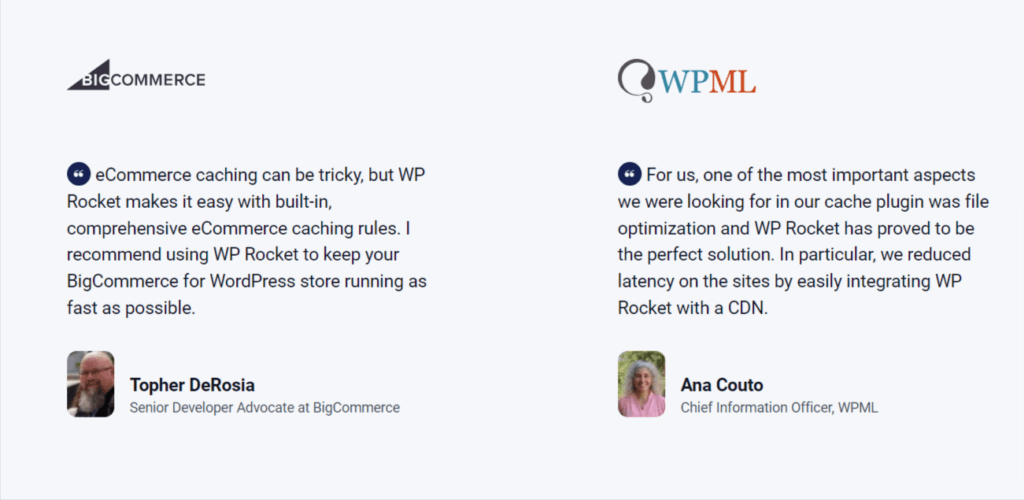
From small business owners to industry top influencers like Yoast, WP Engine, and BigCommerce, thousands of digital marketers use and trust WP Rocket.
FAQ About WP Rocket Review
Do you have any questions? Check the FAQ section below to see if I have already answered it; otherwise, leave your comment below.
How long does WP Rocket take to Work?
The plugin works as soon as it’s successfully activated on your site. No setup process is required on your part. The one-click configuration settings do all the heavy lifting. The default settings are compatible with most WordPress sites at 80%.
Is WP Rocket a Subscription?
Your license covers a year of plugin updates, support, and usage. Your purchase of any WP Rocket licenses is covered for 12 months only. When the initial 12 months are over, and if you choose to renew, you will have to purchase a license again at the current price. There are no lifetime deals or licenses available at the moment.
Is WP Rocket worth the money?
WP Rocket is worth every cent spent. There are other cache options today. But if you want a one-click solution or have little technical knowledge of web development, WP Rocket is worth the investment.
Is WP Rocket Safe?
WP Rocket is rated excellent and safe to use by the WordPress community. However, use the latest version of WP Rocket and WordPress. This guarantees the best security updates, WP Rocket support, and performance. There have been known vulnerability issues in an older version of WP Rocket up to 2.10.3, released in 2017. Check the changelog page to learn more about WP Rocket’s release date, updates, and bug fixes.
Conclusion…
If you want to achieve maximum page speed, increase website performance, and give a better user experience, a caching plugin like WP Rocket is all you need.
In this WP Rocket plugin review, I have provided much of the information you need to decide if the cache plugin will help boost page speed and increase your site’s performance and revenue.
WP Rocket is the choice cache plugin for top marketing gurus like Neil Patel, Yoast, Ana Couto, Topher DeRosia, and more.
From my experience, the plugin improves Google PageSpeed Insights scores and delivers a better user experience in the real world.
If you’ve discovered something helpful in this post or want to share your experience, leave us a message in the comment box below.


Thanks for sharing information. I like the the way it is written. Its really good. Thanks again
WP Rocket is helped me a lot to improve my websites speed
thanks for the great information
your blog was very informative and nice thank you for sharing
also visit our website