

The visual creative industry is changing fast, thanks to artificial intelligence.
We’re seeing AI tools that can generate images, write articles, code, and even compose music. It’s impressive, and it’s natural to wonder how these advancements will impact things businesses use daily, like logo design.
One tool that’s been receiving considerable attention is ChatGPT. It’s a powerful language model that can generate text on almost any topic.
So, the question is: can ChatGPT create a logo?
ChatGPT can design logos and generate images for many use cases, including marketing, tutorials, brand identity, presentations, etc.
In this article, I’ll show you how to use ChatGPT to create logo designs, brainstorm different logo ideas, and generate a visual logo for yourself.
We’ll examine how to use ChatGPT effectively to develop logo concepts and then turn those concepts into a real, visual logo.
Whether you’re a small business owner, a startup founder, or someone exploring logo design, this article will give you practical tips and tricks for using AI to your advantage.
What You Need to Start
You’ll need access to ChatGPT-4-turbo with access to DALL-E to generate images. Earlier versions like ChatGPT 3.5 can not generate visual content.
Thanks to OpenAI’s generosity, ChatGPT-4—turbo is now free for all users. Thus, you can generate visual content directly without manually integrating GPTs like DALL-E.
However, in this tutorial on generating logo designs with ChatGPT, we’ll use DALL-E to create our logo. From brainstorming to creating the logo, we will use ChatGPT and DALL-E’s capabilities.
Let’s dive in…
Step-by-Step Guide to Creating Your Logo Design With ChatGPT.
The first step is to log in to your ChatGPT account and click on Explore GPTs in the sidebar. In the open search box, type DALL-E and select it from the options.
If you don’t want to add the DALL-E, skip this step and go to the prompt engineering section.

Select the GPT you want to install and click Start Chat next.
The DALL-E extension will be integrated into your ChatGPT dashboard so that you can use the image-generative large language model right in the interface.
Once installed, it is time to write your prompt to begin the logo generation process.
Prompt Engineering for Logo Design With ChatGPT
It’s easy to enter a prompt like “generate a minimalist logo for my XYZ company about XYZ business in the XYZ industry.” ChatGPT will generate the logo you ask for.
The only problem with this approach to generating the logo is that you have not explored all possibilities.
Before you proceed to prompt ChatGPT to design the logo visually, it’s important to get various logo ideas or concepts. This will give you a broader picture and different logotypes to explore.
For example, let’s assume you have no idea what the logo design should be. You need to brainstorm on the design and logotype. Should it be abstract, a wordmark, a monogram, a letter mark, etc.? Or should you use a symbol? If yes, then what type of symbol should it be?
ChatGPT can help you answer these questions by generating various logo concepts or ideas.
For instance, I asked ChatGPT to generate five logo ideas/concepts for my company’s business blog in the content marketing and blogging niche. I made it clear that I did not want to generate the visual logo yet, just the ideas.

Here is what ChatGPT came up with.

You can see now that we have more ideas to explore—ideas we never thought of initially. If none of those logo concepts matches your imagination, you can ask ChatGPT to try some other variations or refine existing ideas.
Once you find something that aligns with your imagination, you can proceed to generate the color palette.
Designing Your Logo With ChatGPT
Now that you know how to write a good prompt to describe your logo concept, let’s move on to the actual design process.
First, you’ll need to create a color palette for your company’s logo design. This is the first step in guiding ChatGPT towards creating a design that truly represents your business identity.
For the tutorial, I entered the prompt:
Here is the ChatGPT response. I pasted the exact response below for a more accurate report.

1. Pen & Pixel – (Classic yet Digital)
A balance of traditional writing and modern tech elements.
- Navy Blue (#1E3A8A) – Trust, authority
- Silver Gray (#D1D5DB) – Professionalism, neutrality
- Bright Cyan (#06B6D4) – Digital, innovation
- White (#FFFFFF) – Clean, minimal
2. Content Pulse – (Energetic and Engaging)
A vibrant yet professional palette that represents movement and impact.
- Deep Purple (#5B21B6) – Creativity, strategy
- Magenta (#D946EF) – Energy, engagement
- Electric Blue (#2563EB) – Authority, trust
- Light Gray (#E5E7EB) – Balance, readability
3. BlogSphere – (Global and Interconnected)
A tech-inspired, interconnected look that represents networking and reach.
- Royal Blue (#1E40AF) – Reliability, stability
- Teal Green (#14B8A6) – Growth, freshness
- Graphite Gray (#374151) – Professionalism, modern look
- Soft White (#F3F4F6) – Clean, spacious feel
4. WordFlow – (Creative and Smooth)
A smooth, inviting palette for storytelling and seamless content creation.
- Deep Teal (#0F766E) – Trust, wisdom.
- Burnt Orange (#F97316) – Creativity, enthusiasm
- Warm Beige (#FDE68A) – Approachability, readability
- Charcoal Gray (#1F2937) – Professionalism, balance
5. GrowthInk – (Performance and Creativity Combined)
A growth-oriented scheme that highlights analytics, strategy, and success.
- Forest Green (#047857) – Growth, success.
- Dark Gold (#B45309) – Value, prestige
- Midnight Blue (#1E293B) – Professionalism, depth
- White Smoke (#F9FAFB) – Clean, modern
But these color schemes are just numbers with hashtags, something non-technical people might not understand. So, I asked ChatGPT to generate the actual visual representation for each color palette.

Then, ChatGPT gave me this visual color palette.

However, I did not like this visual, so I included another prompt to generate visual color swatches for each color palette.
Next, ChatGPT generates the visual swatches for the hex colors.
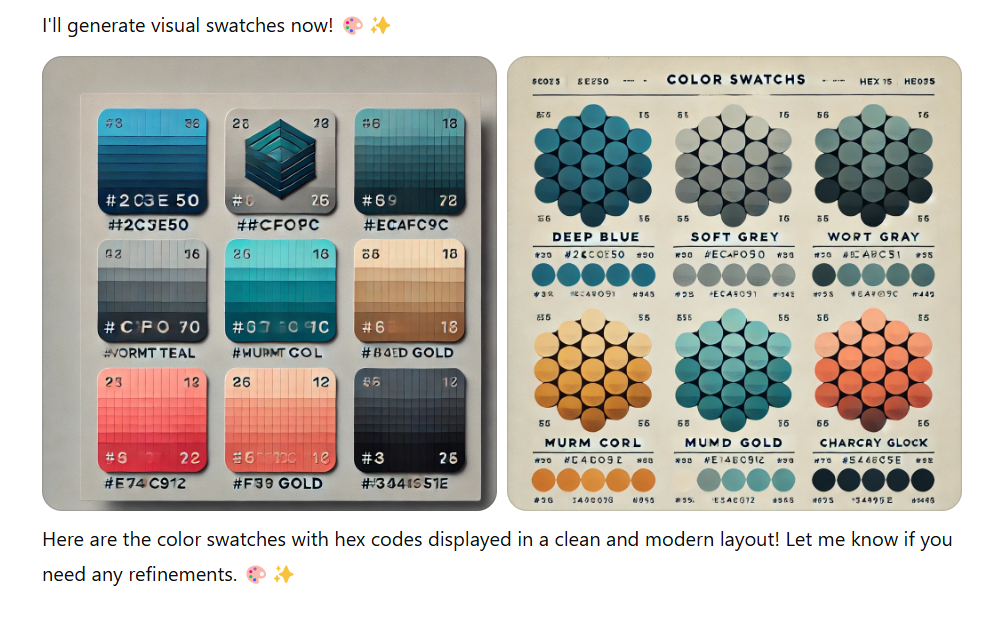
After going through the color palette generated by ChatGPT’s DALL-E, I decided to try the Soft Grey color scheme with a blog I’m starting in the smartphone industry.
So, I enter the prompt.

Here is the logo generated by ChatGPT for my smartphone reviews blog.

I wasn’t impressed by this logo design, so I asked ChatGPT to make adjustments. This time, I was more precise about my description and the type of logo I wanted.

If you noticed something with this prompt – I didn’t just ask for an adjustment; I explicitly indicated what logotype and typography I wanted, in this case, sans serif. This gives ChatGPT a better direction to follow and helps it understand my needs.
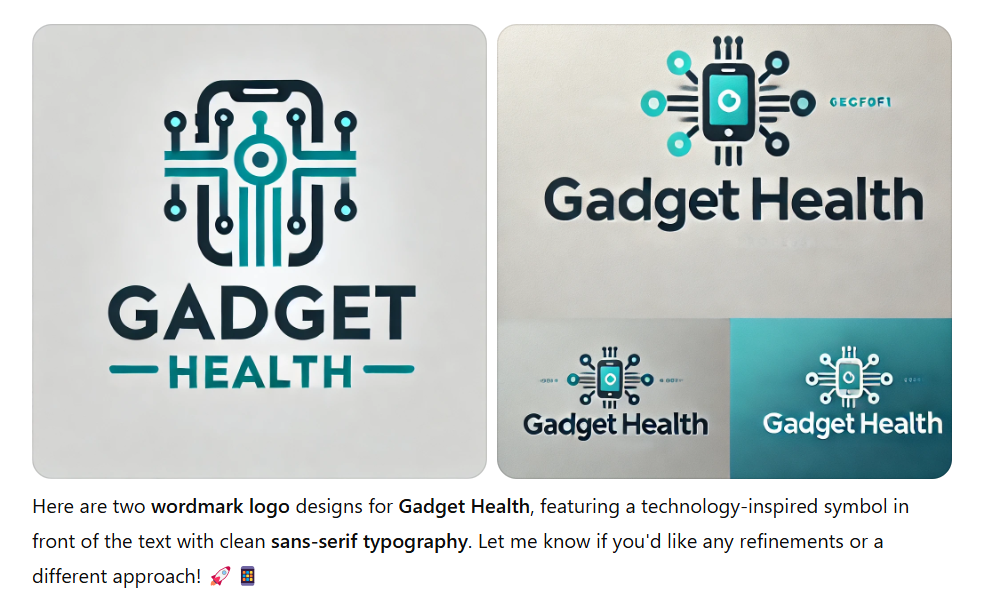
If you still don’t like the logo design, you can keep changing fonts, symbols, or any part of it just by asking ChatGPT to refine it. For example, I asked it to change the font to be bolder and more abstract.
Look what ChatGPT did with the above logo.
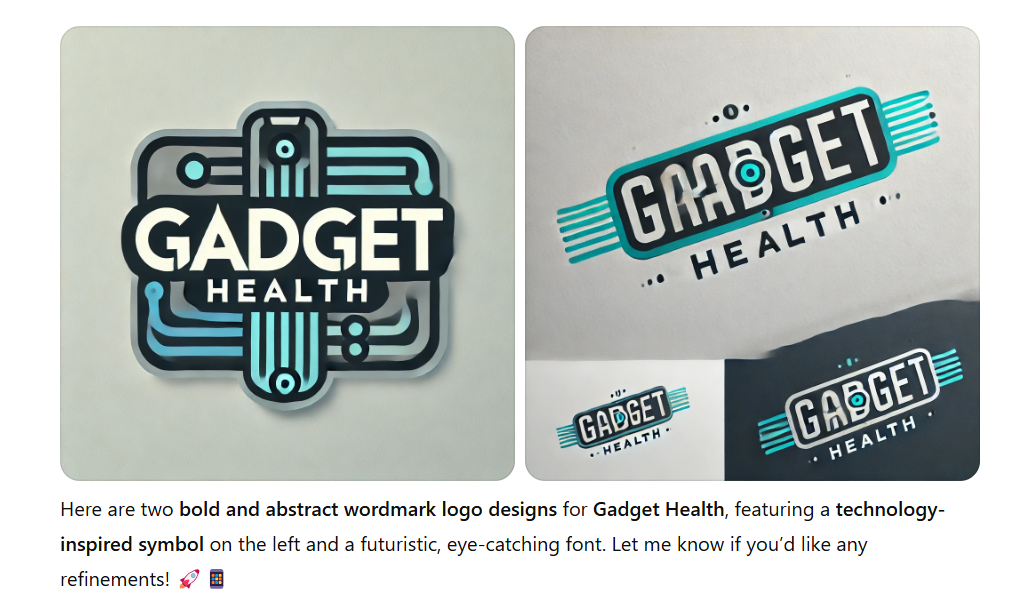
The main thing is to understand what you actually need and know how to explain it to a chatbot. Once you understand that aspect, your output will be better.
You should keep refining the output until you achieve your desired outcome. To see what prompt generates the logo image, click on the image to open it in full screen.
Click on the exclamation mark.

This reveals the prompt to generate that image. You can give this to another image-generative AI model or even your graphic designer to try.
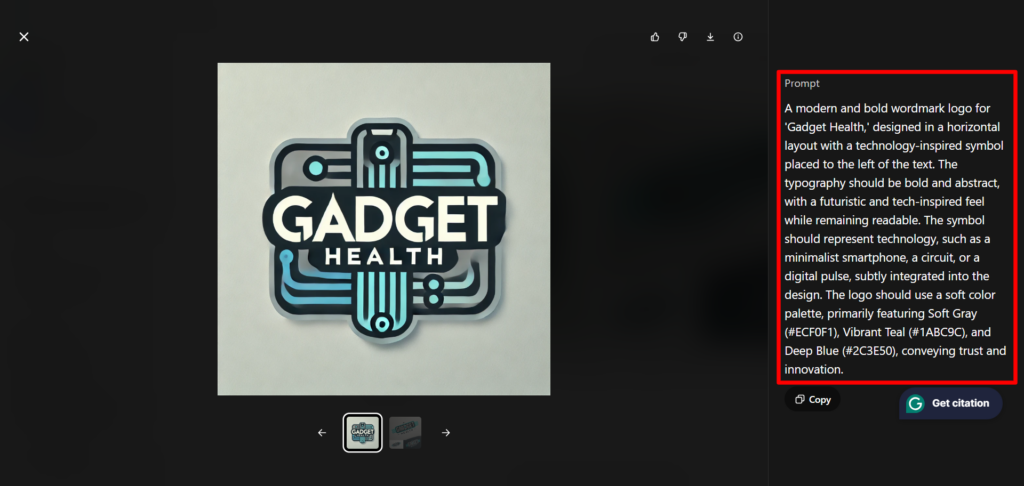
For example, I copied the above prompt and pasted it into Microsoft Designer to generate the logo. Here is the outcome.
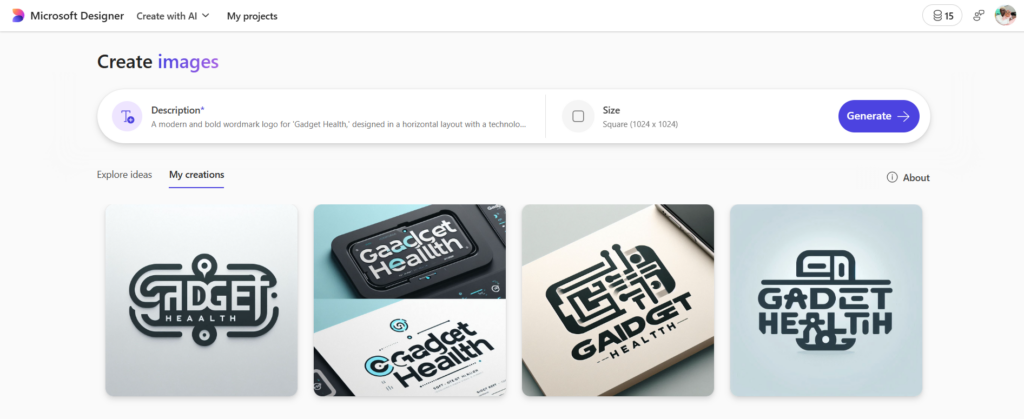
As you can see, we now have more designs and logo options. This exercise will help you explore more ways to create your logo design using AI technology.
The key is to explore and continue refining the output until you are satisfied with your design. Once satisfied, download your logo and upload it to your website.
Conclusion…
We’ve explored the exciting possibilities of using ChatGPT for logo design, but it’s important to remember that AI is a tool, not a replacement for human creativity and expertise.
ChatGPT can be a fantastic free partner when designing your logo, helping you brainstorm ideas, explore different concepts, and overcome creative blocks. But it’s still up to you, the human designer, to bring those ideas to life and create a logo that truly represents your brand.
The key is this: use ChatGPT to spark your imagination, not to replace it. Embrace the power of AI, but don’t let it stifle your creativity.
AI’s strengths, along with your own unique skills and insights, are both innovative and insightful.
The future of logo design is collaborative, with AI and human designers working together to achieve new levels of creativity and efficiency.
If ChatGPT or your favorite AI logo creator can’t bring your idea to life, you can explore other alternatives, such as the Fiverr logo service.
This is a list of top-tier freelancers vetted for top-quality work. Human graphic designers can work with you to better understand your business needs and competitors and create a logo that gives your business a lasting impression.


Hey Shamsudeen,
Great article! Love how you broke down the process of logo design using chatgpt step-by-step, making it easy to follow even for someone who’s not super tech-savvy. The tips on prompt engineering were really helpful too. Can’t wait to try this out with ChatGPT and DALL-E. Thanks for sharing your knowledge!