

Artificial intelligence has transformed almost every industry; the website development industry is no exception. Just a few years ago, no one would imagine that AI could build a functional website on its own with minimal human intervention.
This is what the Kadence AI website builder will help you achieve.
In less than 10 minutes of your free time, you can build stunning website designs with AI, with all the essential pages, graphics, plugins, and content to get you going. So, in today’s tutorial, I looked at how to build websites with the Kadence AI website builder.
Trust me, this is not going to take more than 10 minutes from start to finish. After reading this post, you’ll be able to effortlessly create a website design for most industries.
Are you ready? Let’s do it together.
Kadence AI Website Builder

Discover how to build websites with Kadence AI Starter templates in just 8 minutes. No coding required! Get your website up and running faster than ever before.
Price: 69
Price Currency: USD
Operating System: Web
Application Category: Website Builder
3.94
What is Kadence AI Website Builder?
Kadence AI is a website builder that uses artificial intelligence to revolutionize website creation. It’s part of the Kadence suite of products by Kadence WP, known for its popular Kadence theme.
Kadence AI offers AI-powered Starter templates that generate content, layouts, pages, and images tailored to your website’s niche and goals. You answer a few questions about your business, and Kadence AI does the heavy lifting of creating a foundation for your website.
It analyzes your niche and generates relevant content suggestions and image libraries to populate your website. Of course, you can edit and customize everything to your liking, but it gives you a great starting point and makes it easier to build a website like never before.
Kadence AI integrates seamlessly with the Kadence theme and block editor, allowing you to easily tweak and personalize the AI-generated content and design elements.
The Benefits of Using Kadence AI
- Faster Website Creation – Kadence AI handles the initial legwork, saving you significant time and effort compared to building a website from scratch or using traditional templates.
- Reduced Design Challenges—Even if you’re not a design expert, Kadence AI provides a springboard for creating a professional-looking website with minimal effort and time.
- Content Inspiration – AI-generated content suggestions can spark ideas and overcome writer’s block, helping you craft compelling website copy.
- Improved Workflow – The streamlined integration with Kadence themes and blocks makes the entire website-building process more efficient.
Now, let’s start creating your site using the Kadence AI website builder.
1. Installing Kadence Theme
The first thing you need to do is to install the Kadence theme. You can do this from your WordPress admin dashboard by going to Appearance>Themes> Add New and typing Kadence in the search box.

If you prefer to download the theme directly from the official Kadence WP website, here is the link. This way, you download the theme in a zip file to your computer and upload it to your WordPress site.
Either way, install and activate the theme on your website. Then, you should install the following Kadence plugins.
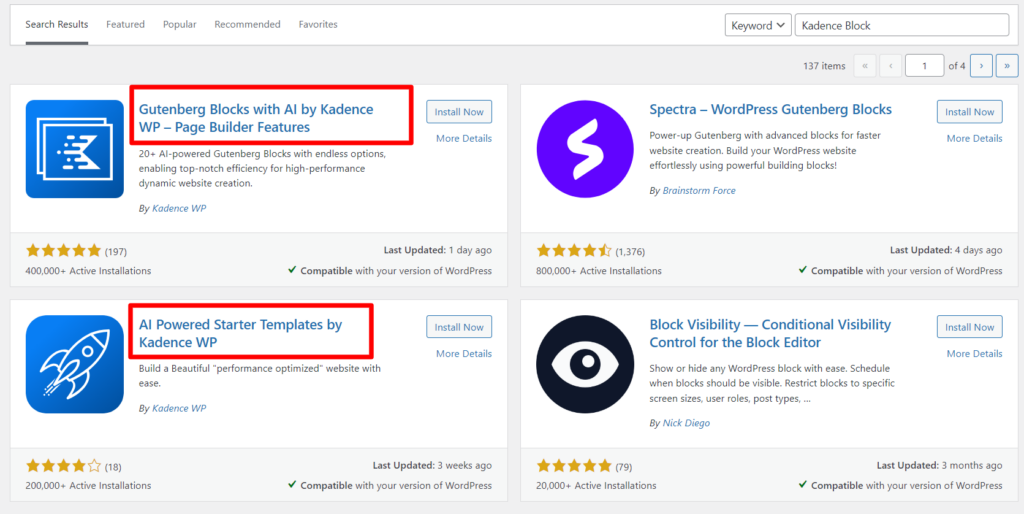
You’ll need this plugin later to customize further and take full control of your website design.
As with the Kadence theme, these plugins are also available on the official Kadence website. The above link directs to the dedicated product page.
2. Register or Connect to Your KadenceWP Account
Next, you need to activate the AI Starter templates. This process requires KadenceWP account activation.
So, hover over Kadence in your WordPress admin menu, then click Starter Templates from the options.
Next, click the Kadence AI Powered Starter Templates button.
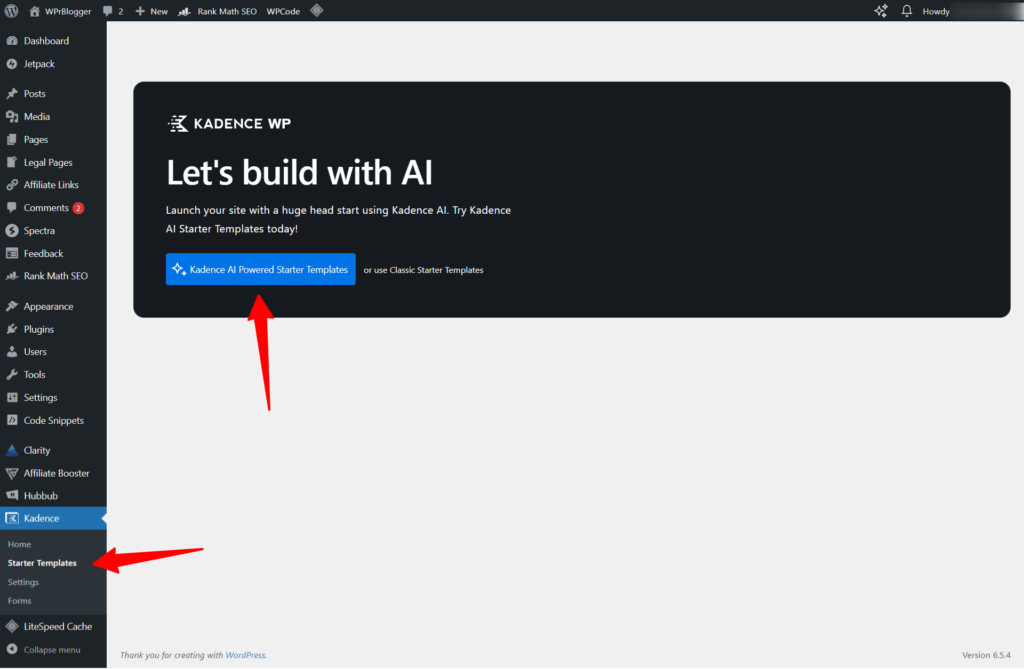
Note: If you don’t already have a Kadence account, you’ll be redirected to create a free account and connect it to your website. As a free user, you get 250 free AI credits to try the Kadence AI website builder.
These credits are used to create your website template design and generate AI content. The good part is that the AI credits do not expire. So you can use it for a long time until you run out of credit.
After the account is created and your website is connected, you will be redirected back to your site’s Kadence AI site builder page.
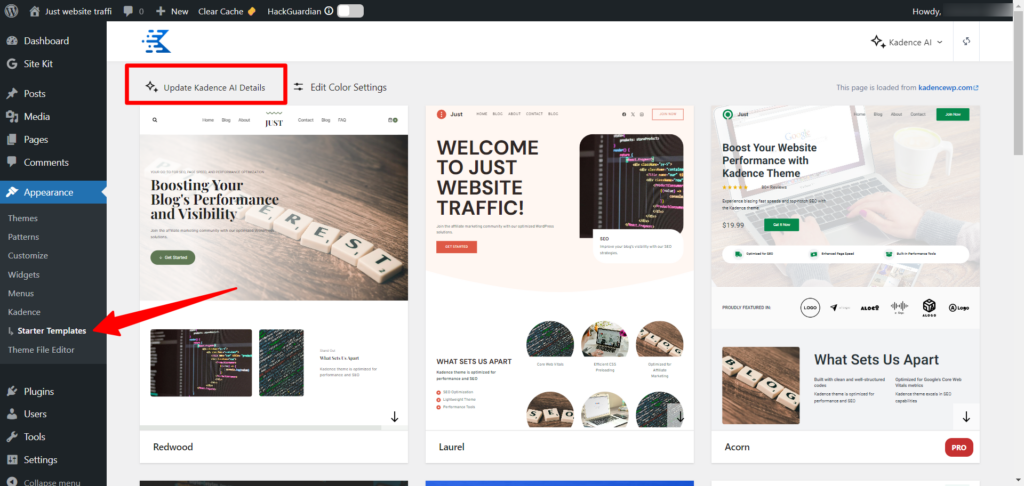
If you have an existing account and Starter Templates active, then you should access this page by going to Appearance>Starter Templates and, on the next screen, click the Update Kadence AI Details link.
3. Enter Your Website/Business Details
Now that you’re on the Kadence AI setup page, let’s build your website in a few steps.
Step 1
The Kadence AI website-building process is a simple five or six-step process. If you exclude the How it Works page, then you’re just five steps away from creating your dream website.

You don’t have much to do on the How it Works page unless you need more information about the AI plugin. To avoid wasting more time, let’s walk through the five necessary steps.
The information you supply in the next five steps helps Kadence AI understand your website needs, industry, business goals, and other vital information. So, take your time to feed the AI with the essential information it needs to build a website as you imagine, one that serves your purpose.
First, you need to enter your industry information.

This page is where you select your site’s language. The default is English, but you can change it to German, Spanish, Portuguese, French, Turkish, Hungarian, Italian, Dutch, Danish, Swedish, or Czech.
Some of these languages are available in other accents, such as English (Indian), the UK, the US, etc.
Next, on the same page, choose whether you’re an individual, an Organization, or a Company entity. I have chosen the Individual in the image above because I’m building the website to express my opinion.
Your case might be different. If you’re selling stuff or running a course, you should select the appropriate entity to help the Kadence AI craft the perfect content later.
Enter a name for your website. Ideally, this should be the site name or the domain name itself. Just think of something that makes it easy for users to understand what the website is about.
In the section where you are based, review your business operations and make sure you select the right option. If you’re a local service provider, select Service Area and enter your office address in the field.

I chose to do it online only because the website is mainly a content site.
In the What Industry Are You in section, enter the field that accurately describes your niche. As you start typing into the box, Kadence AI will auto-generate relevant industries/niches to make it easier for you to choose.

Once you’ve selected the right industry or niche, click the next button to proceed to the next step in building your website.
Step 2.
This is where you enter the details about yourself, your business, or the mission your website represents.
Think of this step as your blog About Us page.
What do you want your first-time visitor to read and know about you or your business?
The content you enter here helps Kadence AI understand your business better and write content tailored to your unique business value. So, think carefully before entering content here, though you can always edit it later.
A good rule is to write this content out in advance.
If you don’t know what to enter here, click the “Show Tips” icon to get insights or check the content on the right for inspiration.
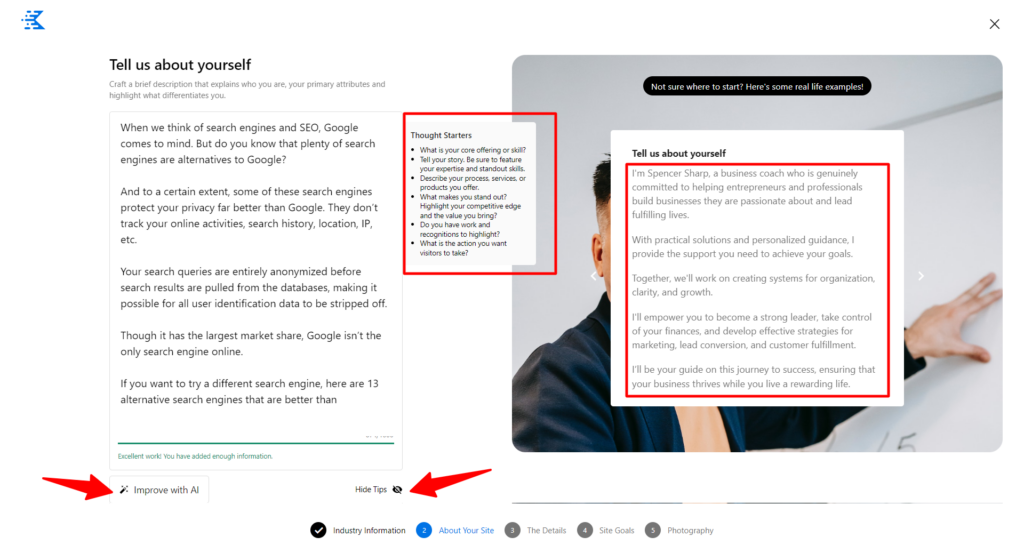
Likewise, you can enter a few words about yourself and click the Improve with AI option to let Kadence AI rewrite the content. If you’re happy with the output, click Use This Copy.
Again, once you’re happy with the content/information you enter, click the next button.
Step 3
This step requires adding relevant keywords or search phrases that people use to find your business. You need to enter these keywords to help the AI create unique and relevant content for your audience.
You don’t need to enter dozens of keywords; a maximum of 10 relevant keywords is sufficient for the AI to understand your niche and audience.
Based on the information you entered in the previous steps, Kadence AI might suggest some target keywords for you.
You can choose from these keywords or enter your own; there is no right or wrong here. The most important thing is to ensure the keywords best represent your blog topic and target audience.

Keywords should be separated by a comma. You can also click the Enter key on your computer to distinguish between each keyword selection.
Next on this page is Choose your tone.
How do you want to sound or communicate with your audience? Do you want to sound professional, friendly, Informative, Engaging, Trustworthy, Conversational, etc?
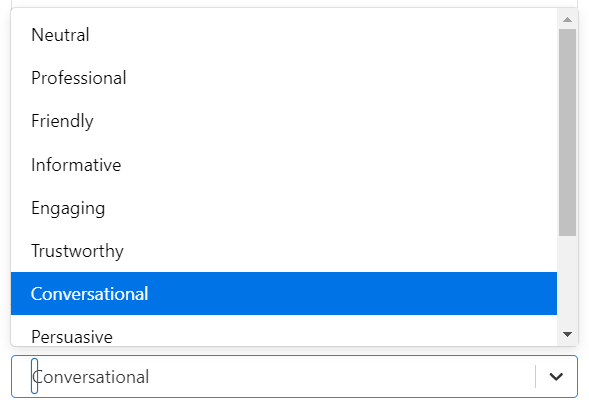
Kadence AI gives you 10 tone options to choose from.
Once you’re through with this page, click next to proceed.
Step 4.
The Site Goal is still in beta as of this writing. They help the Kadence AI understand exactly what you want to do on the site and find suitable site layouts and templates for the design. They also help generate tailored content for your site.
You can select more than one option or leave it; this step is not required to complete the process. But I suggest you select an option to ensure the AI fully understands your website’s purpose.
I have selected “I want to write a blog post” because that is primarily what I do on the blog.

Click next to move on to the next step.
Step 5.
In this final step, the Kadence AI will create two separate sections for your site images – featured and Background images. It will then search the image library to suggest relevant images based on the information collected so far.
You can edit or choose a different set of images.
If you need to search for different images, click the dropdown menu at the top and select your niche or industry.

It will create a new collection of background and featured images based on the niche or industry you select. Alternatively, you can click the edit link to adjust the image collection in the WordPress image library.
After creating your image collection, click the Generate Base Content button to start the site-creation process.
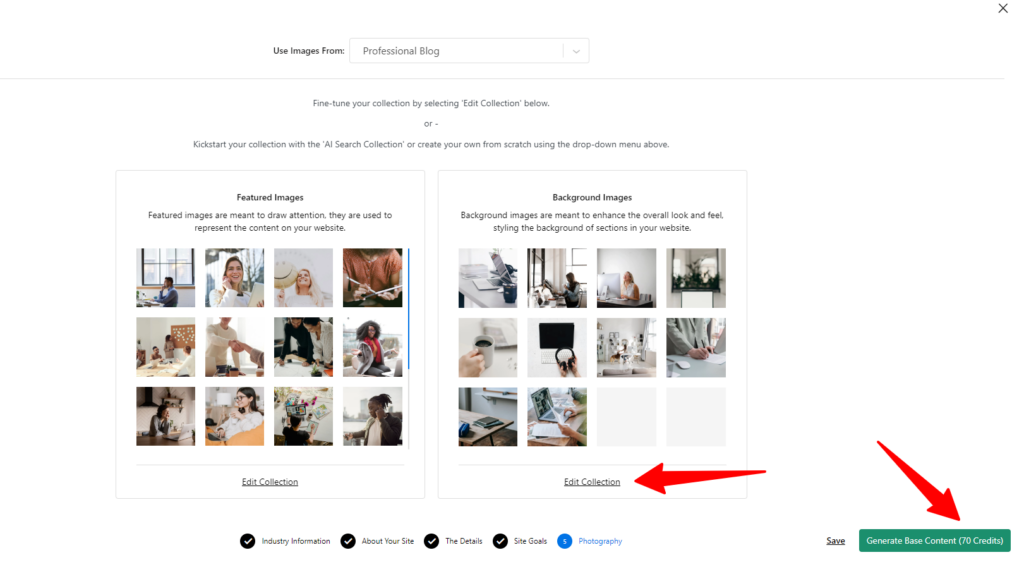
This process will eat up 70 AI credits. You’re left with 180 AI credits as a free user.
Also, it will take a few minutes (1 – 3) to complete after you click the Generate Base Content button. So hold on for a few minutes while the Kadence AI does its thing.
Step 6
Once the process is complete, the AI will generate 12 variations of the Kadence AI-powered Starter templates for you to choose from. You can select anyone to start customizing it.
You’ll find these themes in your WordPress admin by going to Appearance>Starter Templates and selecting Kadence AI from the theme builder selection dropdown menu.

Your work is not over yet; you need to style or customize the theme and import the required plugins and demo content.
When you select a theme, it will open the settings/Style Starter’s page.

First, let’s look at customizing the design of your theme.
Let’s say you need to change the base color of your AI-powered Kadence theme. To do so, click the empty Swatch color picker right in front of the Highlight Color text.

This action will open the color control panel where you can customize and set the color palette of your site design.

In this example, I select the #2351FF color code. Kadence AI will use this as the base to set the color palette for the entire site.
There is a lot to play with here. You can set the site background style to dark or light by clicking on the corresponding button, and you can even configure background color saturation.
Switching to the Font tab allows you to select a font pair for your site. You can choose from different font styles.
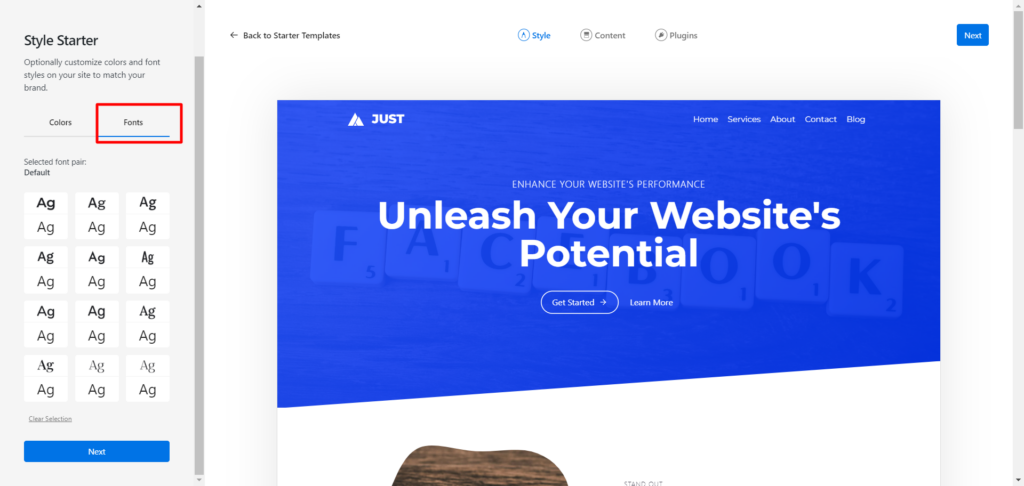
Once you’re happy with the color and font styling, it’s time to move to the next step, which allows you to select content to import.
Kadence AI automatically imports sample pages and content, which you can edit or delete later if you want.
If you don’t want to import the sample blog post, which I assume you probably don’t need anyway, just toggle off the option “Import Example Blog Post.” The Kadence AI sample blog post will not be imported, and the theme customization will not be included.
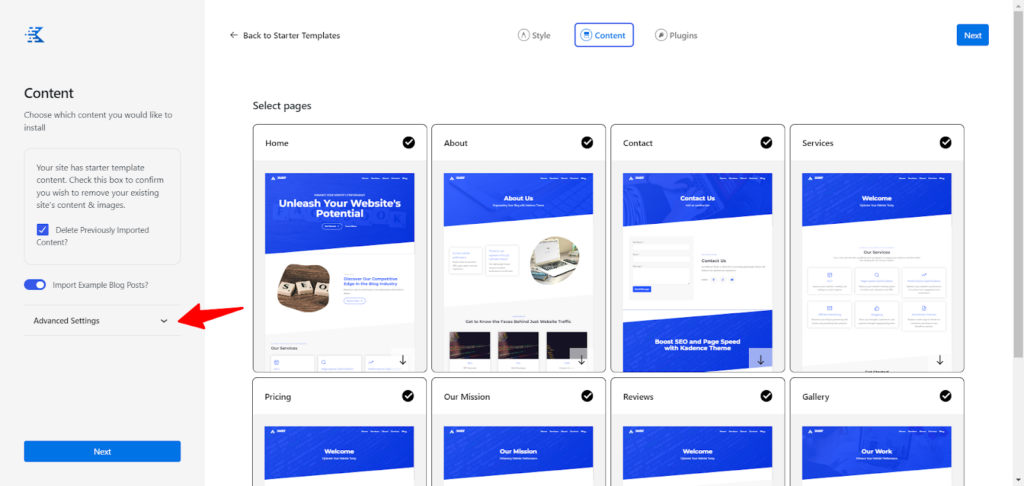
The default pages you see here depend on the AI starter templates you choose. Some themes will have fewer pages, while others might have more, such as products and services pages.
Remove unwanted pages from the selection, and if you need to import footer widgets, theme settings, and example products, click the Advanced Settings dropdown menu.
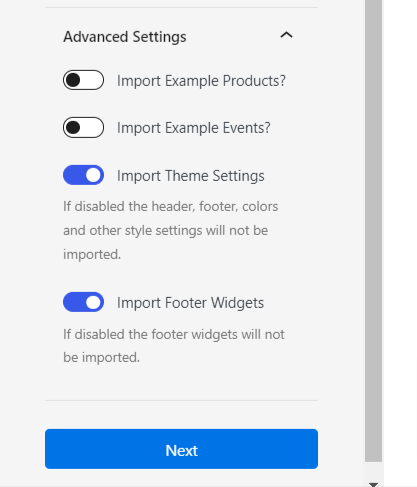
Once you’ve completed the settings on the Content tab, click the next button to switch to the Plugin tab to review and install recommended plugins. This is the final step in building websites with Kadence AI, so ensure you’ve followed through accordingly.
While on this Plugin page, review each recommended plugin to see which one you really need.
The good part is that all plugins on this page are suggestions except the Kadence Blocks plugin, which is a requirement. So you can choose to install or ignore other plugins.
Make your decision and click the Finish and Launch button on the page.
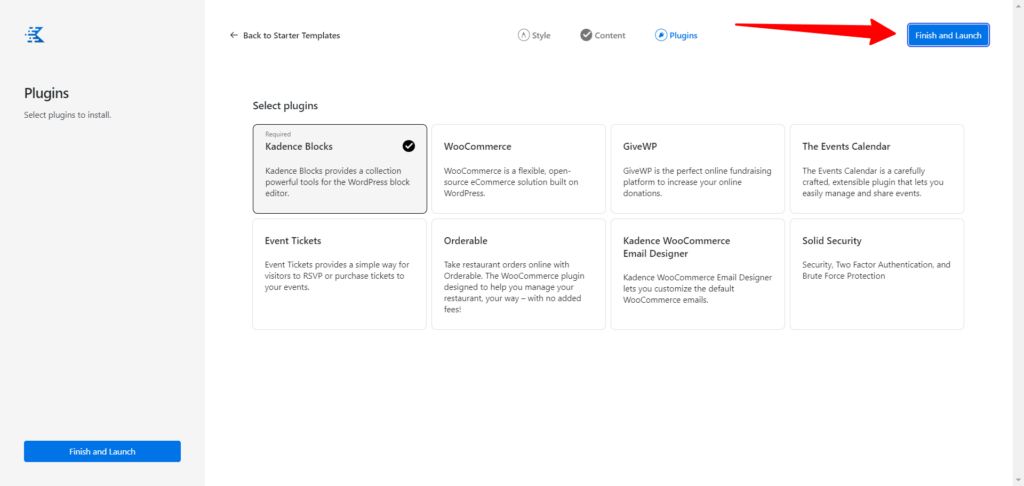
This process will take approximately 2 minutes to complete if nothing goes wrong. In fact, after installing the Kadence AI Starter templates plugins to the setup wizard to import sample posts and your site, everything shouldn’t take you more than 8 minutes.
You should see this screen once the site importation is complete.

Click “See my site” to view your site’s front end, or click “Go to My Pages” to start editing the imported pages and sample content.
4. Further Customizations
Sure, your site is live, but you may want to customize it further to truly represent your brand voice and image. Here is how to edit or customize each page or rewrite the placeholder text.
Go to your WordPress dashboard, hover over Pages from the side menu, and click All Pages. Then, hover on a page you want to edit and click Edit to open it in the WordPress Gutenberg editor.
You can make many customizations or edits on this page, and obviously, everything is in your control.
For example, clicking the Gutenberg Document Overview panel at the top reveals all the building blocks for that page. You can move, rearrange, or even delete a block you don’t need.

Likewise, clicking on the Kadence AI Design Library opens the popup Library panel. There is so much you can achieve here.
If you click the “K” icon at the top toolbar, a panel in the sidebar opens where you can customize the color for that particular page.
The Design Library contains pre-design patterns and pages, available by Design or With AI. You can also filter by category.
You can import Pages with demo or placeholder text directly into your page and customize its appearance and text. Several premade essential site pages, such as About, Contact, Service, Products, etc., are available.

This gives you a good starting point to get ahead and save time starting from scratch.
Patterns are predesigned block sections that you can import into your site pages. You can edit with the Gutenberg or the Kadence AI inline editor.
Let’s say you import the Pricing Table in the Design Library into the page.

You can edit the placeholder text and the design using the Kadence AI toolbar or the inline editor. The inline editor lets you improve the content, fix spellings, and even change tone.

Enter a new prompt into the Ask Kadence AI field to generate new content.
But remember, your free AI credit is being used for each generation you make, so make your choice wisely. At most, Kadence AI will make use of up to 5 credits when you generate content.
Furthermore, Kadence Block gives you access to design elements and patterns to add features to your site. To access the blocks, hover over an empty area in the Gutenberg editor and click the + sign.

In the block search box, click “Browse All” to view all blocks or type the specific block name in the search bar. If you need to review the list of blocks and their functions, check the dedicated Kadence Block’s page.
Each Kadence Block selected in the Gutenberg editor lets you control its settings using the toolbar and from the sidebar panel. The control or setting available in the toolbar and sidebar panel depends on the selected block.
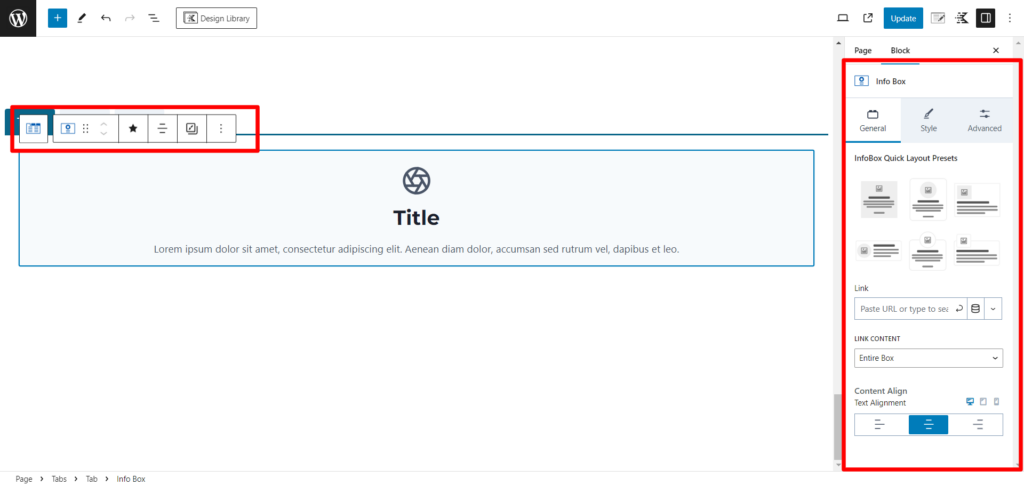
Kadence Block is a powerful page builder that puts you in control of your site design. Every element in its collection lets you customize it to fit your brand image and voice.
We’ve covered so much in our Kadence AI Starter templates review, but we’re still not done.
Like the classic WordPress themes, you can use the customizer to edit and customize template sections such as footer, header, sidebar, site layouts, global settings, typography, blog/archives pages, etc.
The customizer lets you access settings for Single pages/posts and adds custom CSS rules, menus, widgets, site identity, etc.
Additionally, the customizer is where you can customize unique settings for different user devices, like hamburger menus for mobile users while retaining the main menu for desktop users.

I advise you to use the customizer because the Kadence theme has built-in performance features, which you can enable by going to General>Performance and toggling these options:
- Host Google Fonts locally
- Enable CSS preload
Both options boost your site’s performance and help improve its loading time and user experience. However, if you use an optimization plugin on your site, review the plugin settings to ensure there is no conflict of functions.
If the plugin has these functions, you should turn off the same in the Kadence theme customizer.
You’ll agree that there is no end to what you can achieve by building your website with Kadence AI website builder. Practically, the more you play around with it, the better you’re at it.
That takes us to the concluding part, which is using Kadence AI to build WordPress sites in minutes.
Conclusion
Kadence AI website builder offers quick steps with no coding required to build stunning website designs effortlessly. From installing the Kadence AI Starter templates plugin to deploying your site, everything takes less than 8 minutes.
Seriously, anyone can now build a website regardless of HTML or web development skill and knowledge. There is no excuse not to start your site after reading this post unless you don’t want to.
With the Kadence AI, you can generate tailored content for your site, design, images, pages, etc.
The design library offers a wealth of pre-design creatives that you can add to your site pages and sections to bring your imagination to life.
What else do you need to build your site?



Notice:
Your comment will end up in the trash folder if you spam our comment box. Use your real name, write meaningful and genuine comments. Avoid using keywords or brand name in the name filed and keep your comment relevant to the topic. Thank you.