

When someone visits a URL path on your site that doesn’t exist, they’ll land on a 404 error page. By default, this ‘404 page not found’ is quite plain and unhelpful.
However, with the Astra theme, you can customize your WordPress 404 page not found to make it more useful and engaging and to match the style of your site.
Since I used the Astra Pro theme, let me show you how to create custom 404 pages in WordPress step by step.
However, knowing why 404 pages matter is an important issue for most beginners, so let’s begin with that.
Why a Custom 404 Page Matters
Imagine someone lands on your site and sees a boring error message because the page they’re trying to visit is no longer available.
They might leave without a second thought, indicating a poor user experience.
A custom 404 page can turn that dead end into a helpful stop by offering navigation links, a search bar, or even a bit of humor to lighten the mood.
It’s a small change that can make a big difference in keeping visitors on your site and ensuring they find alternative pages or solutions.
Now that you understand the importance of having a proper 404 error page, let’s explore how to create one with a custom message and design using the Astra Pro theme.
Creating a Custom 404 Page with Astra Pro
Before we begin, ensure you’ve the Astra theme installed and active.
You’ll need the Astra Pro add-on for this to work. The Astra WordPress theme has a pro feature that allows you to edit the default WordPress 404 template.
If you don’t have the Pro add-on plugin yet, check out my article on how to get it for free (for unlimited sites).
Once you’ve got Astra Pro add-on plugin, follow these steps:
Enable the Site Builder Module
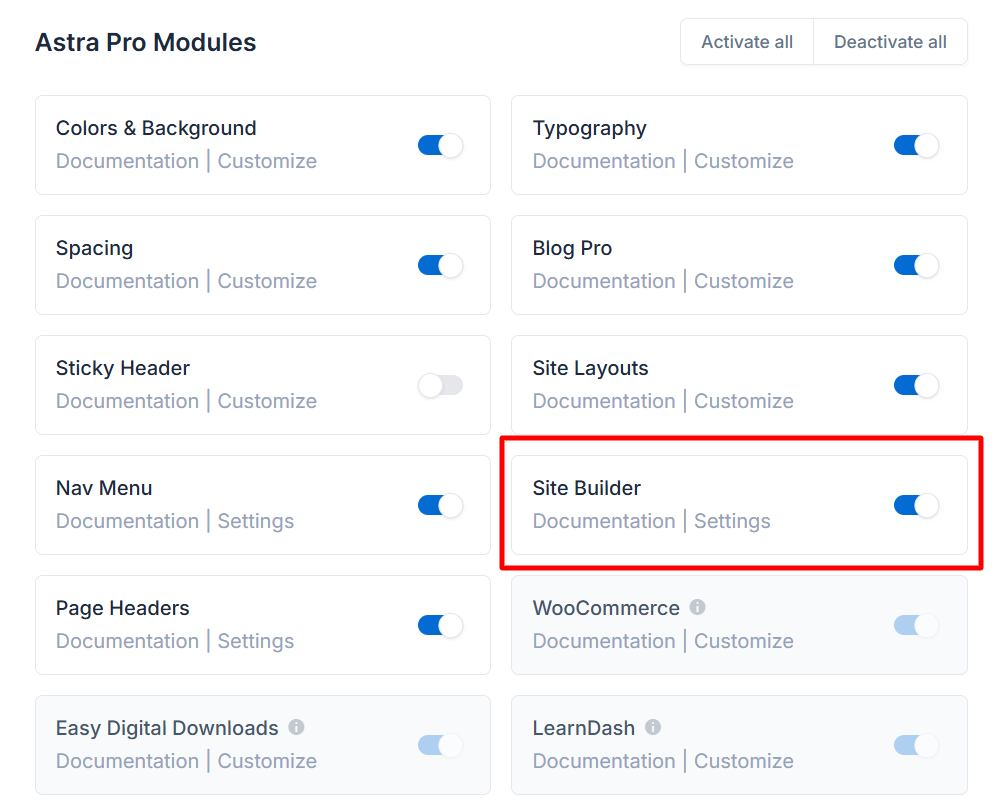
Site Builder is one of the Pro modules in the Astra Pro add-on, and it is on by default.
To activate the Site Builder Module if it is not automatically enabled.
Go to Astra in your WordPress admin and click Dashboard from the menu. On the Astra dashboard screen, scroll down to Astra Pro Modules and activate the Site Builder option.
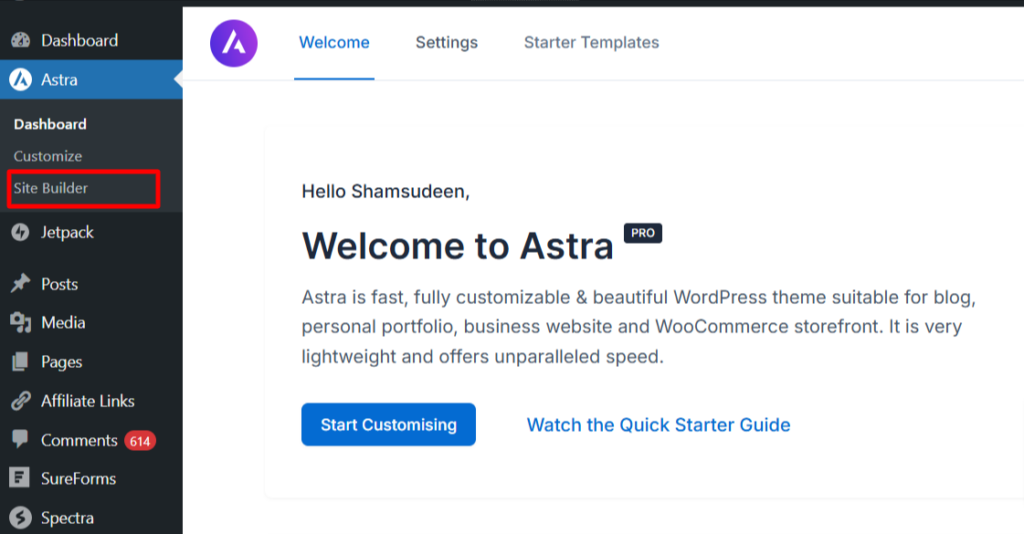
Once enabled, you’ll see the option in your Astra menu.
Create a New Site Builder Layout
Click Site Builder from the menu to explore its layout options, including the 404 page.
The Astra Theme Site Builder also has other layouts or hooks for creating customized content and injecting it into any part of your website’s theme.
These layouts include header, footer, hooks, archives, and Single.
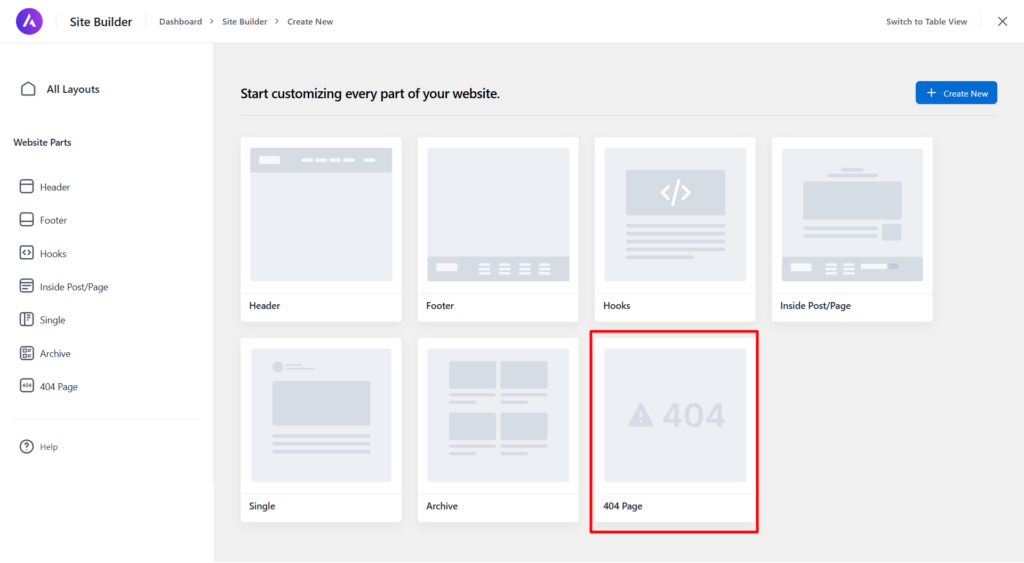
But for this tutorial on how to create custom 404 pages, let’s focus on that.
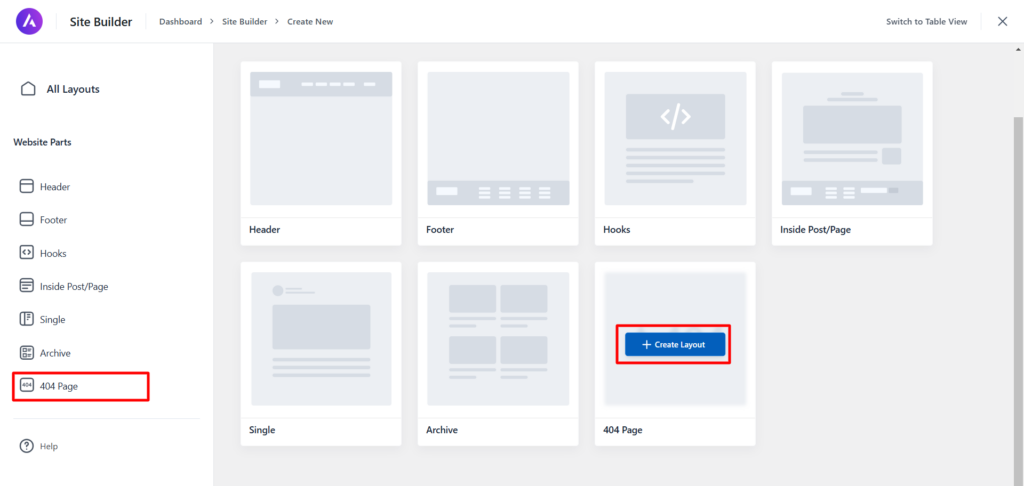
To edit the default 404 WordPress error page template, click the 404 Page option on the sidebar menu or on the layout screen.
Both options take you to the Gutenberg WordPress editor screen, where you can design your custom 404 page not found in WordPress.
Design Your 404 Page
Typically, this is your blank 404 uncustomized page in the WordPress Gutenberg editor once you open the screen.
First, you must enter a title for your 404 custom page. This helps you identify it on the Astra Site Builder post-edit page.
Note: The page title won’t display on the front end. It’s for internal use only.
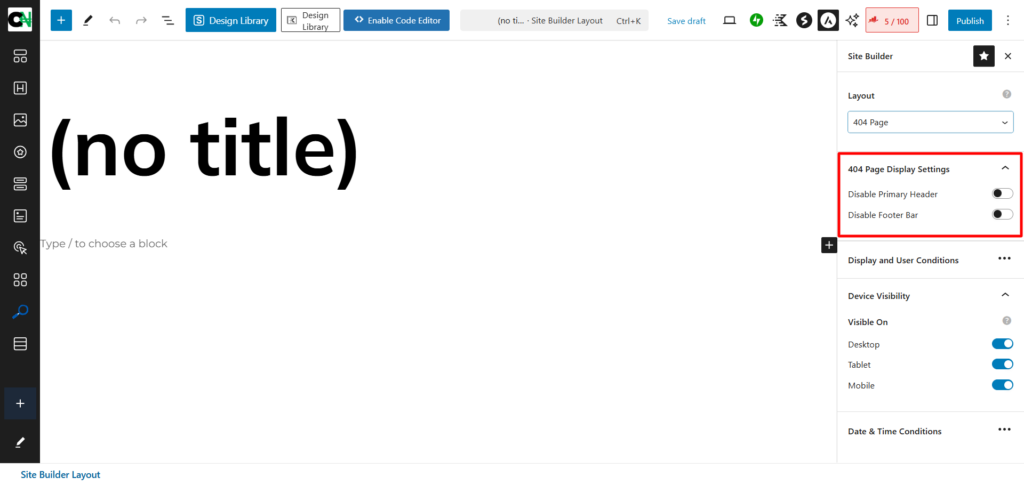
Next, click the Astra icon at the Gutenberg editor screen’s right top corner.

This opens the setting for the 404 layouts or template page.
There are many settings you can consider here, depending on your needs. However, here is what you can do:
404 Page Display Layout Setting
- Disable the primary header.
- Disable the footer bar.
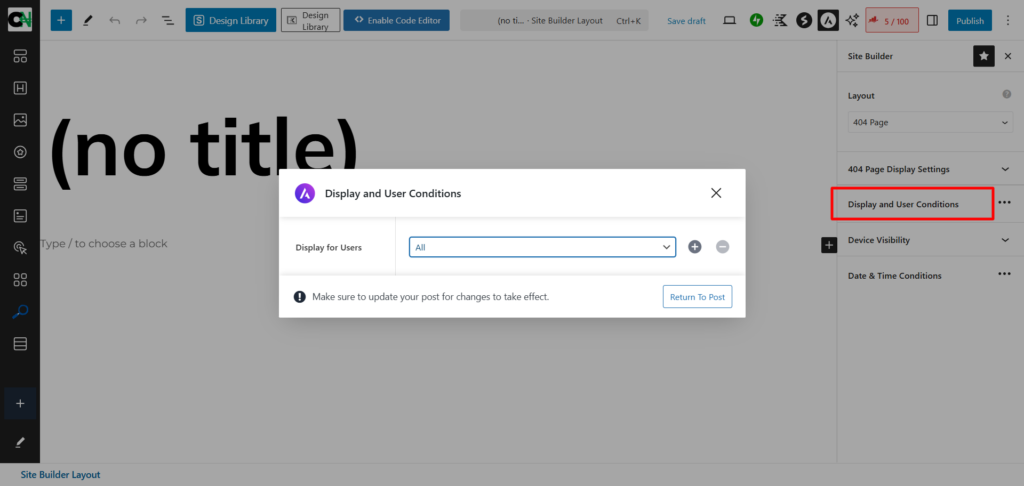
Display and User Condition
- This option lets you choose/restrict the customize 404 page to a select user role.
- You can select more than one user role in the drop-down menu.
Device Visibility Control.
- You can choose which user device the custom 404 page should display.
- Choose from Desktop, Tablet, or Mobile devices.

Date & Time Condition
- Here you can define the start and end time the not found 404 page layout should remain active.
- After this time, the default 404-page will override your custom design.

Once you finish customizing the 404 page, click the save button to publish it.
Note:
Customizing your Astra 404 error page is similar to creating a regular WordPress post or landing page. You can use page builders like Elementor, Spectra Pro, or Beaver Builder to enhance the design and add custom elements, controls, and blocks.
Spectra Pro also has a collection of design libraries to which you can add premade designs for pages, kits, and patterns. If you install the Spectra plugin, you can locate the design library in the top bar of your WordPress Gutenberg screen.
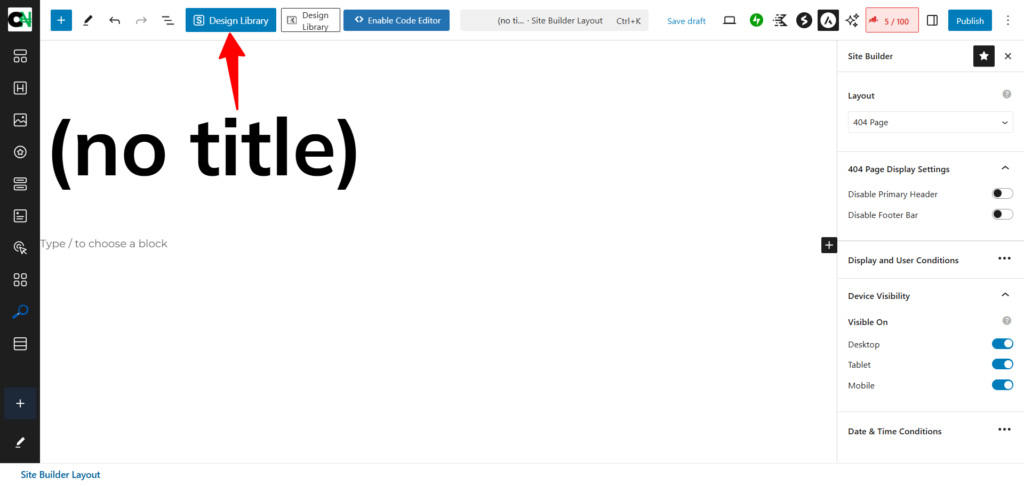
To see what’s possible with the Spectra plugin, you can check this blog’s 404 custom page design by adding xyzzy to any URL.
I discuss some tips for creating engaging 404 pages in the next section. Check it.
Using Free Tools to Create a Custom 404 Page
If you don’t have Astra Pro, you can still create a custom WordPress 404 not found page using a page builder like Elementor or Beaver Builder. However, this method involves editing your theme files, which can be challenging if you’re unfamiliar with coding.
Here’s how you can do it:
First, design your WordPress 404 page not found. Open your page builder and create a new page.
Use the drag-and-drop tools to design a layout that suits your site. Include a helpful message, navigation links, and a search bar to guide visitors.
Next, set your custom page as the 404 not found page. You can access your theme files using an FTP client or the file manager in your hosting account.
Navigate to the 404.php file in your Astra theme folder. Replace its content with a PHP redirect pointing to your custom page.
For instance:
<?php
wp_redirect('https://yourwebsite.com/custom-404-page');
exit;
?>
Finally, test your new 404 page. Try entering a non-existent URL on your site to ensure it redirects to your custom 404 page.
If everything works, your new 404 page is live and ready to enhance visitors’ experience.
Tips for Designing a Helpful 404 Not Found Page
Creating a custom 404 error page in WordPress is straightforward, but there are best practices for providing an optimal user experience.
- Be Clear and Friendly – Let visitors know the page they’re looking for isn’t available, but keep the tone light.
- Offer Navigation Options – Include links to your homepage, categories, or other key site areas.
- Use a Search Bar – This helps users quickly find what they’re looking for.
- Stick to Your Branding – Match your site’s colors, fonts, and style.
- Make It Useful – Consider adding a contact form, recent posts, or a link to report broken links.
Testing Your Custom 404 Page
After setting up your custom 404 page, you’ll want to ensure it works properly.
The simplest way to test your custom 404 error page is to add a random string or text to the end of any URL on your site.
For example, add xyz to the end of your domain URL. See example http://yourdomainurl.com/xyz
If your custom 404 page shows up, you’re good to go.
If it doesn’t work, double-check the above steps and make sure everything is set up correctly.
With these steps, you can turn a boring 404 error page into something useful and engaging for your visitors.
Whether you’re using Astra Pro or free tools, customizing your 404 page is worth the effort.
FAQs
Can I create a custom 404 page without Astra Pro?
Yes, you can design the page using free tools like Elementor, Beaver Builder, or other custom 404-page WordPress plugins. However, you may need to update the 404.php file in your Astra theme to redirect users to the custom page.
Do I need coding skills to create a custom 404 page?
Not necessarily. You won’t need to touch any code if you’re using Astra Pro or a page builder like Elementor or other WordPress 404 page builder plugins. However, basic knowledge of editing theme files can be helpful for manual setups.
How does a custom WordPress 404 page impact SEO?
A well-designed 404 page can improve user experience, reducing bounce rates and helping users stay on your site longer. While it doesn’t directly affect rankings, it can positively impact overall site engagement metrics, which are important for SEO.
Can I include a search bar on my WordPress custom 404 page?
Adding a search bar is a great way to help visitors find what they’re looking for when they land on a WordPress 404 not found page. Most page builders and Astra’s custom layout feature allow you to include a search bar easily.
Can I track how many people visit my 404 page?
Yes, you can set up tracking using tools like Google Analytics or SEO plugins like Rank Math, which log 404 errors in their reports. This helps you identify how often users land on the 404 page and take action to fix broken links. Google Search Console also shows your site’s 404 error reports, which is ideal for analyzing all 404 error URLs on your site.
Conclusion
Creating a WordPress custom 404 page with the Astra theme is a great way to enhance your website’s user experience and keep visitors engaged even when they encounter a broken link.
Whether you use Astra Pro’s built-in features or free tools like Elementor, having a well-designed 404 page can make a big difference.
It reflects your brand’s professionalism and helps guide users back to helpful content.
Follow the steps outlined in this guide, and you’ll have a custom WordPress 404 not found page that’s functional, improves site engagement, and is visually appealing.




Notice:
Your comment will end up in the trash folder if you spam our comment box. Use your real name, write meaningful and genuine comments. Avoid using keywords or brand name in the name filed and keep your comment relevant to the topic. Thank you.