

At CyberNaira, I boosted page speed, passed Core Web Vitals from poor to good (the highest score in GSC), and improved page experience by doing a few things right.
This website’s Page Speed Insight report averages 99 for most URLs, both on mobile and desktop, resulting in improved traffic, engagement, and conversion.
How do I achieve these scores?
This article provides comprehensive insight and a detailed account of things I did to improve a once slow website to blazing fast like a jet.
Any WordPress website can replicate everything I did; that’s a guarantee. There’s no huge investment involved or need to deal with codes.
This is the most beginner-friendly approach to optimizing the slow website page speed and fixing CWV Metrics and INP.
Here’s what you’ll achieve from reading this post and taking action on my recommendations to boost page speed and pass core web vitals.
- Fix Google Core Vitals – Largest Contentful Paint (LCP), Time to First Byte, Cumulative Layout Shift (CLS), First Contentful Paint (FCP), and Interaction to Next Paint.
- Improve Page Experience from Poor or Need Improvement to Good.
- Get perfect scores on PSI (page speed Insights).
- Improved the Total Blocking Time of your website resources.
- Fast-loading website pages.
Before proceeding, let’s understand why Page Speed matters in online business.
Why does Page Speed matter?
According to a report by Tooltester, if a web page takes more than 5 seconds to load, 53% of mobile users will abandon the site and leave. Likewise, if a web page loads in 10 seconds or more, the bounce rate increases by 123%.
You need faster web pages and a better user experience to generate more leads and increase landing page conversion, sales, and revenue.
The faster your site users can access your content, the higher the conversion rate.
Page speed is more demanding for mobile users due to slower network connections (Cellular data) than desktops, often connected to WI-FI. This means website pages that load slowly on a desktop might take even longer to load on mobile.
Most importantly, since Google shifted to mobile-first indexing, Google considers a website’s mobile version first for indexing and ranking.
Having a faster mobile site can help with your website’s SEO. This is because Google and its users love faster web pages. The more people click around your site, or the higher the CTR from SERP, the better search engine visibility you have.
So, technically, a faster website should lead to more traffic and conversion and generate more revenue. That’s how vital site loading time is for your online business.
How I Improve Load Time
I applied the WordPress Speed Optimization tips shared in a previous post on this blog. These are the standard or basic WordPress optimization best practices.
But this time, I took some advanced steps and bought a premium WordPress cache plugin. Change the theme and make other required changes on the blog.
Here are some screenshots to help you understand how fast and optimized this website is after making these changes.
Here are the Google Search Console Page Experience and Core Web Vitals reports.

Core Web Vitals as reported by Google Search Console.
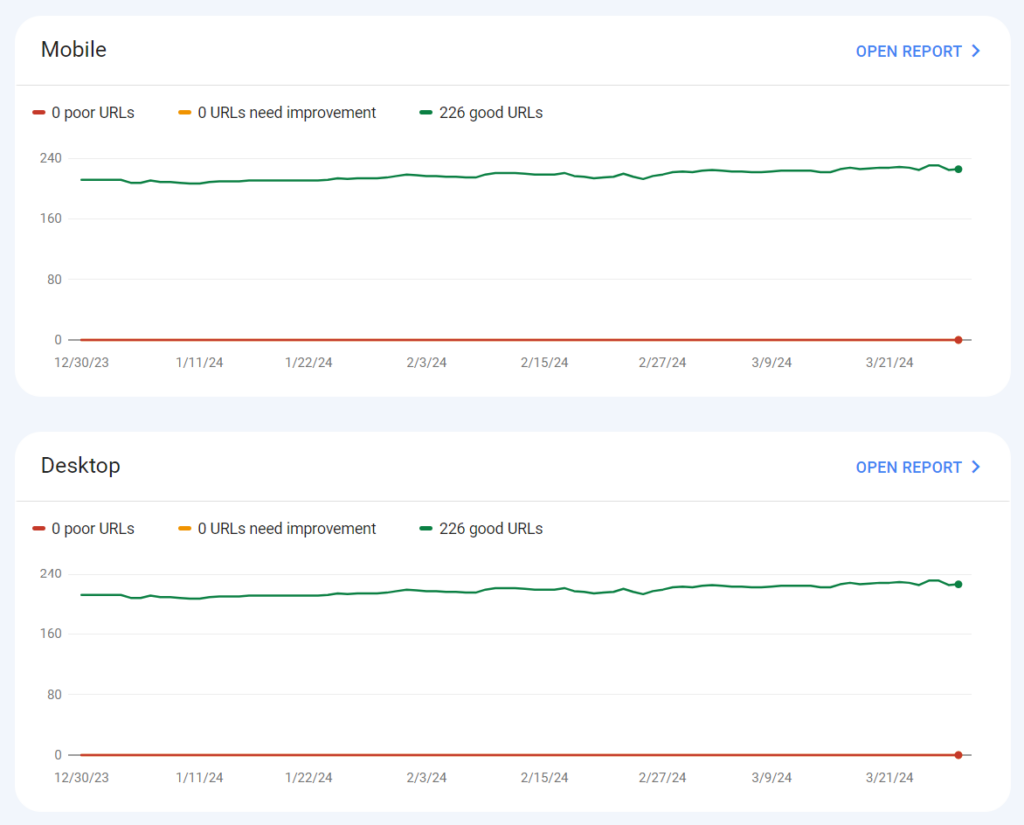
From the above image, you can see that this website only has a green line, which indicates that all indexed URLs have Good Core Web Vitals reports, both on mobile and desktop.
Per PSI reports, this is the average of most mobile website pages measured in the PSI testing tool.
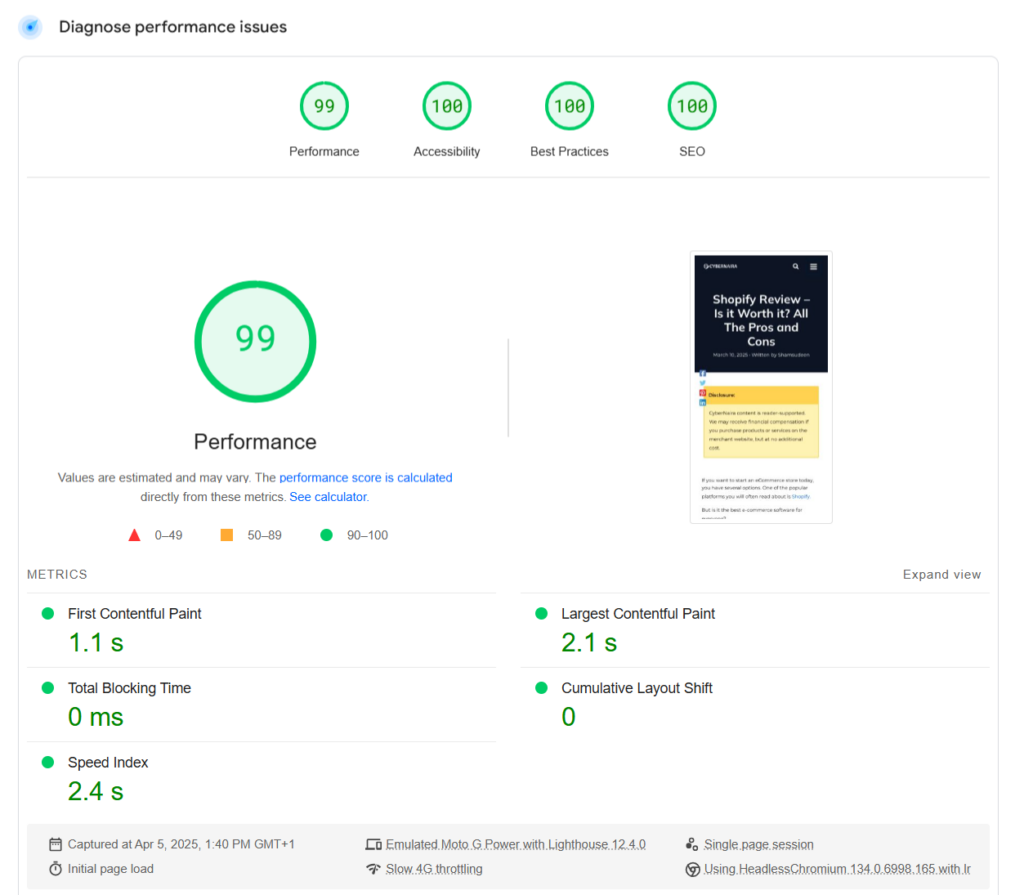
You can perform similar tests on your website before applying the tips I shared in this post. This way, you can measure or compare the before-and-after optimization strategies to see how they have worked.
Here is what you need to do.
- First, take note of your current Core Web Vital and Page Experience report in GSC.
- Perform multiple tests for individual web pages on your site using PSI and GTmetrix page speed testing tools.
- Take screenshots and keep notes of dates.
This exercise will help you base your decision on facts and reliable data.
Now, I want you to get more value from reading this post, so I break down each speed and performance optimization strategy I took into a subsection so you can follow through and skip to the section that matters to you.
Faster Web Hosting
My first step was to migrate from Namecheap shared hosting to a more robust and fast hosting server on Cloudways. Don’t get me wrong, Namecheap is a good web host and one of the best for a shared hosting plan.
But at the time, I needed more from a hosting plan: a faster hosting server. So, I went to some relevant groups, looking for unbiased opinions from people who had purchased the hosting plan.
From several reviews, SiteGround, WPX, Cloudways, and WP Engine are constantly mentioned and rated above many other web hosts. After researching, I decided to purchase the DigitalOcean server from Cloudways.

If you’re wondering why I go with Cloudways, here are some reasons:
- Option to pick from Google Compute Engine, Amazon Web Server, and DigitalOcean. These are the top cloud service providers.
- Unlike a fixed monthly or annual hosting billing, Cloudways operates a pay-as-you-go pricing model. I only pay for the hosting resources used in any given month.
- Include the Cloudflare Enterprise add-on at a fraction of the cost. Your Cloudways server benefits from Cloudflare Enterprise solutions such as Edge Page Caching, Scrapeshield, Global CDN, Image Optimization, Early Hint, Mobile Optimization, and more.
- Cloudways has its own WordPress cache plugin, Breeze. It is preinstalled when you install WordPress.
- Cloudways is built to handle high-traffic websites and server requests efficiently through its optimized PHP-FPM, Nginx, Apache, and MySQL/MariaDB stack.
- You can roll back to a previous PHP version or quickly update to the latest in one click.
- Cloudways automatically backs up your site daily. In addition, you can initiate on-demand and server-level backups to keep a copy of all the applications on your Cloudways server. This feature is handy if you have multiple blogs on the same server.
- Also, Cloudways engineers’ expertise and fast response have kept me as a customer to date. I have first-hand experience with their support reps, and the quality of service impresses me.
The good news is that these benefits are available to all Cloudways customers, regardless of the hosting plan you purchase.
Whether agency hosting, multisite, blogger/publishing, developers, SMB, or e-commerce hosting, every Cloudways customer gets top-of-the-range hosting services from Cloudways.
Cloudways offers a 3-day free trial, allowing you to test the services and experience their quality firsthand. You can sign up for an account today and decide if it is something that your business will benefit from.
Cloudflare Enterprise
As mentioned above, the Cloudflare Enterprise solution is packaged with Cloudways hosting plans at a very low rate, less than $5 monthly. It gets even less if you host more than 25 websites with Cloudways.
This means I will benefit from Cloudflare’s over 200 global content delivery network locations, bringing content closer to the users. Cloudflare DNS resolves host names faster at locations nearest to the site user.
Cloudflare’s robust firewall (WAF) security protection is another reason I chose Cloudways. Rest assured, state-of-the-art web security features protect my site against DDoS, ransomware, scams, hackers, bots, phishing, etc.
Long story short, I activated the Cloudflare enterprise add-ons after purchasing the Cloudways DigitalOcean server to improve performance, security, and speed.
Here is a look at the Cloudflare Enterprise settings I activated in Cloudways.

Also, the powerful Cloudflare Enterprise Analytics lets you monitor cache performance to improve site performance or reduce origin web server traffic.
You can filter the results to the last 72 hours and see the Cloudflare bandwidth usage and HTTPS server request by Cloudflare or the origin server.
Below this chart is another one that lets you monitor Cloudflare’s cache status.
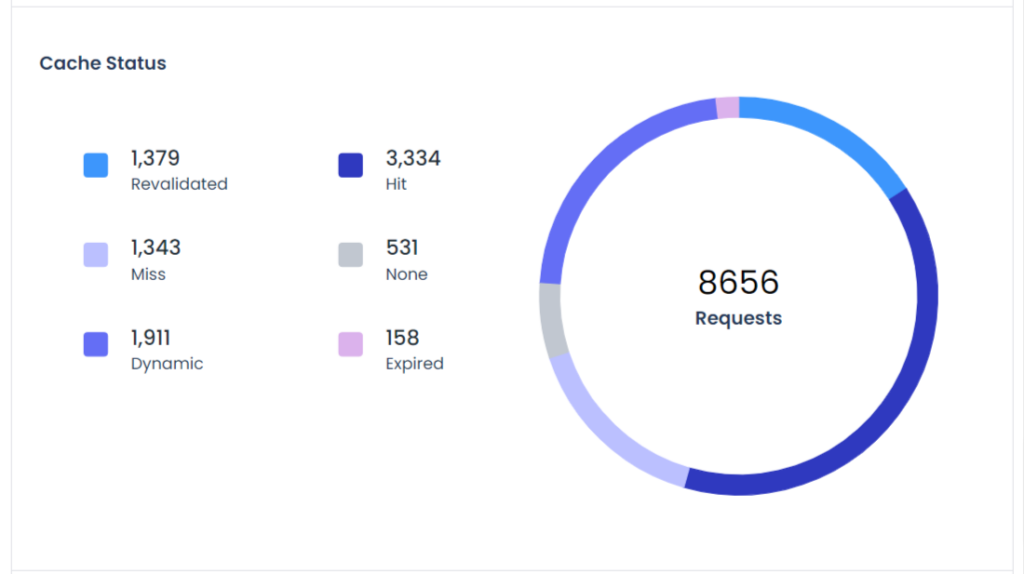
This page contains more data; when you dig deeper into it, you can use the information to optimize your website better.
Install Caching Plugin
Activating the WP Rocket cache plugin has the most significant impact and makes a BIG difference in the before-and-after page speed optimization.
There are reasons I use WP Rocket, one of which is its simplicity and ease of use. The plugin does not require complex configuration. Most of its settings are in a checkbox; set it, and you’re done.
Another reason I prefer WP Rocket is that it eliminates installing multiple performance optimization WordPress plugins. Instead of having three to four plugins for different optimization tasks, you can have a single plugin that does it all and is even more efficient.
For example, WP Rocket now has WordPress database cleanup features, a standalone feature in WP-Optimize.
This feature automates the cleanup of junk files in your site database, such as spam comments, transients, WordPress revisions, trashed posts, etc.
WP Rocket’s file optimization function also allows you to uninstall Autoptimize. It can be used to minify CSS and JavaScript files, optimize CSS delivery, load JS deferred, and delay JS execution.
For these reasons, I only need one plugin to handle many WordPress performance and speed optimization tasks.
I shared a detailed firsthand experience of the plugin in my WP Rocket review post. Please read it for more helpful information on why you need the plugin if you have a WordPress blog.
The WP Rocket Settings I Use
I have the following WP Rocket settings turned on for this very blog:
- Cache – Turned on by default.
- File Optimization – Minify CSS & JS files, Optimize CSS delivery (Removed Unused CSS), load JS Deferred, Delay JS execution, and I excluded a few files from the execution list.
- Media – Lazyload for Images and iFrame, replace YouTube iframe with a preview image, and add missing image dimension.
- Preload Cache – Preloading and link preloading are turned on.
- Database Clean up – All fields checked.
- Control Heartbeat – I turned it on but set it to reduce activities on the backend, post editor, and front end.
Check out my comprehensive review of the best WP Rocket settings for a more detailed guide and explanation of why each is essential.
Reduce Plugin Usage
Since I have WP Rocket installed and activated, I uninstalled other optimization plugins and looked for more ways to bring the total number to the barest minimum.
I ensure that only the plugins needed are left on the blog.
As of when this line is written, I have 15 plugins active on the blog. I can reduce this number to 12 if I want to, but I prefer having some functions for visually appealing purposes only.

Here is what I do to bring this number to 15 plugins.
Initially, I was using an Ad Inserter plugin to inject custom content into specific parts or sections of the blog. At the same time, I have the WPCode Lite plugin, which is mainly for inserting scripts into the header/footer and other parts of the website.
I removed one of these plugins and now have only one. I opt to uninstall Ad Inserter because, primarily, the plugin is more useful for blogs that run contextual advertising, which I don’t do here.
Another thing I did was uninstall the social sharing plugin and replace it with the JetPack social sharing button.
You may argue that JetPack lacks features in other standalone WordPress Social Share plugins. I agree, but I’m more concerned about performance than bells and whistles.
Removing the extra plugin didn’t magically boost performance, but it did help with the overall optimization efforts.
For example, after adding the Hubbub social share plugin (Formerly Grow Social By Mediavine), the home page size increased from 351kb to 352kb, and the fully loaded time from 358ms to 371ms.
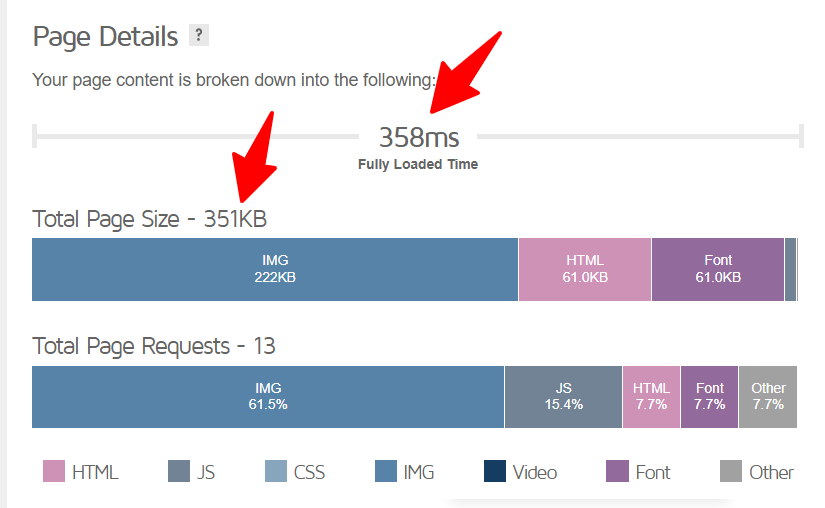
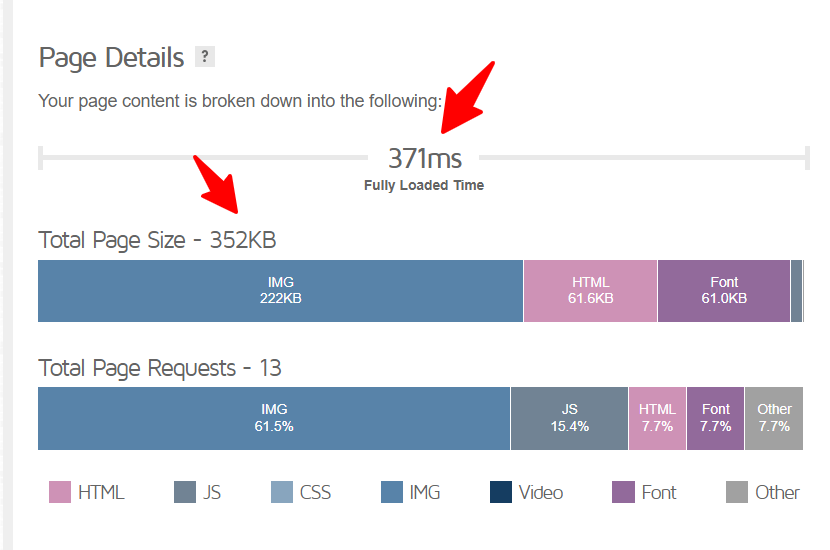
Definitely, users won’t notice a performance decrease, but I’m after squeezing every kb and ms I could get.
Every kilobyte and millisecond counts when boosting page speed and passing core web vitals to improve website performance.
Switching to Optimized WordPress Themes
Lastly, I switched to a more optimized WordPress theme.
I have written about my experience with Astra and Kadence several times on this blog. It is worth discussing again in this post.
Astra is a very lightweight (50kb), fast, and SEO-optimized theme, but the previous version I used had this particular issue I couldn’t understand.
The theme contributes to a bad CLS score in PSI. I tried to solve this issue, but the more I tried, the clearer it became that I couldn’t.
Note:
I have reverted to the Astra Pro theme and fixed the CLS issue. Check how fast this loads in PSI and other testing tools.
Then, my instinct tells me to try Kadence.

After activating the KadenceWP theme on the blog, I tested several pages in PSI, and the CLS score was 0, which is the perfect score any website can achieve.
So, I stick with Kadence WP; it has been a fantastic experience since then.
Both themes are perfect and can claim to be the best WordPress themes. Choosing between Astra and Kadence is challenging, so you must test which works for your site.
One thing to know here is that WordPress themes can contribute to a site’s performance, primarily if the theme is poorly coded and adds a lot of bloat.
So use a highly optimized WordPress theme like Astra, KadenceWP, or GeneratePress.
Conclusion
Sometimes, what you need to do to boost page speed, pass Core Web Vitals, and improve user experience isn’t complicated or technical.
With a good web host and optimized server, well-coded plugins, and themes, even a beginner can have a fast-loading website.
From all of these, I advise against relying on freemium tools if you want to improve website performance quickly.
Freemium tools are good but lack advanced features, customization, and control you might need for performance optimization.
Premium tools give you access to more advanced options, customization, and features that help you fix and troubleshoot WordPress websites.
Plus, paid tools are more supported, regularly updated, and maintained, and new features are added regularly.

This is a fantastic guide, Adeshokan! I especially appreciate the breakdown of the steps you took to optimize your website’s speed.
One thing I’d love to hear more about is your experience with Cloudflare Enterprise. Have you noticed a significant improvement in website security since enabling it?
Also, for readers on a tight budget, do you have any recommendations for free or freemium caching plugins as an alternative to WP Rocket?
Thanks for sharing your valuable insights!
Hi, Jon,
Thanks for the question.
Cloudways utilizes Cloudflare web security features, which I assume is one of the top and most advanced web security technology today. Cloudflare filtered traffic before they hit my server, so bots and hackers are stopped at their tracks.
Cloudways has a free caching plugin (Breeze) for WordPress. It work with any web host that allows caching plugin.
Hello and thank you for your well written post. I am wondering how practical are these if one is hosted on a shared server? I happen to be on one and the restrictions are too many. I am not even sure they allow these on their servers!
Page speed is very important factor in SEO and User experience.
Excellent breakdown of real-world strategies! Page speed and Core Web Vitals are crucial — this guide is a goldmine. 🚀
Glad you like it.
Thanks Umar, glad you liked it.