

Just as the human body requires maintenance to refresh, operate efficiently, and protect against many risk factors. Your websites also demand regular and ongoing maintenance tasks.
As technology advances and the digital landscape changes rapidly, you must regularly review your website performance, security features, and functions.
This is why, in today’s post, we will discuss several WordPress maintenance checklists to help you maintain a healthy website.
Reviewing your website’s health, security, and performance status is critical to running a successful online business. However, it does not need your full-time attention.
Why is Website Maintenance Important in WordPress?
Think of your website as a car. Its durability depends on how you use and maintain it.
If you regularly check and change oil, service plugs, check and change tires, lights, etc., The longer the car will serve you in good condition. On the other hand, if you neglect maintenance but keep driving the vehicle, performance issues pile up. They pile up to the extent that the car suddenly breaks down.
The WordPress ecosystem is constantly evolving. Updates happen several times yearly. The same goes for the products and services you use to build and manage your website. These include plugins, themes, scripts, etc.
You keep publishing content. You keep changing designs. You keep adding and deleting plugins. You also keep adding scripts. As a result, your website database grows in size and data.
Considering all this stuff and extra third-party codes that go into your site, there is a big chance your website security, health, and performance are at risk. This happens if you fail to check and keep a regular website maintenance culture.
Website maintenance is essential to improving search engine visibility and user experience. It ensures plugins and theme compatibility. It prevents WordPress downtime and potential security vulnerabilities. It also optimizes performance, etc.
While the WordPress maintenance checklist on this list looks like a bit of work, you can automate many tasks. In the other part of this post, I will show you a few ways to make things as easy as possible.
Before we review the best practices for maintaining WordPress sites, let’s quickly unravel the confusion. How often is it ideal to keep your WordPress site in top shape?
How Often Should You Perform WordPress Maintenance?
The size of your site is a significant factor to consider. The more content, plugins, resources, and database sizes your WordPress website has. The more often you want to check or do maintenance.
Also, the WordPress maintenance schedule will vary from solo entrepreneurs, small businesses, and web development agencies to large-scale companies.
For solo entrepreneurs and small businesses, consider maintaining a monthly maintenance schedule for the entire website.
Weekly or daily website maintenance checkups are ideal for agencies and large business’s websites.
However, some tasks, like plugins, themes, WordPress core, and script updates, need ongoing maintenance reviews.
Most blogs have several plugins and codes developed by different coders. As a result, one or more plugins, themes, or code updates be required on any given day.
However, you can consider monthly routine checks for tasks related to speed optimization, core web vitals, and WordPress database cleanup.
Let’s look at some of the best WordPress maintenance tips for a healthy, secure, and optimized WordPress website.
1. Always Backup Your Site
Several events can lead to data loss, content, and files on a website. There are many possibilities, from bad codes and accidental deletion to security vulnerabilities and hacking.
You can never tell when unforeseen events might cause users to lose access to your site or make it unavailable.
Whatever the case, having a backup with the most recent website changes can reduce the effect of loss. It can also help you recover in time.
For e-commerce and several membership websites, having a recent daily backup isn’t enough. You need a minutes-to-minute backup mechanism. This backup system guarantees storage each time new data is added or made to the site.
Several web hosts offer automatic daily backups for individuals, small businesses, and even large-scale businesses that publish content daily.
Cloudways automatically run daily website backups on schedules, which you can restore anytime. The good thing about Cloudways backup is that you don’t need to do anything. The backup runs daily.
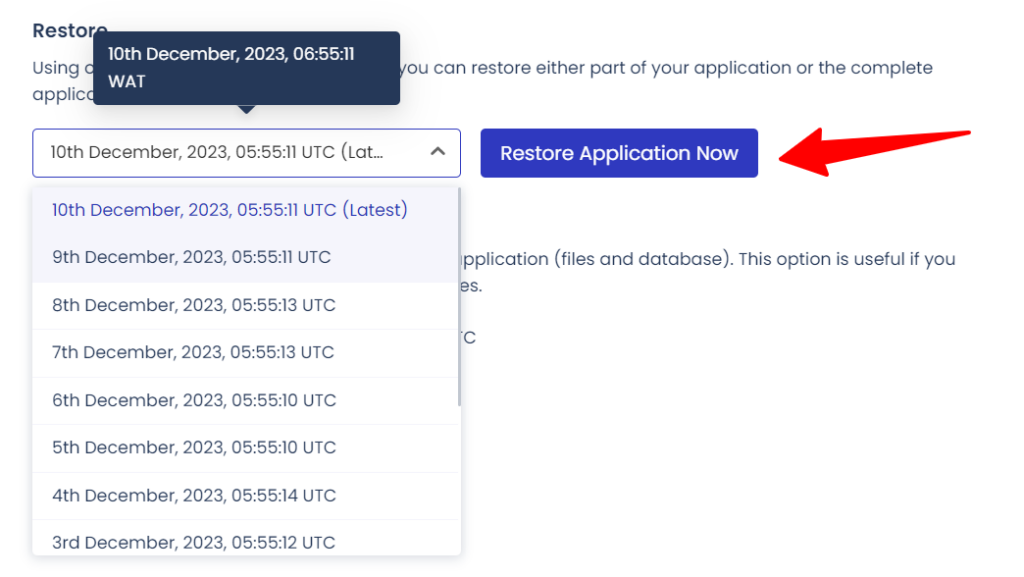
Another solid WordPress website backup option is the Jetpack VaultPress Backup plugin.
It automatically backs up every change you make to your WordPress sites in real-time to a cloud server.
When you approve a comment, publish a post, update content, change widgets, or have a customer place an order, the plugins keep a copy of your site’s changes on a remote server. This allows you to restore it in one click from anywhere. You can restore it on any device and even on a mobile app.
In addition, you can access the Activity log, allowing you to review the exact event or activity before the incidents.
However, you need a paid JetPack plan with a backup feature to enable this function.
2. Check Site Health Status
Starting from WordPress version 5.2, the Site Health Diagnosis tool has been one of the core features.
WordPress website admins can check the site’s health, performance, and security status from the WordPress dashboard.
It gives you overall site health indicators in green, yellow, and red circles.
Green indicates your site health is good. Yellow means it requires your attention but might not be serious. Red indicates severe and urgent attention is needed. Otherwise, your site health, security, or performance is at risk.

The Site Health Status tab lists items that require attention and labels them as Critical, Recommended, and Passed Tests. What you see in your site health status tab depends on your overall site health.
It categorized the issue based on their website functions or features.
Click the Passed Tests dropdown arrow button to see items that do not require attention and have no issues.
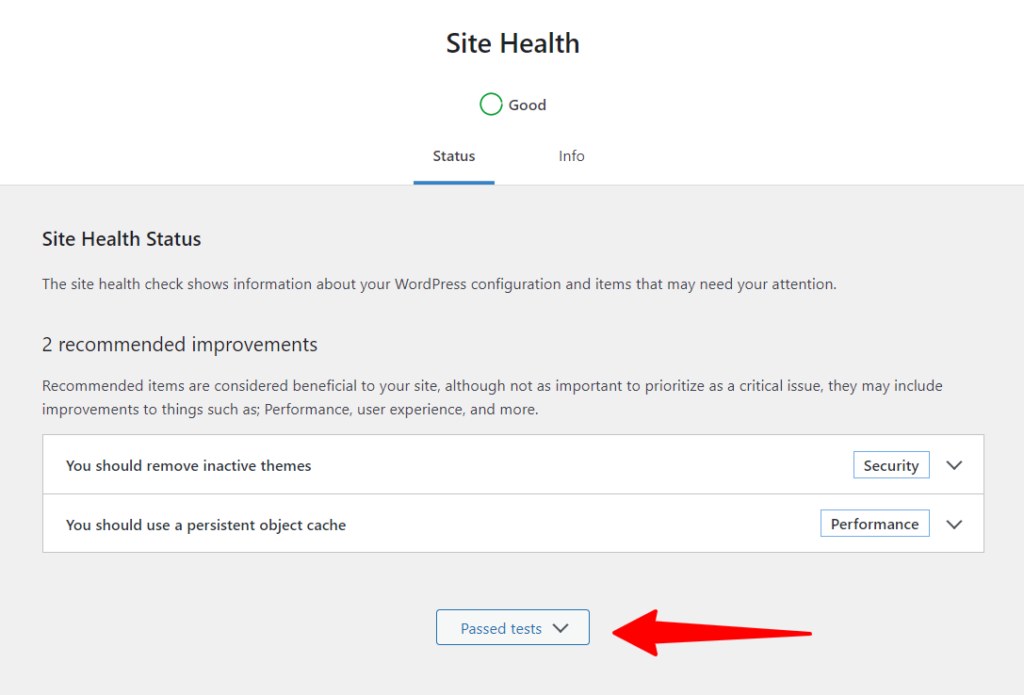
Click the Site Health Info tab to investigate the site’s health information.
This tab contains several expandable lists of items for your review, with more information about each item.
For example, suppose you need to view which PHP version your site is running. You also want to know the host server information, WordPress version, and data or information about your database. In that case, you can view this information and more in the Site Health Info tab.
Understanding your database setup is crucial for seamless integration with other tools. Automating database change management for CI/CD integration ensures that your development and deployment processes remain efficient and error-free. This process streamlines your workflow. It also enhances overall site performance.
Use the Copy Site Info to Clipboard button. You can email or send site health information to your developer or someone else.
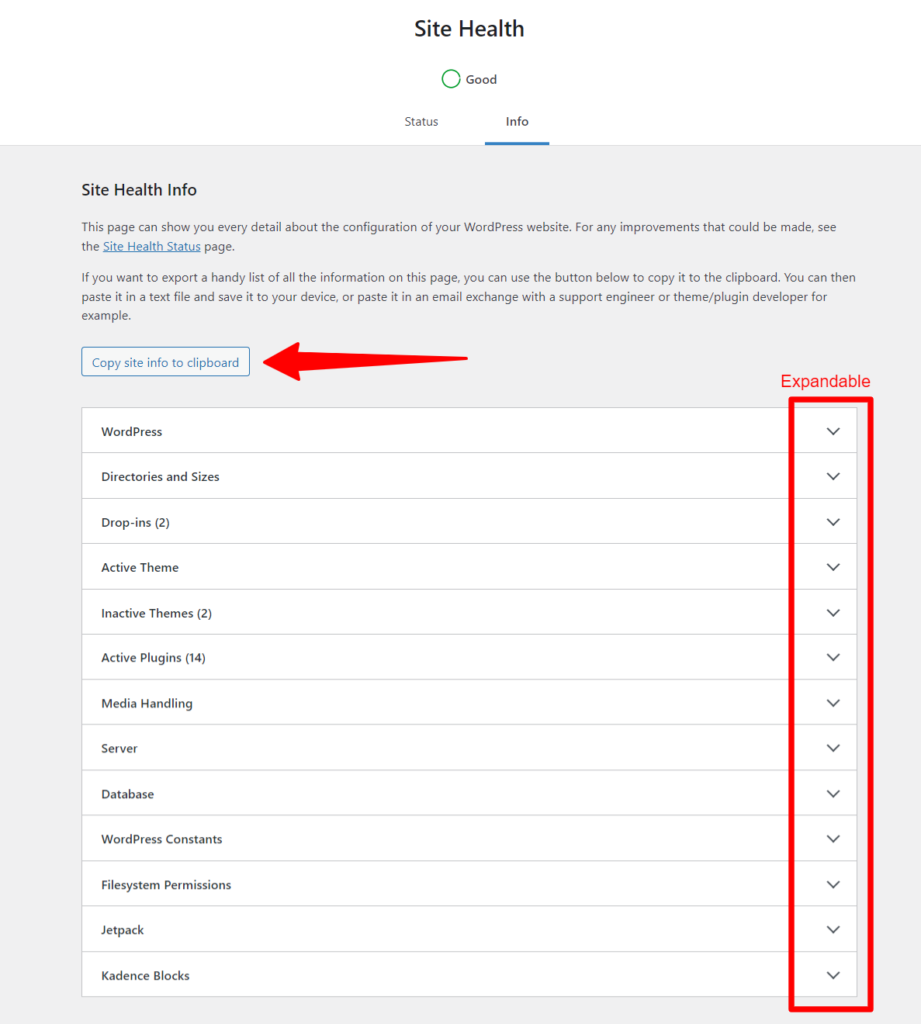
Going through the Site Info tab leads us to another crucial checklist for WordPress site maintenance.
3. Update PHP Version
An outdated PHP version significantly risks a website’s security, performance, and health. It will also affect your site functionality, making it challenging for some features to perform optimally.
Currently, the stable version of PHP is 8.2, and the minimum version of PHP for WordPress installation is 7.4.
However, ensuring your website uses the latest stable PHP version is always the best practice.
This has many benefits. These include security, advanced and latest WordPress features, WordPress compatibility, bug fixes, enhanced website performance, and hosting stability.
If you’re unsure which PHP version is on your site, check the Site Health Info tab. Scroll to the Server section in the list and expand the view to reveal more information.

If your website has anything below 8.1, you need to contact your web host. Your web host can update the PHP version for you. If you are using a website host like Cloudways, you can do it yourself without contacting technical departments.
Log into your Cloudways account, go to the Dashboard, and select the Server whose PHP version you need to update. Then, click Settings and Packages from the menu list.
Next, click Package from the top navigation menu.
In the PHP module, click the modify dropdown button and select which PHP version you want to upgrade. Note: You can downgrade or upgrade at any time.
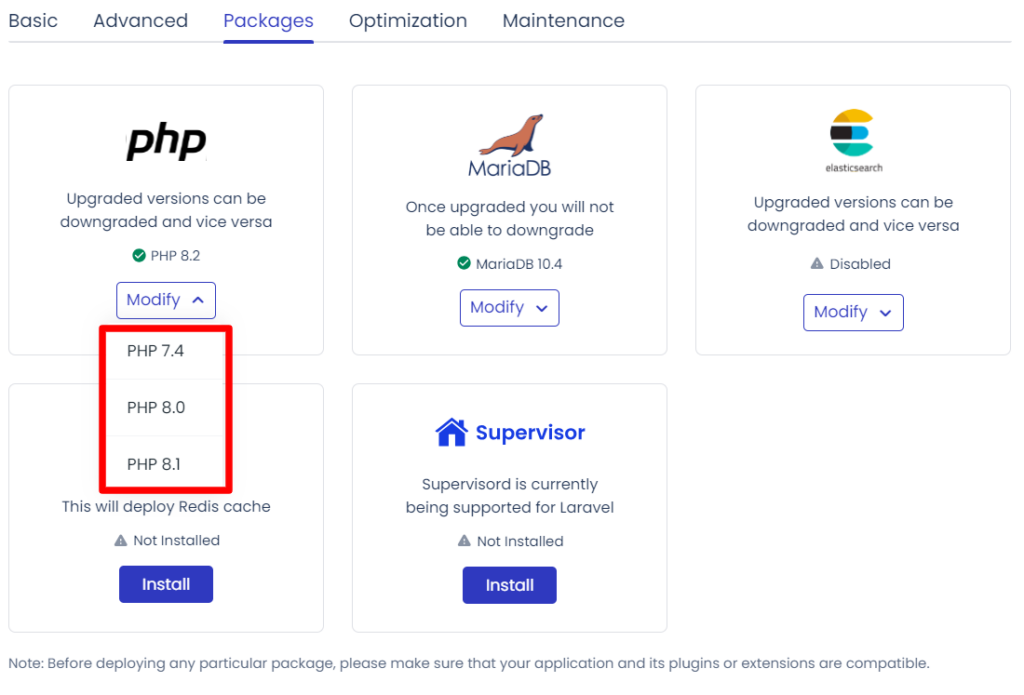
Unlike WordPress Core installation software, the PHP version does not automatically update to its latest version. So, you must keep this task on your WordPress maintenance checklist to-do list.
Also, since PHP doesn’t receive updates as often as WordPress software, plugins, or themes, you can safely put this task on your yearly proactive strategies list. This is for WordPress maintenance.
4. Schedule Monthly SEO Site Audits
This sounds like SEO advice. Well, it turns out that some SEO issues are part of a website maintenance routine check.
For example, slow website pages, broken links, and empty image alt tags. Titles that are too long, missing meta descriptions, and server downtime also contribute. These are SEO and performance tasks you need to check often.
SEO tools like Semrush, Ahrefs, and SEO PowerSuite run automatic sitewide audits. They provide deep insights into on-page technical issues. These issues might affect website performance, usability, and search engine rankings.
The schedule reports are automatically emailed to you. Mainly, issues are categorized as warnings, errors, and notices.
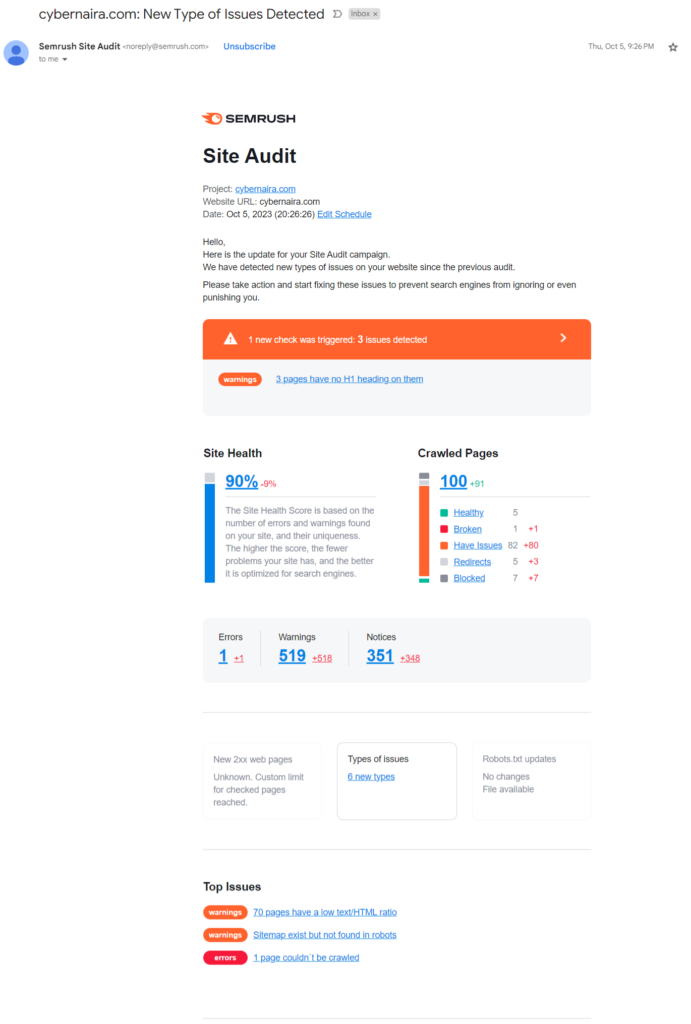
You can review the list of issues at your convenience. Check affected URLs. Read the SEO recommendations and fixes and see what you can make out of them.
A monthly checkup for this website maintenance checklist is a good practice.
5. Delete Inactive Themes and Plugins.
Plugins and themes not in use or active should be deleted from the website. There is an exception to this; the default WordPress theme should be excluded.
WordPress uses the default theme as a backup in case something unexpected happens to the active theme.
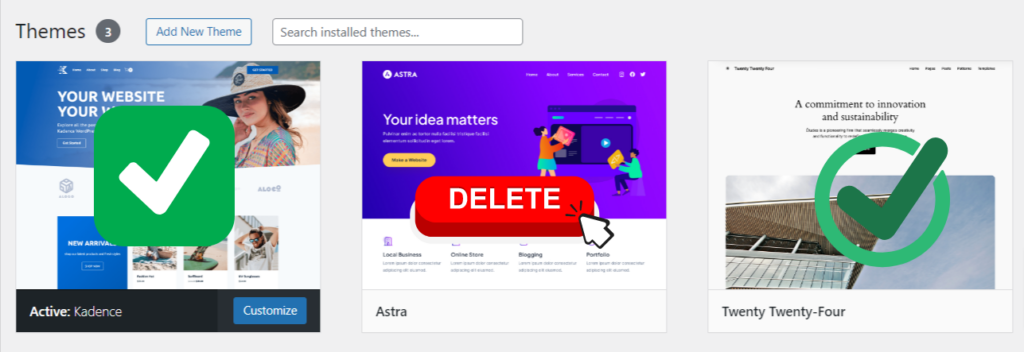
Aside from this, every other item you’re not using should be deactivated and uninstalled from the blog.
This has positive impacts on both the security and performance of your website.
It keeps your site safe from hackers who exploit loopholes and backdoors to gain access. It also reduces the number of redundant or stale data in your website database and its overall size.
In addition, if a plugin is only needed for one-time or monthly routine tasks, you can safely uninstall it after performing the task. Such tasks include database optimization, broken link finders, and things like this.
The thing is that you don’t keep a plugin or theme on your site unless it is required.
6. Optimize WordPress Database
An unoptimized WordPress database can slow down performance. It can create security risks and bloat. It can make the database as big as the head of an Elephant.
The database stores several website data, including comments, trash posts/pages, post revisions, transients, spam and unapproved comments, trackbacks, pingbacks, etc.
As time passes, your website grows in content, codes, and files. The size of this database will increase if left unclean.
You must perform periodic WordPress database maintenance cleanup. This helps remove bloat caused by old plugins’ leftover data, tables, trash, post revisions, spam comments, etc.
You don’t need to do all these tasks manually; several WordPress database optimization plugins automate the entire process. Some popular options include WP-Optimize, WP-Sweeps, and WP Rocket.
Check this post to learn more about WordPress database optimization.
7. Fix Broken Links
Broken links are bad for both onsite user experience and search engine bots.
Users find it annoying to click through to a URL only to see the 404 not found page. Search engine bots waste resources crawling URLs that are no longer available.
This can negatively impact both user experience and search engine rankings.
Depending on the size of your site and the number of articles, you can manually look for broken links. This task is not only time-consuming but also error-prone. You can miss a few links that are no longer live. Alternatively, you may delete a live link for a dead one.
So, instead of a manual review, use a dedicated plugin like the Broken Link Checker by the WPMU Dev team.
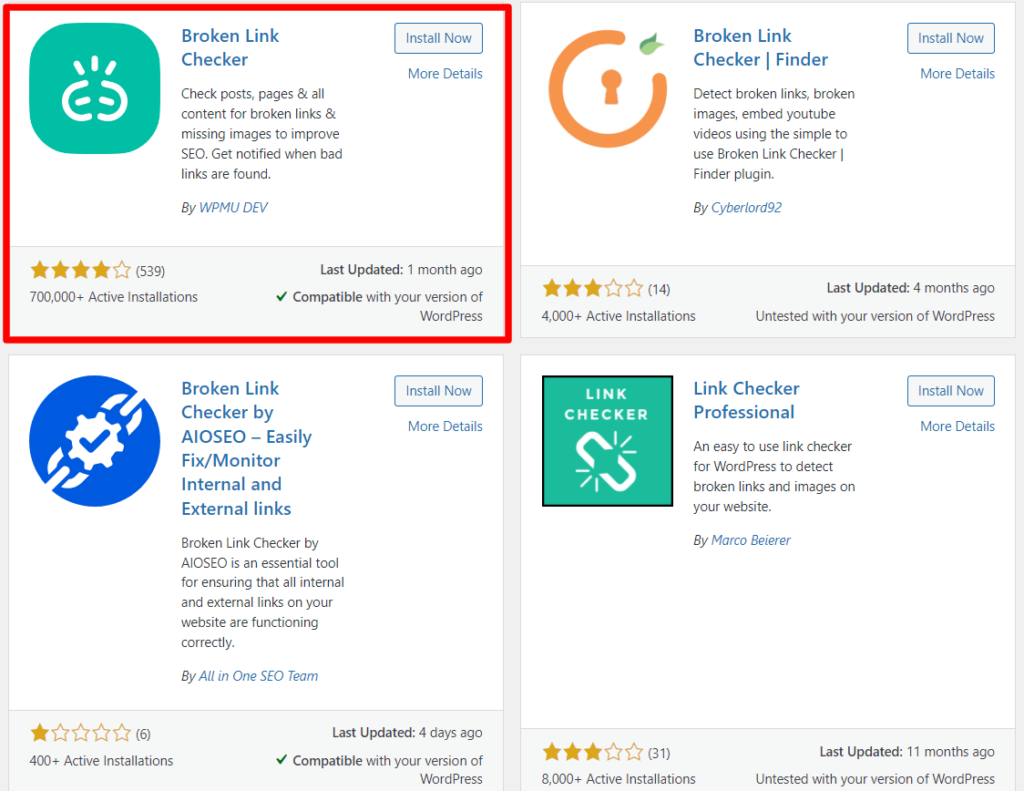
This plugin has been regularly maintained for a long time. It works for what it is made to do. It finds broken or dead links on your site as well as internal or outgoing links.
Finding and fixing broken links on your site can be a periodic maintenance check for WordPress sites. Depending on your content size and how often you update content, you can do it monthly or quarterly.
It is time to look into your content strategies. This is important if you see yourself getting broken link notifications daily or weekly. You also see 404 not-found error notifications. This could be an indication you’re doing something wrong.
8. Keep Your Site Up to Date
Keeping your WordPress version, plugins, and themes up to date is crucial to maintaining a healthy WordPress site.
It enhances site performance and security. An up-to-date website can also improve loading time, resolve Core Web Vital issues, clean up codes, and more.
Since version 5.6, WordPress has provided automatic updates for its major and minor releases. You can check if your WordPress site automatically updates upon version releases.
Go to WordPress> dashboard> updates.
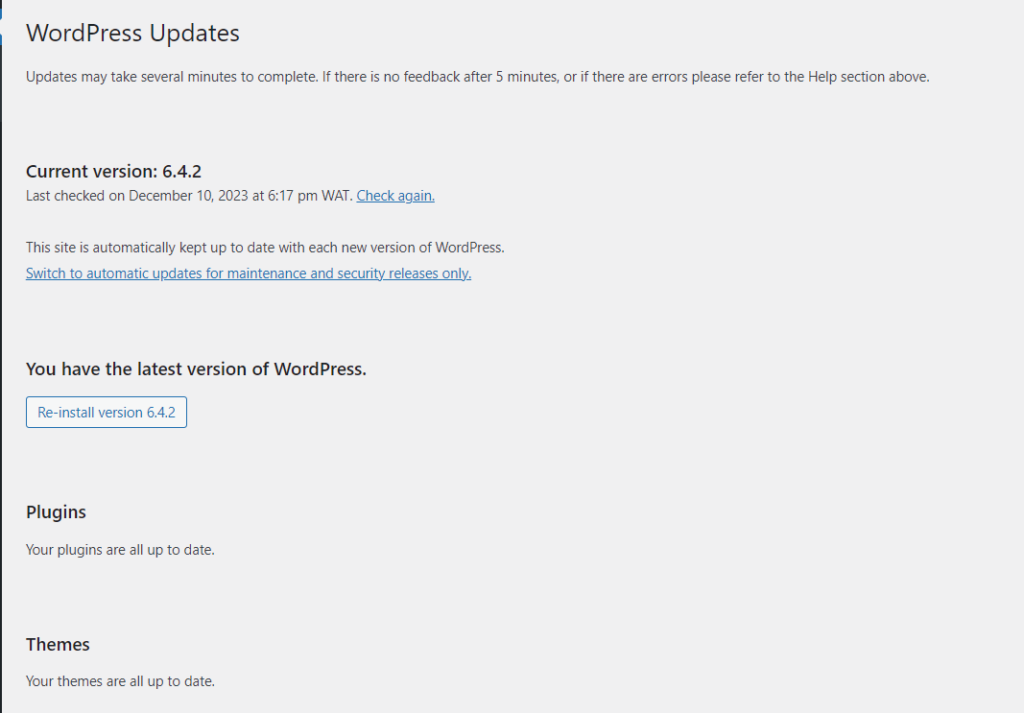
You can also manually update your WordPress core software, including plugins and themes, as soon as new updates are available. However, this might lead to updating the latest version lately.
Managed WordPress host automatically updates WordPress core, plugins, and themes. Automatic updates are part of the services offered by most managed WordPress hosting.
So, you don’t need to worry about keeping your site – WordPress, plugins, and themes – up to date.
This is a WordPress performance routine check and can happen daily or weekly, depending on update frequency.
9. Browse Through Your Site Frontend.
Sometimes, looking through your site as a user reveals several features or functions that require maintenance or urgent fixes.
Some features to test on your site include web forms, buttons, and call-to-action elements (CTA). It is also important to test external links (especially affiliate links), carts, and payment buttons (for e-commerce sites).
You can easily do this from a Chrome web browser.
Create another Gmail user profile or browse as a guest. Then, visit your site and examine it from a user’s perspective—explore key pages and frontend elements.
You will be surprised to see some key features that are not working as expected. This exercise should be part of your weekly WordPress maintenance checklist.
How to Reduce WordPress Maintenance Task
If you try doing all this stuff manually, you could spend a lot of time. It would also take a lot of effort and energy. This could become stressful. But sustaining a high-performance WordPress site through maintenance doesn’t have to be stressful and cause you endless sleepless nights.
Here are some things you can do to automate most of the process to regain your time and sanity.
1. Use Automation Tools.
I have briefly covered this aspect in this post, but it is worth repeating.
In today’s technological world, the more you can automate several business tasks and processes, the more efficient you are and ahead of the competition.
Many tools and services help you automate or run scheduled WordPress maintenance tasks. I have mentioned a few above, but the list is still endless.
Here are some popular tools.
- WP-Optimize – for database optimization.
- WP Rocket – files, codes, cache, image, and database optimization.
- Akismet – Fight spam comments and protect web forms from spammers.
- NitroPack – Advanced website performance and speed optimization solution.
- Broken Link Checker – Automatically find broken links on your website.
- Uptime Robot – Automatically notify you if the WordPress server is down, the SSL certificate and domain are about to expire, cron jobs, etc.
2. Use Managed WordPress Hosting.
Managed WordPress hosting will save you many hours, energy, and effort in updating plugins, themes, and the WordPress core software.
A few web hosts take this service to the next level. They handle some technical website performance issues. They also provide WordPress maintenance troubleshooting guides.
You can benefit significantly from hosting your site with a managed web host.
A well-managed web host will alleviate server-side maintenance tasks. These tasks include regular backups, site scans, security, and updates. This allows you to focus more on growing your business. Also, cache and image optimization features are built-in with some web hosts, such as Cloudways, WP Engine, and Hostinger.
Here are some top web hosts if you need managed WordPress hosting recommendations.
3. Create a Checklist for Your WordPress Site Health
Like a to-do list or a reminder, you should create WordPress maintenance checklists. These checklists will guide you on the required tasks. They will also indicate when the tasks are due.
This will make it easy to review the task, the due date, and in what priority or order of importance.
You must keep a consistent WordPress health check procedure for your list. It could be the last day of the week, the beginning of the month, or the last Friday of the month. Whatever it is, consistency is vital.
Conclusion
WordPress maintenance checklists are an essential aspect of managing an online business. Though every business is unique, the steps to follow in a WordPress maintenance routine will vary from website to website.
Take this list of safety tips for WordPress maintenance as a starting point. Modify them as you discover what works for your website type. You should find a routine or frequency that aligns with your time and busy schedule.
Remember, automation is a critical component of reducing WordPress maintenance tasks. You should invest more in tools and services that automatically help you perform maintenance activities.



Notice:
Your comment will end up in the trash folder if you spam our comment box. Use your real name, write meaningful and genuine comments. Avoid using keywords or brand name in the name filed and keep your comment relevant to the topic. Thank you.