

The Astra theme header builder customizer lets you use a solid or transparent header in your website design. The transparent header option offers a unique, beautiful design that enhances your website experience.
However, there are situations where you might prefer the solid header for visibility, branding, and improving user experience.
If you’ve been trying to disable the transparent header in the Astra theme but haven’t figured it out, this article provides a step-by-step guide to fix it.
Follow the instructions below to turn off the Astra theme’s transparent header sitewide or on specific posts, or get a troubleshooting guide if the problem persists.
Without further delay, let’s jump into the tutorial.
How Astra Theme Transparent Header Works
First, knowing how transparent headers work with the Astra theme is essential. This will help you decide whether to disable it or leave it as is. You might even want to customize its appearance rather than turn it off completely.
When active, the transparent header sets your site’s primary header background to transparent. It will move the above-the-fold content a bit up the page. This might merge the primary header and content, causing them to overlap.
In essence, the top part of the page content will overlap with the primary header and become part of its background. Since the primary header background is transparent, this overlapping will not affect the website design or main header color and content.
Here is a video that describes the flow in detail.
Adding a Transparent Header in the Astra Theme
Adding a transparent header to your website with the Astra theme is easy. You don’t need any technical skills to do it.
Follow the step guide below to turn off the transparent header in the Astra theme.
Disable Transparent Header Sitewide
Ensure you’re using the latest version of the Astra theme, as earlier versions before Astra 1.6.0 required Astra Pro to enable the transparent header option.
However, since Astra version 1.6.0, the transparent header feature has been available in the free Astra theme.
Go to Appearance>Theme>Customize>Header Builder> and click Transparent Header under the Header Type section.
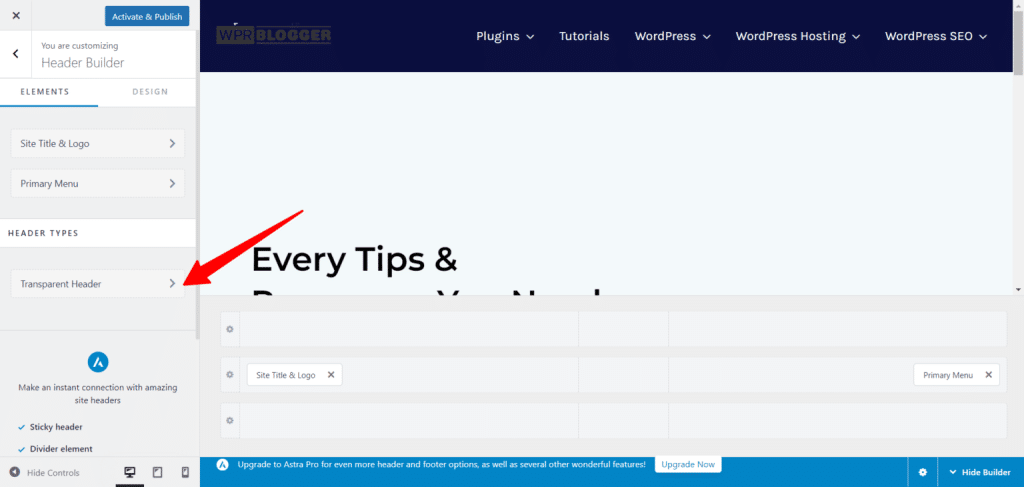
You must click Enable on the Complete Website to open more customization options.
Once enabled, you will see additional options to customize the transparent header’s visibility, device type, select different logos for the transparent header or for retina devices, and adjust the logo width.
You can:
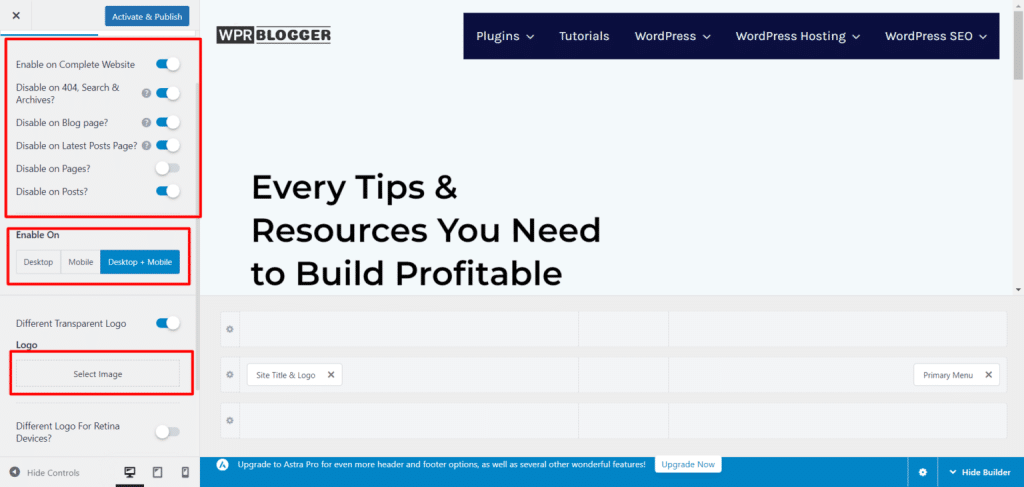
The Design Tab allows you to customize its appearance, such as color, background overlay, site title, menu color, social, account, etc.
To add a transparent logo, click the “Select Image” button to open the WordPress media library. Choose your logo from the library, then click “Choose Image” to upload it.
Remember to customize the logo to fit your website design and click the Publish button when you’re done. From now on, your transparent logo should be visible to website visitors.
Disable Transparent Header on Specific Pages/Posts
Sometimes, you might need to disable the transparent header on specific posts or page post types. If this is the case, follow the instructions below.
Instead of switching off the toggle button that says “Enable on Complete Website, review the option on the page and toggle off the option you don’t need.
For example, if you don’t want the transparent header on all posts, deactivate it by toggling the corresponding button off.

This will remove the transparent header effect on all blog post types, but it will remain active on all other pages of your website. You can do this for each post or page, but you don’t want the effect to be active.
Additionally, the Astra theme allows you to choose which device types to display, or to remove transparent headers for visitors.
In the image above, the “Enable On” option lets you choose between Desktop, Mobile, or Desktop + Mobile views for the transparent header.
This means you can have a different logo for desktop traffic and another for mobile traffic, or use a single, unique header logo for both users.
In summary, these options are available on the transparent header customizer General settings page- as per Astra 4.6.12.
This is just one of the Astra theme’s beauty and customization capabilities.
Now, the options above let us remove the transparent header on a post or page, but what if you want to disable it on a particular page or post?
In such a case, open the individual page or post you want to disable the transparent header on. Open it in the Gutenberg editor, and click the Astra Theme Page Meta setting icon at the top of the page. Then click the Advanced Settings “three dots in the side panel.
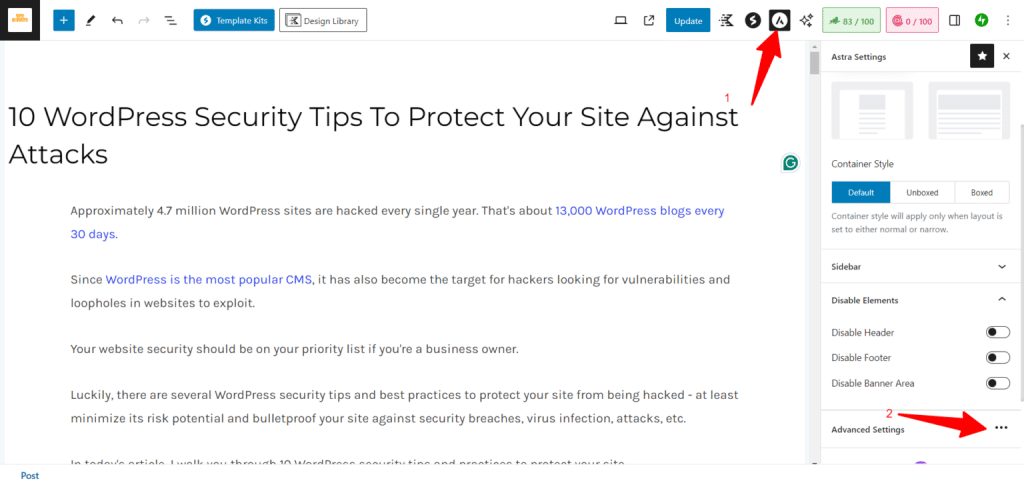
This action opens a pop-up window where you can disable page design elements, such as the Footer, Header, and Transparent Header.
Click “Disabled,” as shown in the image below, to remove the Transparent Header effect on that particular post or page on your website. This will not remove the transparent header from other pages, but only from this post/page.
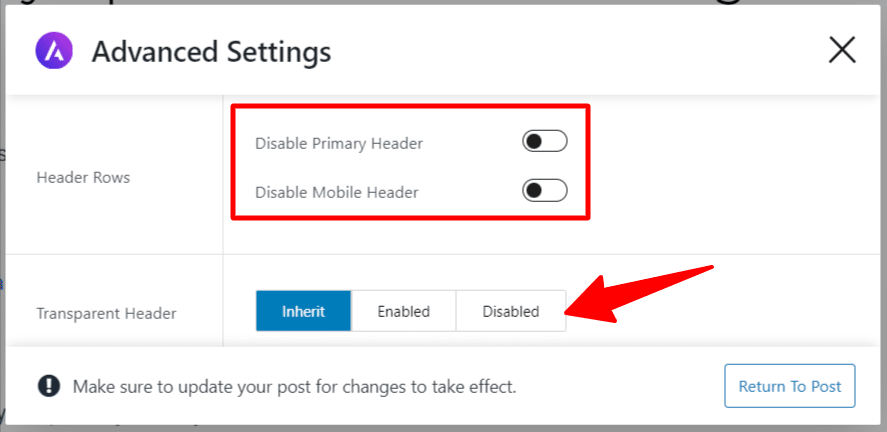
Within this Astra Theme Advanced Setting panel, you can disable the Primary header and Footer for individual pages or posts. You can see the option in the red rectangle in the above image.
Once you’re done, update the post/page on your website to reflect the changes.
Note:
The Astra Theme Meta setting overrides the customizer option. So, if you customize an individual page or post via the Meta setting page, the setting supersedes the customizer settings.
Transparent Header Still Showing? Troubleshooting Tips.
You might still see it in rare scenarios, even after removing the transparent header from your website or post/page. And some users might still be seeing the transparent effect, too.
Several factors might be responsible for this error; here, I will share some troubleshooting guides you can try.
I hope this troubleshooting guide helps you disable the transparent header effects in the Astra theme.
However, if everything you’ve read so far does not work for you, it’s time to contact the Astra support team for further guidance.
Conclusion.
Following the steps and troubleshooting guides described in this post, you should be able to disable the Astra theme transparent header, both sitewide and on individual posts/pages. The tips also include customization options for the transparent header in the Astra theme, which should help you create a beautiful website logo.
Astra is a popular WordPress theme known for its ease of use, speed, performance, and powerful customization possibilities. You can use Astra for personal blogs, eCommerce websites, real estate, health and wellness, finance, SaaS, technology, and affiliate marketing, among other use cases.
It is a versatile, multi-purpose WordPress theme with several add-on plugins, such as Spectra, Astra Pro, and Ultimate add-ons for Elementor and Beaver Builder, Convert Pro, Schema Pro, and Starter templates to help design a unique website.
You can check my Astra review to learn more about its capabilities, or read my unbiased Kadence theme vs. Astra review. This will help you make intelligent decisions based on data and real user reviews.



Notice:
Your comment will end up in the trash folder if you spam our comment box. Use your real name, write meaningful and genuine comments. Avoid using keywords or brand name in the name filed and keep your comment relevant to the topic. Thank you.